

Break away from rigid grids. Showcase portraits and landscapes in a beautiful, cascading masonry layout with Divi Masonry Gallery. Featuring 60+ hover effects and advanced category filtering to keep your portfolio organized and engaging.
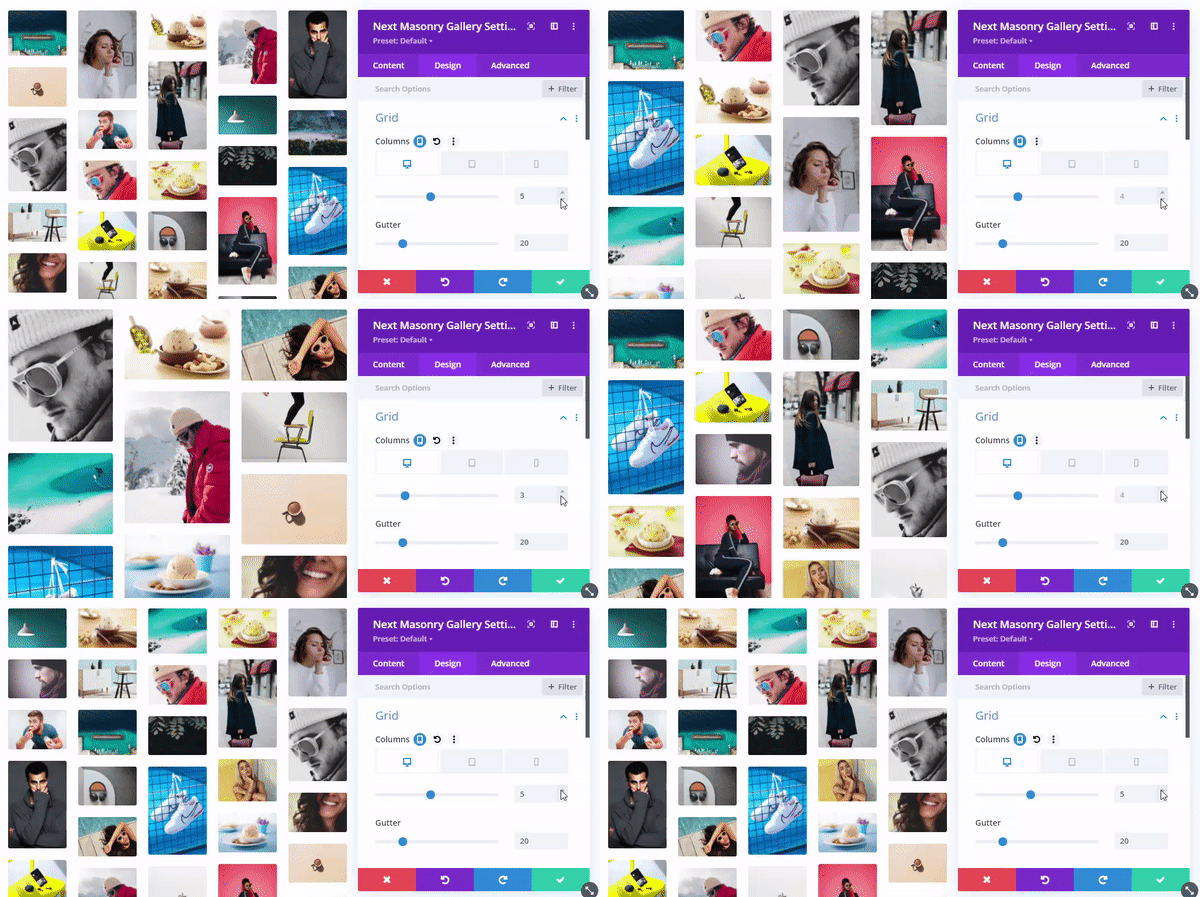
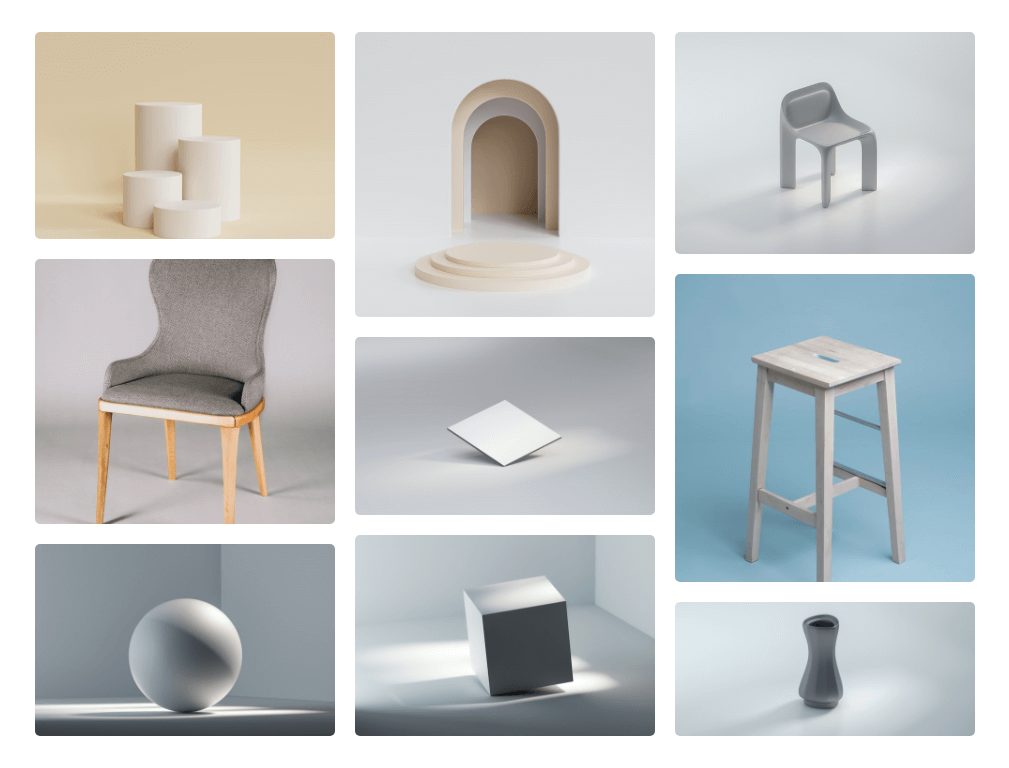
Divi Masonry Gallery preserves original aspect ratios and delivers 8 unique filter layouts for an organic, bounce-reducing visual flow.
Once you’ve uploaded enough images, select the number of columns very easily within the Grid toggle. You can do that just by using the slider for the number of columns! It is that simple!
Filtering Bar With Masonry Gallery
For users who want to add filtered categories, here are some extra features that allow you to enable or disable the Filtering Bar and Caption. You can choose to add multiple categorized image grids. This will come in handy when you wish to add more image content within your Masonry Gallery.
- All
- Product
- Table
- Chair
- Other


60+ Awesome HoverEffects
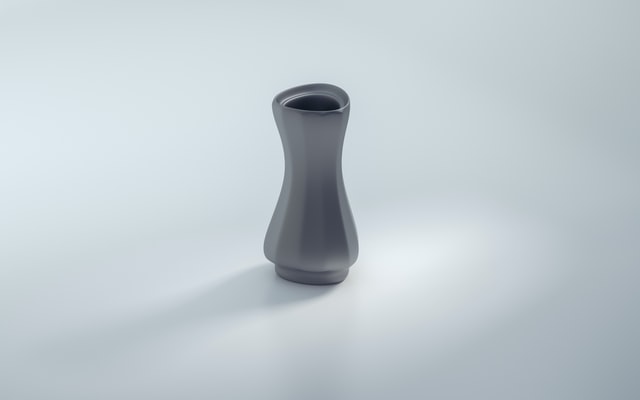
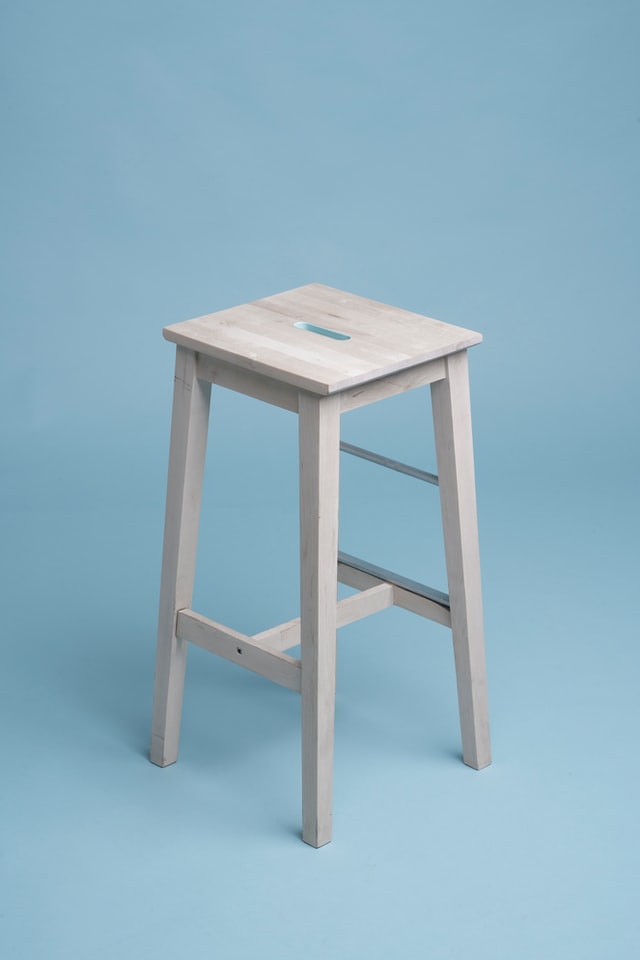
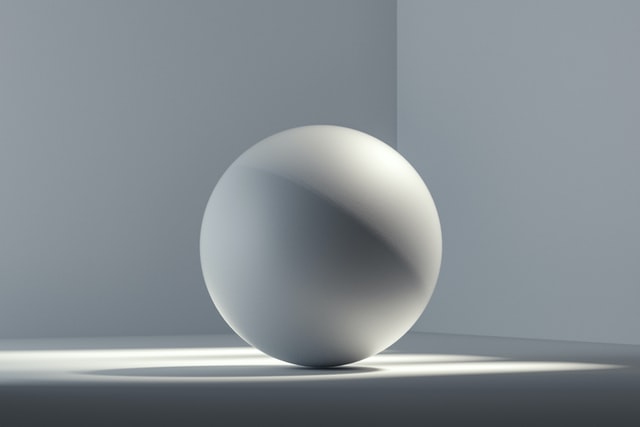
Masonry Gallery comes with awesome Hover Effects! Pick the best one from the hover overlays which Push Up and go all the way to Flash Bottom Right.
Responsive Design Compatible to Any Device
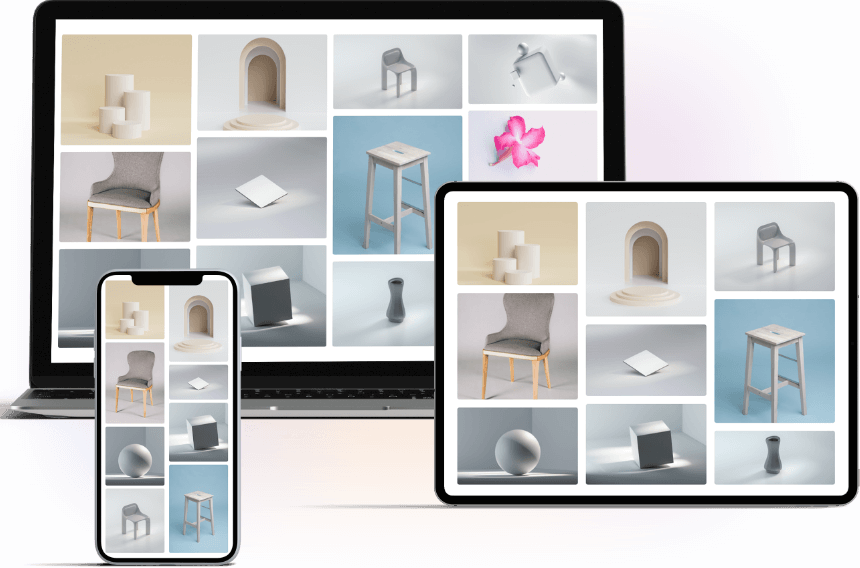
The designs achieved using Masonry Gallery are responsive and compatible with any device. With simple to use design tools you successfully create a beautiful grid gallery with images in all shapes and sizes. Not only that, they will show up just the way you like it on any screen size!
Add Links To the Images
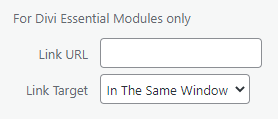
When selecting the images from your Media Library you have the option to add links. Each image can have separate links attached to them. This is a great feature that gives more options for you to link your relevant content to the images.
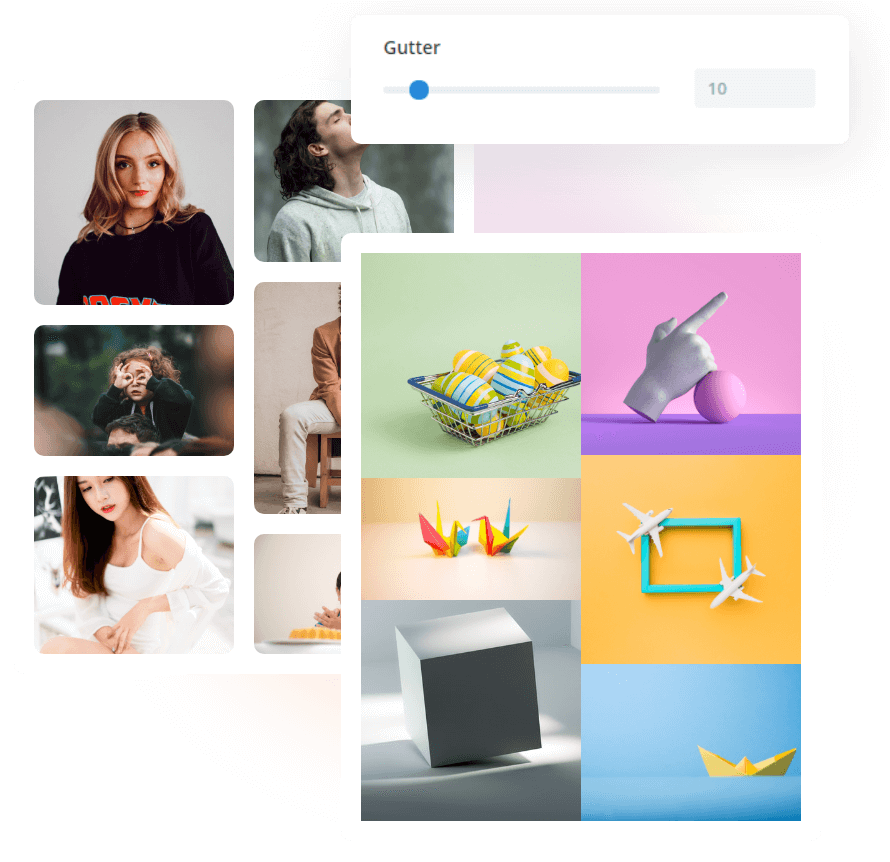
Adjust the Gutter space between the images by using Grid toggle just like columns. This is simple yet a very convenient feature. Have an easy experience with the Masonry Gallery!


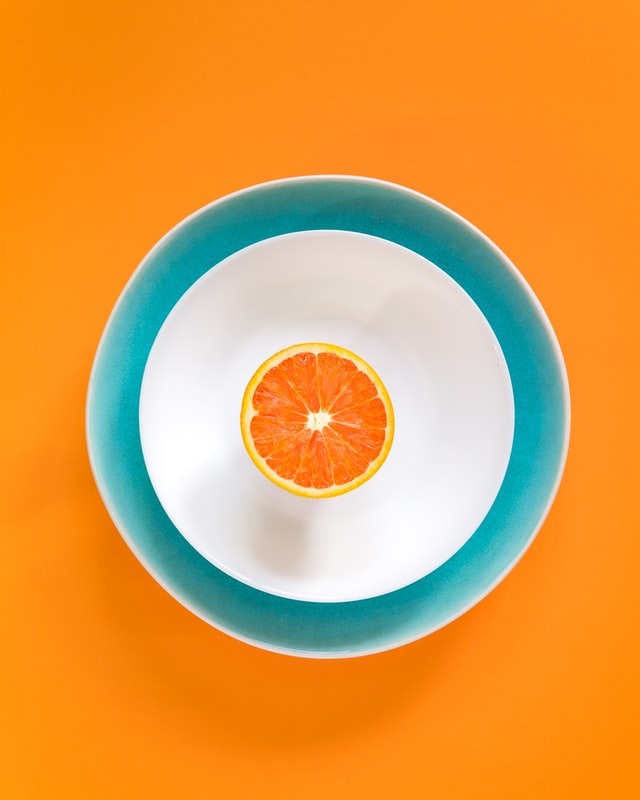







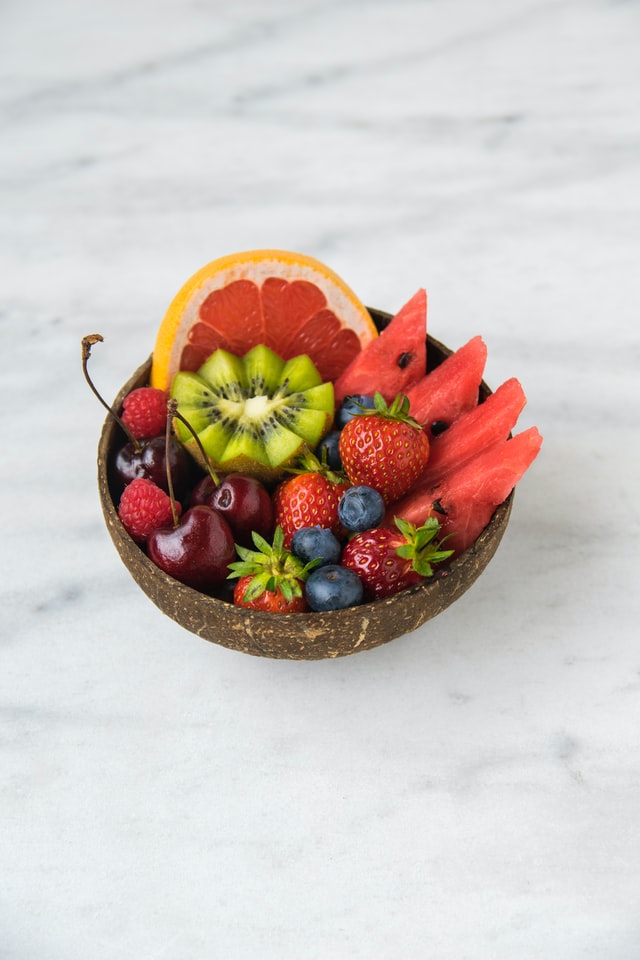
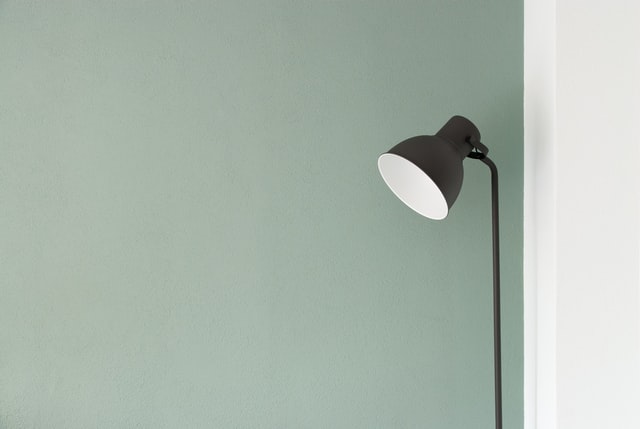




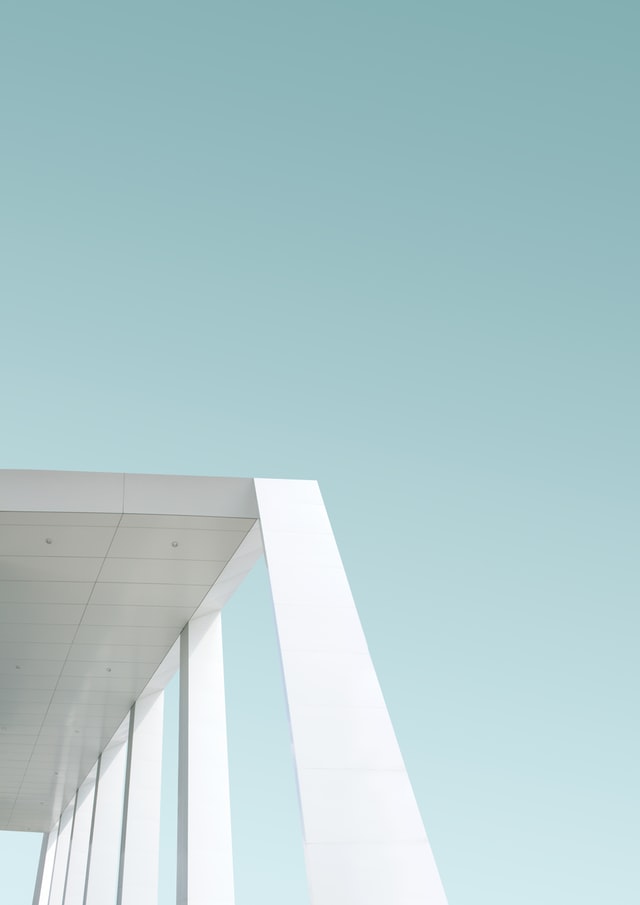




Add Masonry Gallery module and upload images from your media.

Enable Category Filter, then set which images appear.

Choose from 60+ hover effects in the Design Tab for a pro pop.
Frequently Asked Questions
Do you have any questions or concerns? Here is a list of frequently asked questions and their answers that might be helpful.
Divi Essential Help Center or Contact Us.
Can I mix portrait and landscape images in the same gallery?
Yes! That is the primary benefit of a Masonry layout. It automatically arranges images of different heights into a seamless, cascading grid.
How many columns can I display on mobile?
You have complete control. You can set the gallery to 1 column on mobile for clarity, and up to 15 columns on ultra-wide desktop monitors.
Does the Divi Masonry Gallery module support image pagination?
Absolutely. For galleries with hundreds of images, you can enable pagination to keep your page load times lightning-fast.
Can I customize the look of the filter buttons?
Yes. You can style the background color, text color, border-radius, and active state of the filter bar to match your brand's style guide.
Is this module compatible with Divi 5?
Yes, it is fully optimized for the Divi 5 framework, providing a much smoother editing experience and faster front-end rendering.
✨ More Ways to Enhance Your Divi Experience

Divi Text Marquee
Create scrolling text announcements with smooth animations & custom icons.

Divi Time Count Down
Build urgency with customizable countdown timers for sales & events.

Divi Interactive Circle
Showcase features in stunning circular layouts with interactive animations.

Divi Scroll Stacking Cards
Captivate visitors with scroll-triggered card stacks for features & portfolios.
