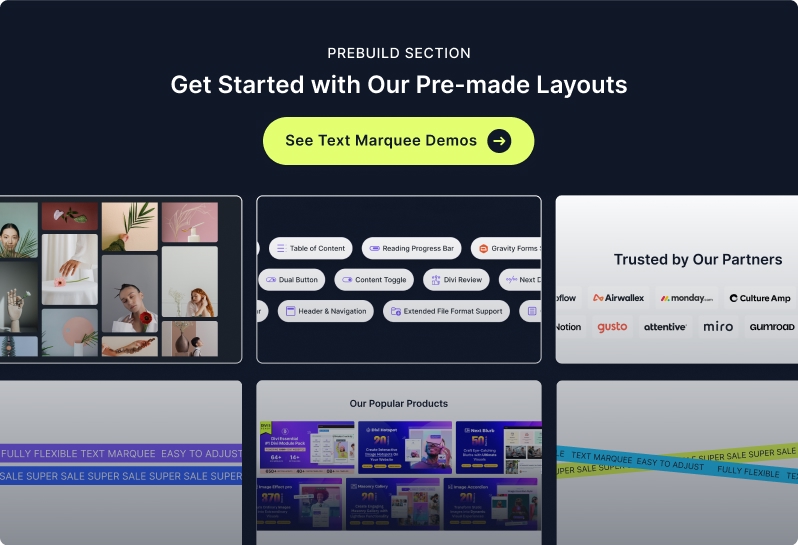
The Text Marquee module allows you to create dynamic scrolling text effects for headlines, announcements, or promotional messages. You can add multiple marquee items, customize scrolling direction, speed, and hover behavior, and apply advanced styling. Each marquee item is managed through Text Marquee Child, giving you granular control over text and optional icons.
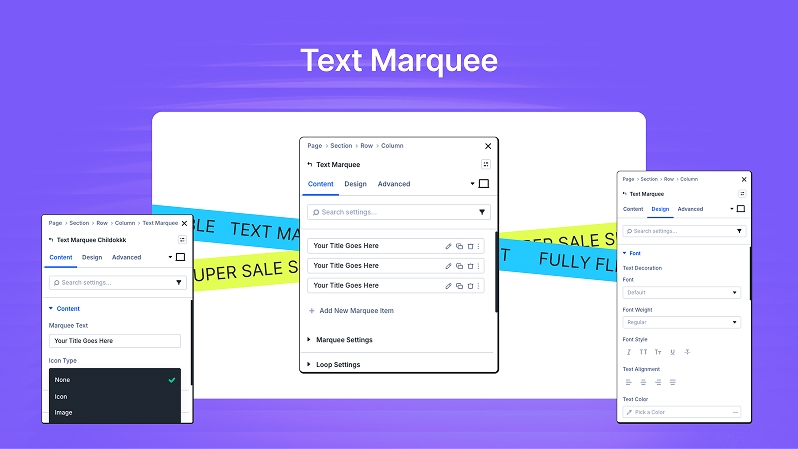
Content Tab
Marquee Items
Add multiple items; each item is editable via Text Marquee Child.
Options for duplicate, delete, and reorder items.
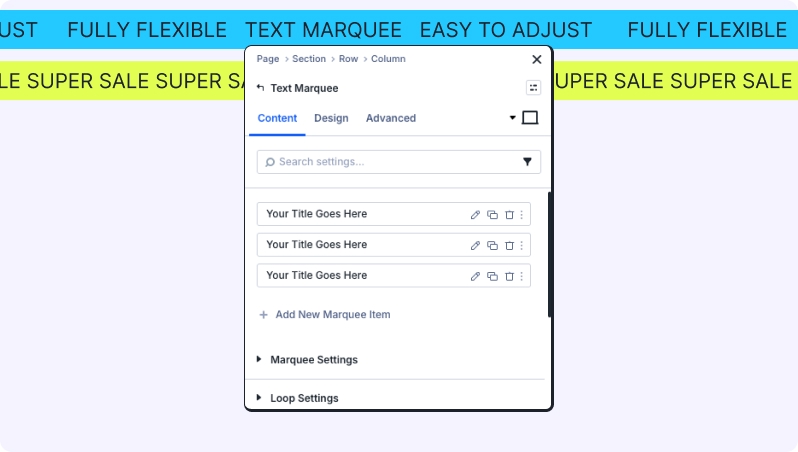
Marquee Settings
Direction:
Left to Right
Right to Left
Speed:
Control scroll duration (lower value = faster scroll).
Pause on Hover:
Toggle ON for better readability.
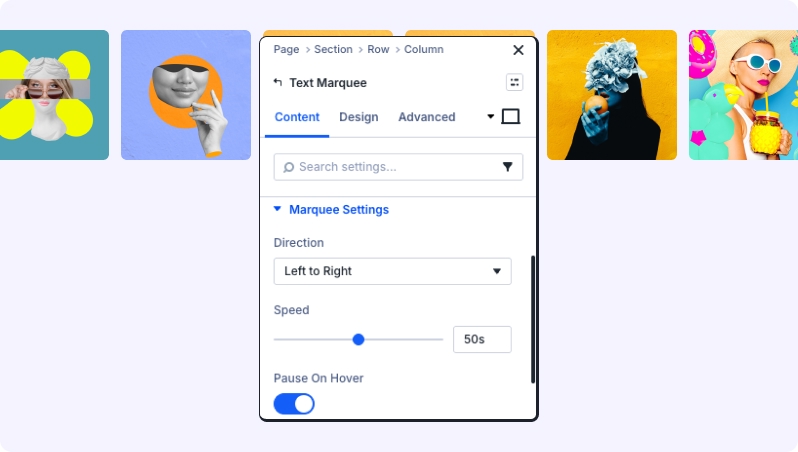
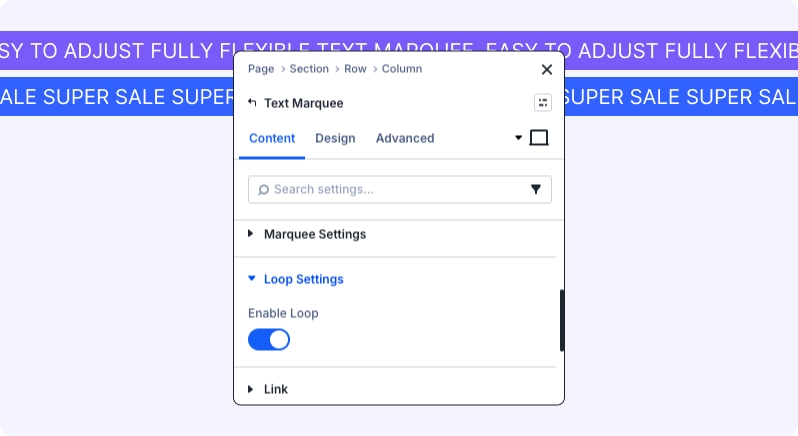
Loop Settings
Configure continuous looping behavior (if available in your build).
Link
Optional link settings for the entire marquee container.
Background
Set background color, gradient, or image for the marquee container.
Admin Label
Rename the module for easy identification in Divi Builder.
Marquee Settings
Direction:
Left to Right
Right to Left
Speed:
Control scroll duration (lower value = faster scroll).
Pause on Hover:
Toggle ON for better readability.
Loop Settings
Configure continuous looping behavior (if available in your build).
Link
Optional link settings for the entire marquee container.
Background
Set background color, gradient, or image for the marquee container.
Admin Label
Rename the module for easy identification in Divi Builder.
Content Tab — Child Module
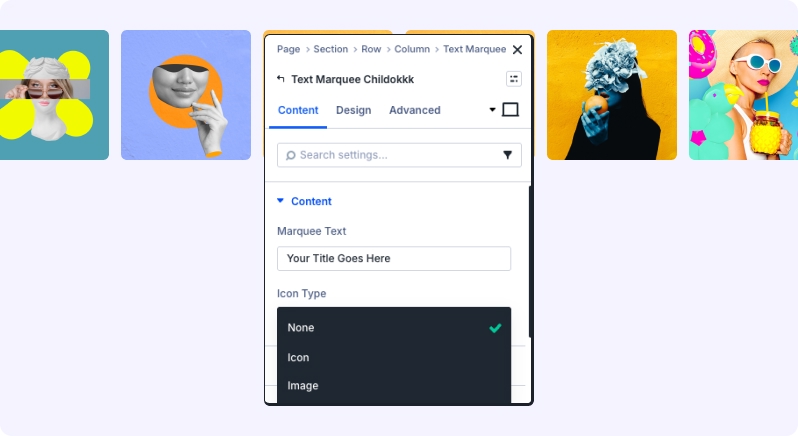
Marquee Text: Enter the text for this marquee item.
Icon Type: Select an icon (optional) to display alongside text.
Link: Add a hyperlink to the marquee item.
Background: Customize background for individual items.
Admin Label: Rename the child item for clarity.
Design Tab — Parent Module
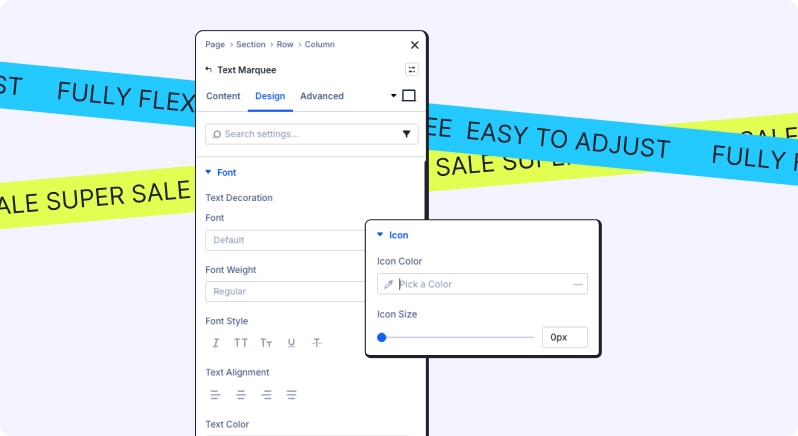
Font: Typography settings for marquee text.
Icon: Size, color, and alignment for icons.
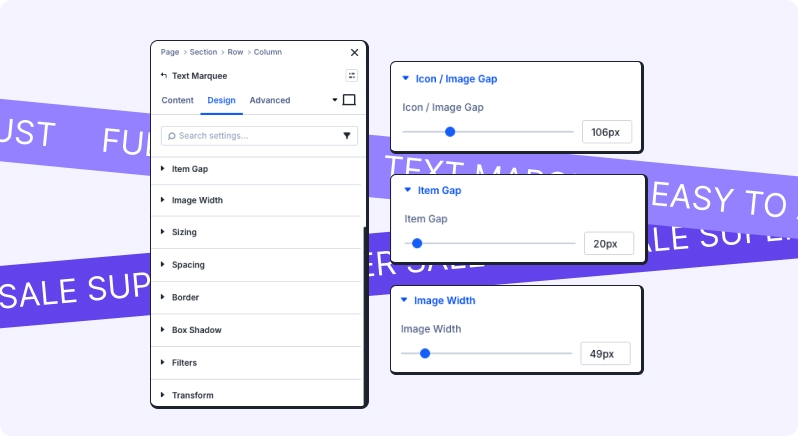
Icon / Image Gap: Space between icon and text.
Item Gap: Space between multiple marquee items.
Image Width: If using images instead of icons.
Sizing: Control width, height, and alignment.
Spacing: Margin and padding adjustments.
Border: Style, width, color, and radius.
Box Shadow: Add depth for a premium look.
Filters: Brightness, contrast, saturation adjustments.
Transform: Scale, rotate, skew for creative effects.
Animation: Entrance animations (fade, slide) for smooth loading.
Design Tab — Child Module
Marquee Text: Typography, color, and hover effects.
Icon: Size, color, and spacing.
Sizing & Spacing: Adjust padding and margins for individual items.
Border & Box Shadow: Apply borders and shadows for emphasis.
Filters & Transform: Creative styling options.
Animation: Entrance animations for child items.
Try Our Premium Demos