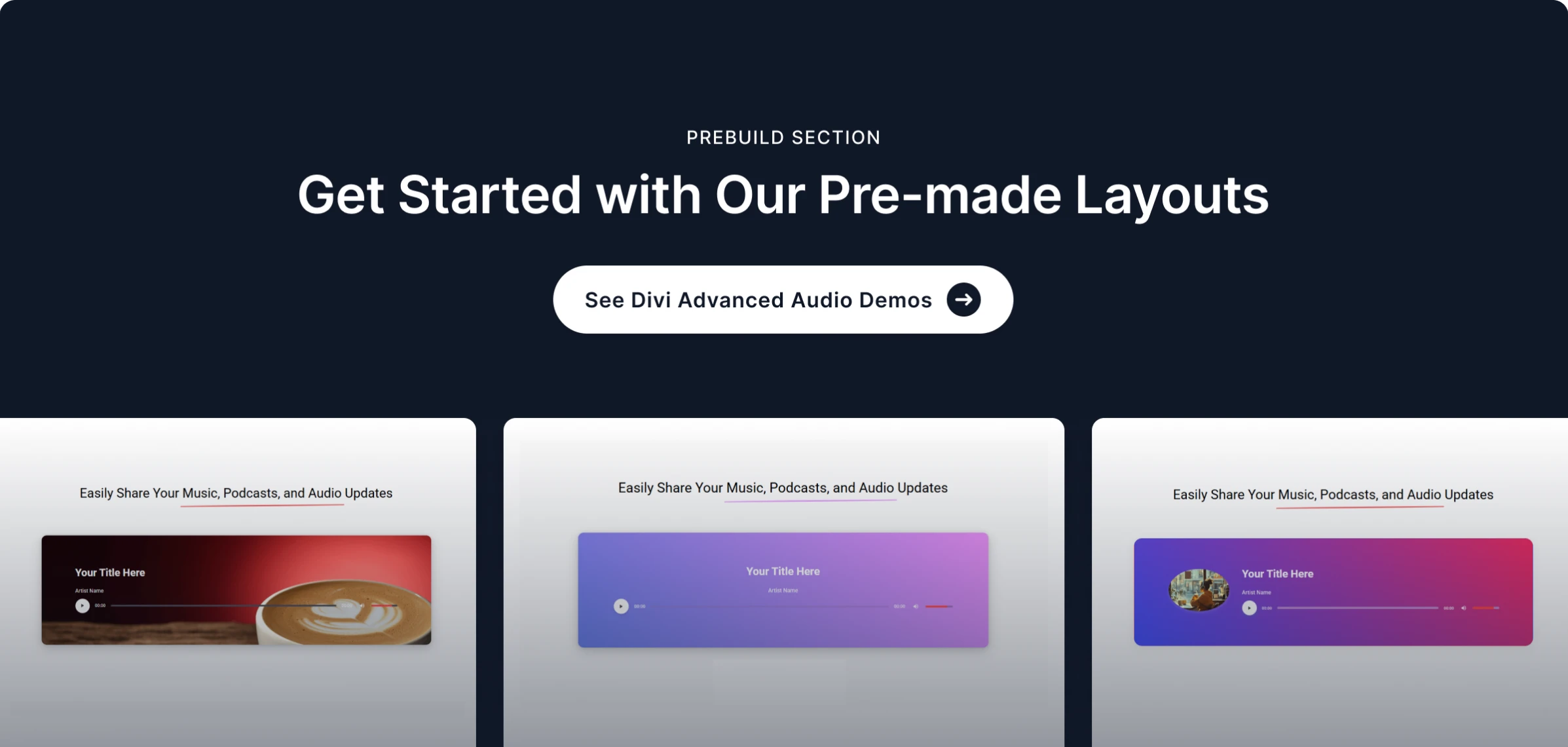
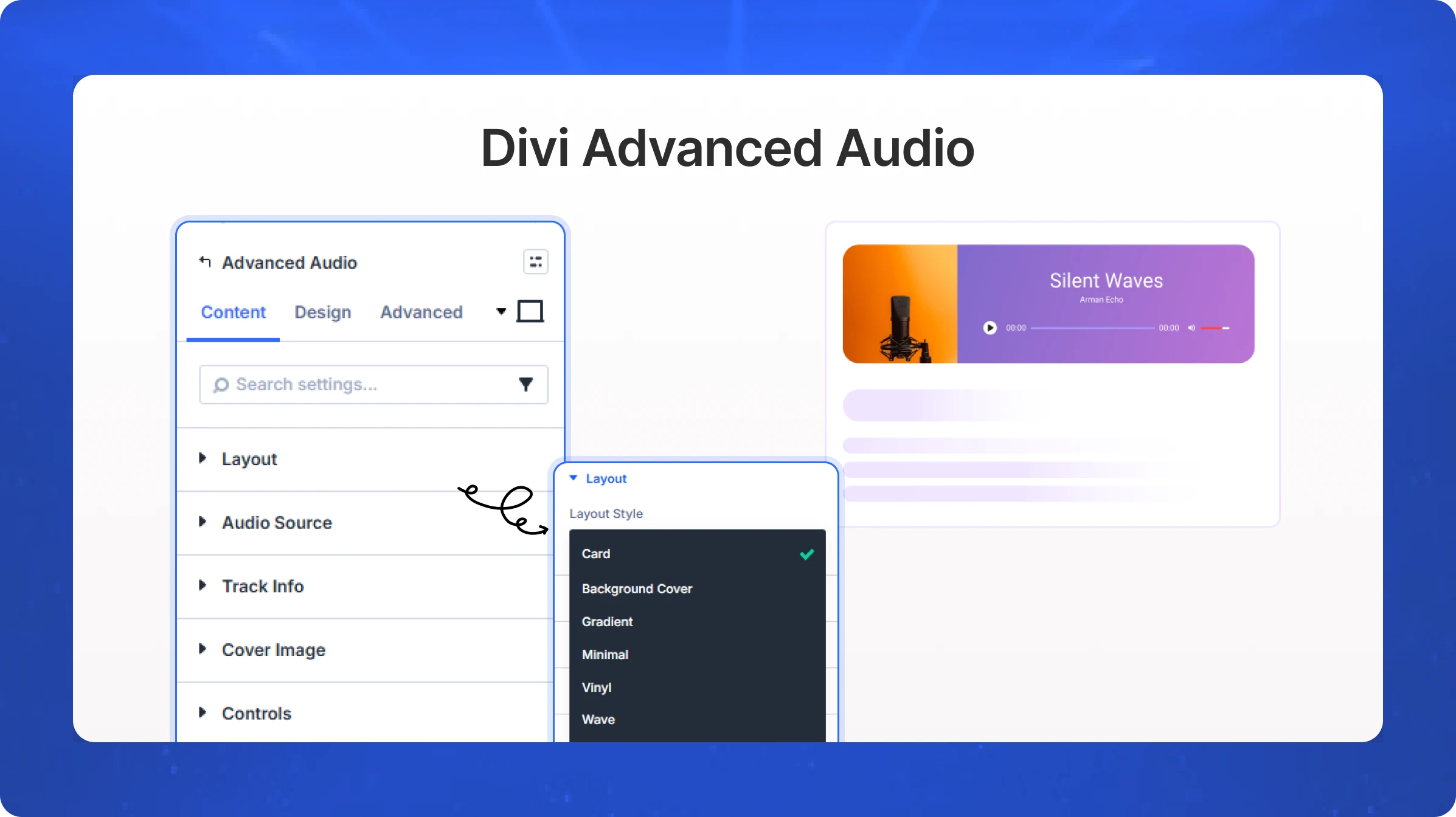
The Advanced Audio module adds a fully styled, customizable audio player to your Divi page. It offers five layout presets (Card, Background Cover, Gradient, Minimal, Wave), supports audio from the WordPress Media Library or an external URL, and displays track details — title, artist, album, genre, year — alongside cover artwork. Visitors can play, pause, seek through the progress bar, and adjust volume directly in the player.
Content Settings
Layout
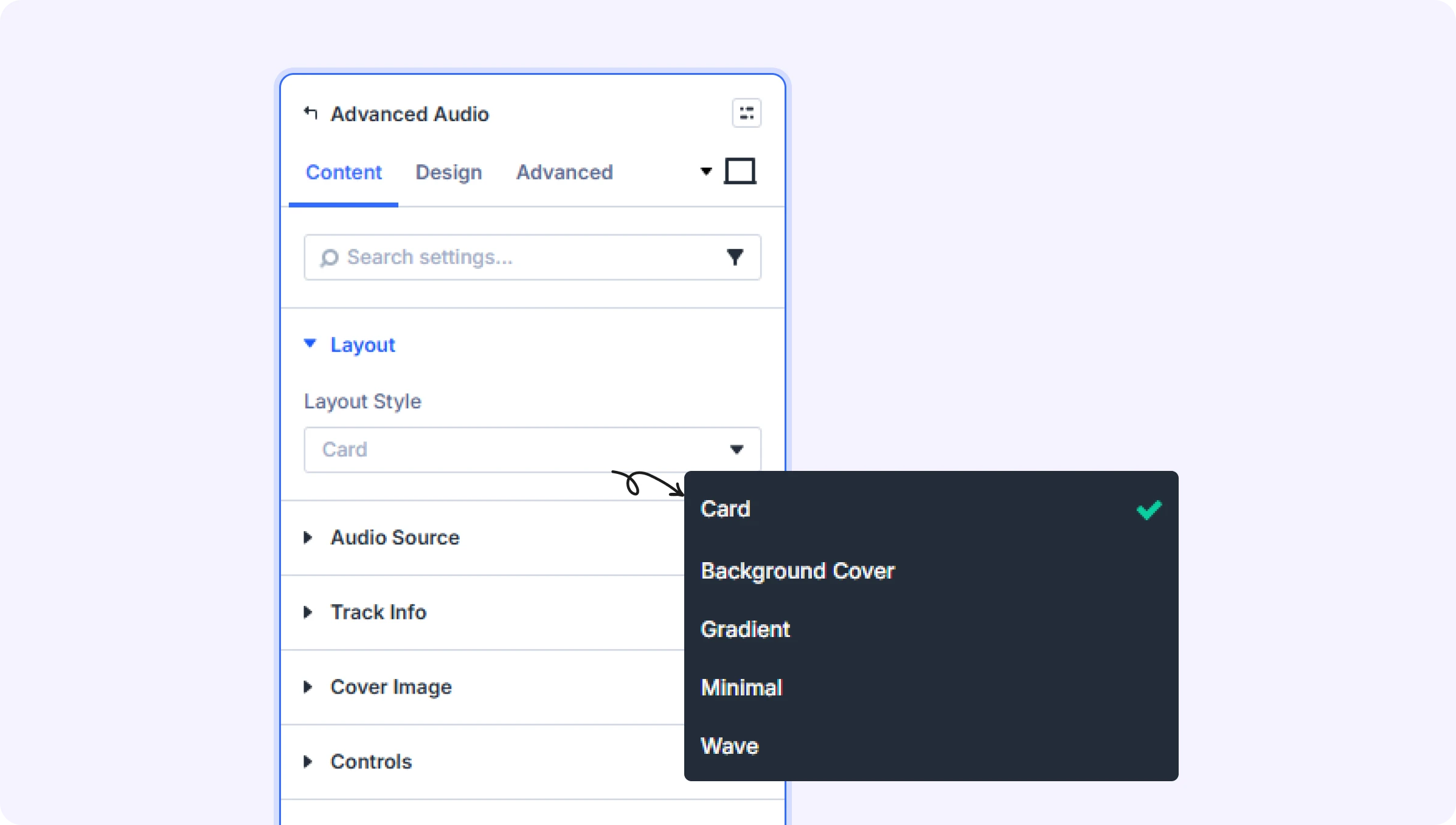
Layout Style (Dropdown)
Select a visual layout preset for the audio player.
- Available options: Card, Background Cover, Gradient, Minimal, Wave
- Default: Card
Audio Source
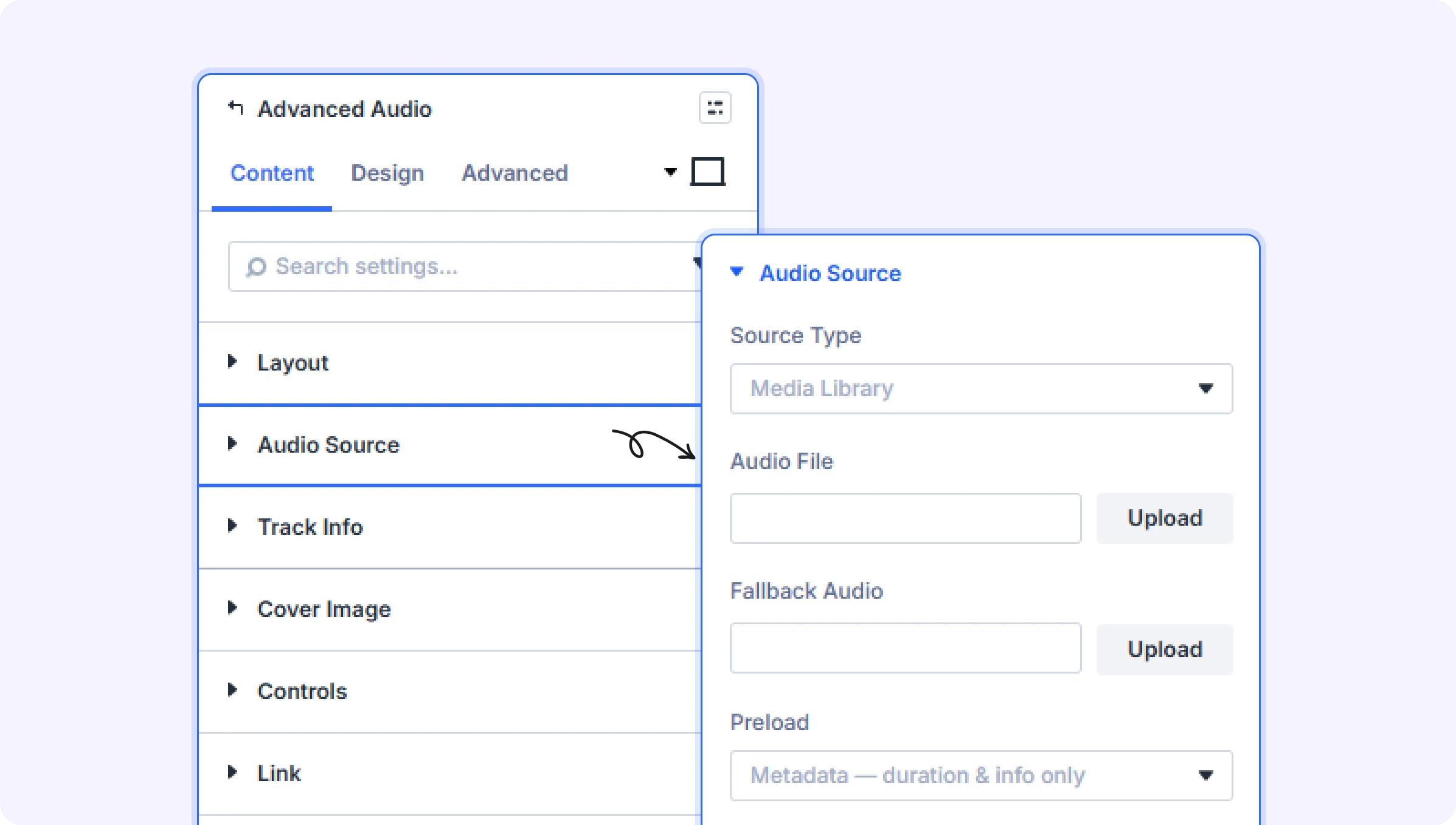
Source Type (Dropdown)
Choose between uploading from the Media Library or linking to an external URL.
- Available options: Media Library, External URL
- Default: Media Library
Audio File (File Upload)
Upload an audio file from your WordPress Media Library. Supports MP3, OGG, WAV, FLAC, AAC, M4A, and WEBM formats.
- Only appears when Source Type is set to Media Library
External URL (Text Field)
Enter the full URL of an externally hosted audio file.
- Only appears when Source Type is set to External URL
Fallback Audio (File Upload)
Optional second audio source (OGG or WAV) for browsers that do not support the primary file format.
- Only appears when Source Type is set to Media Library
Preload (Dropdown)
Controls how much audio is downloaded before the visitor presses Play — useful for balancing page load speed against playback readiness.
- Available options: None — load only on play, Metadata — duration & info only, Auto — preload the full file
- Default: Metadata — duration & info only
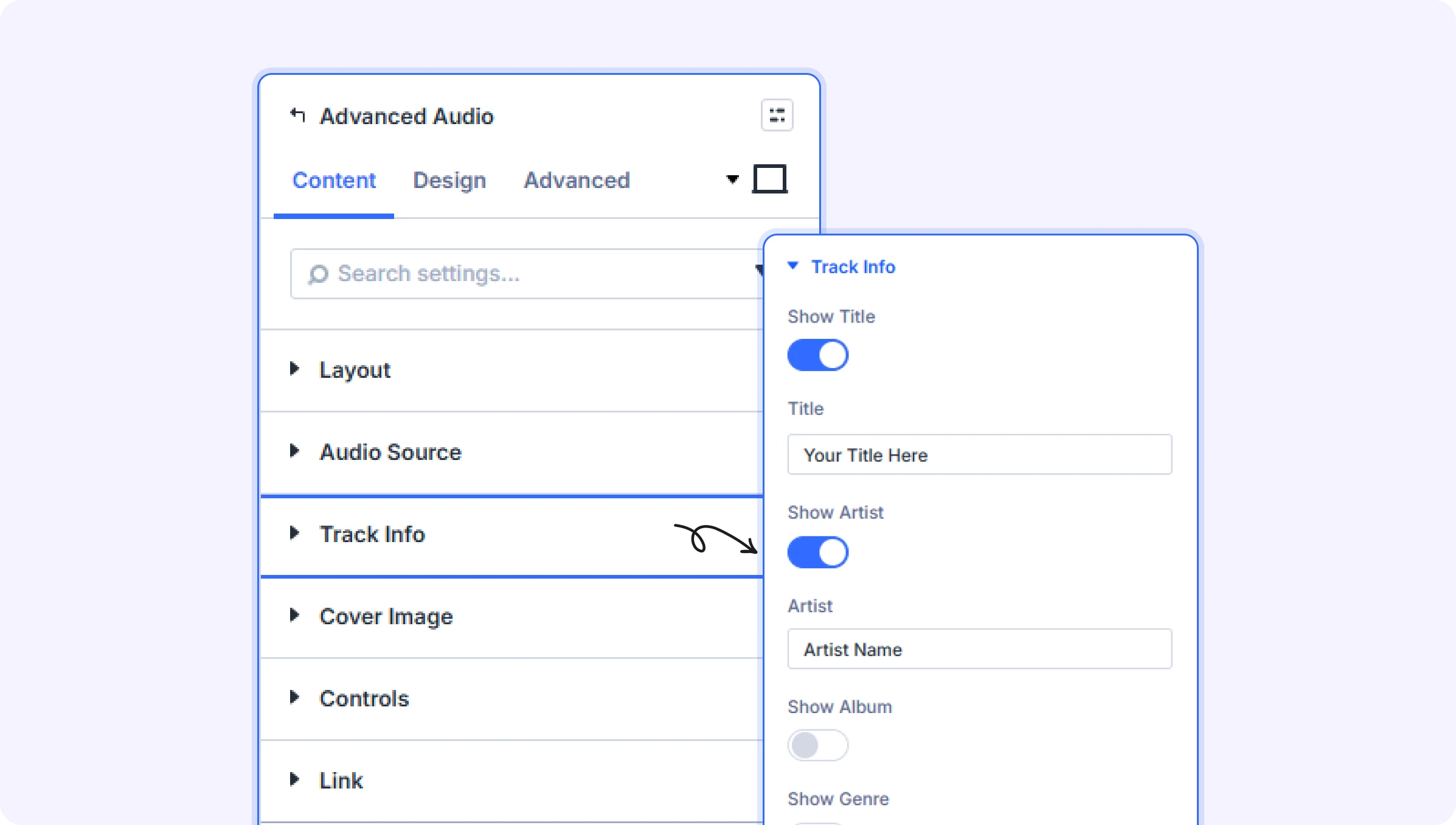
Track Info
Show Title (Toggle)
Toggle to display or hide the track title on the player.
- Default: On
Title (Text Field)
The track title displayed on the player.
- Default: Your Title Here
- Only appears when Show Title is enabled
Show Artist (Toggle)
Toggle to display or hide the artist name on the player.
- Default: On
Artist (Text Field)
The artist or author name shown on the player.
- Default: Artist Name
- Only appears when Show Artist is enabled
Show Album (Toggle)
Toggle to display or hide the album name on the player.
- Default: Off
Album (Text Field)
Album or collection name shown as part of the meta line.
- Only appears when Show Album is enabled
Show Genre (Toggle)
Toggle to display or hide the genre on the player.
- Default: Off
Genre (Text Field)
Music genre or category shown as part of the meta line.
- Only appears when Show Genre is enabled
Show Year (Toggle)
Toggle to display or hide the release year on the player.
- Default: Off
Year (Text Field)
Release year shown as part of the meta line.
- Only appears when Show Year is enabled
Cover Image
Show Cover Image (Toggle)
Enable to display a cover image alongside the player controls.
- Default: On
Cover Image (File Upload)
Upload the cover art for this track.
- Only appears when Show Cover Image is enabled
Controls
Show Current Time (Toggle)
Show or hide the current playback time display.
- Default: On
Show Duration (Toggle)
Show or hide the total track duration display.
- Default: On
Show Volume Button (Toggle)
Show or hide the mute/unmute button.
- Default: On
Show Volume Bar (Toggle)
Show or hide the volume slider bar.
- Default: On
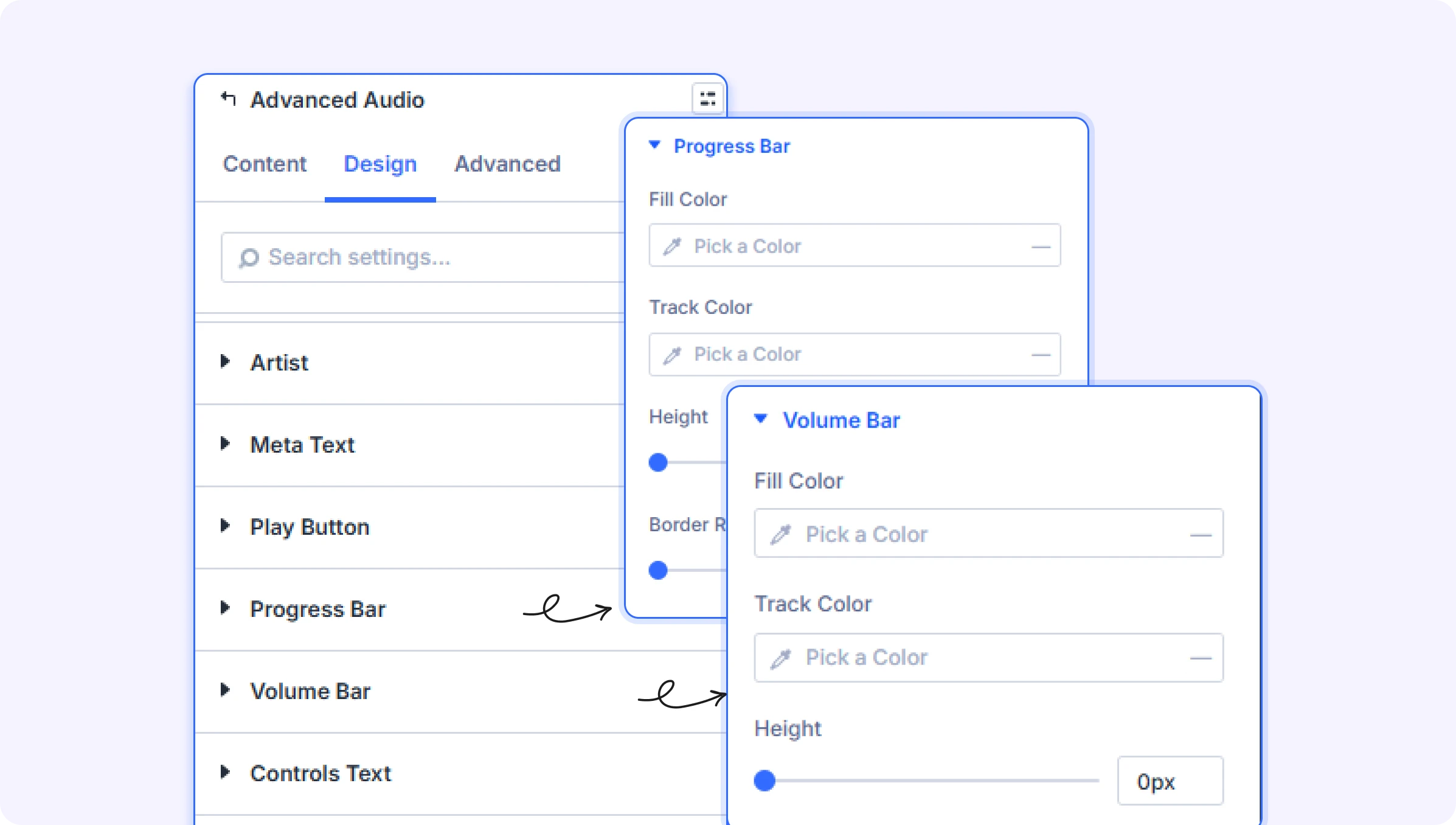
Design Settings
Title
Standard Divi font options for the track title — control font family, size, weight, color, line height, and letter spacing. Also includes spacing (margin/padding), border, and box shadow options for the title element.
Artist
Standard Divi font options for the artist name — control font family, size, weight, color, line height, and letter spacing. Also includes spacing, border, and box shadow options.
Meta Text
Standard Divi font options for the meta line (album, genre, year) — control font family, size, weight, color, line height, and letter spacing. Also includes spacing, border, and box shadow options.
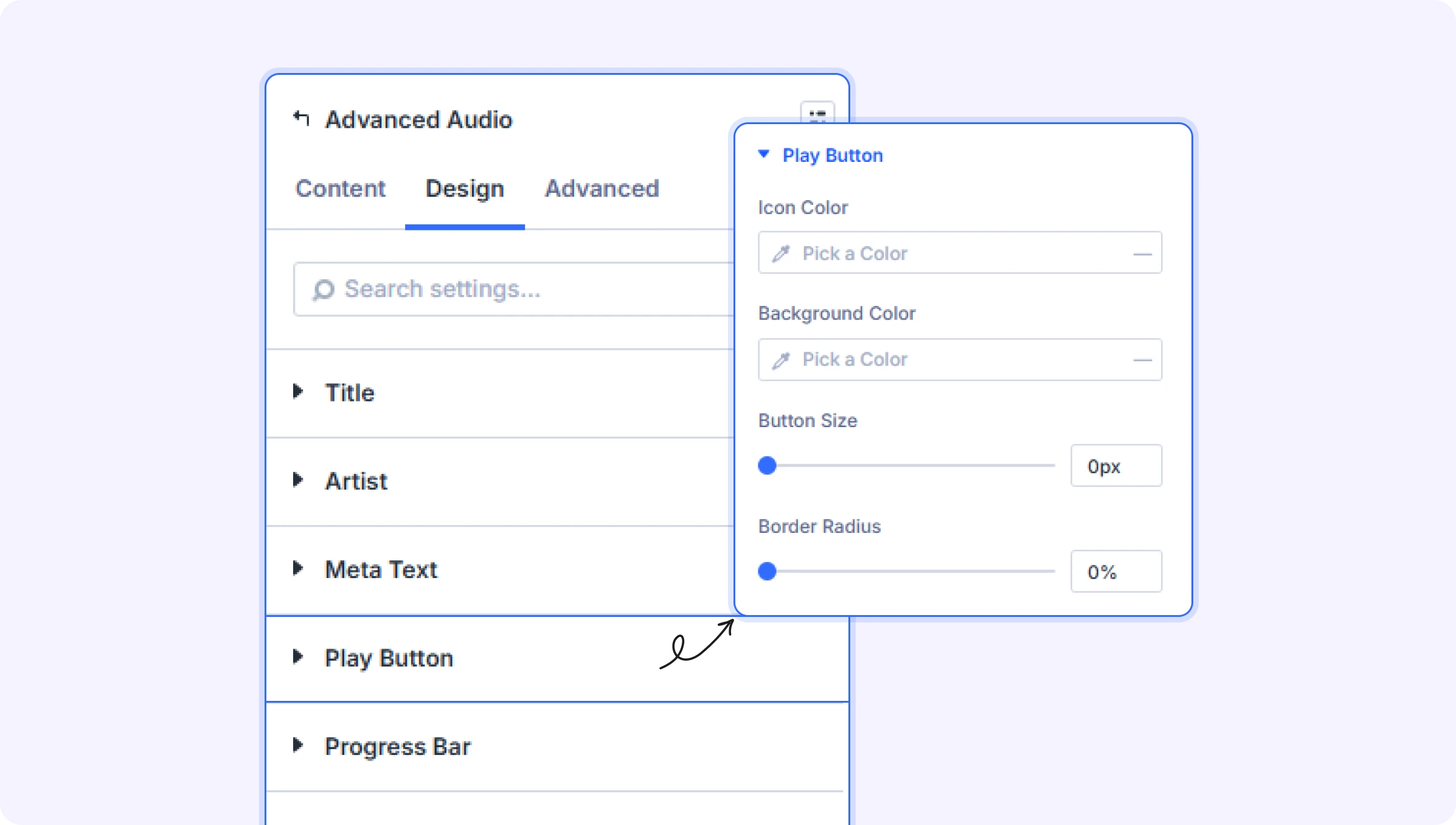
Play Button
Icon Color (Color Picker)
Color of the play and pause icons.
- Default: #333333
Background Color (Color Picker)
Background color of the circular play button.
- Default: #ffffff
Button Size (Slider)
Width and height of the play button.
- Range: 20 to 100 px
- Default: 44 px
Border Radius (Slider)
Roundness of the play button corners. 50% produces a fully circular button.
- Range: 0 to 50 %
- Default: 50%
Progress Bar
Fill Color (Color Picker)
Color of the played portion of the progress bar.
- Default: #ffffff
Track Color (Color Picker)
Background color of the unplayed portion of the progress bar.
- Default: Semi-transparent white
Height (Slider)
Height of the progress bar.
- Range: 1 to 200 px (also supports %)
- Default: 6 px
Border Radius (Slider)
Roundness of the progress bar ends.
- Range: 1 to 200 px (also supports %)
- Default: 3 px
Volume Bar
Fill Color (Color Picker)
Color of the volume level indicator.
- Default: #ff4444
Track Color (Color Picker)
Background color of the full volume bar track.
- Default: Semi-transparent white
Height (Slider)
Height of the volume bar.
- Range: 1 to 200 px (also supports %)
- Default: 6 px
Controls Text
Time & Icon Color (Color Picker)
Color of the current time display, duration display, and volume icon.
- Default: #ffffff
Font Size (Slider)
Font size for the time display text.
- Range: 8 to 24 px (also supports %)
Font Weight (Dropdown)
Weight of the time display text.
- Available options: Light (300), Normal (400), Medium (500), Semi-Bold (600), Bold (700)
- Default: Medium (500)
Cover Image
Width (Slider)
Width of the cover image area.
- Range: 10 to 1000 px (also supports %)
- Default: 200 px
Cover Image Style
Additional cover image styling: Border (style, radius, color), Box Shadow, and Filters (opacity, blur, brightness, contrast, saturation, hue).
Built-in Style Options
Standard Divi module-level design options: Sizing (width and height), Spacing (margin and padding), Border, Box Shadow, Filters, Transform (rotate, scale, translate), and Animation (entrance effects).
Advanced Settings
- CSS ID & Classes — Add a custom CSS ID or classes to the module for targeted styling.
- Custom CSS — Write custom CSS targeting specific parts of the player: title, artist, meta text, cover image, controls, play button, progress bar, volume bar, current time, and duration.
- Visibility — Show or hide this module on desktop, tablet, or phone.
- Scroll Effects — Add parallax or scroll-triggered animation effects.
- Position — Control the module's positioning (relative, absolute, fixed).
- Transition — Customize hover transition duration and style.
- Conditions — Set conditions for when this module should display.
Tips & Best Practices
- Use the 'Background Cover' or 'Gradient' layout with a matching cover image for a visually rich music player that fills the module's background with the album art.
- Enable Album, Genre, and Year metadata fields for podcast episodes to give listeners all the context they need at a glance — set Show Title to the episode name and Show Artist to the podcast name.
- Set Preload to 'None' if you have multiple audio players on the same page to avoid unnecessary data download on page load — audio will only begin loading when the visitor clicks Play.
Try Advance Audio Player Premium Demo