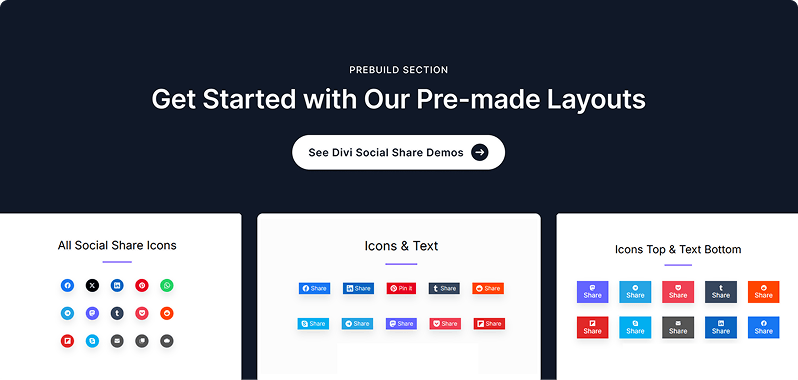
The Social Share module lets you add a customizable set of social sharing buttons to any page. You build the button set by adding individual Share Button child items — each targeting a specific social network. The parent module controls the overall layout, URL to share, button shape, color scheme, hover effects, and optional title above the buttons.
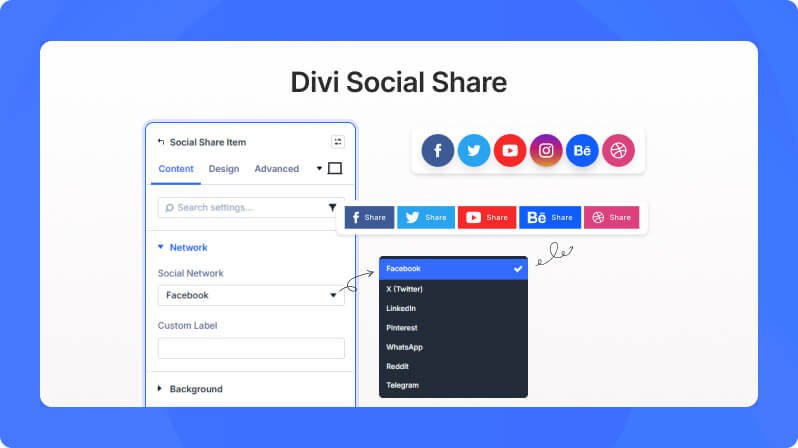
Content Settings
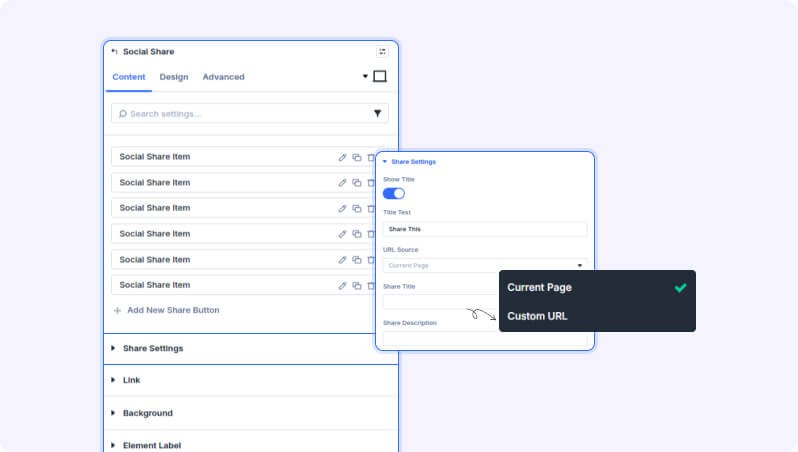
Share Buttons
Share Buttons List (Draggable List)
Add, remove, and reorder individual share buttons. Each button is configured separately as a child item. Click 'Add New Share Button' to add a new network button.
Share Settings
Show Title (Toggle)
Show a title above the share buttons.
- Default: Off
Title Text (Text Field)
Enter the title text displayed above the share buttons.
- Only appears when Show Title is enabled
URL Source (Dropdown)
Choose which URL to share. 'Current Page' automatically shares the page the visitor is on. 'Custom URL' lets you specify a different URL.
- Available options: Current Page, Custom URL
- Default: Current Page
Custom URL (Text Field)
Enter the custom URL to share.
- Only appears when URL Source is set to Custom URL
Share Title (Text Field)
Override the post title for sharing. Leave empty to use the post title.
Share Description (Text Field)
Override the excerpt for sharing. Leave empty to use the post excerpt.
Open in Popup (Toggle)
Share links will open in a popup window instead of a new tab.
- Default: On
Background
Standard Divi background options including solid color, gradient, image, and video backgrounds.
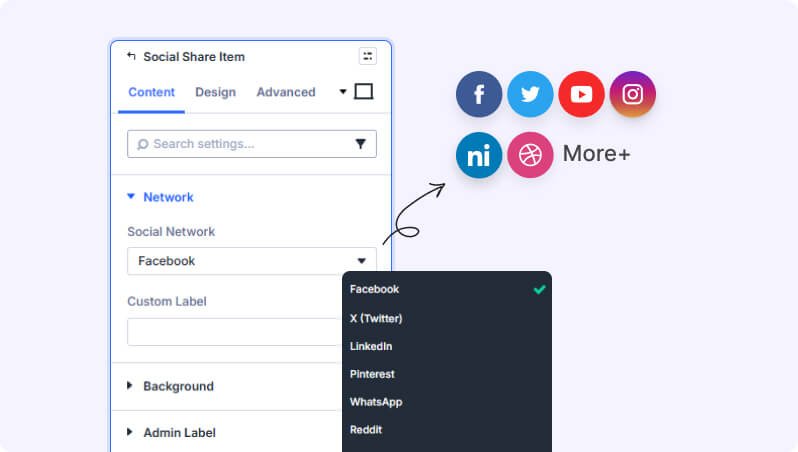
Share Button Item Settings
Each share button in the module is a separate child item. Configure the social network, label, and individual styling per button.
Content Settings
Network
Social Network (Dropdown)
Select the social network for this button.
- Available options: Facebook, X (Twitter), LinkedIn, Pinterest, WhatsApp, Reddit, Telegram, Threads, Bluesky, Mastodon, Tumblr, Pocket, Flipboard, Skype, Email, SMS, Copy Link, Print
- Default: Facebook
Custom Label (Text Field)
Override the default label for this button. Leave empty to use the network name.
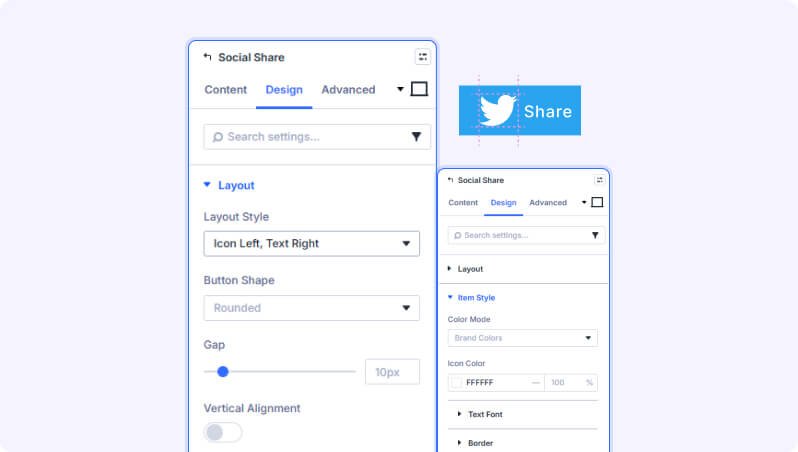
Design Settings
Layout
Layout Style (Dropdown)
Choose how the share buttons are displayed.
- Available options: Icon Only, Icon & Text, Text Only, Icon Left, Text Right, Icon Top, Text Bottom
- Default: Icon Only
Button Shape (Dropdown)
Choose the shape of the share buttons.
- Available options: Square, Rounded, Circle, Pill
- Default: Rounded
Columns (Slider)
Number of columns for the button grid.
- Range: 1 to 12 columns
- Default: 6
Column Gap (Slider)
Spacing between columns.
- Range: 0 to 100 px
- Default: 10px
Row Gap (Slider)
Spacing between rows.
- Range: 0 to 100 px
- Default: 10px
Alignment (Dropdown)
Alignment of the share buttons within the module.
- Available options: Left, Center, Right, Space Between
- Default: Center
Color
Color Mode (Dropdown)
Choose how button colors are applied. Brand Colors uses each network's official color. Uniform applies a single color to all buttons. Monochrome uses a single icon color with transparent backgrounds.
- Available options: Brand Colors, Uniform, Monochrome
- Default: Brand Colors
Icon Color (Color Picker)
Set a single icon color applied to all share buttons.
- Only appears when Color Mode is set to Uniform or Monochrome
Button Background (Background Group)
Set a uniform background color applied to all buttons. Standard Divi background options available.
- Only appears when Color Mode is set to Uniform
Hover Animation
Hover Animation (Dropdown)
Choose a hover animation for the buttons.
- Available options: None, Scale Up, Lift, Color Fill, Bounce, Pulse Glow
- Default: None
Title
Standard Divi font options for the optional title above the buttons, including font family, size, weight, color, and letter spacing.
Title Spacing
Margin and padding controls for the title text element.
Module Sizing, Spacing & Decoration
Standard Divi options for module sizing (width/max-width), spacing (margin/padding), borders, box shadow, CSS filters, transform effects, and entrance animations.
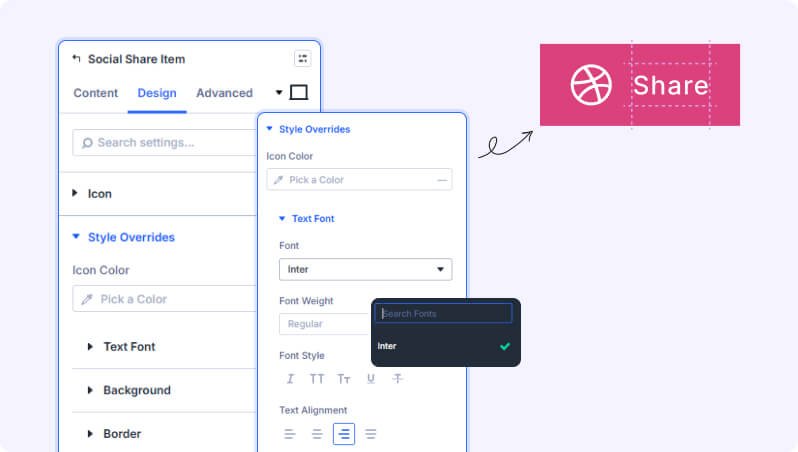
Social Share Item - Design Settings
Icon
Icon Size (Slider)
Size of the network icon on this button.
- Range: 10 to 80 px
Color Overrides
Icon Color (Color Picker)
Override the icon color for this specific button only.
Color Overrides Background
Override the background for this specific button using solid color, gradient, or image.
Button Label
Standard Divi font options for the button label text, including font family, size, weight, color, and letter spacing.
Spacing, Border & Shadow
Padding and margin controls for the button, plus border style/radius and box shadow.
Advanced Settings
- CSS ID & Classes — Add a custom CSS ID or class names to the module for targeted styling.
- Custom CSS — Write custom CSS targeting the module container, title, or buttons wrapper.
- Visibility — Show or hide this module on desktop, tablet, or phone.
- Scroll Effects — Add parallax or scroll-triggered animation effects.
- Position — Control the module's positioning (relative, absolute, fixed).
- Transition — Customize hover transition duration and style.
- Conditions — Set conditions for when this module should display.
Tips & Best Practices
- Use 'Brand Colors' mode for a familiar look — visitors immediately recognize each network by its official color.
- Set 'URL Source' to 'Custom URL' when you want to share a specific page (like a landing page) instead of the current page.
- The 'Copy Link' network option lets visitors copy the share URL to their clipboard — useful for messaging apps not listed.
- Combine 'Icon Top, Text Bottom' layout with the 'Circle' button shape for a clean, icon-focused grid layout.
Try Social Share Premium Demo