Overview
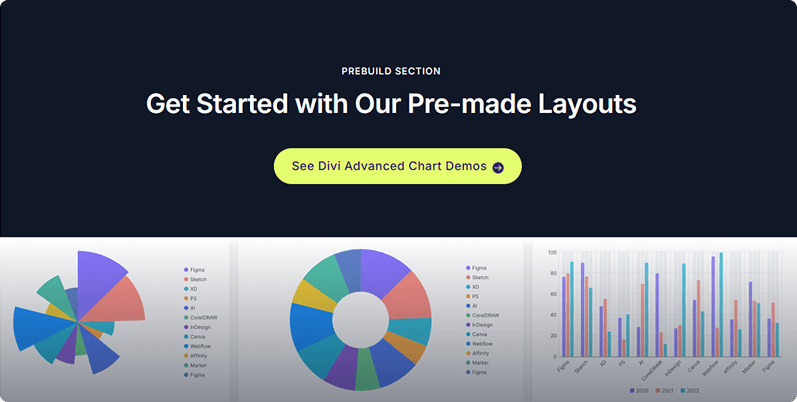
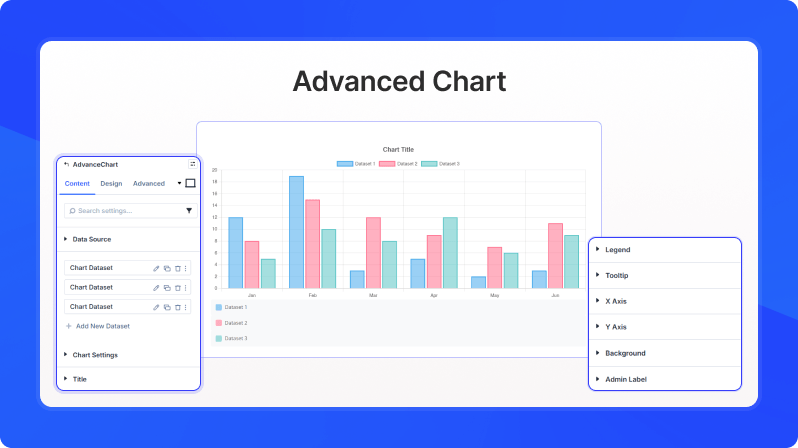
The AdvanceChart module lets you add interactive, animated data charts to your Divi pages. It supports seven chart types — Bar, Line, Pie, Doughnut, Polar Area, Radar, and Area — and accepts data entered manually via child dataset items, uploaded as a CSV file, pasted as CSV text, or imported as JSON. Full control over the chart title, legend, tooltips, and axes makes it ideal for dashboards, reports, comparisons, and any data-driven content section.
Content Settings
Data Source
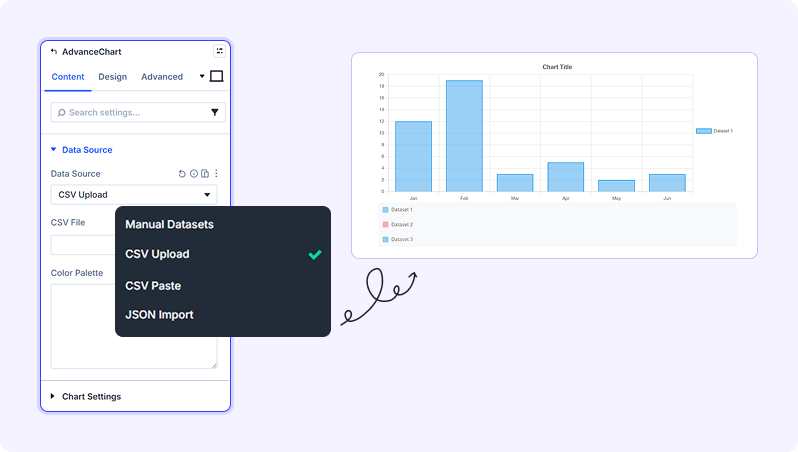
Data Source (Dropdown)
Choose how to provide chart data — manually via dataset items, by uploading a CSV file, pasting CSV text, or importing JSON.
- Available options: Manual Datasets, CSV Upload, CSV Paste, JSON Import
- Default: Manual Datasets
CSV File (File Upload)
Upload a CSV file. The first row should contain dataset names, the first column should contain chart labels, and the remaining cells contain the data values.
- Only appears when Data Source is set to CSV Upload
CSV Data (Text Area)
Paste CSV data directly. First row = dataset names, first column = chart labels, remaining cells = data values. Example: ,Dataset 1,Dataset 2 / Jan,12,5 / Feb,19,10
- Only appears when Data Source is set to CSV Paste
JSON Data (Text Area)
Paste data in Chart.js JSON format with a labels array and a datasets array (each with a label and data array).
- Only appears when Data Source is set to JSON Import
Color Palette (Text Area)
Enter comma-separated colors (hex, rgb, or rgba) to override the default dataset colors. For example: #ff6384, #36a2eb, #ffce56
- Only appears when Data Source is set to CSV Upload, CSV Paste, or JSON Import
Datasets
When Data Source is set to Manual Datasets, use the draggable list to add, reorder, or remove individual Chart Dataset items. Click 'Add New Dataset' to insert a new dataset. Each dataset item has its own settings for label, values, and styling.
Chart Settings
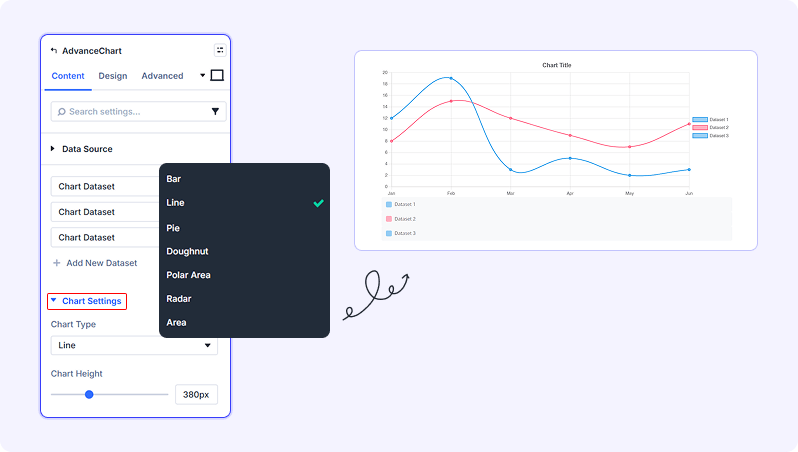
Chart Type (Dropdown)
Select the type of chart to display.
- Available options: Bar, Line, Pie, Doughnut, Polar Area, Radar, Area
- Default: Bar
Chart Height (Slider)
Set the height of the chart canvas.
- Range: 100 to 1000 (in px)
- Default: 400 px
Chart Labels (Text Field)
Enter comma-separated labels for the chart X-axis or segments (e.g. Jan,Feb,Mar).
- Default: Jan,Feb,Mar,Apr,May,Jun
- Only appears when Data Source is set to Manual Datasets
Index Axis (Dropdown)
Set the main axis of the chart — horizontal bars use Y (Vertical); standard charts use X (Horizontal).
- Available options: X (Horizontal), Y (Vertical)
- Default: X (Horizontal)
Responsive (Toggle)
Allow the chart to resize automatically to fit its container width.
- Default: On
Maintain Aspect Ratio (Toggle)
Keep the chart's original aspect ratio when resizing. Disable to let the chart fill the specified height freely.
- Default: Off
Animation Duration (ms) (Slider)
How long the chart's entrance animation takes in milliseconds. Set to 0 to disable animation.
- Range: 0 to 5000 milliseconds
- Default: 1000 ms
Title
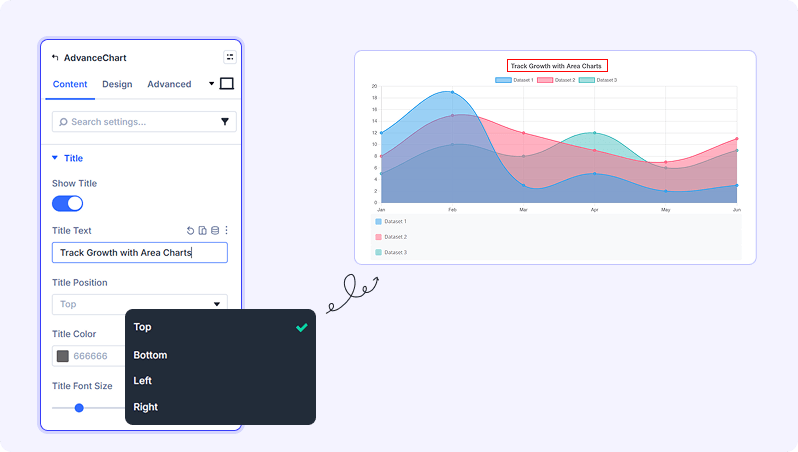
Show Title (Toggle)
Display a title above (or beside) the chart.
- Default: On
Title Text (Text Field)
The text of the chart title.
- Default: Chart Title
- Only appears when Show Title is enabled
Title Position (Dropdown)
Where to place the title relative to the chart.
- Available options: Top, Bottom, Left, Right
- Default: Top
- Only appears when Show Title is enabled
Title Color (Color Picker)
Color of the chart title text.
- Default: #666666
- Only appears when Show Title is enabled
Title Font Size (Slider)
Font size of the chart title.
- Range: 8 to 48
- Default: 16
- Only appears when Show Title is enabled
Title Font Weight (Dropdown)
Font weight of the chart title.
- Available options: Normal, Bold, Bolder, Lighter
- Default: Bold
- Only appears when Show Title is enabled
Title Alignment (Dropdown)
Horizontal alignment of the title text.
- Available options: Start, Center, End
- Default: Center
- Only appears when Show Title is enabled
Title Padding (Slider)
Space around the title in pixels.
- Range: 0 to 50
- Default: 10
- Only appears when Show Title is enabled
Legend
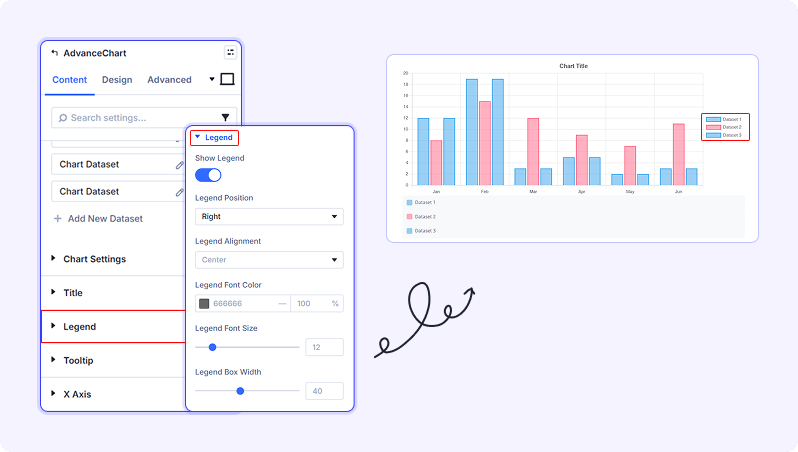
Show Legend (Toggle)
Display the dataset legend.
- Default: On
Legend Position (Dropdown)
Where to place the legend relative to the chart.
- Available options: Top, Bottom, Left, Right
- Default: Top
- Only appears when Show Legend is enabled
Legend Alignment (Dropdown)
Horizontal alignment of the legend.
- Available options: Start, Center, End
- Default: Center
- Only appears when Show Legend is enabled
Legend Font Color (Color Picker)
Color of the legend label text.
- Default: #666666
- Only appears when Show Legend is enabled
Legend Font Size (Slider)
Font size of the legend labels.
- Range: 8 to 36
- Default: 12
- Only appears when Show Legend is enabled
Legend Box Width (Slider)
Width of the colored box beside each legend label.
- Range: 10 to 80
- Default: 40
- Only appears when Show Legend is enabled
Legend Padding (Slider)
Space between legend items.
- Range: 0 to 50
- Default: 10
- Only appears when Show Legend is enabled
Tooltip
Enable Tooltip (Toggle)
Show a tooltip when the visitor hovers over a data point or segment.
- Default: On
Tooltip Background (Color Picker)
Background color of the tooltip popup.
- Default: Semi-transparent black
- Only appears when Enable Tooltip is on
Tooltip Title Color (Color Picker)
Color of the title text inside the tooltip.
- Default: #ffffff
- Only appears when Enable Tooltip is on
Tooltip Body Color (Color Picker)
Color of the body/value text inside the tooltip.
- Default: #ffffff
- Only appears when Enable Tooltip is on
Tooltip Font Size (Slider)
Font size of the tooltip text.
- Range: 8 to 24
- Default: 12
- Only appears when Enable Tooltip is on
Tooltip Border Color (Color Picker)
Border color of the tooltip.
- Default: Transparent
- Only appears when Enable Tooltip is on
Tooltip Border Width (Slider)
Width of the tooltip border in pixels.
- Range: 0 to 5
- Default: 0
- Only appears when Enable Tooltip is on
Tooltip Corner Radius (Slider)
Roundness of the tooltip corners.
- Range: 0 to 20
- Default: 6
- Only appears when Enable Tooltip is on
Tooltip Padding (Slider)
Internal padding inside the tooltip.
- Range: 0 to 30
- Default: 6
- Only appears when Enable Tooltip is on
X Axis
Show X Axis (Toggle)
Display the horizontal axis.
- Default: On
X Axis Title (Text Field)
Label shown along the X axis.
Show X Grid Lines (Toggle)
Display vertical grid lines on the chart.
- Default: On
Y Axis
Show Y Axis (Toggle)
Display the vertical axis.
- Default: On
Y Axis Title (Text Field)
Label shown along the Y axis.
Show Y Grid Lines (Toggle)
Display horizontal grid lines on the chart.
- Default: On
Begin at Zero (Toggle)
Force the Y axis to start at zero even if the smallest data value is higher.
- Default: On
Background
Standard Divi background options including solid color, gradient, image, and video backgrounds.
Design Settings
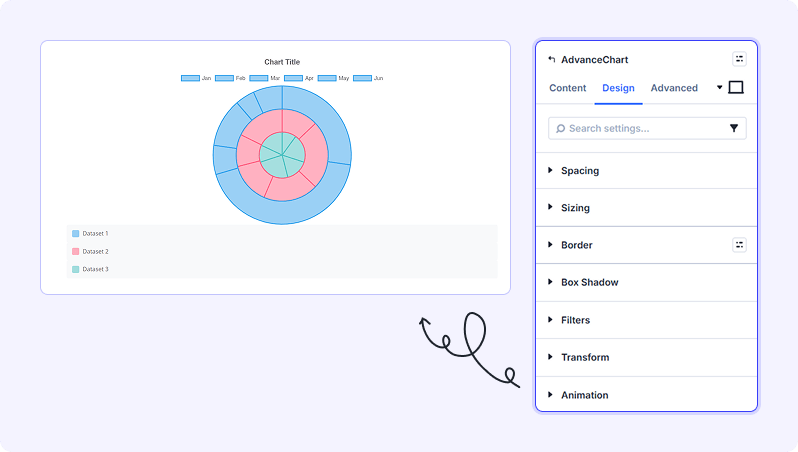
Spacing
Control the margin and padding around the chart module.
Built-in Style Options
Standard Divi module-level design options: Sizing (width and height), Border (style, radius, color), Box Shadow, Filters (opacity, blur, brightness, etc.), Transform (rotate, scale, translate), and Animation (entrance effects).
Advanced Settings
- CSS ID & Classes — Add a custom CSS ID or classes to the module for targeted styling.
- Custom CSS — Write custom CSS targeting the chart wrapper.
- Visibility — Show or hide this module on desktop, tablet, or phone.
- Scroll Effects — Add parallax or scroll-triggered animation effects.
- Position — Control the module's positioning (relative, absolute, fixed).
- Transition — Customize hover transition duration and style.
- Conditions — Set conditions for when this module should display.
Chart Dataset Settings
Each chart dataset is configured individually. Click any dataset in the list to open its settings. Add as many datasets as needed — each becomes a separate series in the chart.
Content Settings
Dataset Settings
Dataset Label (Text Field)
Enter the label for this dataset. This name appears in the chart legend.
Data Values (Text Field)
Enter the numeric data values for this dataset as a comma-separated list. The number of values should match the number of chart labels.
Background Color (Color Picker)
Set the fill color for this dataset's bars, slices, or filled area.
Border Color (Color Picker)
Set the border or stroke color for this dataset.
Border Width (Slider)
Thickness of the border around bars or the line stroke.
- Range: 0 to 10
Chart Type Override (Dropdown)
Override the parent chart type for this specific dataset — for example, display one dataset as a Line on an otherwise Bar chart.
- Available options: Inherit from Parent, Bar, Line
- Default: Inherit from Parent
- Not available when the parent chart type is Pie, Doughnut, Polar Area, or Radar
Line Tension (Slider)
Set the curve tension for line charts. 0 produces straight lines; 1 produces the maximum curve.
- Range: 0 to 1
- Only appears when the chart type is Line or Area
Fill Area (Toggle)
Fill the area beneath the line with the dataset's background color.
- Default: Off
- Only appears when the chart type is Line or Area
Point Radius (Slider)
Size of the dot markers at each data point on line charts.
- Range: 0 to 20
- Only appears when the chart type is Line or Area
Point Style (Dropdown)
Shape of the marker at each data point.
- Available options: Circle, Rectangle, Triangle, Star, Cross
- Default: Circle
- Only appears when the chart type is Line or Area
Tips & Best Practices
- Use the CSV Paste option to quickly import data from a spreadsheet — copy a range from Excel or Google Sheets, paste it into the CSV Data field, and the chart updates immediately.
- For a mixed bar + line chart, set the parent Chart Type to Bar, then open individual Dataset items and use Chart Type Override to set specific datasets to Line — useful for showing an average or target line alongside bar data.
- Set Animation Duration to 0 if you are using the chart inside a section that is not visible on page load — this prevents the animation from playing out before the visitor has scrolled to the chart.
Try Advance Chart Premium Demo