Overview
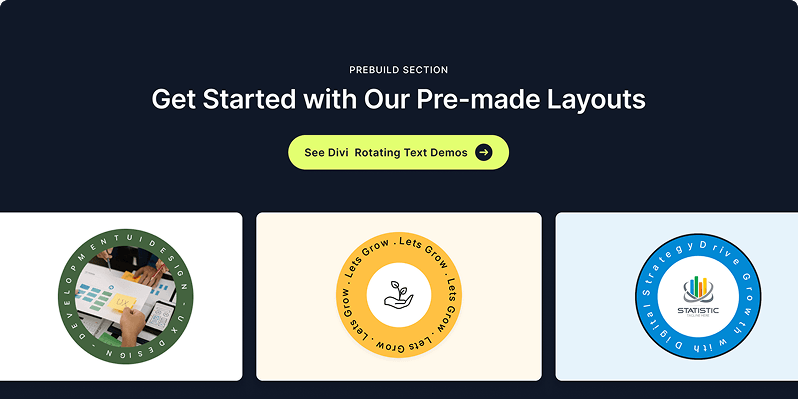
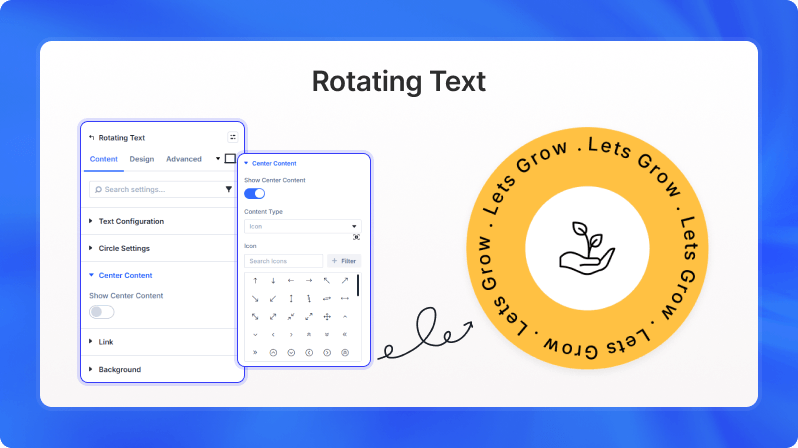
The Rotating Text module displays a phrase that curves and rotates around a circular path, creating an eye-catching animated badge effect. You can control the text, rotation speed, and direction. Optionally, place an icon, image, or Lottie animation in the center of the circle. It is ideal for call-to-action badges, brand elements, or decorative section headings.
Content Settings
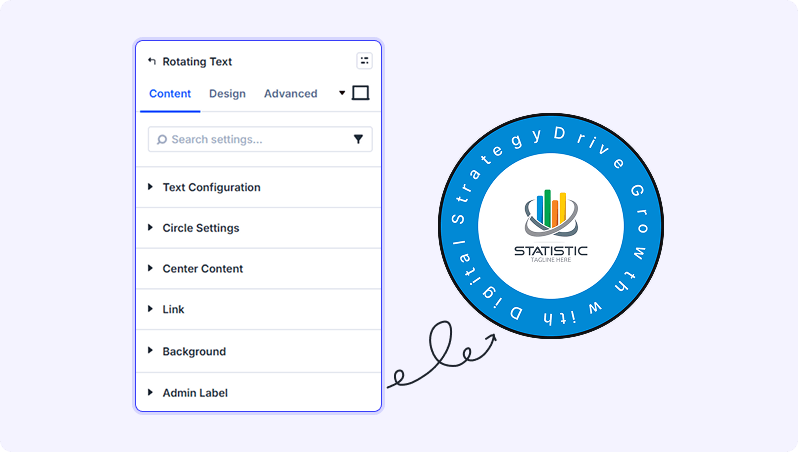
Text Configuration
Phrase (Text Field)
The text that curves around the circle.
- Default: Let's Grow.
Separator (Text Field)
Character(s) inserted between repeated phrases as the text loops around the circle.
- Default: " | "
Circle Settings
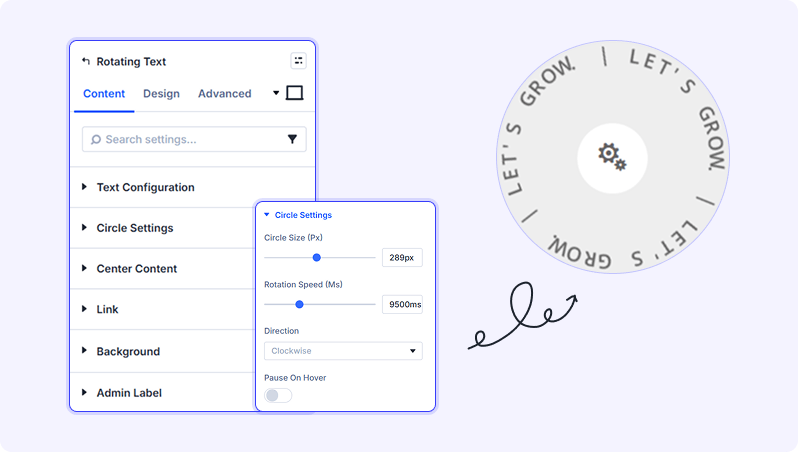
Circle Size (Slider)
Sets the overall diameter of the rotating circle.
- Range: 100 to 600 (in px or %)
- Default: 300px
Rotation Speed (Slider)
Time for one full rotation. A higher value means a slower, more subtle spin.
- Range: 500 to 30000 (in milliseconds)
- Default: 10000ms (10 seconds)
Direction (Dropdown)
Sets which way the text spins around the circle.
- Available options: Clockwise, Counter-Clockwise
- Default: Clockwise
Pause on Hover (Toggle)
When enabled, the rotation animation pauses when a visitor hovers their cursor over the module.
- Default: Off
Center Content
Show Center Content (Toggle)
Toggle on to display an icon, image, or Lottie animation in the middle of the circle.
- Default: On
Content Type (Dropdown)
Choose what appears in the center of the circle.
- Available options: Icon, Image, Lottie
- Default: Icon
- Only appears when Show Center Content is enabled
Icon (Icon Picker)
Pick an icon from the Divi icon library to display in the center.
- Only appears when Content Type is set to Icon
Image (File Upload)
Upload an image to display in the center of the circle.
- Only appears when Content Type is set to Image
Lottie JSON URL (Text Field)
Paste the URL to a Lottie JSON animation file to display in the center.
- Only appears when Content Type is set to Lottie
Lottie Loop (Toggle)
When enabled, the Lottie animation repeats continuously.
- Default: On
- Only appears when Content Type is set to Lottie
Lottie Autoplay (Toggle)
When enabled, the Lottie animation starts playing automatically as soon as the page loads.
- Default: On
- Only appears when Content Type is set to Lottie
Link
Add a URL to make the entire module clickable. You can open the link in the same tab or a new tab.
Background
Standard Divi background options including solid color, gradient, image, and video backgrounds.
Design Settings
Text Styling
Full Divi font controls for the rotating text — including font family, size, weight, color, letter spacing, and line height.
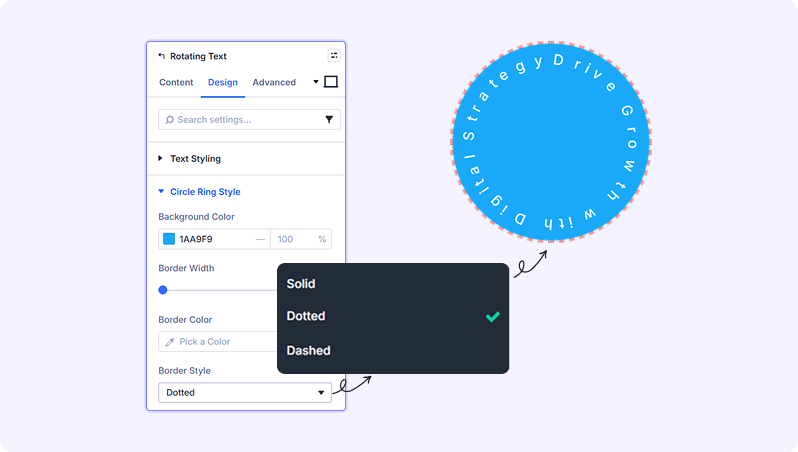
Circle Ring Style
Background Color (Color Picker)
Sets the fill color of the circular ring area.
- Default: Light grey (#eeeeee)
Border Width (Slider)
Sets the thickness of the border drawn around the circle ring.
- Range: 0 to 20 (in px)
- Default: 0 (no border)
Border Color (Color Picker)
Sets the color of the circle ring border.
Border Style (Dropdown)
Sets the visual style of the circle ring border line.
- Available options: Solid, Dotted, Dashed
- Default: Solid
Center Content Style
Width & Height (Slider)
Sets the size of the center content container (the circle in the middle).
- Range: 20 to 300 (in px)
- Default: 60px
- Only appears when Show Center Content is enabled
Icon Size (Slider)
Sets the display size of the icon inside the center container.
- Range: 10 to 300 (in px)
- Only appears when Content Type is set to Icon
Icon Color (Color Picker)
Sets the color of the icon displayed in the center.
- Only appears when Content Type is set to Icon
Image Size (Slider)
Sets the display size of the image inside the center container.
- Range: 20 to 300 (in px)
- Only appears when Content Type is set to Image
Background (Color Picker)
Sets the background color of the center content circle.
- Default: White (#ffffff)
- Only appears when Show Center Content is enabled
Padding (Slider)
Controls the inner spacing between the center content and the edge of its container.
- Range: 0 to 60 (in % or px)
- Default: 20
- Only appears when Show Center Content is enabled
Border Radius (Slider)
Rounds the corners of the center content container. Set to 50% for a perfect circle.
- Range: 0 to 100 (in % or px)
- Default: 50%
- Only appears when Show Center Content is enabled
Built-in Style Options
Standard Divi design controls: Sizing (width, max-width, height), Spacing (margin and padding), Border (module-level border and border radius), Box Shadow, Filters (blur, brightness, contrast, etc.), Transform (rotate, scale, skew), and Animation (entrance effects).
Advanced Settings
- CSS ID & Classes — Add a custom CSS ID or class names to the module for use with custom styling or scripts.
- Custom CSS — Write custom CSS targeting specific parts of the module: Circular Text (the individual characters), Text Container (the rotating text track), Center Content (the middle element), and Circle Ring (the outer circle background).
- Conditions — Control when the module is displayed based on user login status, date, browser, and more.
- Position — Set the module's positioning method (relative, absolute, or fixed) and adjust its offset.
- Scroll Effects — Add scroll-based motion effects such as vertical or horizontal movement, fade, blur, or scaling as the visitor scrolls.
- Transition — Customize the duration and style of hover transition effects.
- Visibility — Show or hide this module independently on desktop, tablet, and phone.
Tips & Best Practices
- Use a short, punchy phrase (3–5 words) and a simple separator like " • " or " ★ " for a clean, professional circular badge look.
- Set Rotation Speed to 20000ms or higher for a slow, ambient spin that doesn't distract visitors — this works well for decorative elements near hero sections.
- Combine a logo image in the center with your brand tagline in the rotating text to create an animated watermark-style element that stands out on landing pages.
- Enable Pause on Hover to give visitors a moment to read the phrase more easily without the constant motion.
Try Rotating Text Premium Layout