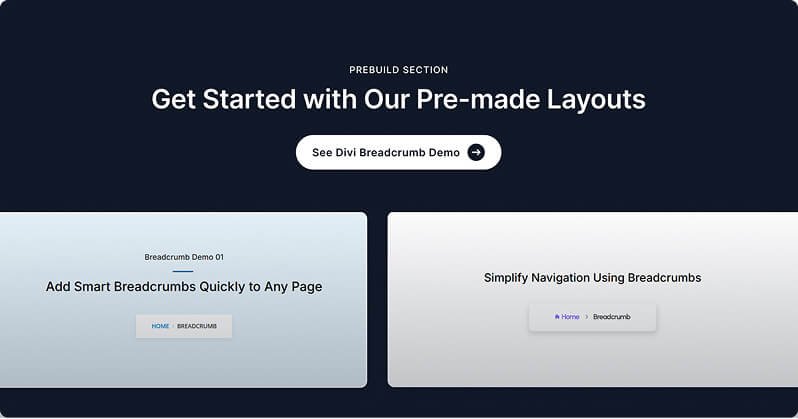
The Breadcrumb module adds a navigation trail to your pages, showing visitors exactly where they are within your site's hierarchy (for example: Home > Blog > Article Title). It automatically reads the WordPress page structure and generates the correct trail, or you can point it at any specific post manually. The module is SEO-friendly, includes Schema.org markup to help search engines understand your site structure, and gives you full control over the separator style, home link, and visual design.
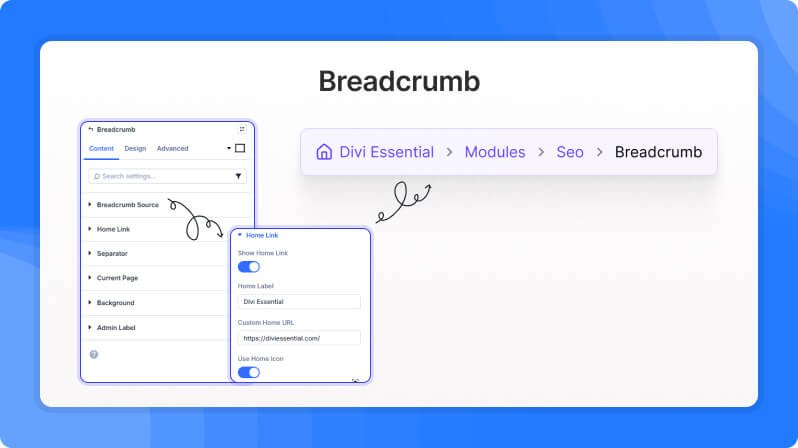
Content Settings
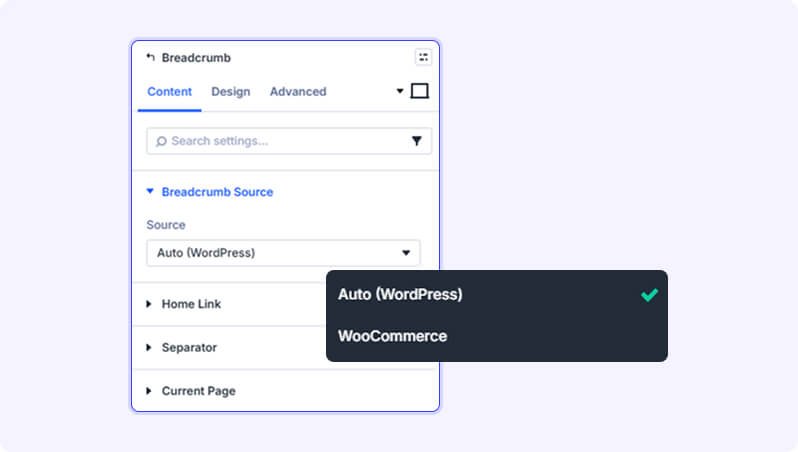
Breadcrumb Source
Source (Dropdown)
Determines how the breadcrumb trail is generated. 'Auto (WordPress)' follows the standard WordPress page hierarchy and works for most sites. 'WooCommerce' generates the trail using WooCommerce product categories. 'Custom' lets you manually pick any post or page to generate the breadcrumb for.
- Available options: Auto (WordPress), WooCommerce, Custom
- Default: Auto (WordPress)
Post Type (Dropdown)
Select which type of content you want to browse. After choosing a post type, a second dropdown will appear so you can pick the specific post.
- Available options: Dynamically loaded from your site's post types
- Default: None
- Only appears when Source is set to Custom
Select Post (Dropdown)
Pick the specific post, page, or custom post you want the breadcrumb trail to reflect.
- Available options: Dynamically loaded from the selected post type
- Default: None
- Only appears when Source is Custom and a Post Type has been selected
Home Link
Show Home Link (Toggle)
Toggles whether the first item in the breadcrumb trail is a link back to the homepage.
- Default: On
Home Label (Text Field)
The text shown for the home link. Change this to match your preferred wording, such as 'Start', 'Main', or your site name.
- Default: Home
- Only appears when Show Home Link is enabled
Custom Home URL (Text Field)
Enter a custom URL for the home link if you want it to point somewhere other than your site's default homepage.
- Default: Empty (uses the default homepage URL)
- Only appears when Show Home Link is enabled
Use Home Icon (Toggle)
Replaces or accompanies the home label text with an icon you choose from the Divi icon library.
- Default: Off
- Only appears when Show Home Link is enabled
Home Icon (Icon Picker)
Pick the icon to use for the home link from the Divi icon library.
- Default: None
- Only appears when Show Home Link and Use Home Icon are both enabled
Icon Position (Dropdown)
Controls where the icon appears in relation to the home label text.
- Available options: Before Label, After Label, Icon Only
- Default: Before Label
- Only appears when Show Home Link and Use Home Icon are both enabled
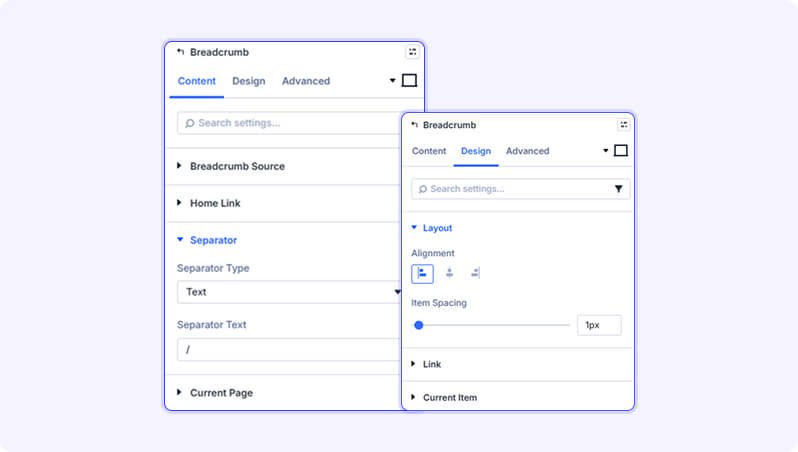
Separator
Separator Type (Dropdown)
Choose what appears between each breadcrumb item to visually separate them.
- Available options: None, Text, Icon
- Default: Text
Separator Text (Text Field)
The character or text shown between breadcrumb items. Common choices are /, >, or —.
- Default: /
- Only appears when Separator Type is set to Text
Separator Icon (Icon Picker)
Pick an icon from the Divi icon library to use as the separator between breadcrumb items.
- Default: None
- Only appears when Separator Type is set to Icon
Current Page
Show Current Page (Toggle)
Toggles whether the current page's title is shown as the last item in the breadcrumb trail.
- Default: On
Current Page Clickable (Toggle)
When enabled, the current page item in the trail becomes a clickable link rather than plain text.
- Default: Off
- Only appears when Source is Custom and Show Current Page is enabled
Background
Standard Divi background options for the module wrapper, including solid colour, gradient, image, and video backgrounds.
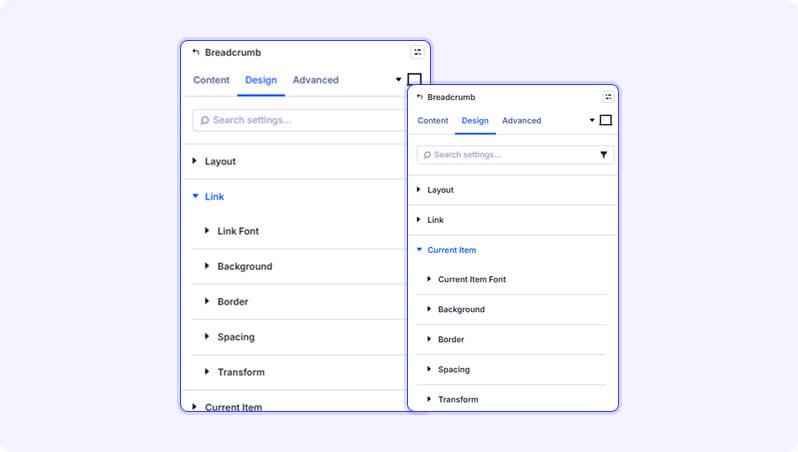
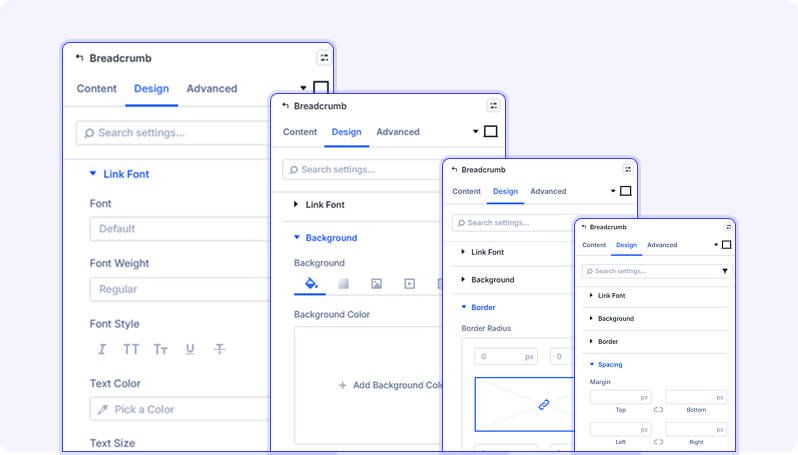
Design Settings
Layout
Alignment (Button Options (Left / Center / Right))
Sets the horizontal alignment of the entire breadcrumb trail within the module. Supports responsive controls for desktop, tablet, and phone.
- Available options: Left, Center, Right
- Default: Left
Item Spacing (Slider)
Adjusts the gap between each breadcrumb item (including separators). Supports responsive controls.
- Range: 0 to 50 (in px or em)
- Default: 0px
Link
Full styling controls for breadcrumb links (all items except the current page): font family, size, weight, colour, line height, letter spacing, background, border, padding/margin, and transform.
Current Item
Full styling controls for the current page item in the breadcrumb trail: font family, size, weight, colour, line height, letter spacing, background, border, padding/margin, and transform. Defaults to bold (weight 600) to visually distinguish the active page.
Separator
Separator Color (Color Picker)
Sets the colour of the separator character or icon between breadcrumb items.
- Default: #999999
Separator Spacing (Slider)
Adjusts the horizontal space (padding) on either side of each separator.
- Range: 0 to 50 (in px or em)
- Default: 8px
Separator Icon Size (Slider)
Controls the display size of the icon used as a separator.
- Range: 8 to 50 (in px)
- Default: 12px
- Only appears when Separator Type is set to Icon
Home Icon
Icon Color (Color Picker)
Sets the colour of the home icon. Supports hover state so the colour can change when a visitor hovers over it.
- Default: Inherited from link colour
- Only appears when Use Home Icon is enabled
Icon Size (Slider)
Controls the display size of the home icon.
- Range: 8 to 50 (in px)
- Default: 16px
- Only appears when Use Home Icon is enabled
Module Sizing, Spacing, Border, Box Shadow, Filters, Transform & Animation
Standard Divi design options applied to the whole module wrapper: Sizing controls width and max-width. Spacing controls margin and padding. Border adds outlines and rounded corners. Box Shadow adds depth. Filters apply visual effects such as blur and brightness. Transform lets you rotate, scale, or skew the module. Animation triggers entrance effects when the module scrolls into view.
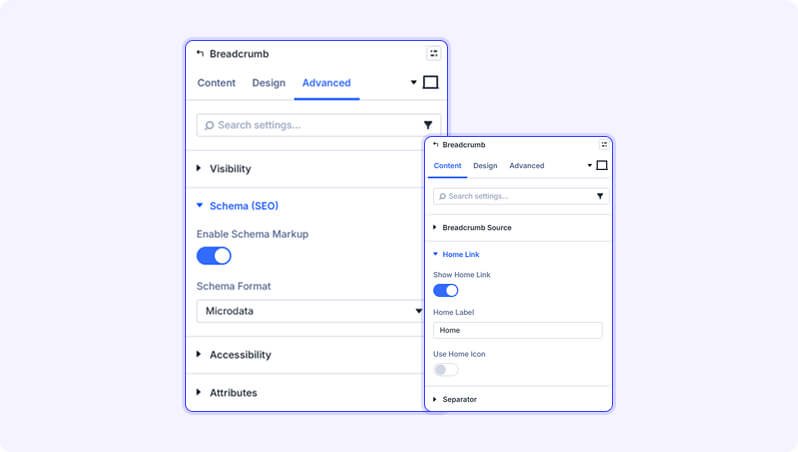
Advanced Settings
- Visibility — Hide the breadcrumb specifically on the Homepage, on 404 error pages, or on Search Results pages, independently from each other.
- Schema (SEO) — Enable Schema.org BreadcrumbList markup so search engines can display a breadcrumb trail in their search results. Choose between Microdata (default) or JSON-LD format.
- Accessibility — Set a custom ARIA label for the breadcrumb navigation element to improve compatibility with screen readers. Defaults to 'Breadcrumb'.
- CSS ID & Classes — Add a custom CSS ID or class names to the module for use with custom CSS or JavaScript.
- Custom CSS — Write custom CSS targeting specific parts of the module: the breadcrumb container, list, individual items, links, current item, separator, and home icon.
- Conditions — Set display conditions to show or hide the module based on rules such as user login status or date.
- Position — Control how the module is positioned on the page (relative, absolute, or fixed).
- Scroll Effects — Add scroll-triggered animations such as vertical movement, fade, blur, or rotation.
- Transition — Customise the speed and easing of hover transition effects.
- Visibility (Device) — Show or hide this module on desktop, tablet, or mobile independently.
Tips & Best Practices
- Enable Schema Markup (found in the Advanced tab under Schema (SEO)) to give search engines a structured breadcrumb trail. This can result in breadcrumbs appearing directly in Google search result snippets, improving click-through rates.
- Use the 'Hide on Homepage' toggle in the Advanced tab to automatically suppress the breadcrumb on your front page, where a trail like 'Home > Home' would be redundant.
- Switch the Separator Type to 'Icon' and choose a right-pointing chevron icon for a modern, clean look that is more visually distinct than a plain text slash.
- Style the Current Item section with a different font colour or weight to make it immediately clear to visitors which page they are on within the trail.
Try Breadcrumb Module Premium Demo