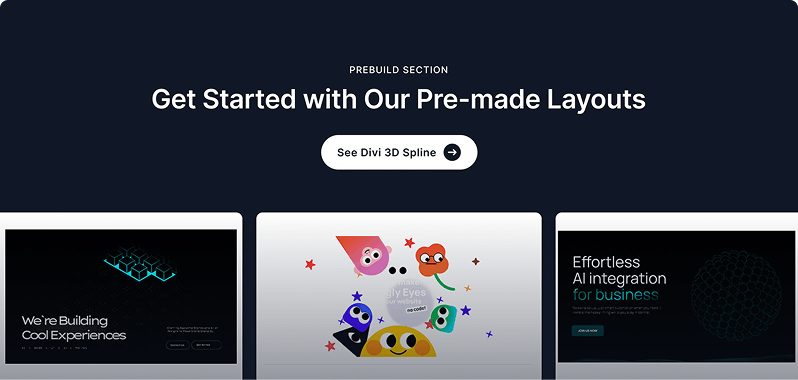
The 3D Spline module embeds interactive Spline 3D scenes directly into your Divi pages. Just paste your Spline scene URL or Scene ID and the module renders a fully interactive 3D experience that visitors can click and drag. It supports an optional content overlay (title, body text, and a CTA button) displayed on top of the scene, plus a fallback image shown if the scene fails to load.
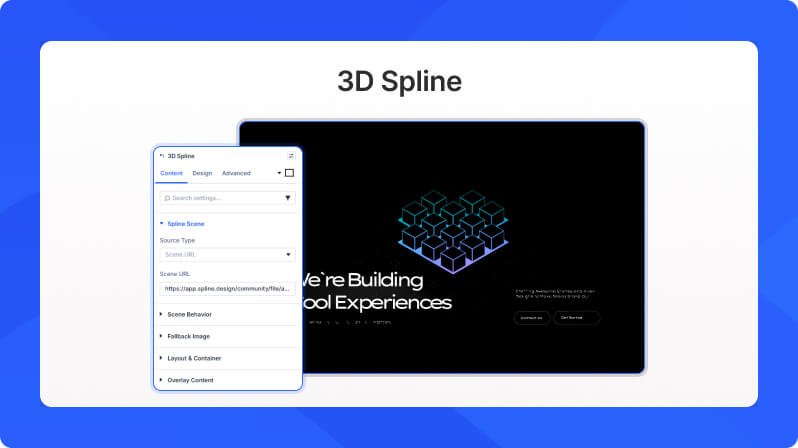
Content Settings
Spline Scene
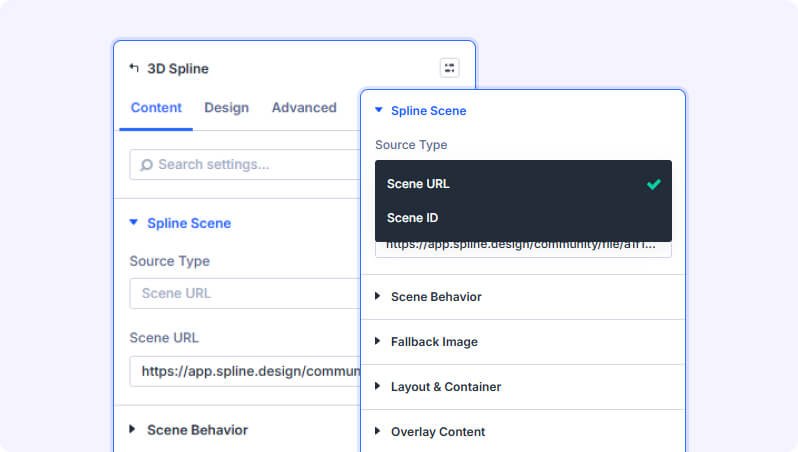
Source Type (Dropdown)
Choose how to identify your Spline scene — either by pasting its URL or entering its Scene ID.
- Available options: Scene URL, Scene ID
- Default: Scene URL
Scene URL (Text Field)
Paste any Spline URL. It will be auto-converted to the correct format. You can paste a share link (my.spline.design) or a direct scene link.
- Only appears when Source Type is set to Scene URL
Scene ID (Text Field)
Enter the Spline scene ID from your project URL.
- Only appears when Source Type is set to Scene ID
Scene Behavior
Enable Interaction (Toggle)
Allow mouse and touch interactions with the 3D scene. When disabled, the scene plays as a non-interactive animation.
- Default: On
Lazy Loading (Toggle)
Load the scene only when it enters the viewport. Improves page load performance when the module is below the fold.
- Default: On
Interaction Hint (Toggle)
Show a cursor badge hinting users to click and drag. The badge automatically hides when the mouse enters the scene.
- Default: Off
Fallback Image
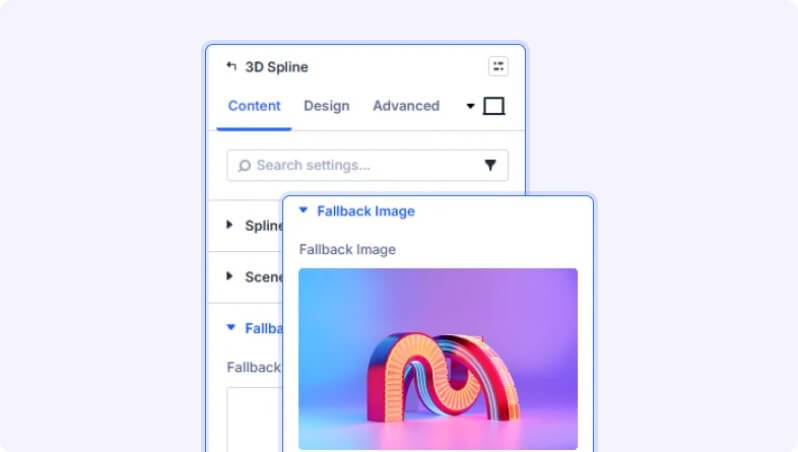
Fallback Image (File Upload)
An image displayed when the 3D scene cannot load (for example, on unsupported browsers or slow connections).
Layout & Container
Aspect Ratio (Dropdown)
Set a fixed aspect ratio for the viewer. The height will auto-calculate from the module's width, making the scene fully responsive.
- Available options: None (Manual), 16:9, 4:3, 1:1, 21:9
- Default: None (Manual)
Viewer Height (Slider)
Set the height of the Spline viewer container manually.
- Range: 100 to 1000 (in px, %, vh, or vw)
- Default: 400px
- Only appears when Aspect Ratio is set to None (Manual)
Overflow (Dropdown)
Controls whether content that extends beyond the viewer boundaries is clipped or shown.
- Available options: Hidden, Visible
- Default: Hidden
Overlay Content
Enable Overlay (Toggle)
Show a content overlay on top of the 3D scene. Once enabled, you can add a title, body text, and an optional call-to-action button.
- Default: Off
Entrance Animation (Dropdown)
Animation style when the overlay appears on page load.
- Available options: None, Fade In, Slide Up, Slide Down, Scale In
- Default: None
- Only appears when Enable Overlay is on
Overlay Position (Dropdown)
Where the overlay is positioned over the 3D scene.
- Available options: Top Left, Top Center, Top Right, Center, Bottom Left, Bottom Center, Bottom Right
- Default: Center
- Only appears when Enable Overlay is on
Overlay Title (Text Field)
Heading text displayed in the overlay.
- Default: Your Title Here
- Only appears when Enable Overlay is on
Overlay Body (Text Field)
Body text displayed below the title in the overlay. Supports rich text formatting.
- Default: Your description here.
- Only appears when Enable Overlay is on
Show CTA Button (Toggle)
Add a call-to-action button inside the overlay.
- Default: Off
- Only appears when Enable Overlay is on
Button Text (Text Field)
The label text on the CTA button.
- Default: Learn More
- Only appears when Show CTA Button is on
Button URL (Text Field)
The link the CTA button points to.
- Only appears when Show CTA Button is on
Open in New Tab (Toggle)
Open the button link in a new browser tab.
- Default: Off
- Only appears when Show CTA Button is on
Background
Standard Divi background options including solid color, gradient, image, and video backgrounds for the module wrapper.
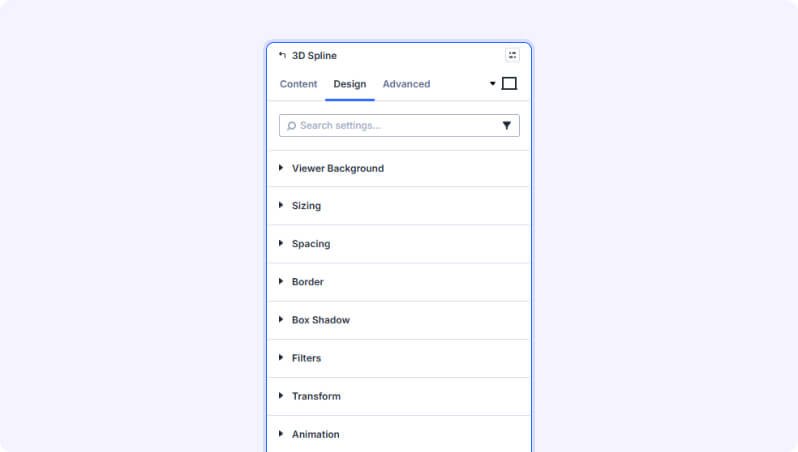
Design Settings
Viewer Background
Background Color (Color Picker)
Background color passed directly to the Spline viewer. Leave empty for a transparent background so your page background shows through.
- Default: Transparent
Overlay Design
Overlay Background (Color Picker)
Background color for the overlay panel. Supports alpha transparency — use a semi-transparent color to let the 3D scene show through.
- Default: rgba(0,0,0,0.5) — semi-transparent black
- Only appears when Enable Overlay is on
Overlay Design — Spacing, Border & Shadow
Padding/margin, border style/radius, and box shadow controls for the overlay panel. Only available when Enable Overlay is on.
Overlay Title
Font family, size, weight, color, letter spacing, and spacing controls for the overlay title text. Only available when Enable Overlay is on.
Overlay Body
Font family, size, weight, color, and spacing controls for the overlay body text. Only available when Enable Overlay is on.
Overlay Button
Font, spacing, border, and box shadow controls for the CTA button. Only available when Enable Overlay and Show CTA Button are both on.
Module Sizing, Spacing & Decoration
Standard Divi options for module sizing (width/max-width), spacing (margin/padding), borders, box shadow, CSS filters, transform effects, and entrance animations.
Advanced Settings
- CSS ID & Classes — Add a custom CSS ID or class names to the module for targeted styling.
- Custom CSS — Write custom CSS targeting the viewer container, overlay, overlay title, overlay body, overlay button, or interaction hint.
- Visibility — Show or hide this module on desktop, tablet, or phone.
- Scroll Effects — Add parallax or scroll-triggered animation effects.
- Position — Control the module's positioning (relative, absolute, fixed).
- Transition — Customize hover transition duration and style.
- Conditions — Set conditions for when this module should display.
Tips & Best Practices
- Use the 16:9 or 4:3 Aspect Ratio setting to make the 3D scene fully responsive — it will automatically resize to fill any screen width without a fixed height.
- Enable 'Lazy Loading' on pages with multiple modules to avoid loading all 3D scenes at once, improving initial page speed.
- Add an overlay with a semi-transparent background and a CTA button to turn the 3D scene into an engaging hero section with a call-to-action.
- Upload a Fallback Image that matches the look of your Spline scene so visitors on unsupported devices still see a polished visual.
Try 3D Spline Premium Demo