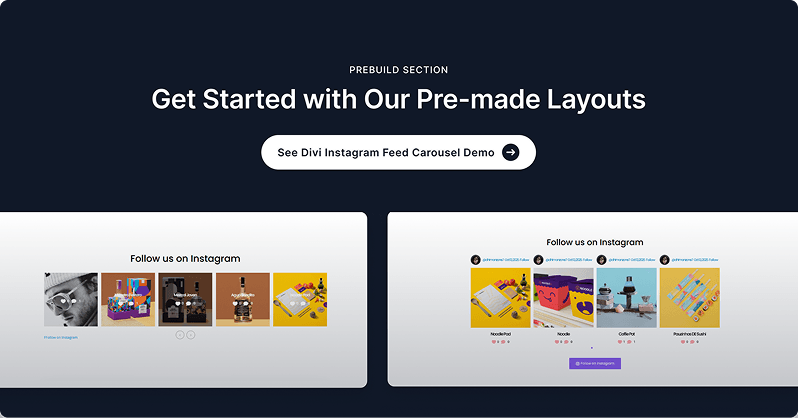
The Instagram Carousel module displays your Instagram posts in a smooth, swipeable carousel directly on your Divi page. It connects to the Instagram API using your access token and automatically fetches your latest posts. Choose from three card layouts — Default, Overlay, or Minimal — and control exactly which post details (likes, comments, username, date, follow button) are shown. Full carousel controls let you configure autoplay, looping, navigation arrows, pagination style, and coverflow effects.
Content Settings
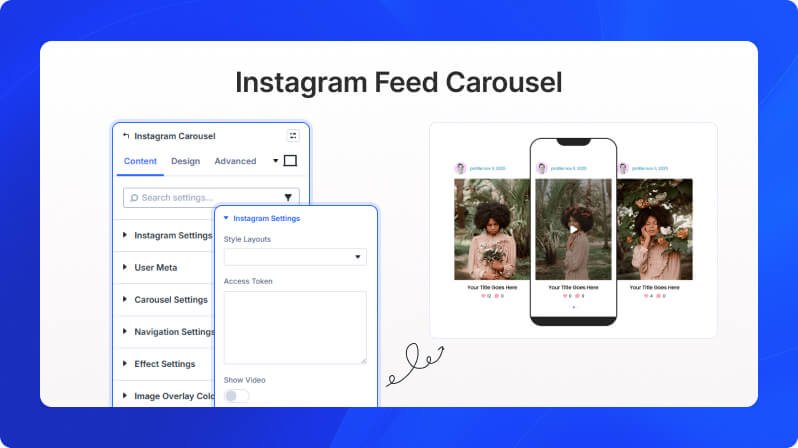
Instagram Settings
Style Layouts (Dropdown)
Select a visual style for how your Instagram posts are displayed in each carousel card.
- Available options: Default, Overlay, Minimal
- Default: Default
Access Token (Text Area)
Paste your Instagram API access token here. This is required to fetch your Instagram posts.
Show Video (Toggle)
Enable to display video posts from your Instagram feed in the carousel.
- Default: Off
- Only available when the Default layout is selected
Video Autoplay (Toggle)
Enable to automatically play video posts as they appear in the carousel.
- Default: Off
- Only appears when Show Video is enabled (Default layout only)

User Meta
Show or hide likes count (Toggle)
Show or hide the like count on each Instagram post card.
- Default: On
- Not available in the Overlay layout
Show or hide comments count (Toggle)
Show or hide the comment count on each Instagram post card.
- Default: On
- Not available in the Overlay layout
Show or hide Instagram Profile Picture (Toggle)
Show or hide the account profile picture on each post card.
- Default: On
- Not available in the Minimal layout
Show or hide Instagram Username (Toggle)
Show or hide the Instagram username on each post card.
- Default: On
- Not available in the Minimal layout
Show or hide Instagram Date (Toggle)
Show or hide the post date on each post card.
- Default: On
- Not available in the Minimal layout
Show or hide Instagram Follow Button (Toggle)
Show or hide a follow button linking to your Instagram profile.
- Default: On
Follow Button Background Color (Color Picker)
Set the background color of the follow button.
- Only appears in the Minimal layout when the Follow Button is enabled
Follow Button Text (Font Settings)
Customize the font, size, weight, and color of the follow button text.
- Only appears in the Minimal layout when the Follow Button is enabled
Follow Button Spacing (Spacing)
Adjust the padding and margin around the follow button.
- Only appears in the Minimal layout when the Follow Button is enabled
Follow Button Border (Border)
Add a border, border radius, or border style to the follow button.
- Only appears in the Minimal layout when the Follow Button is enabled
Carousel Settings
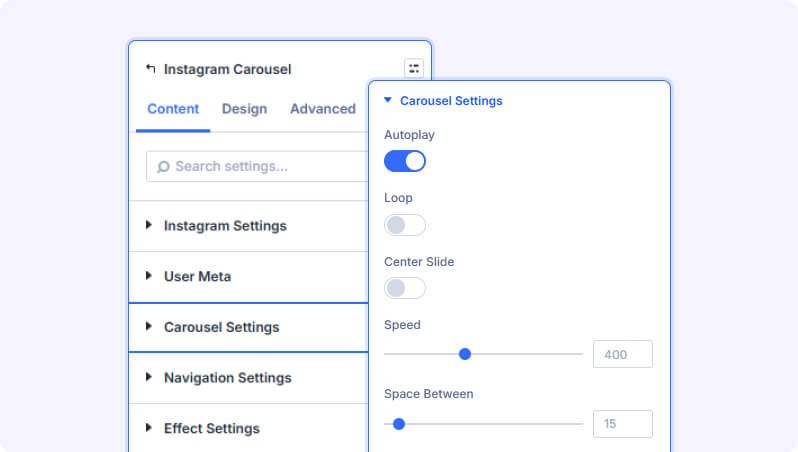
Autoplay (Toggle)
Enable to automatically advance slides without user interaction.
- Default: On
Autoplay Delay (Text Field)
Set how long (in milliseconds) each slide is displayed before advancing. 1000ms = 1 second.
- Default: 2000 (2 seconds)
- Only appears when Autoplay is enabled
Loop (Toggle)
Enable to make the carousel loop back to the beginning after the last slide.
- Default: Off
Center Slide (Toggle)
Enable to center the active slide in the carousel view.
- Default: Off
Speed (Slider)
Set the transition speed (in milliseconds) when sliding between cards.
- Range: 1 to 1000 (in ms)
- Default: 400ms
Space Between (Slider)
Set the gap between each slide card in the carousel.
- Range: 1 to 300 (in px)
- Default: 15px
Slide Perview (Text Field)
Set how many slide cards are visible at once in the carousel.
- Default: 3
Pause On Hover (Toggle)
Enable to pause the autoplay animation when the user hovers over the carousel.
- Default: Off
Navigation Settings
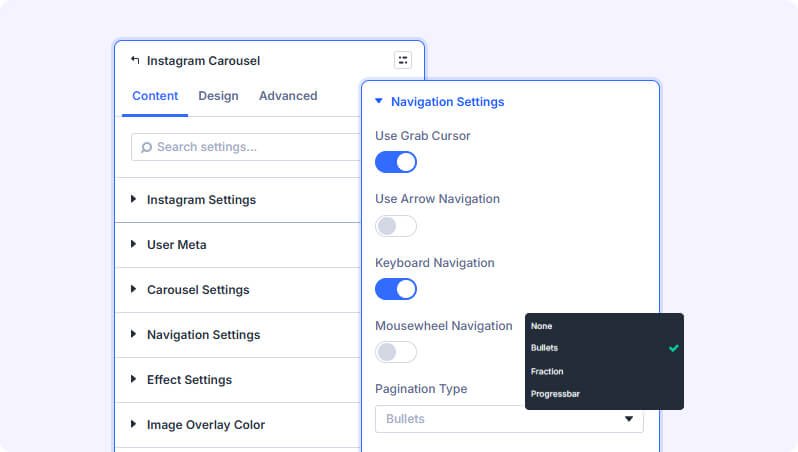
Use Grab Cursor (Toggle)
Show a grab/hand cursor when hovering over the carousel to indicate it is draggable.
- Default: On
Use Arrow Navigation (Toggle)
Show previous and next arrow buttons for navigating the carousel.
- Default: Off
Keyboard Navigation (Toggle)
Allow users to navigate the carousel with keyboard arrow keys.
- Default: On
Mousewheel Navigation (Toggle)
Allow users to scroll through the carousel using the mouse wheel.
- Default: Off
Pagination Type (Dropdown)
Choose the style of pagination indicator shown below the carousel.
- Available options: None, Bullets, Fraction, Progressbar
- Default: Bullets
Dynamic Bullets (Toggle)
Enable to animate bullet dots so that only nearby dots are shown at full size, shrinking dots further away.
- Default: On
Rtl Direction (Toggle)
Enable right-to-left direction for the carousel, suitable for RTL languages.
- Default: Off
Effect Settings
Use Slide Shadows (Toggle)
Enable shadows on the left and right edges of slides to create depth in the coverflow effect.
- Default: Off
Slide Rotate (Slider)
Set the rotation angle (in degrees) applied to non-active slides in the coverflow effect.
- Range: 1 to 1000 (in degrees)
- Default: 0
Slide Stretch (Slider)
Set how much non-active slides stretch horizontally in the coverflow effect.
- Range: 1 to 1000
- Default: 0
Slide Depth (Slider)
Set how far non-active slides appear to recede in depth in the coverflow effect.
- Range: 1 to 1000
- Default: 0
Image Overlay Color
Set a color overlay that appears on top of post images. Used with the Overlay and Minimal layouts to create a tinted overlay effect over the Instagram images. Supports solid color and gradient. Defaults to a semi-transparent black (50% opacity).
Background
Standard Divi background options including solid color, gradient, image, and video backgrounds for the entire module.
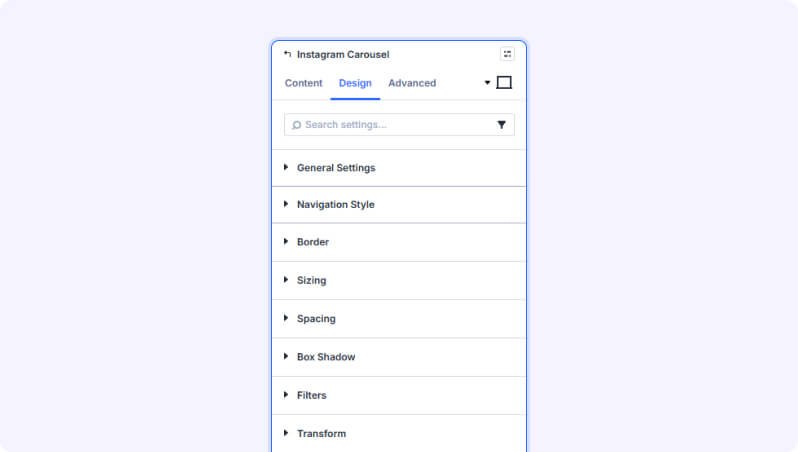
Design Settings
General Settings
User Name Text (Font Settings)
Customize the font, size, weight, and color of the Instagram username displayed on post cards.
Date Text (Font Settings)
Customize the font, size, weight, and color of the post date shown on cards.
Follow Text (Font Settings)
Customize the font, size, weight, and color of the inline follow link text.
Title Text (Font Settings)
Customize the font, size, weight, and color of the post caption text.
Like Icon Color (Color Picker)
Set the color of the heart icon next to the like count.
- Default: Pink (#FDA4AF)
Like Count Color (Color Picker)
Set the text color of the like count number.
- Default: Dark grey (#333333)
Comment Icon Color (Color Picker)
Set the color of the comment icon next to the comment count.
- Default: Pink (#FDA4AF)
Comment Count Color (Color Picker)
Set the text color of the comment count number.
- Default: Dark grey (#333333)
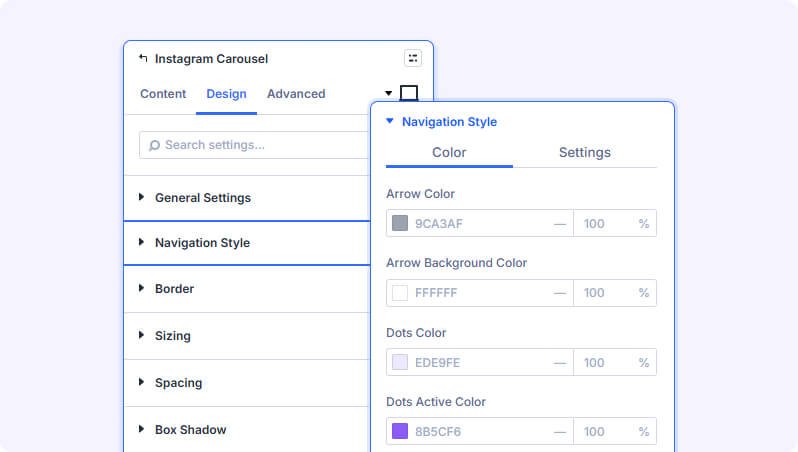
Navigation Style — Colors
Arrow Color (Color Picker)
Set the icon color of the previous and next navigation arrows.
- Default: Grey (#9CA3AF)
Arrow Background Color (Color Picker)
Set the background color of the arrow navigation buttons.
- Default: White (#FFFFFF)
Dots Color (Color Picker)
Set the color of inactive pagination bullet dots.
- Default: Light purple (#EDE9FE)
- Only visible when Pagination Type is set to Bullets
Dots Active Color (Color Picker)
Set the color of the currently active pagination bullet dot.
- Default: Purple (#8B5CF6)
- Only visible when Pagination Type is set to Bullets
Progressbar Fill Color (Color Picker)
Set the fill color of the progress bar pagination indicator.
- Default: Blue (#0c71c3)
- Only visible when Pagination Type is set to Progressbar
Fraction Color (Color Picker)
Set the text color of the fraction pagination indicator (e.g. 1 / 5).
- Default: Blue (#0c71c3)
- Only visible when Pagination Type is set to Fraction
Fraction Active Color (Color Picker)
Set the color of the active number in the fraction pagination indicator.
- Default: Blue (#0c71c3)
- Only visible when Pagination Type is set to Fraction
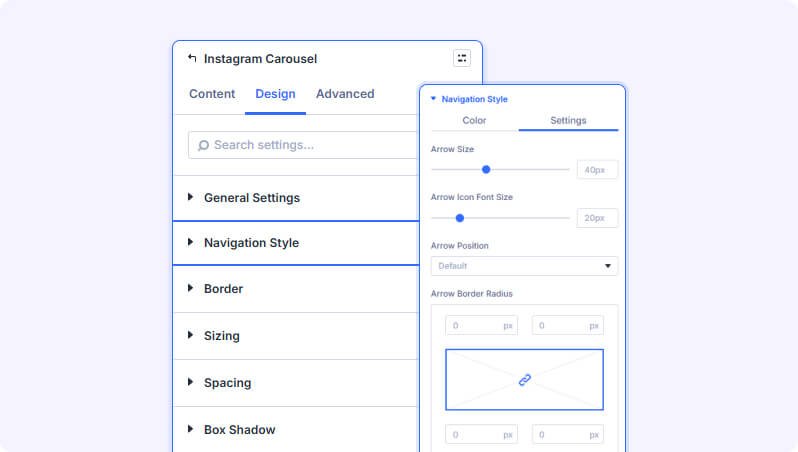
Navigation Style — Settings
Arrow Size (Slider)
Set the overall size of the navigation arrow buttons.
- Range: 1 to 100 (in px)
- Default: 40px
Arrow Icon Font Size (Slider)
Set the size of the icon inside the navigation arrow buttons.
- Range: 1 to 100 (in px)
- Default: 20px
Arrow Position (Dropdown)
Choose where the navigation arrows are placed relative to the carousel.
- Available options: Default, Inner, Outer, Bottom Center
- Default: Default
Fraction Size (Slider)
Set the font size of the fraction pagination text.
- Range: 1 to 100 (in px)
- Default: 16px
- Only visible when Pagination Type is set to Fraction
Module Style Options
Standard Divi decoration options including border, sizing, spacing (padding and margin), box shadow, filters (brightness, contrast, etc.), transform (scale, rotate, skew), and animation (entrance effects with delay and duration).
Advanced Settings
- HTML Attributes — Add custom HTML attributes to the module wrapper element.
- Custom CSS — Write custom CSS targeting specific parts of the Instagram carousel.
- Conditions — Set conditions for when this module should be displayed.
- Position — Control the module's CSS positioning (relative, absolute, fixed).
- Scroll Effects — Add parallax or scroll-triggered animation effects.
- Transition — Customize the duration and style of hover transitions.
- Visibility — Show or hide the module on desktop, tablet, or phone.
Tips & Best Practices
- You need a valid Instagram Basic Display API access token to load your feed. Tokens expire periodically — if the carousel stops showing posts, regenerate your token in your Meta developer app and update it here.
- Use the Overlay or Minimal layouts for a more visual, image-forward presentation. These layouts hide the profile picture, username, and date to keep the focus on the photos.
- Set Slides Per View to 1 on mobile (using responsive settings) and 2–3 on tablet/desktop to ensure cards are not too small to read on smaller screens.
- If you want the carousel to pause when users are reading a post, enable Pause On Hover so autoplay stops while they interact with the carousel.
Try Instagram Carousel Premium Demo