Overview
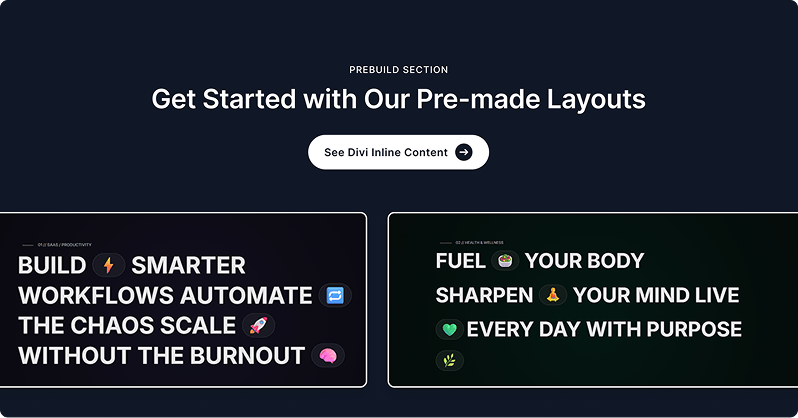
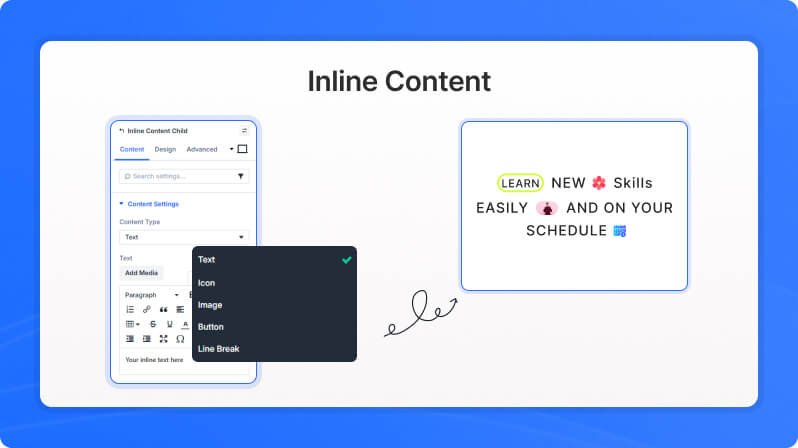
The Inline Content module lets you combine different types of content — text, icons, images, buttons, and line breaks — arranged side by side in a single horizontal row. Each item is added as a child and can be independently configured. This makes it ideal for building compact mixed-content layouts like an icon paired with a label, a badge next to a price, or a row of mixed callouts, all with full control over alignment and spacing.
Content Settings
Items
Item List (Draggable List)
Add, remove, and reorder inline items. Each item is configured separately as a child. Click 'Add New Item' to add a new inline element.
Background
Standard Divi background options including solid color, gradient, image, and video backgrounds for the module wrapper.
Design Settings
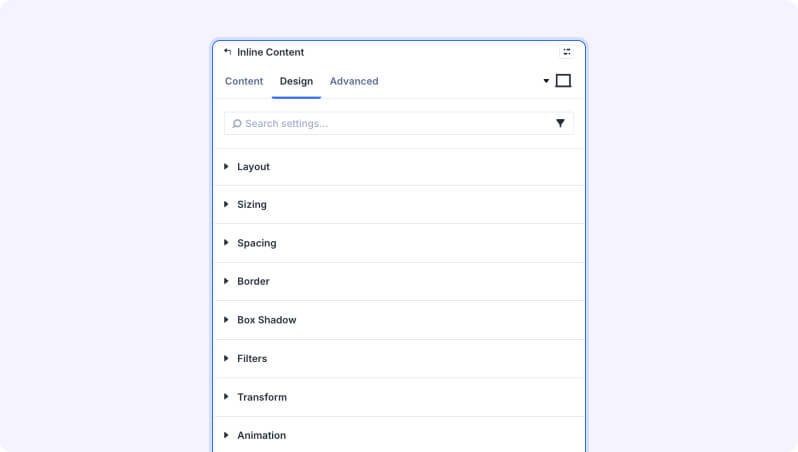
Layout
Horizontal Alignment (Alignment Buttons)
Set the horizontal alignment of inline items within the row.
- Available options: Left, Center, Right, Space Between
- Default: Left
Vertical Alignment (Alignment Buttons)
Set the vertical alignment of inline items relative to each other.
- Available options: Top, Center, Bottom
- Default: Center
Column Gap (Slider)
Set the horizontal gap between inline items.
- Range: 0 to 100 px
- Default: 10px
Row Gap (Slider)
Set the vertical gap between rows when inline items wrap to multiple lines.
- Range: 0 to 100 px
- Default: 10px
Module Sizing, Spacing & Decoration
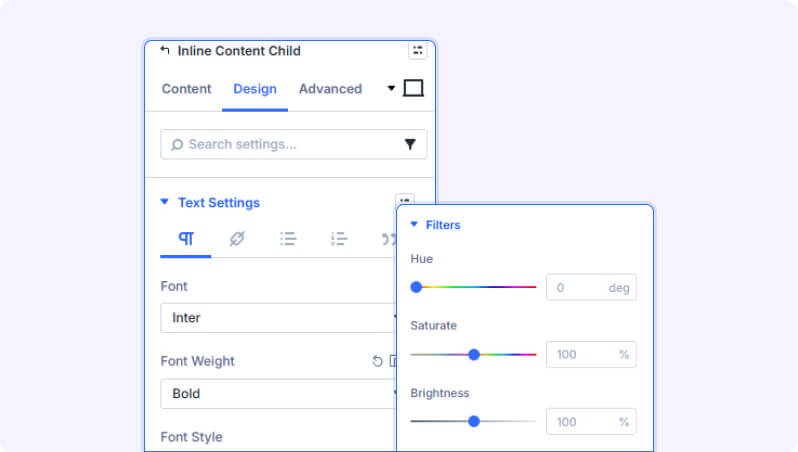
Standard Divi options for module sizing (width/max-width), spacing (margin/padding), borders, box shadow, CSS filters, transform effects, and entrance animations.
Inline Item Settings
Each inline item is a separate child element. The available fields change depending on which Content Type is selected for that item.
Content Settings
Content Settings
Content Type (Dropdown)
Select the type of inline content for this item. Each type shows different fields below.
- Available options: Text, Icon, Image, Button, Line Break
- Default: Text
Text (Rich Text)
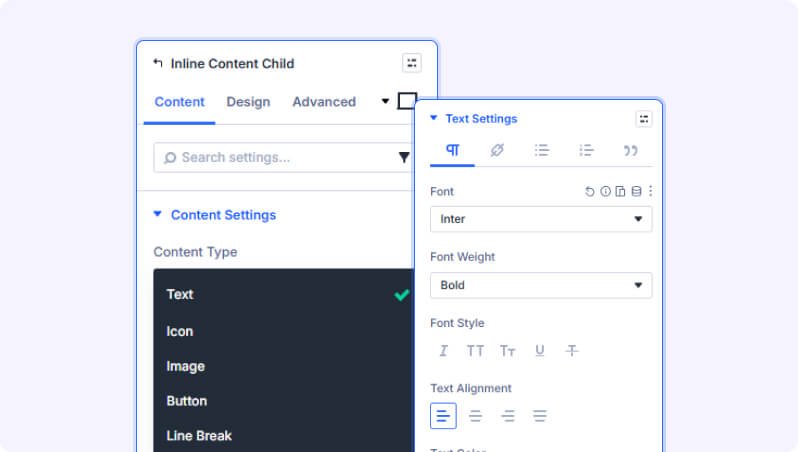
Enter the inline text content. Supports rich text formatting.
- Only appears when Content Type is set to Text
Icon (Icon Picker)
Select an icon to display from the Divi icon library.
- Only appears when Content Type is set to Icon
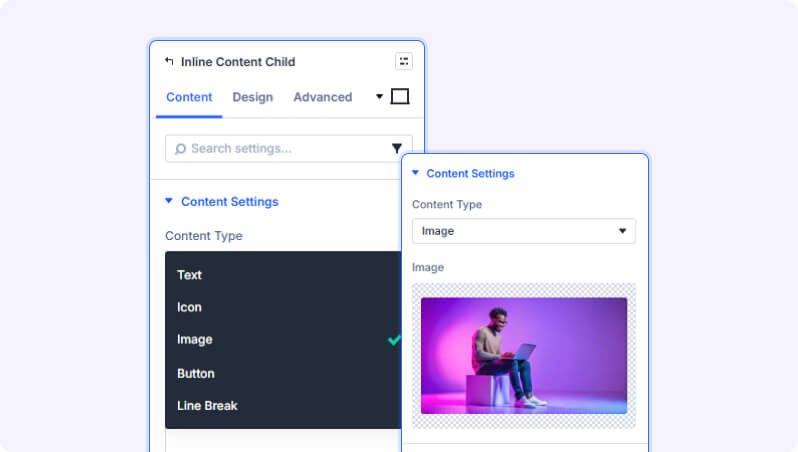
Image (File Upload)
Upload an image to display inline alongside other items.
- Only appears when Content Type is set to Image
Button Text (Text Field)
Enter the button label text.
- Only appears when Content Type is set to Button
Button Link (Link Group)
Set the URL the button links to, including options for opening in a new tab.
- Only appears when Content Type is Button and button text has been entered
Button Background
Background color, gradient, or image for the button. Only available when Content Type is set to Button.
Item Background
Background options for the individual item wrapper (solid color, gradient, or image).
Design Settings
Text Settings
Body font settings for the text item — font family, size, weight, color, line height, and letter spacing. Only available when Content Type is Text.
Icon Settings
Icon Color (Color Picker)
Set the color of the icon.
- Only available when Content Type is Icon
Icon Size (Slider)
Set the size of the icon.
- Range: 1 to 200 px
- Default: 16px
- Only available when Content Type is Icon
Image Settings
Image Width (Slider)
Set the width of the inline image.
- Range: 1 to 500 px
- Default: 40px
- Only available when Content Type is Image
Image Border, Shadow & Filters
Border, box shadow, and CSS filter controls for the image. Only available when Content Type is Image.
Button Settings
Button text font (family, size, weight, color), border, box shadow, and padding/margin controls. Only available when Content Type is Button.
Item Sizing, Spacing & Decoration
Standard Divi sizing, spacing, borders, box shadow, filters, transform, and animation options applied to the item wrapper.
Advanced Settings
- CSS ID & Classes — Add a custom CSS ID or class names to the module for targeted styling.
- Custom CSS — Write custom CSS targeting the module wrapper or the inner items container.
- Visibility — Show or hide this module on desktop, tablet, or phone.
- Scroll Effects — Add parallax or scroll-triggered animation effects.
- Position — Control the module's positioning (relative, absolute, fixed).
- Transition — Customize hover transition duration and style.
- Conditions — Set conditions for when this module should display.
Tips & Best Practices
- Use the 'Line Break' content type to force certain items onto a new row while keeping others together on the same line.
- Combine an Icon item with a Text item to create a simple icon + label pair — use the Column Gap setting on the parent module to control spacing between them.
- Set Horizontal Alignment to 'Space Between' to spread items evenly across the full width of the module.
- Each item has its own background and spacing settings, so you can highlight individual items (like a button or badge) with a distinct background color.
Inline Content Premium Demo