Overview
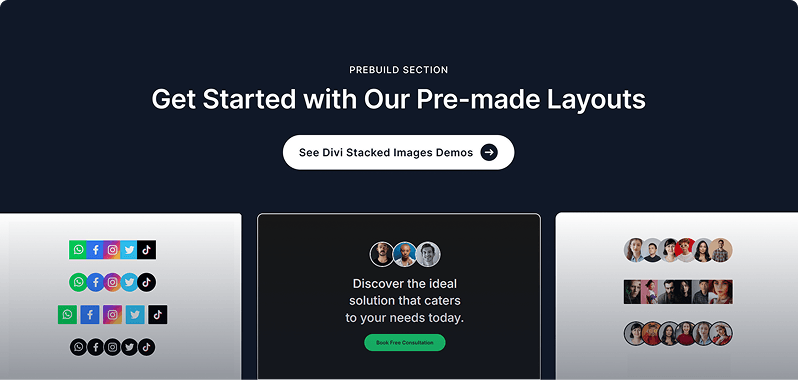
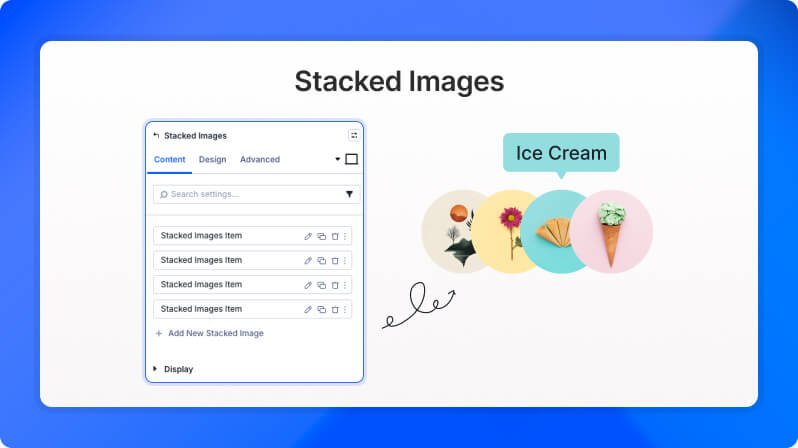
The Next Stacked Images module displays a group of icons or images layered on top of each other in a stacked arrangement — perfect for showing team avatars, social proof, or grouped visual elements. Items stack horizontally or vertically and can shrink progressively to create depth. Hovering over each item can reveal a tooltip with custom text.
Stacked Image Item Settings
Each stacked item is configured individually. Click any item in the list to open its settings.
Content Settings
Content
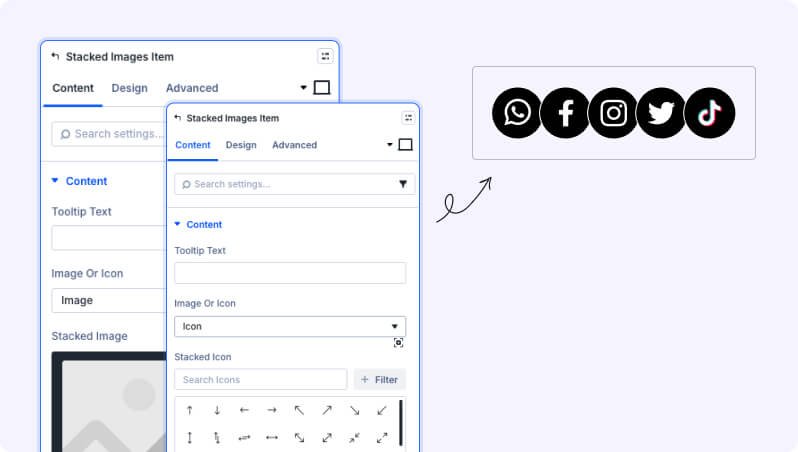
Tooltip Text (Text Field)
Enter the title for this stacked image. This text appears in the tooltip when a visitor hovers over the item (if tooltips are enabled on the parent module).
Image or Icon (Dropdown)
Choose the source for this stacked item — display a Divi icon or upload a custom image.
- Available options: Icon, Image
- Default: Icon
Stacked Icon (Icon Picker)
Pick an icon from the Divi icon library to use for this stacked item.
- Only appears when Image or Icon is set to Icon
Stacked Image (File Upload)
Upload an image for this stacked card.
- Only appears when Image or Icon is set to Image
Link
Add a URL to make this individual stacked item clickable.
Background
Standard Divi background options for this item including solid color, gradient, and image backgrounds.
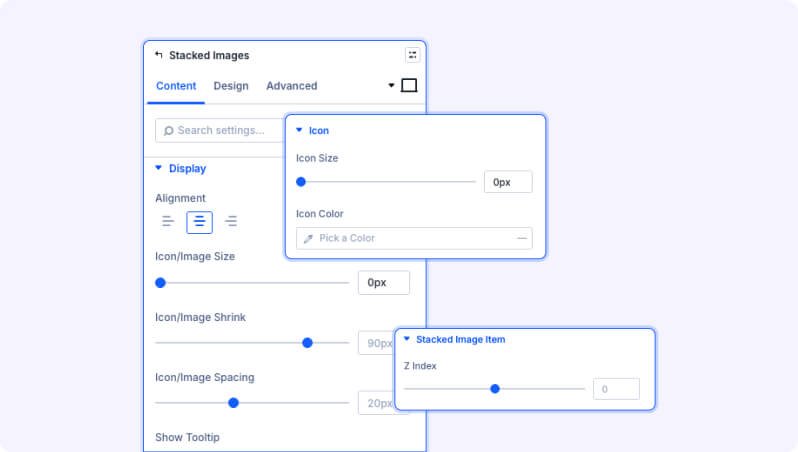
Display
Alignment (Button Options)
Align stacked images to the left, right or center.
- Available options: Left, Center, Right
- Default: Left
Icon/Image Size (Slider)
Set the size of the icon/image.
- Range: 1 to 400 px (also supports %, em, vw)
Icon/Image Shrink (Slider)
Set how much each subsequent image shrinks. A lower value means each stacked item appears noticeably smaller than the previous one.
- Range: 0 to 200 px (also supports %, em, vw)
- Default: 90
Icon/Image Spacing (Slider)
Set the spacing between stacked images. Use negative values to create an overlapping effect.
- Range: -100 to 200 px (also supports %, em, vw)
- Default: 20
Show Tooltip (Toggle)
Enable tooltip on hover for each image. When enabled, hovering over a stacked item shows a tooltip with the item's tooltip text.
- Default: Off
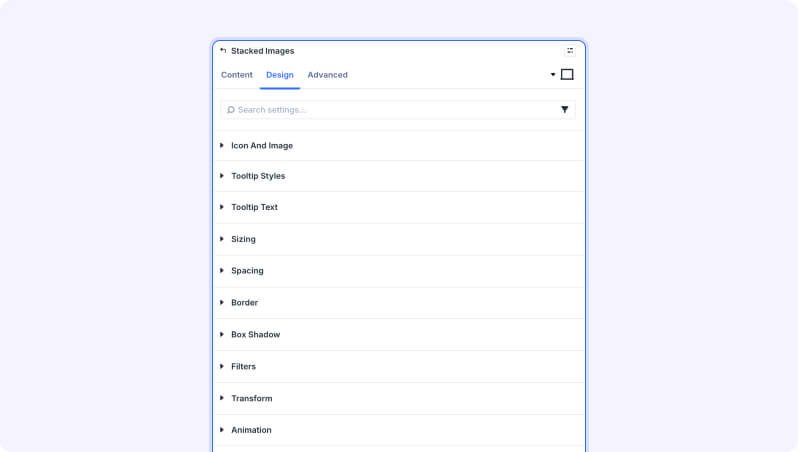
Design Settings
Icon
Icon Size (Slider)
Set the size of icons displayed in the stack.
- Range: 1 to 200 px (also supports %, em, rem, vw, vh)
- Default: 30px
Icon Color (Color Picker)
Set the color for icons in the stack.
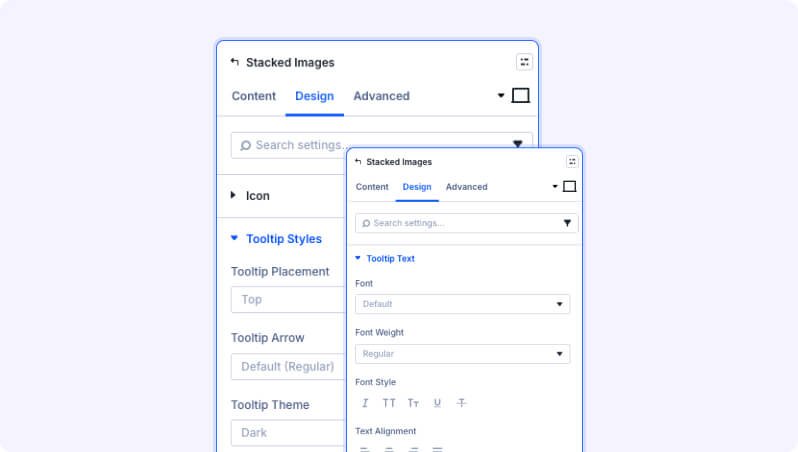
Tooltip Styles
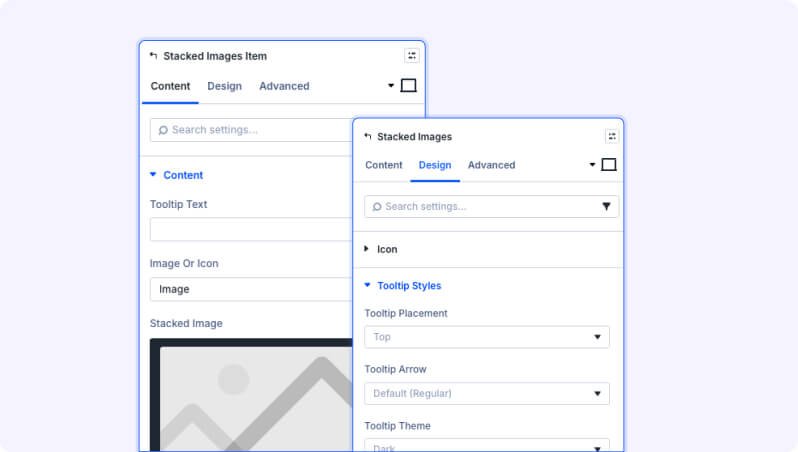
Tooltip Placement (Dropdown)
Select Tooltip Placement — choose where the tooltip appears relative to the stacked item.
- Available options: Top, Bottom, Left, Right, Top Start, Top End, Bottom Start, Bottom End, Left Start, Left End, Right Start, Right End
- Default: Top
Tooltip Arrow (Dropdown)
Select Tooltip Arrow Size — control the size of the arrow pointing from the tooltip to the item.
- Available options: Default (Regular), Small, Big, No Arrow
- Default: Default (Regular)
Tooltip Theme (Dropdown)
Select Tooltip Theme — choose a visual style for the tooltip popup.
- Available options: Dark, Light, Light Border, Material, Translucent
- Default: Dark
Tooltip Text
Standard Divi font options for the tooltip text — control font family, size, weight, style, color, line height, and letter spacing.
Built-in Style Options
Standard Divi design options are available: Sizing (width and height), Spacing (margin and padding), Border (style, radius, color), Box Shadow, Filters (opacity, blur, etc.), Transform (rotate, scale, translate), and Animation (entrance effects).
Design Settings
Stacked Image Item
Z Index (Slider)
Control the stacking order of this item relative to others. A higher value brings the item in front of items with a lower value.
- Range: -100 to 100
- Default: 1
Icon
Icon Size (Slider)
Set the size of the icon for this individual item.
- Range: 1 to 120 px (also supports %, em, rem, vw, vh)
- Default: 40px
Icon Color (Color Picker)
Set the icon color for this individual stacked item.
Icon Alignment (Button Options)
Align the icon within the item container.
- Available options: Top Left, Top Center, Top Right, Center Left, Center, Center Right, Bottom Left, Bottom Center, Bottom Right
- Default: Center
Built-in Style Options
Standard Divi design options are available per item: Sizing, Spacing (margin and padding), Border, Box Shadow, Filters, Transform, and Animation entrance effects.
Tips & Best Practices
- Use negative spacing (e.g., -20px) between items to create an overlapping stack effect — this looks great for team member avatars or social proof sections.
- Enable 'Show Tooltip' and add a name or label to each child item so visitors know who or what each stacked image represents when they hover.
- Combine the shrink setting with a small negative spacing value to create a 3D depth effect where items appear to recede into the background.
Advanced Settings
- CSS ID & Classes — Add a custom CSS ID or classes to the module for targeted styling.
- Custom CSS — Write custom CSS targeting specific parts of the module.
- Visibility — Show or hide this module on desktop, tablet, or phone.
- Scroll Effects — Add parallax or scroll-triggered animation effects.
- Position — Control the module's positioning (relative, absolute, fixed).
- Transition — Customize hover transition duration and style.
- Conditions — Set conditions for when this module should display.
Stacked Image Premium Demo