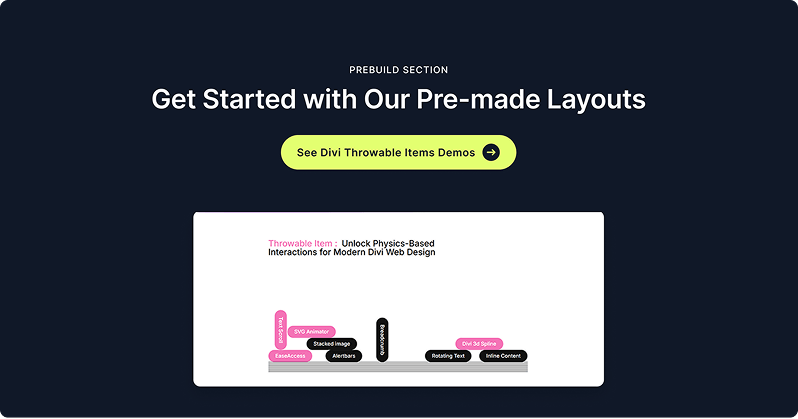
Throwable Items is an interactive physics-based module that lets you display content — text labels, images, icons, or custom HTML — as objects that fall, bounce, and collide inside a defined container area. Visitors can click and drag items to throw them around, creating a fun and engaging experience. It's perfect for showcasing logos, tech stacks, tag clouds, or any set of items you want to present in a dynamic, interactive way.
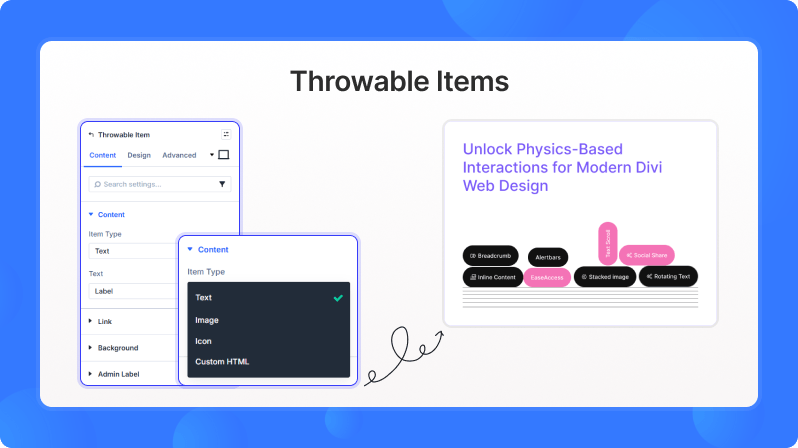
Content Settings
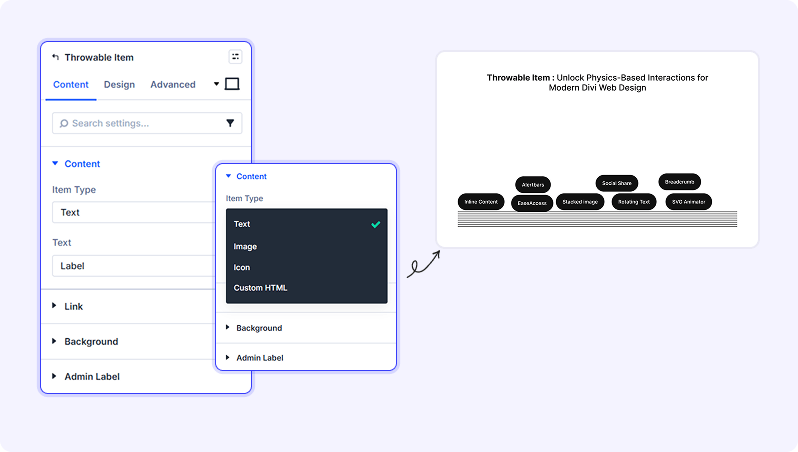
Throwable Items List
Add New Throwable Item (Draggable List)
Use the draggable list to add, reorder, and manage individual throwable items. Each item in the list is a child module with its own content and style settings.
Throwable Item (Child Module)
Each Throwable Item is an individual object within the Throwable Items container. You can set it to display text, an image, an icon, or custom HTML. Each item has its own physics properties that control how it behaves when it falls and collides with other items.
Content Settings
Content
Item Type (Dropdown)
Choose what type of content this throwable item displays.
- Available options: Text, Image, Icon, Custom HTML
- Default: Text
Text (Text Field)
Enter the text label to display on this item.
- Default: Label
- Only appears when Item Type is set to Text
Image (File Upload)
Upload an image to display inside this throwable item.
- Only appears when Item Type is set to Image
Image Alt Text (Text Field)
Enter descriptive alt text for the image, used for accessibility and SEO.
- Only appears when Item Type is set to Image
Icon (Icon Picker)
Pick an icon from the Divi icon library to display on this item.
- Only appears when Item Type is set to Icon
Custom HTML (Code Editor)
Enter any custom HTML code to embed inside this throwable item. Useful for badges, inline SVGs, or other rich content.
- Only appears when Item Type is set to Custom HTML
Link
Standard Divi link options. Add a URL to make this item clickable.
Background
Standard Divi background options for this individual item including solid color, gradient, and image.
Design Settings
Main Module Design Settings:
Container
Container Height (Slider)
Set the height of the area where items fall and bounce. Taller containers give items more room to move.
- Range: 100 to 1200 (in px, vh, or %)
- Default: 500px
Grid Lines
Show Grid Lines (Toggle)
Display decorative vertical grid lines behind the items in the container.
- Default: Off
Grid Line Color (Color Picker)
Set the color of the decorative grid lines.
- Default: Light gray (#e0e0e0)
- Only appears when Show Grid Lines is enabled
Grid Line Count (Slider)
Choose how many vertical grid lines to display across the container.
- Range: 2 to 30 lines
- Default: 10
- Only appears when Show Grid Lines is enabled
Heading Text
Standard Divi font controls for the heading text element: font family, weight, style, size, letter spacing, line height, and color.
Description Text
Standard Divi font controls for the description text element: font family, weight, style, size, letter spacing, line height, and color.
Built-in Style Options
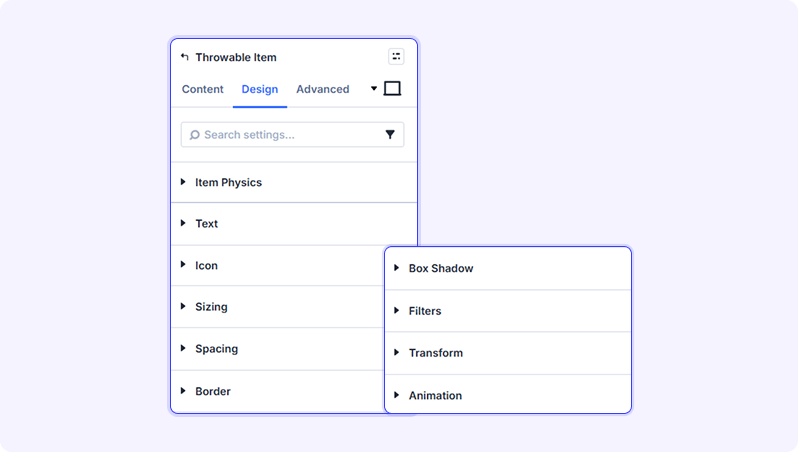
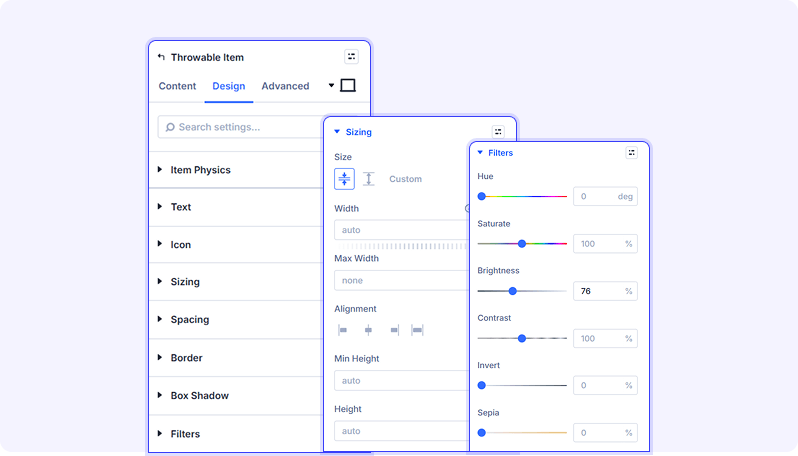
Standard Divi design groups are available: Sizing (width and height), Spacing (padding and margin), Border (rounded corners and borders), Box Shadow, Filters (brightness, contrast, saturation, etc.), Transform (rotate, scale, skew), and Animation.
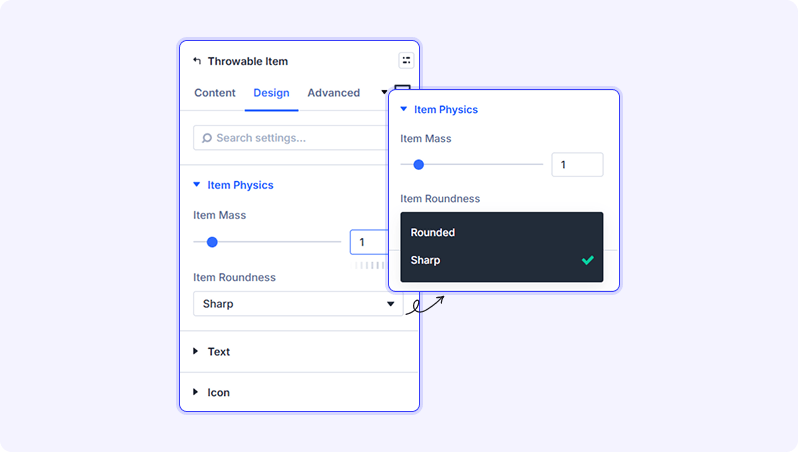
Item Physics
Item Mass (Slider)
Heavier items are harder to throw and push other items more forcefully when they collide.
- Range: 0.1 to 10
- Default: 1
Item Roundness (Dropdown)
Controls the collision shape of the item. Rounded items roll and tumble; sharp items tend to stack and slide.
- Available options: Rounded, Sharp
- Default: Rounded
Text
Standard Divi font controls for the item's text content: font family, weight, style, size, letter spacing, line height, and color.
Icon
Icon Size (Slider)
Set the display size of the icon.
- Range: 1 to 120 (in px, em, or rem)
- Default: 24px
Icon Color (Color Picker)
Set the color of the icon.
- Default: White
Built-in Style Options
Standard Divi design groups are available per item: Sizing, Spacing (padding and margin), Border (rounded corners and borders), Box Shadow, Filters, Transform, and Animation.
Tips & Best Practices
- Keep the number of items manageable (5–20 works well) for the best visual experience. Too many items can make the physics feel crowded.
- Use the Grid Lines feature to add a subtle tech-grid background that complements logo walls or tech stack displays.
- For logo walls, set all items to the Image type and keep item sizes consistent for a polished, balanced layout.
Advanced Settings
- CSS ID & Classes — Add a custom CSS ID or classes to the module wrapper.
- Custom CSS — Write custom CSS targeting the container, heading, description, scene area, or grid lines.
- Conditions — Set conditions for when this module should display (e.g., by user role, date, or device).
- Visibility — Show or hide the module on desktop, tablet, or phone.
- Transition — Customize hover transition speed and style.
- Position — Control the module's positioning (relative, absolute, fixed, or sticky).
- Scroll Effects — Add parallax or scroll-triggered animation effects.
Try Throwable Item Premium Demo