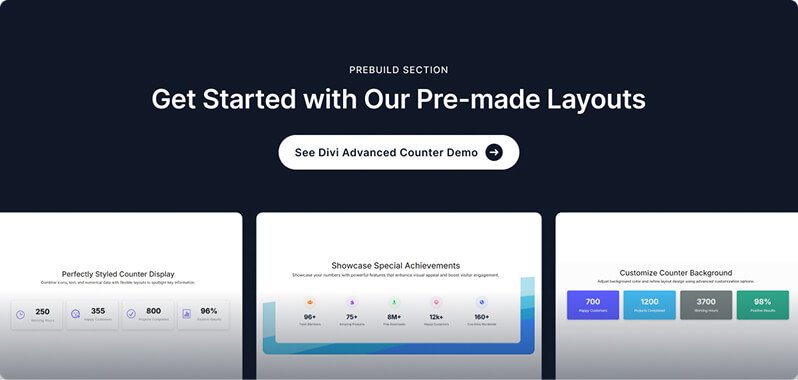
The Advance Counter module displays a statistic or milestone as a bold number with an optional title and description. It supports two layout styles — a centered vertical stack or a horizontal layout with an icon on the left and text on the right. You can add a font icon or custom SVG image to make each counter visually distinctive. Use it to showcase key metrics, achievements, or stats on your page.
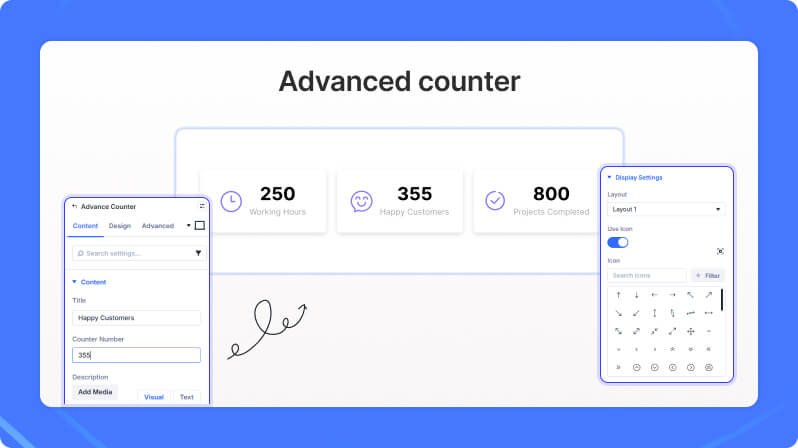
Content Settings
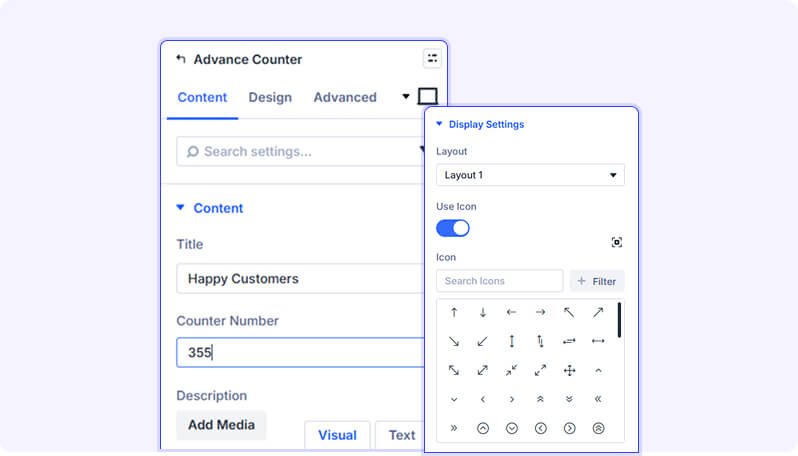
Content
Title (Text Field)
Enter the counter title. This appears above the counter number.
Counter Number (Text Field)
Enter the target number or value to display. You can include symbols such as a plus sign or percentage (e.g. 100+, 95%).
- Default: 100+
Description (Rich Text)
Enter a short description below the counter number. Supports basic rich text formatting.
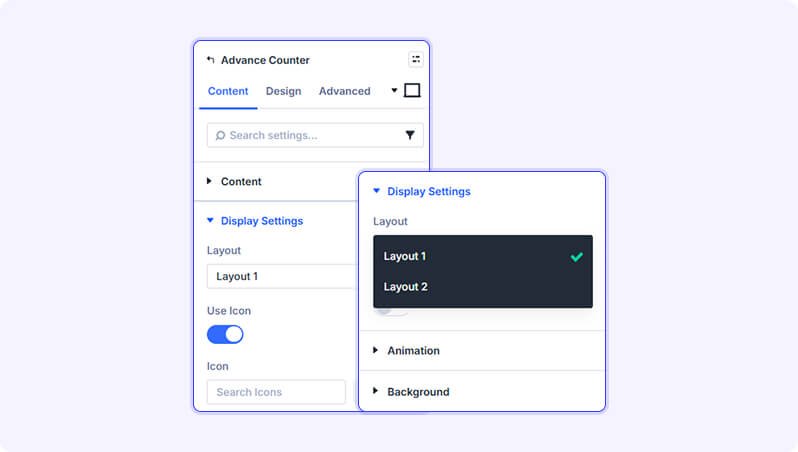
Display Settings
Layout (Dropdown)
Choose how the counter elements are arranged. Layout 1 stacks everything vertically and centers the content. Layout 2 places the icon on the left with the title, number, and description on the right.
- Available options: Layout 1, Layout 2
- Default: Layout 1
Use Icon (Toggle)
Enable this to show a font icon above (Layout 1) or beside (Layout 2) the counter content.
- Default: Off
Icon (Icon Picker)
Pick an icon from the Divi icon library to display with the counter.
- Only appears when Use Icon is enabled
Use SVG Icon (Toggle)
Enable this to upload a custom SVG image as the counter icon instead of a font icon.
- Default: Off
SVG Icon (File Upload)
Upload an SVG file to use as the counter icon. If Use Icon is also enabled, the font icon takes priority.
- Only appears when Use SVG Icon is enabled
Design Settings
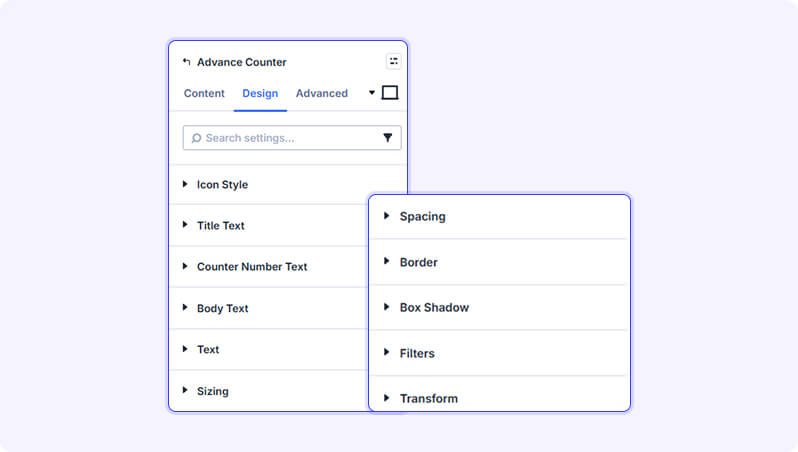
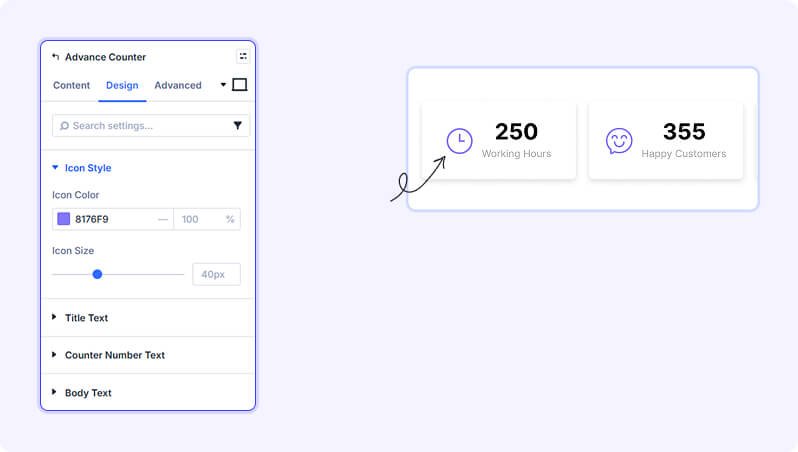
Icon Style
Icon Color (Color Picker)
Choose the color for the font icon.
- Default: #7a5af8 (purple)
Icon Size (Slider)
Set the size of the font icon. Supports multiple units.
- Range: 1 to 120 (supports px, %, em, rem, and more)
- Default: 40px
Title Text
Standard Divi font options for the counter title — including font family, size, weight, color, letter spacing, line height, and text alignment.
Counter Number Text
Standard Divi font options for the counter number — including font family, size, weight, color, letter spacing, and line height. Defaults to bold blue (48px, #2563eb).
Description Text
Standard Divi body font options for the description text — including font family, size, color, line height, and text alignment.
Module Style Options
Standard Divi decoration options including background (color, gradient, image, video), sizing, spacing (padding and margin), border, box shadow, filters, transform, animation, overflow, transition, position, z-index, scroll effects, and sticky positioning.
Advanced Settings
- CSS ID & Classes — Add a custom CSS ID or class names to the module for targeting with custom CSS or JavaScript.
- Custom CSS — Write custom CSS for specific parts of the module including the title, counter number, description, and icon.
- Link — Wrap the entire module in a link to a URL, page, email address, or phone number.
- Text — Set module-level text orientation and text shadow.
- HTML Attributes — Add custom HTML attributes to the module wrapper element.
- Visibility — Show or hide the module on desktop, tablet, or phone.
- Scroll Effects — Add parallax or scroll-triggered animation (fade, slide, blur, etc.).
- Transform — Apply CSS transforms such as scale, rotate, translate, or skew.
- Animation — Add entrance animations with control over style, duration, delay, and repeat.
- Position — Control the module's CSS positioning (relative, absolute, fixed).
- Sticky — Pin the module to the viewport as the user scrolls.
- Transition — Customize the duration and style of hover transitions.
Tips & Best Practices
- Use Layout 2 when combining the counter with a distinctive icon — the side-by-side arrangement gives each counter a clear visual anchor and reads well in multi-column rows.
- Keep the Counter Number short and punchy. Symbols like +, %, or K (e.g. '500+', '98%', '10K') communicate scale at a glance without needing extra description text.
- When displaying multiple counters in a row, place them inside a Divi Row with equal column widths and consistent icon sizes to create a balanced statistics section.
Try Advance Counter Premium Demo