
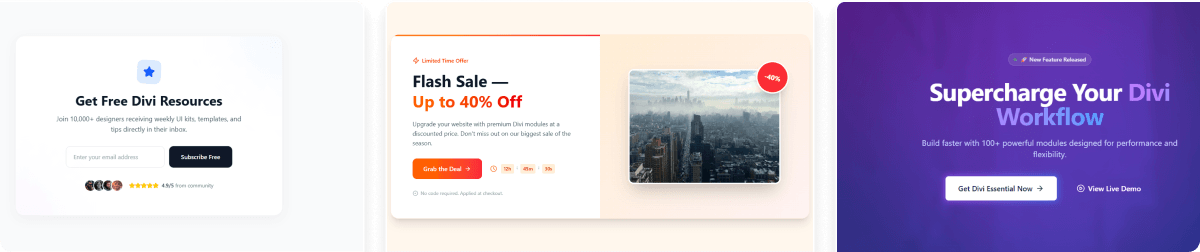
Divi Expanding CTA adds scroll-triggered animations, countdown timers, dual buttons, and icon or image media support to any Divi call-to-action.
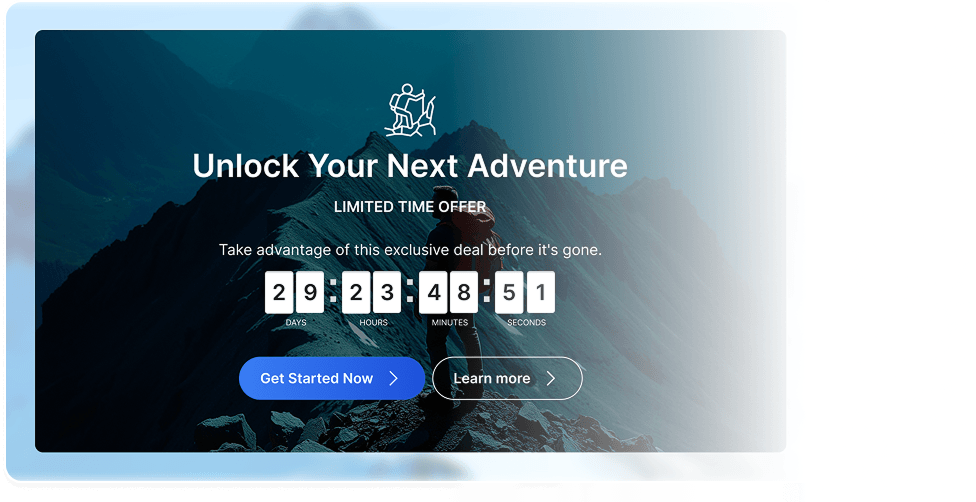
Divi Expanding CTA turns any call-to-action section into a scroll-triggered animated experience with countdown timers and full dual button support.
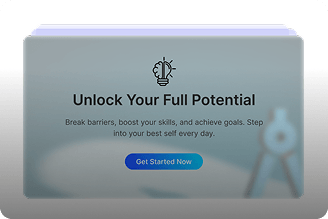
Expanding Animation Control
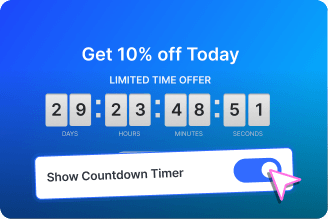
Countdown Timer With Expire
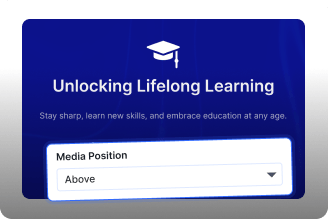
Media Above Left or Right

Expand on Scroll Animation

Dual Button and Icon Control

Overlay and Media Support

Countdown Timer With Expiry

Install Divi Essential and activate your license key.

Drop the Expanding CTA module onto your Divi page.

Set your animation, add buttons, and hit publish.
Your CTA Hard to Ignore
Frequently Asked Questions
Do you have any questions or concerns? Here is a list of frequently asked questions and their answers that might be helpful.
Divi Essential Help Center or Contact Us.
How does Divi Expanding CTA work on scroll?
The CTA expands on scroll. Use Expand Scale, Duration, and Easing in the Animation section to control how the CTA grows on the page.
Can I add two buttons to the Expanding CTA?
Yes. Turn on Show Secondary Button. Both buttons support icon, placement, and hover-only icon display from the Buttons section in Divi.
Does Divi Expanding CTA include a countdown timer?
Yes. Enable Show Countdown Timer and set a target date. Choose which units appear and set On Expired to Hide CTA when the timer ends.
What media types does the Expanding CTA support?
Icon and Image are both supported. Set Media Type and choose Above, Left, or Right for Media Position from the Content tab in Divi.
Can the Expanding CTA show a page overlay?
Yes. Enable Show Overlay On Expand in Overlay and Page Behavior. The overlay dims the page behind the CTA when it expands on scroll.
What animation easing options does Expanding CTA offer?
Ease, Ease In, Ease Out, and Ease In Out are available. Pick from the Animation section to control how the CTA expand animation feels.
✨ More Ways to Enhance Your Divi Experience

Data Table

Table of Contents
Create stunning scrolling text effects with masking options & animation effect.

Text Marquee
Create stunning scrolling text effects with masking options & animation effect.

Divi Scroll Stacking Cards
Captivate visitors with scroll-triggered card stacks for features & portfolios.
