
Show your main brand and sub-brands in Divi 5 with animated branches, a central logo, and fully customizable tree layout.
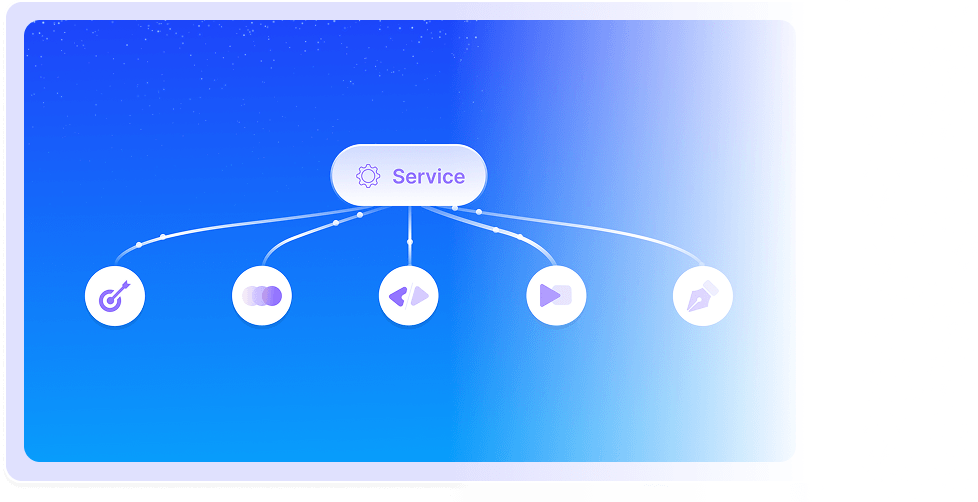
Divi Logo Tree transforms flat logo grids into visual brand stories with a central main logo, animated branch lines, and individually styled child logo items.
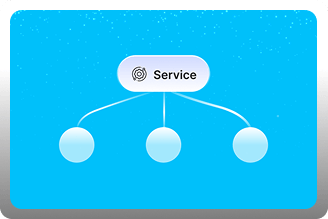
Main Logo Centerpiece
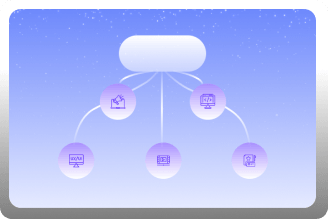
Repeatable Tree Items
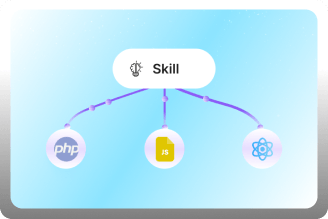
Animated Branch Lines
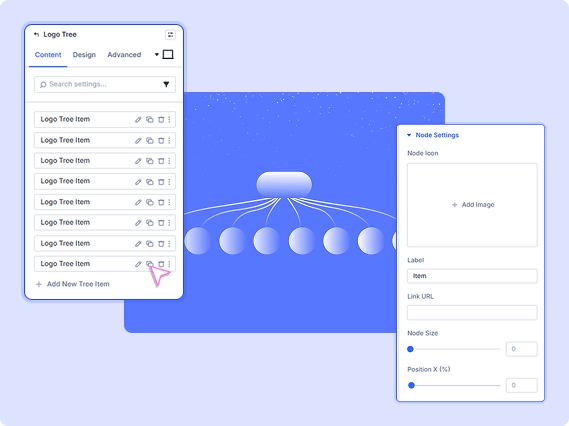
Logo Tree Item Configuration
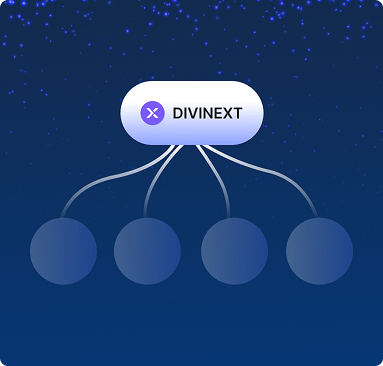
Main Logo Display Controls
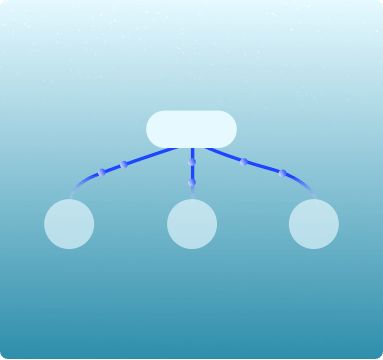
Tree Settings and Branch Style
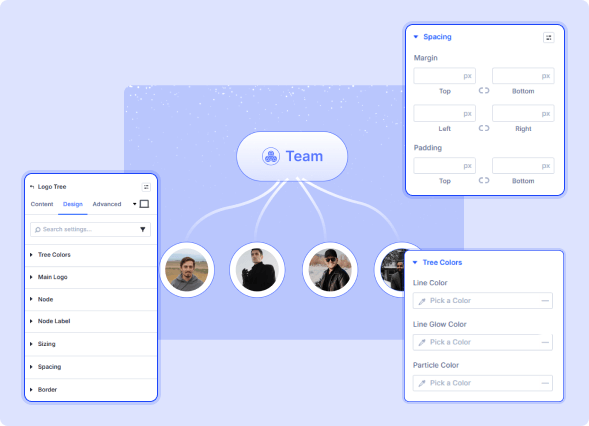
Background and Design Options
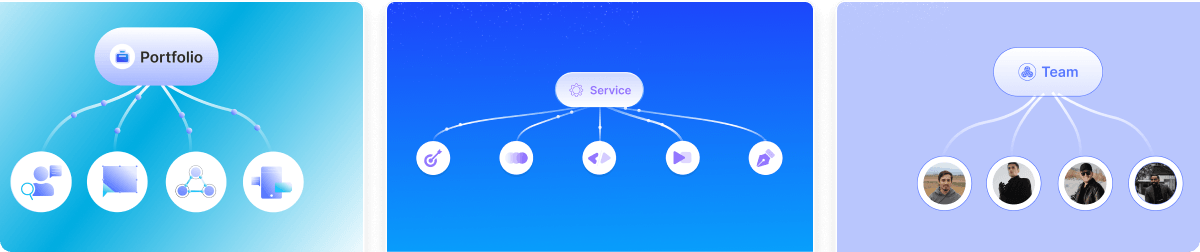

Install Divi Essential and activate your license key.

Drop the Divi Logo Tree module onto your Divi page.

Set Main Logo, add sub-brand items, adjust settings, publish.
Tell your brand story visually!
Frequently Asked Questions
Do you have any questions or concerns? Here is a list of frequently asked questions and their answers that might be helpful.
Divi Essential Help Center or Contact Us.
How do I add child logos to the tree layout?
Click Add New Tree Item in the Content tab. Each Logo Tree Item lets you upload a separate logo, set a link, and position it as a branch under your main logo.
Can I customize the branch connection lines?
Yes! Tree Settings gives you control over branch line color, thickness, and curve style. The animated lines connect your main logo to each child item automatically.
What does the Main Logo section control?
Main Logo sets the central brand at the top root. Upload, resize, and position it as the anchor for all branches.
How many Logo Tree Items can I add?
There is no limit. Use the Add New Tree Item button to add as many child brand logos as you need. Each item is independently styled and positioned.
Can I use this for team or partner logos?
Absolutely. Use the Main Logo for your brand and Logo Tree Items for partners, subsidiaries, clients, or team members — any hierarchy you want to visualize.
Is Divi Logo Tree compatible with Divi 5?
Yes! Fully built for Divi 5, using the native visual builder with full design, responsive, and spacing controls in the editor.
✨ More Ways to Enhance Your Divi Experience

Data Table

Table of Contents
Create stunning scrolling text effects with masking options & animation effect.

Text Marquee
Create stunning scrolling text effects with masking options & animation effect.

Divi Scroll Stacking Cards
Captivate visitors with scroll-triggered card stacks for features & portfolios.
