
Turn any image gallery into a cinematic, scroll-driven experience inside Divi. Control zoom direction, 3D depth, and scrub animations, all with smooth GPU-powered performance for immersive visuals.

Stop settling for static grids. Every scroll becomes a visual event, images zoom, layer, and animate in 3D as visitors move down the page, turning passive browsing into an experience they remember.
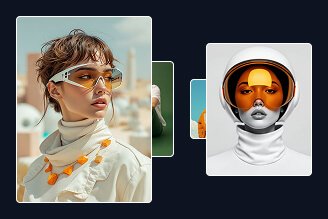
Scroll-Driven Zoom

Full 3D Depth Control

Per-Item Content Layer
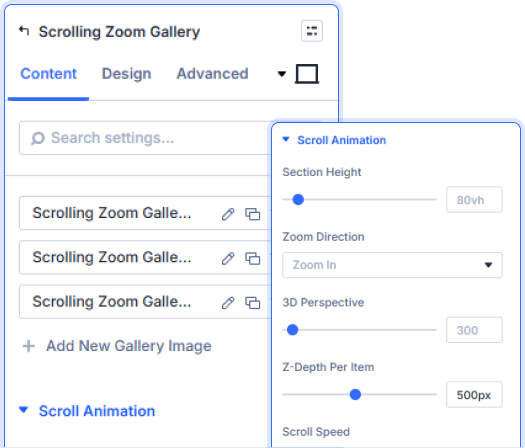
Six Controls. One Cinematic Scroll.
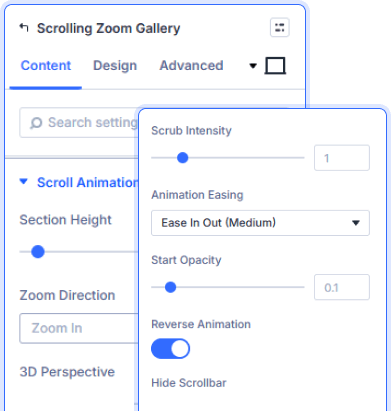
Easing, Opacity, And Reverse Control
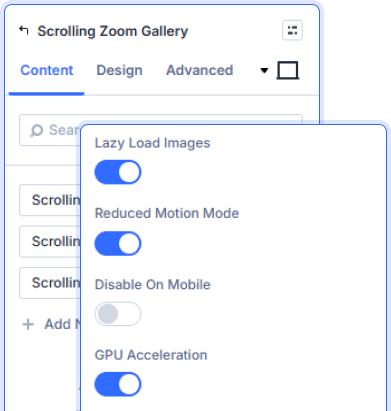
GPU Acceleration Built Right In
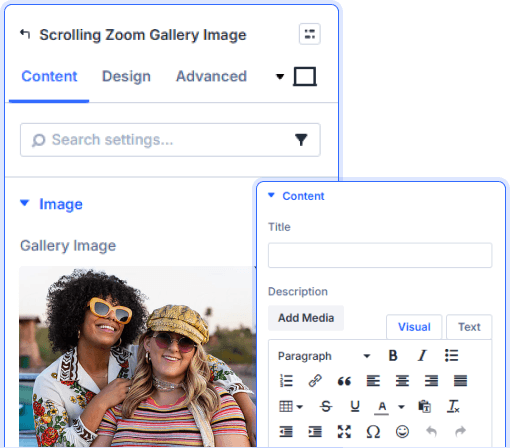
Title, Description And Button Per Image


Install Divi Essential and create an ACF Gallery field in your post type.

Drop the Scrolling Zoom Gallery module and add your Gallery Images.

Set your zoom direction, scrub intensity, and publish.
Make Every Scroll Unforgettable!
Frequently Asked Questions
Do you have any questions or concerns? Here is a list of frequently asked questions and their answers that might be helpful.
Divi Essential Help Center or Contact Us.
What zoom directions does the Scrolling Zoom Gallery support?
Two — Zoom In and Zoom Out. Each creates a distinct cinematic feel as the visitor scrolls through the gallery section.
Can I control how fast the zoom animation responds to scrolling?
Yes. Scroll Speed sets the animation pace and Scrub Intensity controls how tightly the zoom tracks the visitor's scroll position.
Can I add text and a button to each gallery image?
Yes. Every Gallery Image has its own Title, Description, Button Text, and Button URL set independently inside the child item settings.
Does the module support 3D depth between gallery items?
Yes. Set 3D Perspective at the gallery level and Z-Depth Per Item individually to create genuine dimensional layering across your images.
Will the scroll animation affect page performance on mobile?
No. Enable Disable On Mobile to serve a static experience on smaller devices, while GPU Acceleration and Lazy Load keep desktop performance smooth.
Can I style each gallery image item's border and shadow separately?
Yes. Each child item has independent Image Border, Image Box Shadow, Item Border, and Item Box Shadow controls inside the Design tab.
✨ More Ways to Enhance Your Divi Experience

Divi Scroll Stacking Cards
Captivate visitors with scroll-triggered card stacks for features & portfolios.

Divi Interactive Circle
Showcase features in stunning circular layouts with interactive animations.

Divi Time Count Down
Build urgency with customizable countdown timers for sales & events.

Divi Text Marquee
Create scrolling text announcements with smooth animations & custom icons.
