
Want to have an attractive blend of colors on your texts?
Next Text Gradient Module offers you a fast and easy way to mix colors of your choice to your texts. Put a gradient effect on texts, make it look colorful!
Comes with 25+ Hover Effects!
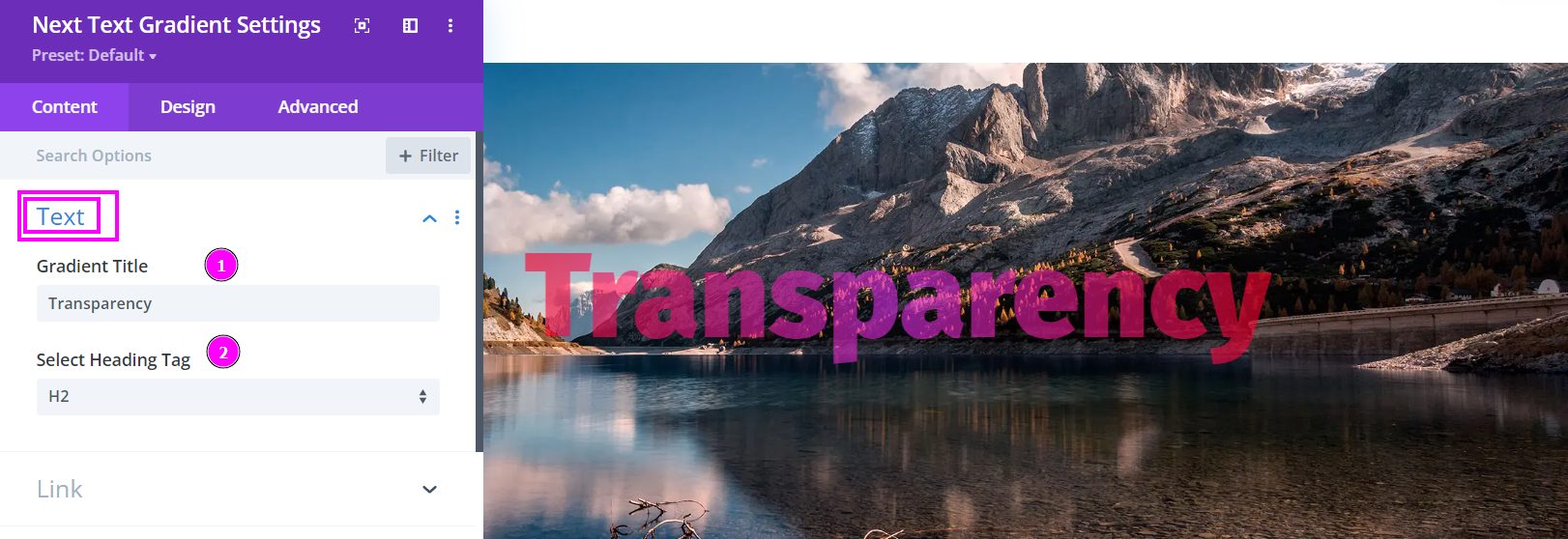
Content → Text
- Gradient Title – Add the title text to your Gradient Text design layout
- Select a Heading Tag – choose a suitable Heading Tag.
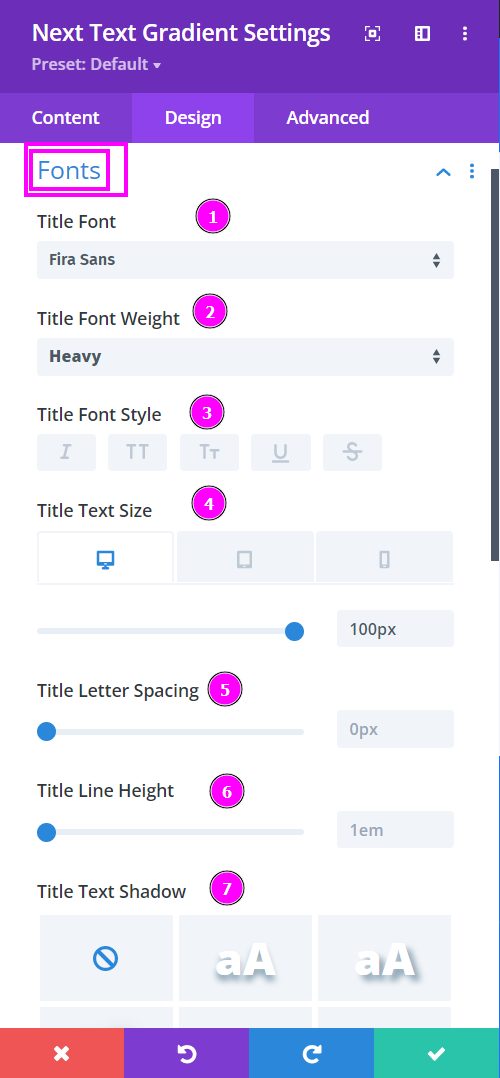
Design → Fonts
- Font – Select a font from the collection or use a custom font.
- Font Weight – define how you want your font to show either regular, italic, bold extra, or even extra light.
- Font Style – Pick a style of font for the design.
- Text Size – easily resize the text using the slider. This feature is for desktops, tablets, and phones.
- Letter Spacing – adjust the spacing between the letters using the slider.
- Line Height – adjust the space between the lines using the slider.
- Text Shadow – select a prebuilt shadow for your text.
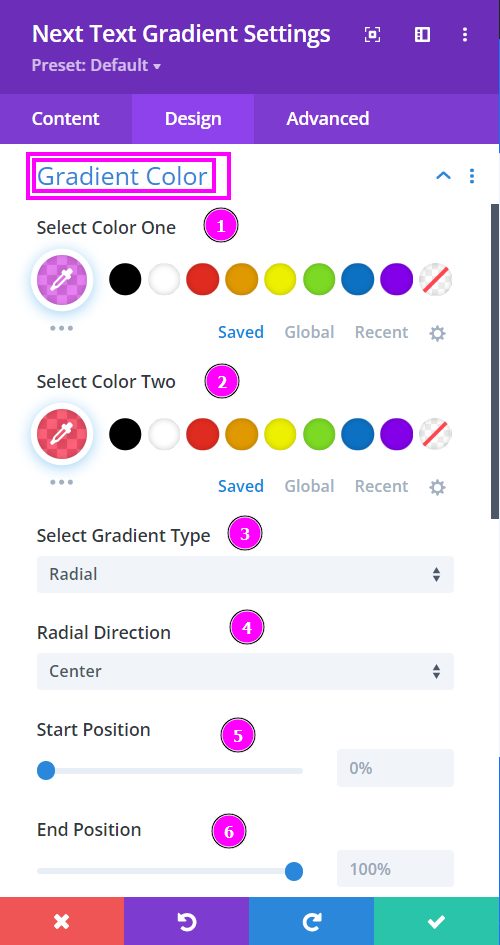
Design → Gradient Color
- Select Color One – manually select Color One for the Gradient text using the pointer, or you can state the hex code and get the exact color you require.
- Select Color Two – manually select Color Two for the Gradient text using the pointer, or you can state the hex code and get the exact color you require.
- Select Gradient Type – choose between the two gradient type.
- Radial Direction – pick the direction of the gradient within the Radial Direction.
- Start Position – adjust the start position using the slider
- End Position – adjust the end position using the slider
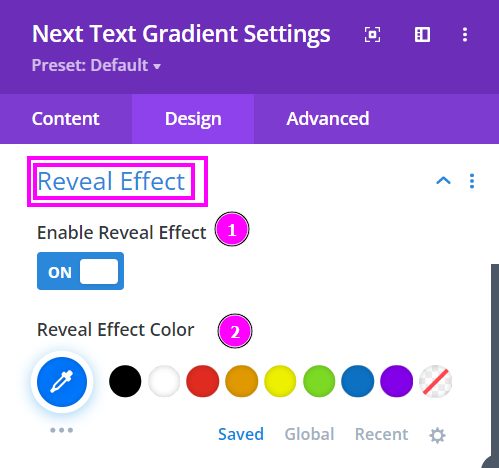
Design → Reveal Effect
- Enable Reveal Effect – enable the switch to add a reveal effect to the Gradient Text design.
- Reveal Effect Color – manually select Reveal Effect Color for the Gradient text design using the pointer, or you can place the hex code and get the exact color you require.
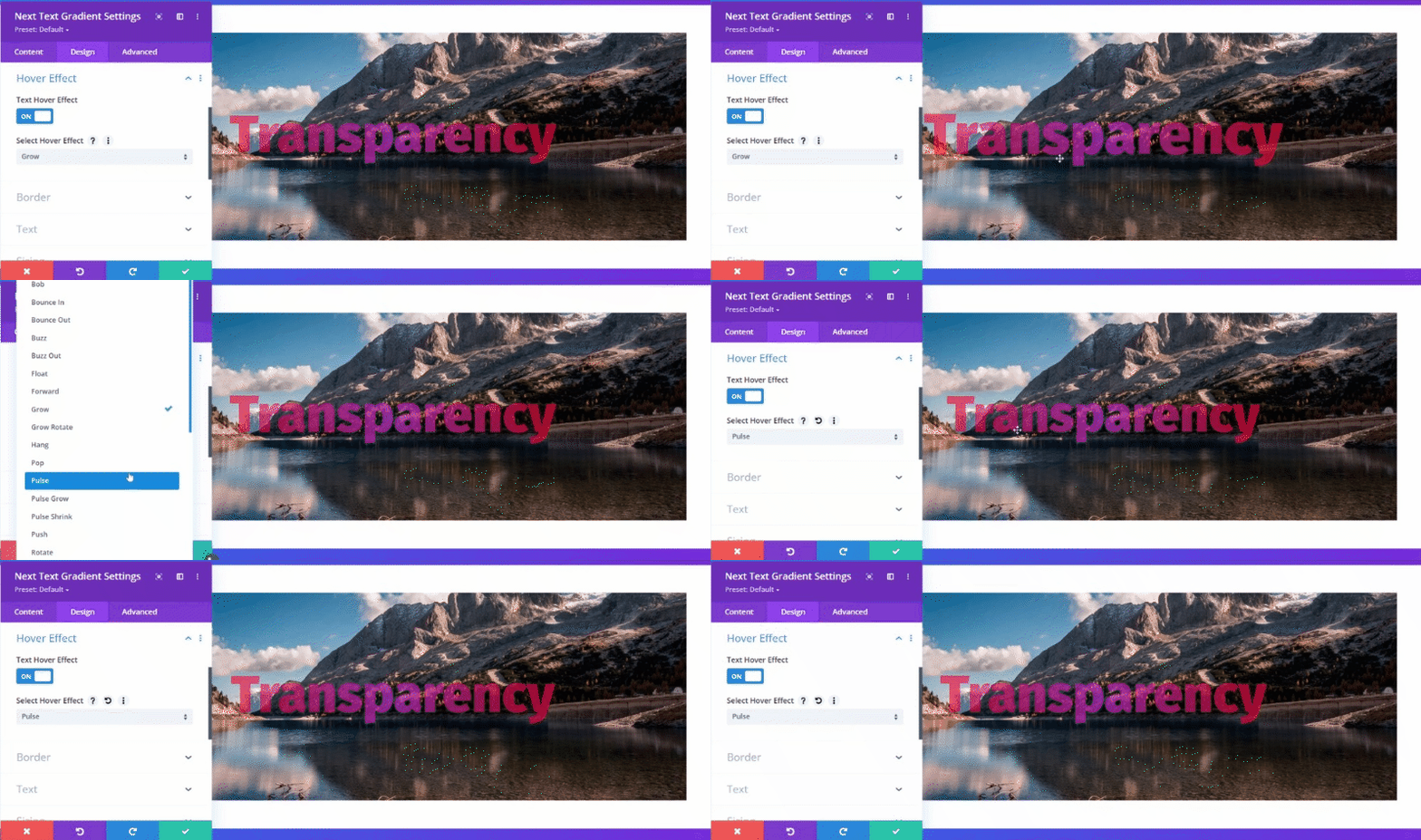
Design → Hover Effect
- Text Hover Effect – enable the switch to add Hover Effect to the Gradient Text.
- Select Hover Effect – select a hover effect from the many unique collection of Hover Effect.