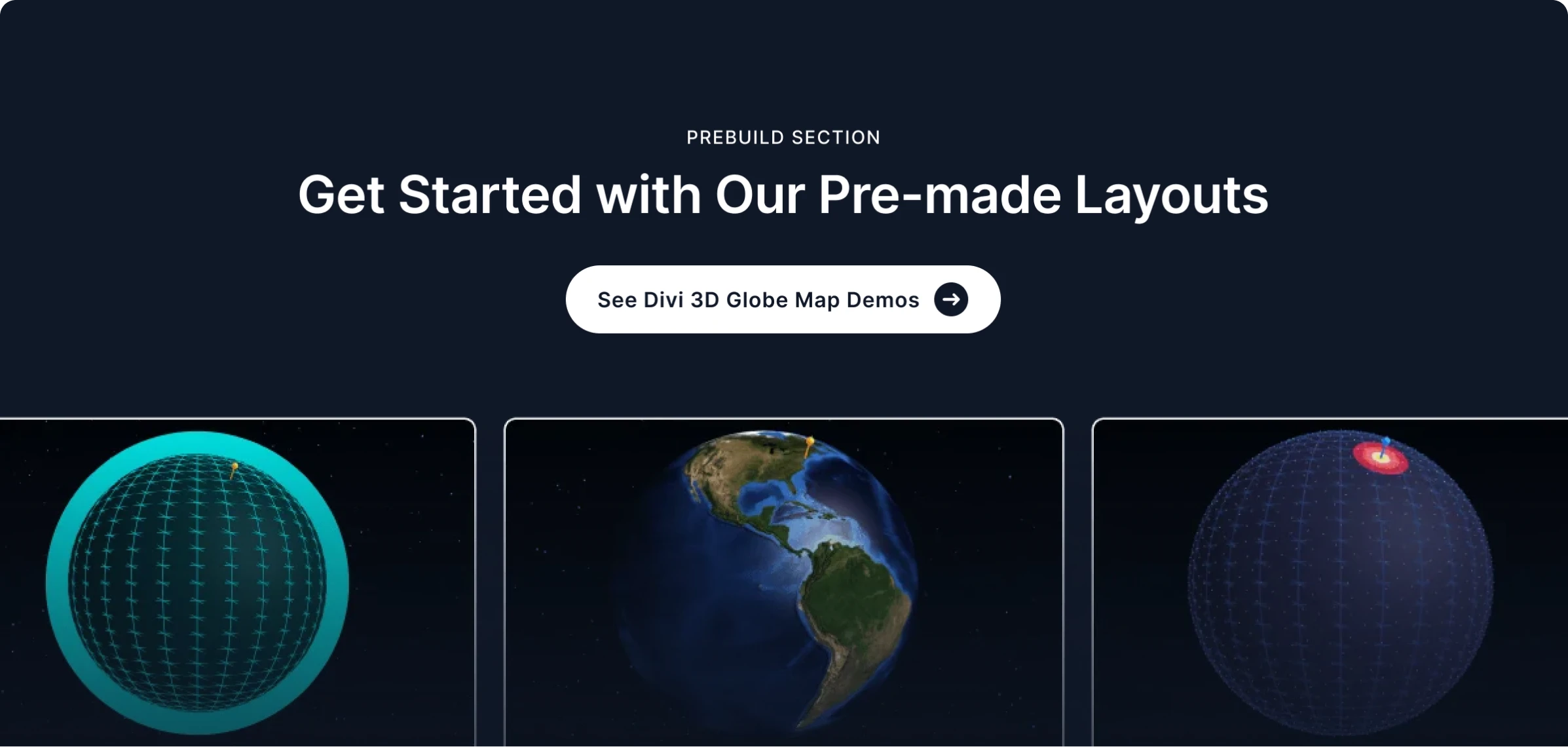
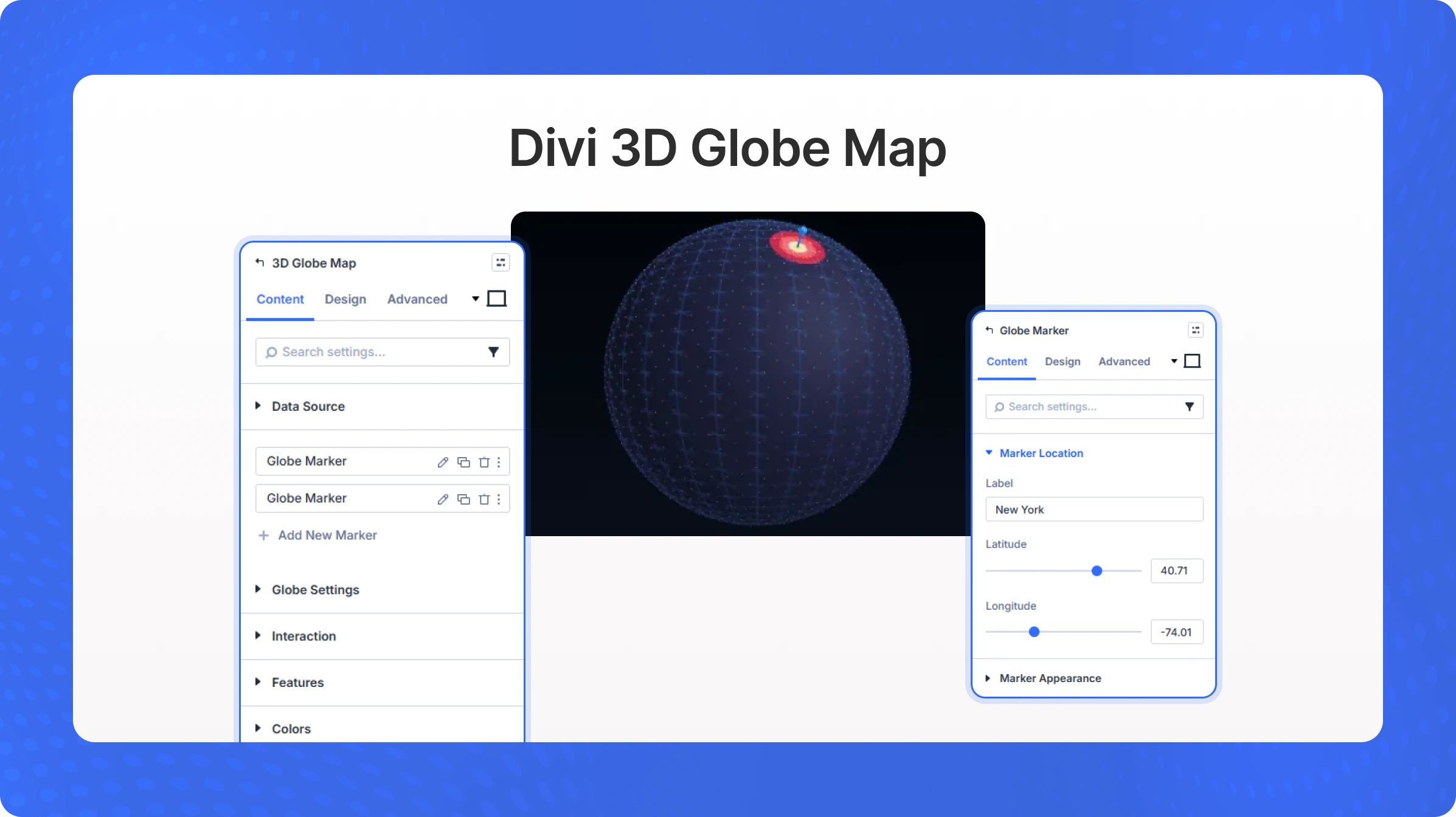
The 3D Globe Map module adds a fully interactive, animated 3D globe to your page. You can place location markers on any point on the globe, draw arc connections between them, and style the globe with different visual themes. Markers can be added manually through the built-in Globe Marker child items, or imported as a JSON data array — making this module ideal for showcasing global office locations, partner networks, delivery routes, or international reach.
Content Settings
Data Source
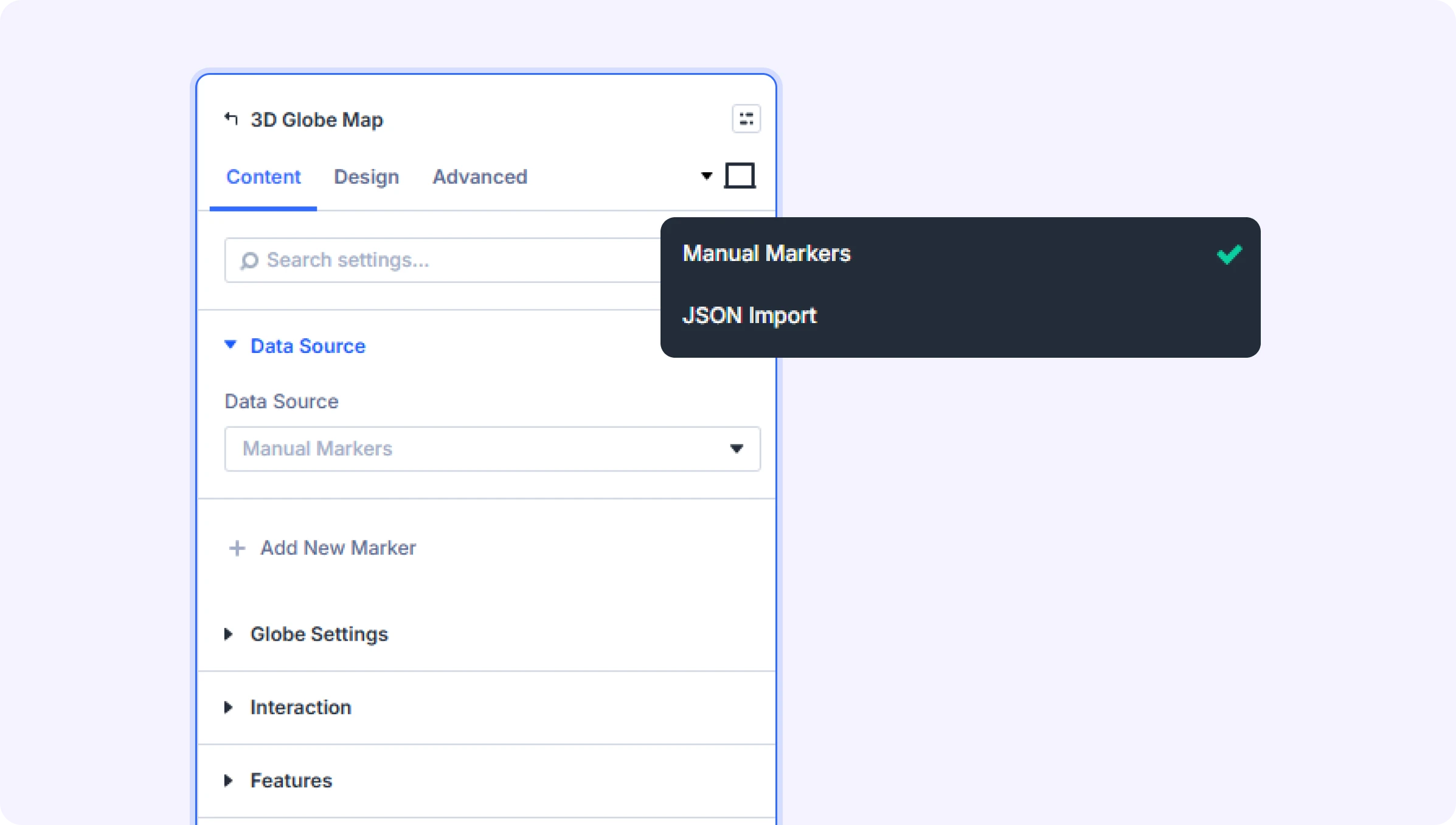
Data Source (Dropdown)
Choose how to provide marker data for the globe.
- Available options: Manual Markers, JSON Import
- Default: Manual Markers
JSON Data (Text Area)
Paste a JSON array of marker objects. Each marker should include: lat (latitude), lng (longitude), label (display name), src (optional image URL), value (0–1, controls pillar height), and color (optional hex color). Example: [{"lat": 40.71, "lng": -74.00, "label": "NYC", "value": 0.9}]
- Only appears when Data Source is set to JSON Import
Globe Settings
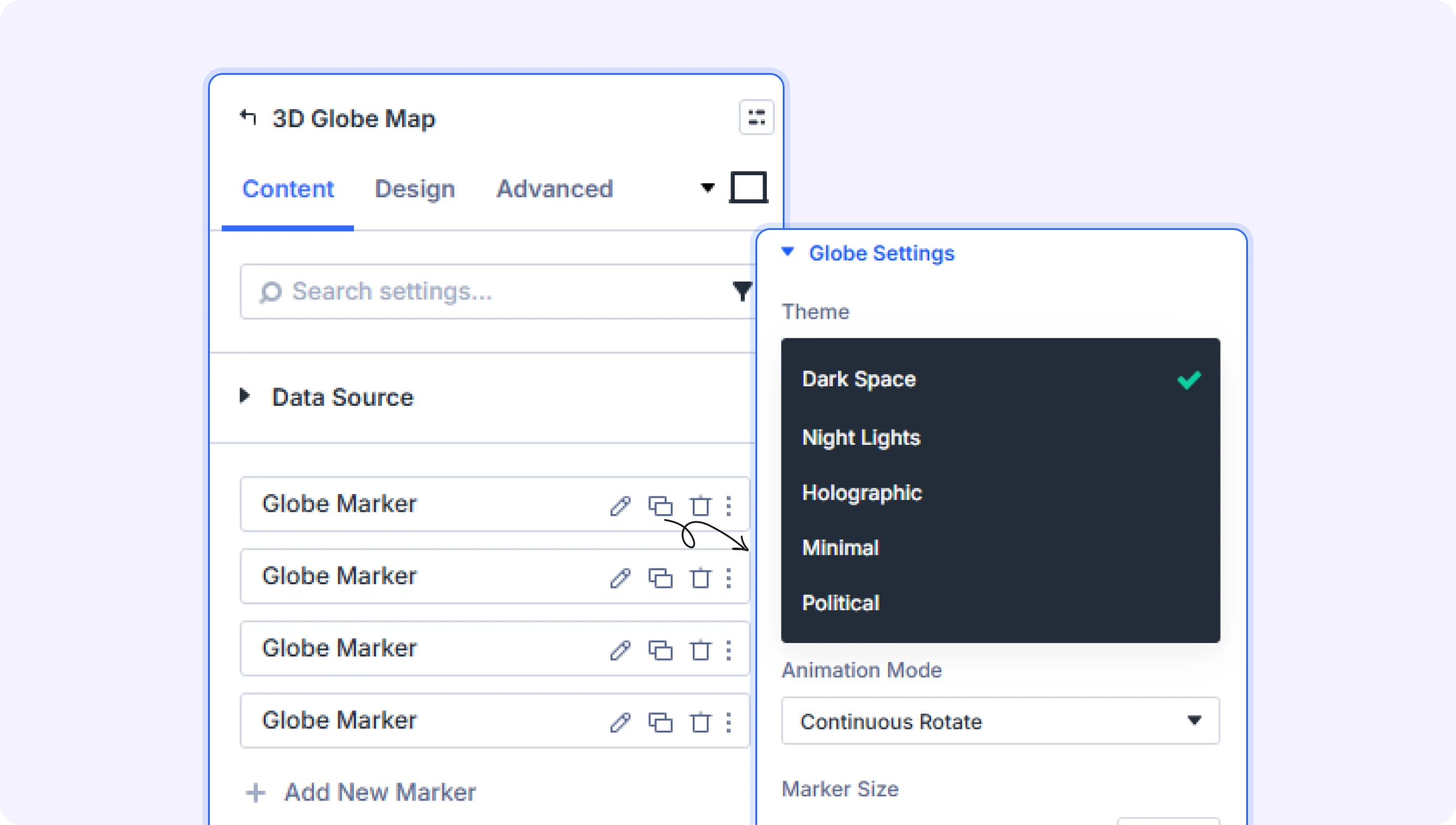
Theme (Dropdown)
Choose the visual theme for the globe.
- Available options: Dark Space, Night Lights, Holographic, Minimal, Political
- Default: Dark Space
Marker Style (Dropdown)
Choose how markers appear on the globe.
- Available options: Pins, Beams, Ripples, Dots, Pillars
- Default: Pins
Connection Style (Dropdown)
Choose how the arc lines connecting markers are drawn.
- Available options: Dashed, Animated, Gradient, Glow
- Default: Dashed
- Only appears when Show Connections is turned on
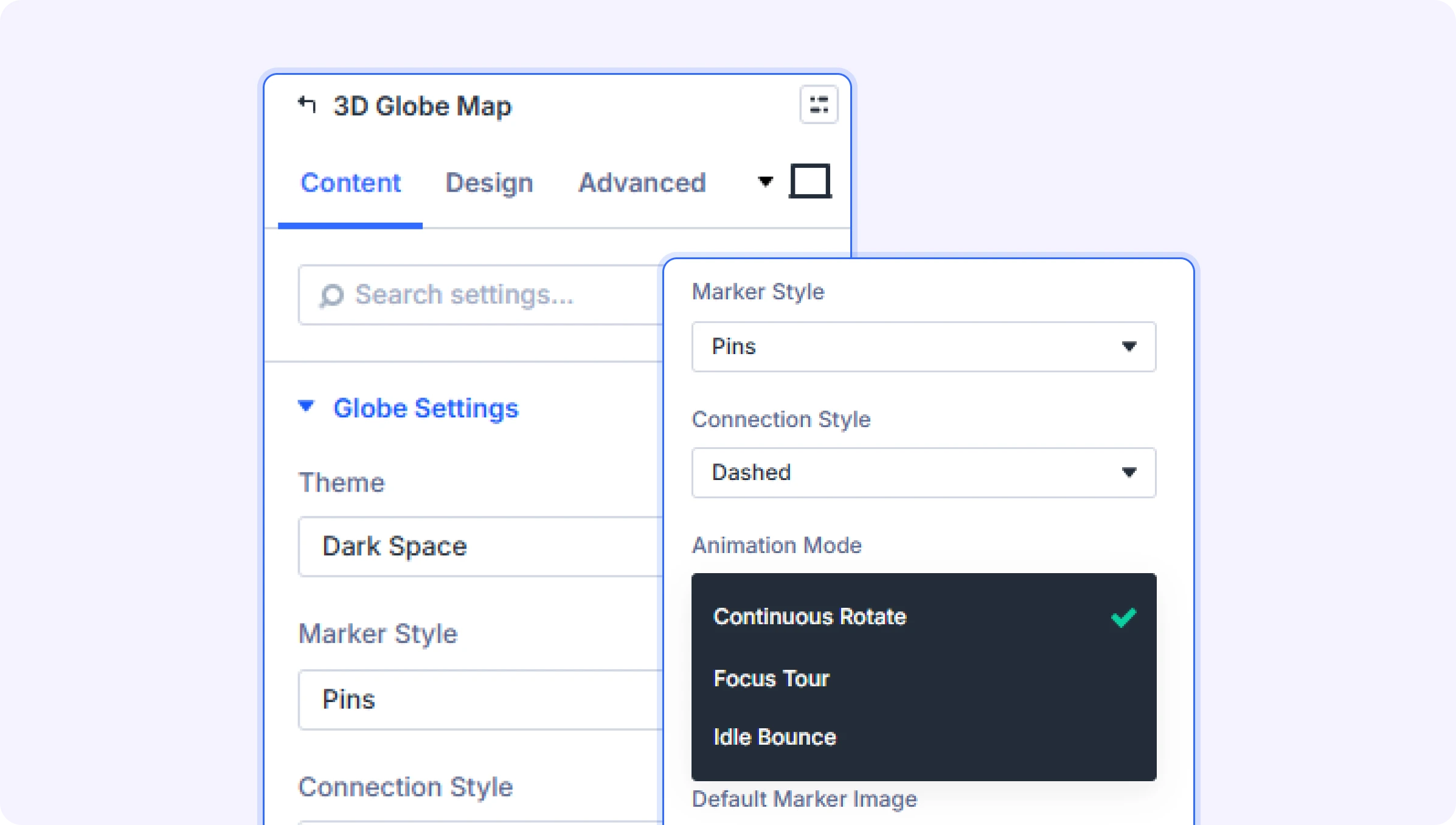
Animation Mode (Dropdown)
Choose the globe's animation behavior.
- Available options: Continuous Rotate, Focus Tour, Idle Bounce
- Default: Continuous Rotate
Marker Size (Slider)
Control the size of markers and image sprites displayed on the globe.
- Range: 0.02 to 0.20
- Default: 0.06
Default Marker Image (File Upload)
Upload a custom image to use as the default marker for all locations. Individual globe marker items can override this with their own image.
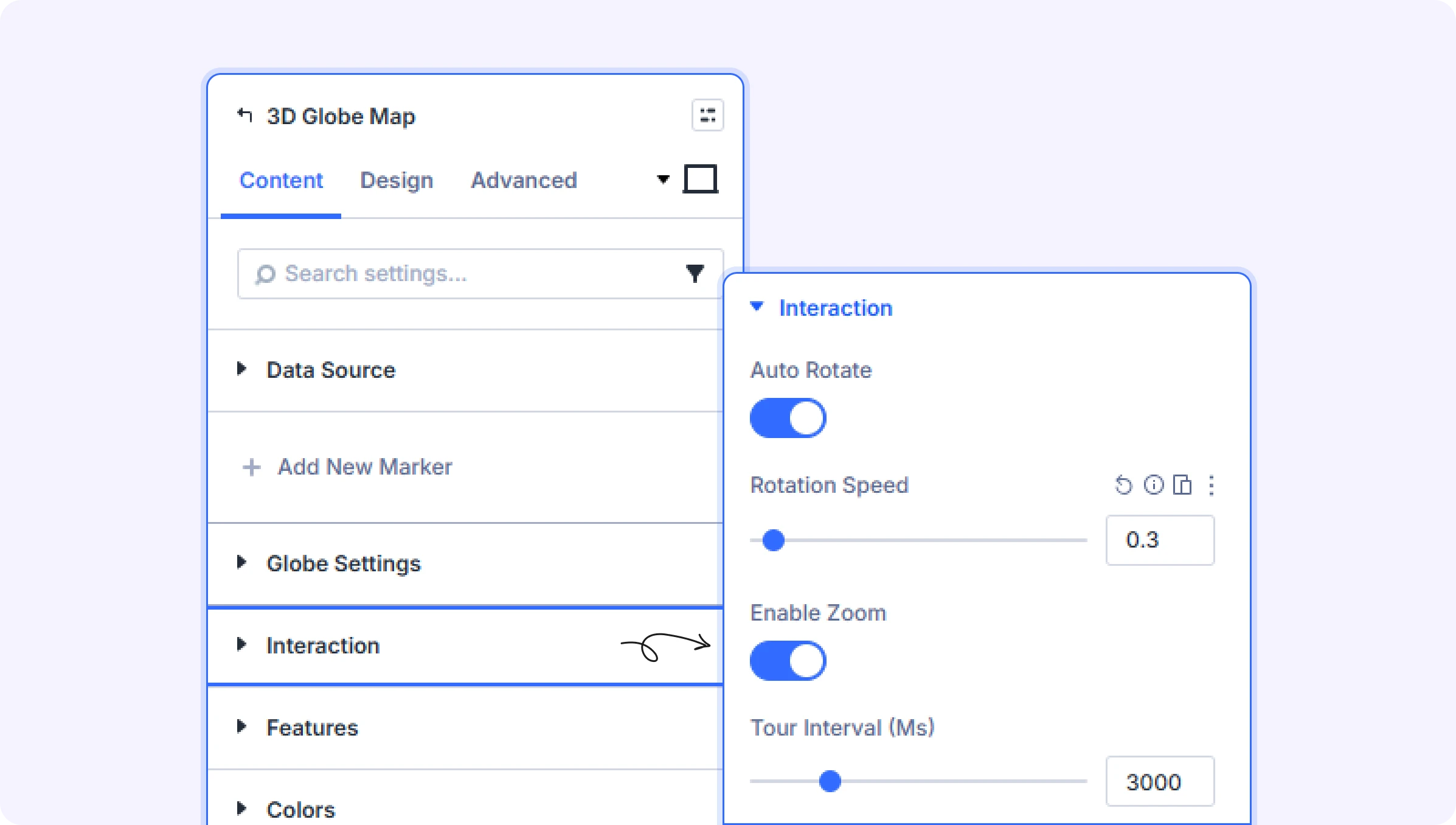
Interaction
Auto Rotate (Toggle)
Enable automatic rotation of the globe.
- Default: On
Rotation Speed (Slider)
Set how fast the globe rotates automatically.
- Range: 0.1 to 5
- Default: 0.3
- Only appears when Auto Rotate is turned on
Enable Zoom (Toggle)
Allow visitors to scroll/pinch to zoom in and out on the globe.
- Default: On
Tour Interval (ms) (Slider)
How long (in milliseconds) the globe pauses on each marker before moving to the next in Focus Tour mode. 1000ms = 1 second.
- Range: 1000 to 10000 milliseconds
- Default: 3000 (3 seconds)
- Only appears when Animation Mode is set to Focus Tour
Features
Show Connections (Toggle)
Show arc lines connecting markers on the globe.
- Default: On
Show Pulse (Toggle)
Show a pulsing animation effect at each marker position.
- Default: On
Show Heatmap (Toggle)
Show a heatmap intensity overlay at marker locations.
- Default: Off
Day/Night Cycle (Toggle)
Enable a realistic day/night shading effect on the globe surface.
- Default: Off
Show Dots (Toggle)
Show a field of decorative dots around the globe.
- Default: Off
Colors
Marker Color (Color Picker)
Default color for all markers on the globe.
- Default: Orange (#f97316)
Arc Color (Color Picker)
Color for the arc connection lines drawn between markers.
- Default: Blue (#3b82f6)
- Only appears when Show Connections is turned on
Arc End Color (Color Picker)
The ending color for gradient arc lines. Used when Connection Style is set to Gradient.
- Default: Orange (#f97316)
- Only appears when Show Connections is on and Connection Style is set to Gradient
Dot Color (Color Picker)
Color for the decorative background dots around the globe.
- Default: Blue (#4a90d9)
- Only appears when Show Dots is turned on
Globe Size & Position
Height (Slider)
Set the height of the globe container.
- Range: 300 to 1000 pixels
- Default: 500px
Globe Position (Dropdown)
Align the globe within the module container.
- Available options: Left, Center, Right
- Default: Center
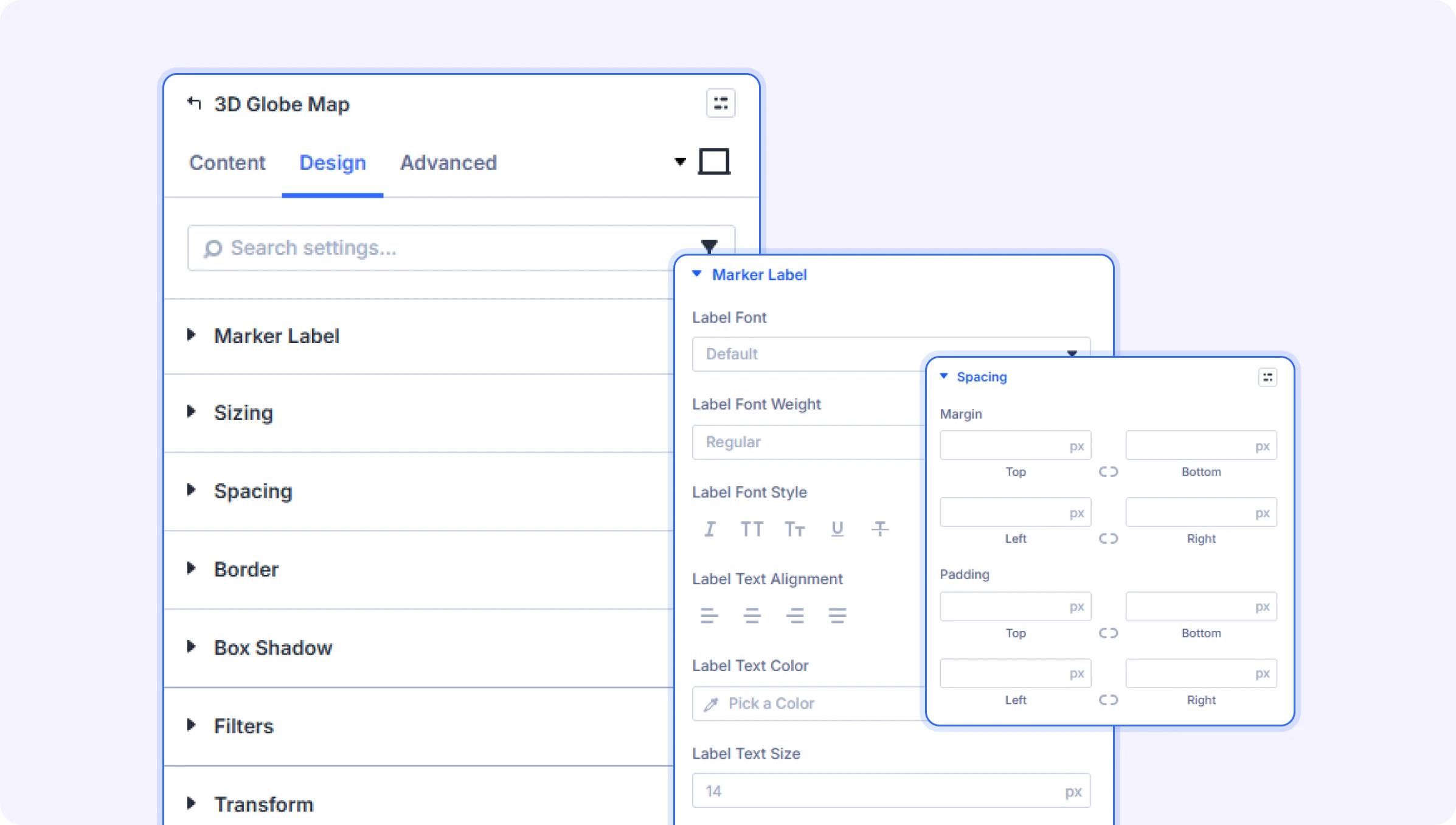
Design Settings
Marker Label
Typography settings for the text labels displayed next to globe markers, including font family, size, weight, color, and letter spacing. Also includes a background color/gradient option for the label pill background.
Module Styling
Standard Divi design options for the overall module: Sizing, Spacing, Border, Box Shadow, Filters, Transform, and Animation.
Advanced Settings
- CSS ID & Classes — Add a custom CSS ID or class to the module for targeting with custom code.
- Custom CSS — Write custom CSS targeting specific parts of the globe module.
- HTML Attributes — Add custom HTML attributes to the module wrapper element.
- Visibility — Show or hide this module on desktop, tablet, or phone.
- Transition — Customize the duration and style of hover transition effects.
- Position — Control the module's positioning on the page (static, relative, absolute, or fixed).
- Scroll Effects — Add parallax or scroll-triggered motion effects to the module.
- Conditions — Set display conditions so the module only appears to certain visitors or under specific circumstances.
Tips & Best Practices
- For a striking 'company locations' section, use the Dark Space or Night Lights theme with the Pins marker style and Animated connection lines — then upload your company logo as the Default Marker Image so it appears at every location.
- The Focus Tour animation mode automatically rotates the globe between each marker in sequence, creating a self-running presentation. Set the Tour Interval to around 3000–5000ms (3–5 seconds) to give visitors time to read each location label.
- If you have many locations, the JSON Import data source is faster to manage than adding individual child modules. Use a spreadsheet to build your location list, then export it as JSON with lat, lng, label, and value fields.
- Use different Value settings per child marker when using the Pillars marker style — set major hubs to 0.9–1.0 and smaller offices to 0.3–0.5 to visually communicate the relative importance of each location.
Try 3D Globe Map Premium Layout