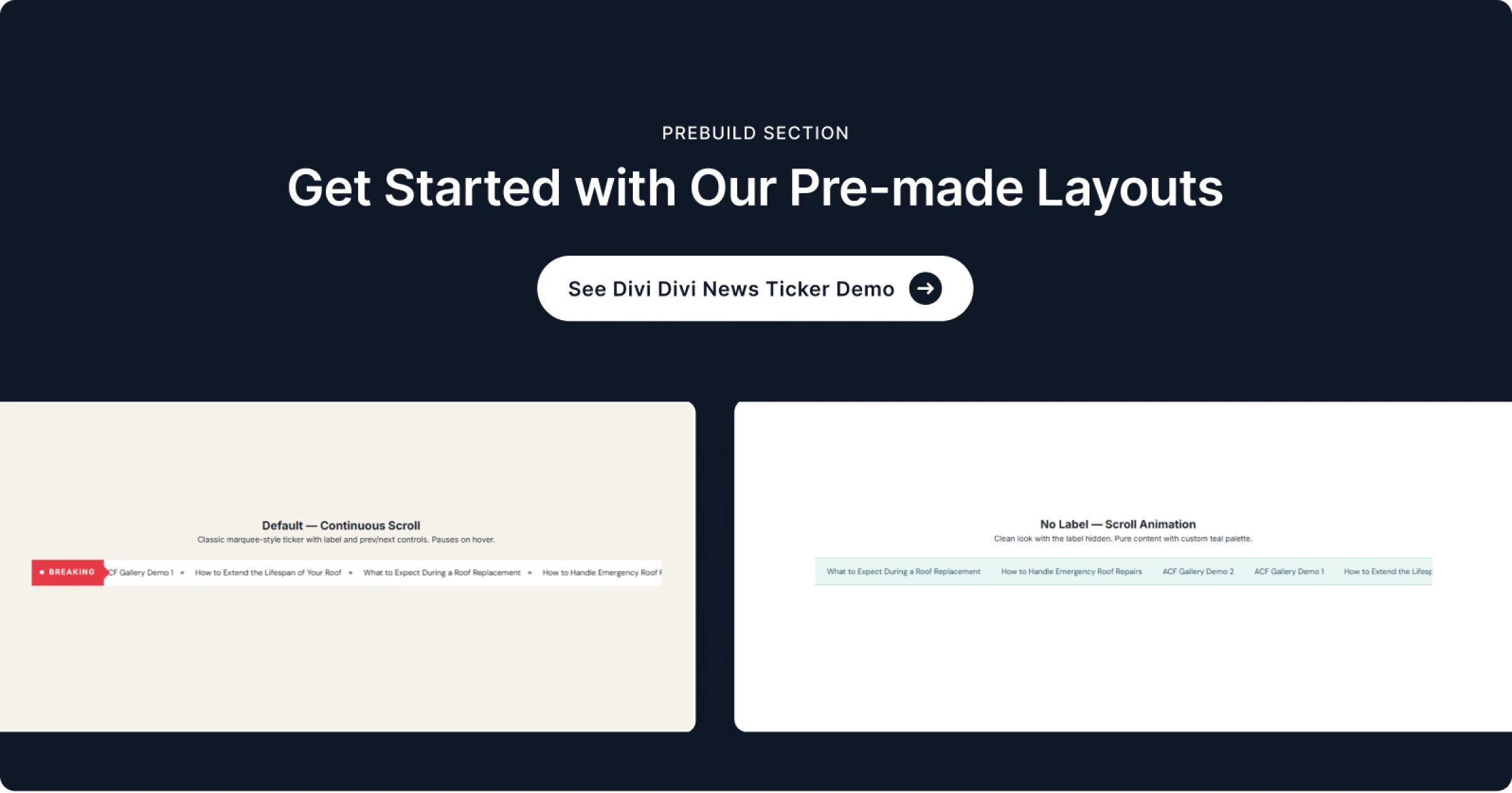
Introduction
The Divi News Ticker is a content-streaming module for the Divi Builder that displays your latest posts or pages as a smooth, animated ticker. It is built for announcement bars, breaking-news strips, promo banners, and headline feeds — anywhere you want fresh content to scroll into view and pull the eye. Everything is configured visually in the Divi Builder, with no code required.
Unlike a static post list, the News Ticker pulls live content automatically and animates it with one of sixteen motion styles, from a classic horizontal Scroll to eye-catching effects like Flip, Glitch, Typing, and Newspaper. You control the source, the speed and direction, which pieces of each item appear (category, tag, date, separator, and label), and the full styling of every element through dedicated Design panels.
Table of Contents
Key Features
- Sixteen animation modes — Scroll, Fade, Slide, Typing, Flip, and many more, to match any page mood.
- Live post streaming — Pull Posts or Pages automatically with count, offset, and sort controls.
- Speed, direction & autoplay — Set the scroll speed, choose left or right, enable autoplay, and pause on hover.
- Per-element toggles — Show or hide the category, tag, date, separator, and label independently.
- Five separator styles — Bullet, Pipe, Slash, Star, Diamond, or Dash between items.
- Custom label — Lead the ticker with a label that has its own text, icon, and optional arrow.
- Full design control — Dedicated styling panels for the title, badges, label, date, separator, progress bar, and controls.
- Progress bar — Show item progression with a configurable background color, active color, and height.
Requirements
- WordPress 5.8 or newer.
- The Divi theme or Divi Builder plugin (Divi 5 recommended), active.
- The Divi Essential plugin, installed and activated.
- At least one published Post or Page for the ticker to display.
Getting Started
Adding the News Ticker works exactly like any other Divi module:
- Open a page or template with the Divi Builder (Visual Builder recommended).
- Click the gray (+) icon to add a new module.
- Search for “News Ticker” and select it.
- In the module settings, open Content › Post Settings and choose your Post Type and how many items to pull.
- Open Content › Ticker Settings to pick an Animation Mode and set the speed.
- Style it under the Design tab, then Save.
Content Tab
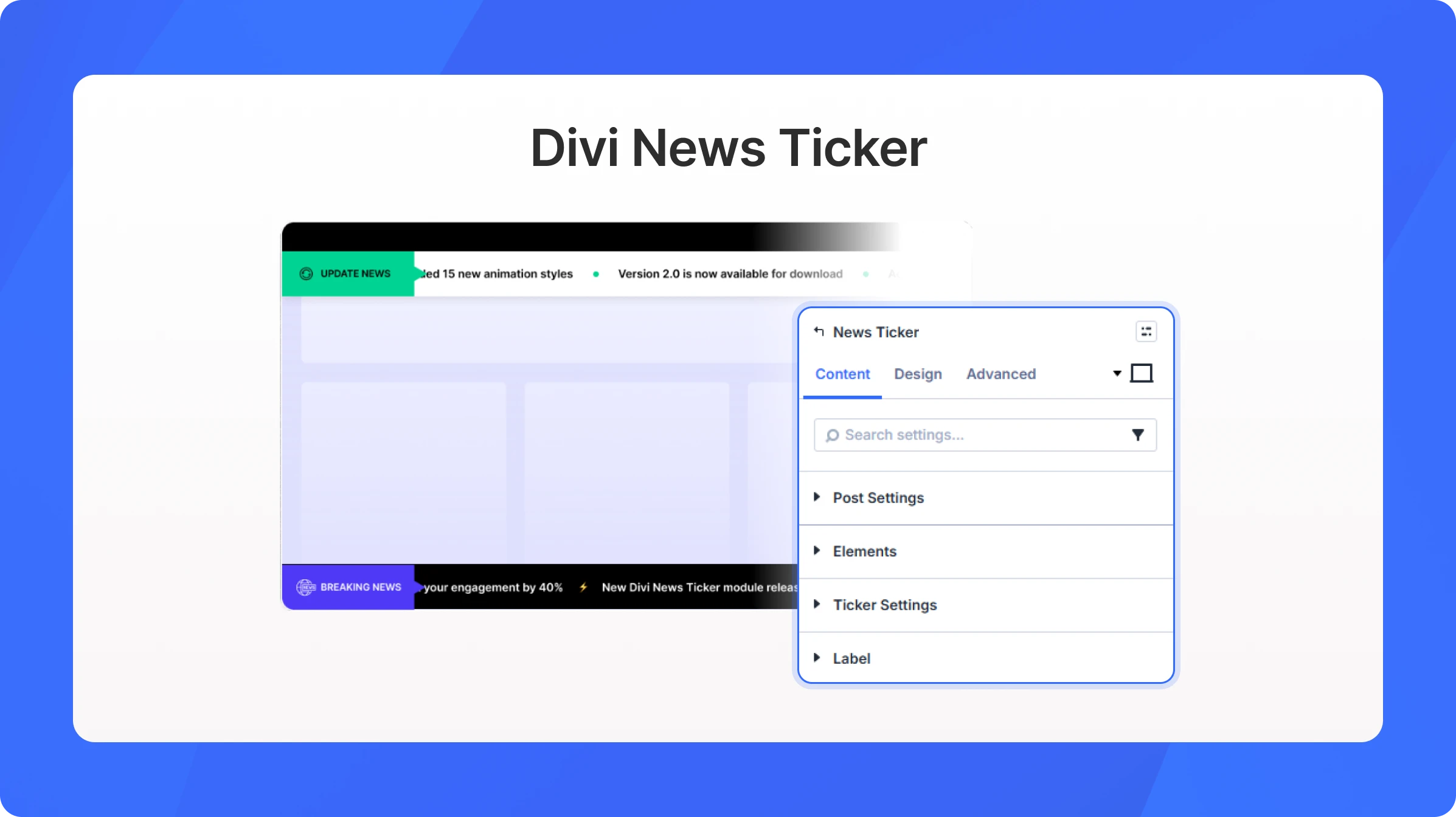
The Content tab controls what the ticker pulls in and how it behaves. Its options are grouped into four collapsible sections: Post Settings, Elements, Ticker Settings, and Label.
Post Settings
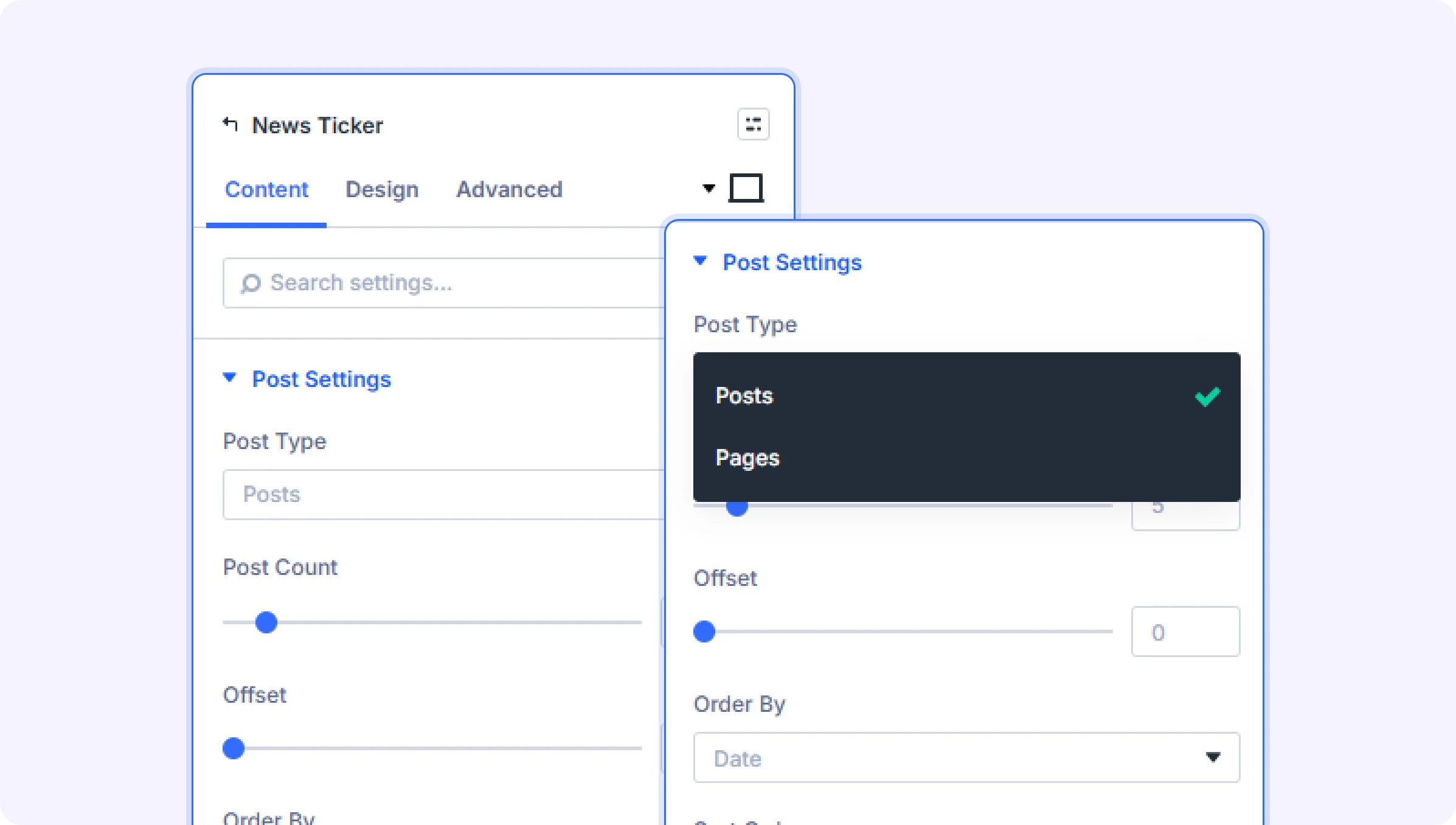
Choose the source content for the ticker and the order in which items appear.
|
Setting |
What it does |
Options / Default |
|---|---|---|
|
Post Type |
The source of the ticker items — pull from Posts or Pages. |
Posts (default) / Pages |
|
Post Count |
How many items to pull into the ticker. |
Number · Default 5 |
|
Offset |
How many of the most recent items to skip before the list begins. |
Number · Default 0 |
|
Order By |
The field used to order items. |
Date / Title / Random / Modified / Comment Count |
|
Sort Order |
The direction of the sort. |
Ascending / Descending (default) |
|
Date Format |
PHP date format used to render each item’s date (e.g. M j, Y → Jun 12, 2026). |
Text · Default “M j, Y” |
|
TIP Use Offset to skip a featured post you are already showing elsewhere, so the ticker starts from the next item. |
Elements
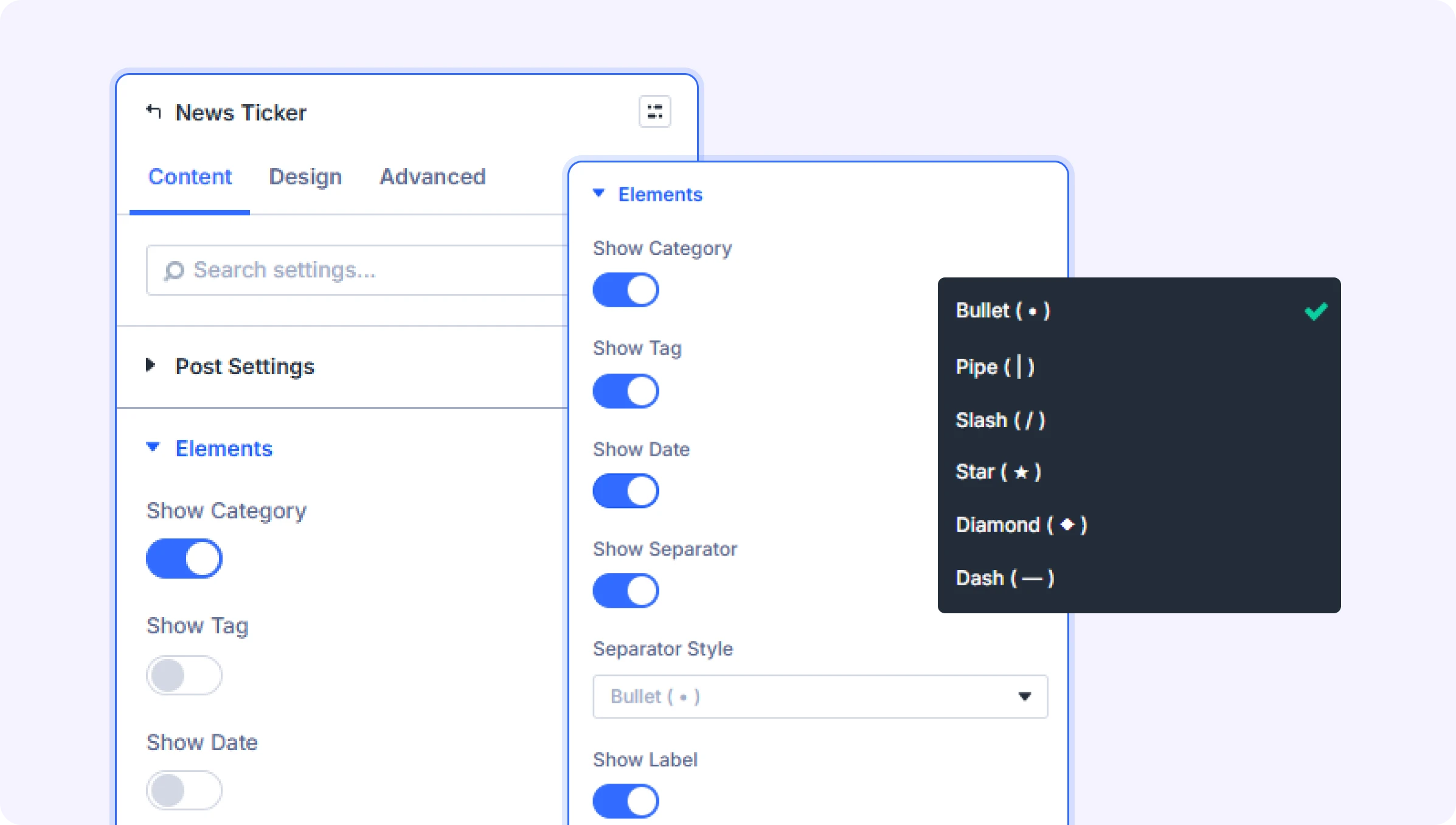
Toggle which pieces of each ticker item are visible, and pick the separator drawn between items.
| Setting | What it does | Options / Default |
|---|---|---|
| Show Category | Displays the item’s category badge. | On / Off |
| Show Tag | Displays the item’s tag badge. | On / Off |
| Show Date | Displays the item’s publish date. | On / Off |
| Show Separator | Shows a separator character between items. | On / Off |
| Separator Style | The character drawn between items. | Bullet ( • ) / Pipe ( | ) / Slash ( / ) / Star ( ★ ) / Diamond ( ◆ ) / Dash ( — ) |
| Show Label | Shows the leading label (configured in the Label group). | On / Off |
|
NOTE Categories and tags are read from each post. Items without an assigned category or tag simply omit that badge. |
Ticker Settings
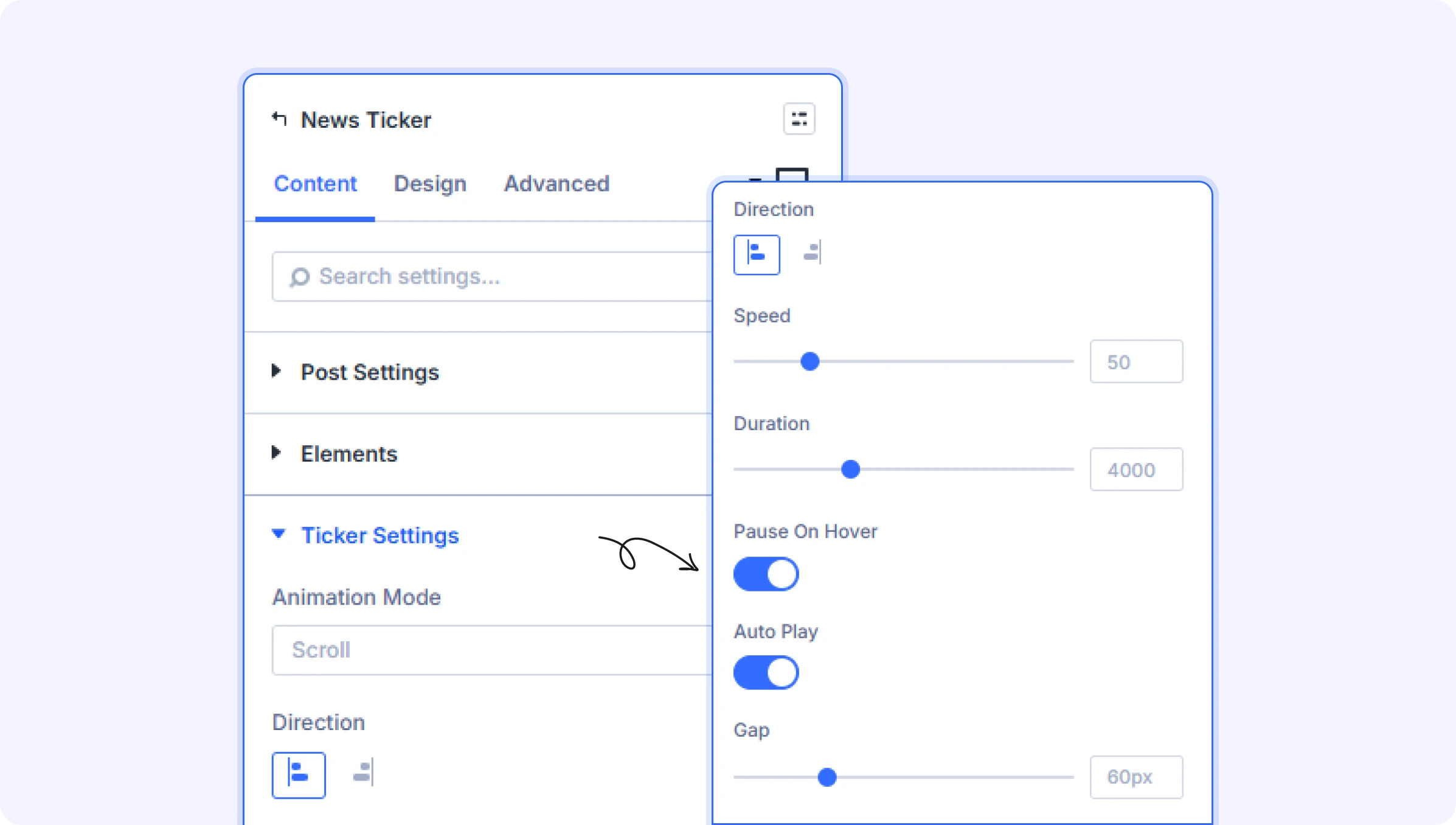
Control the motion of the ticker — how it animates, how fast it moves, and how it responds to the visitor.
| Setting | What it does | Options / Default |
|---|---|---|
| Animation Mode | The motion style applied to ticker items. Sixteen options are available (see note below). | Scroll (default) |
| Direction | The travel direction of the ticker (left-to-right or right-to-left). | Two-icon toggle |
| Speed | Animation speed of the ticker. Higher values move items faster. | Slider · Default 50 |
| Pause On Hover | Pauses the ticker while a visitor hovers over it. | On / Off |
| Auto Play | Starts the ticker automatically on page load. | On / Off |
| Gap | Spacing between adjacent ticker items. | px · Default 60 |
|
|
Label
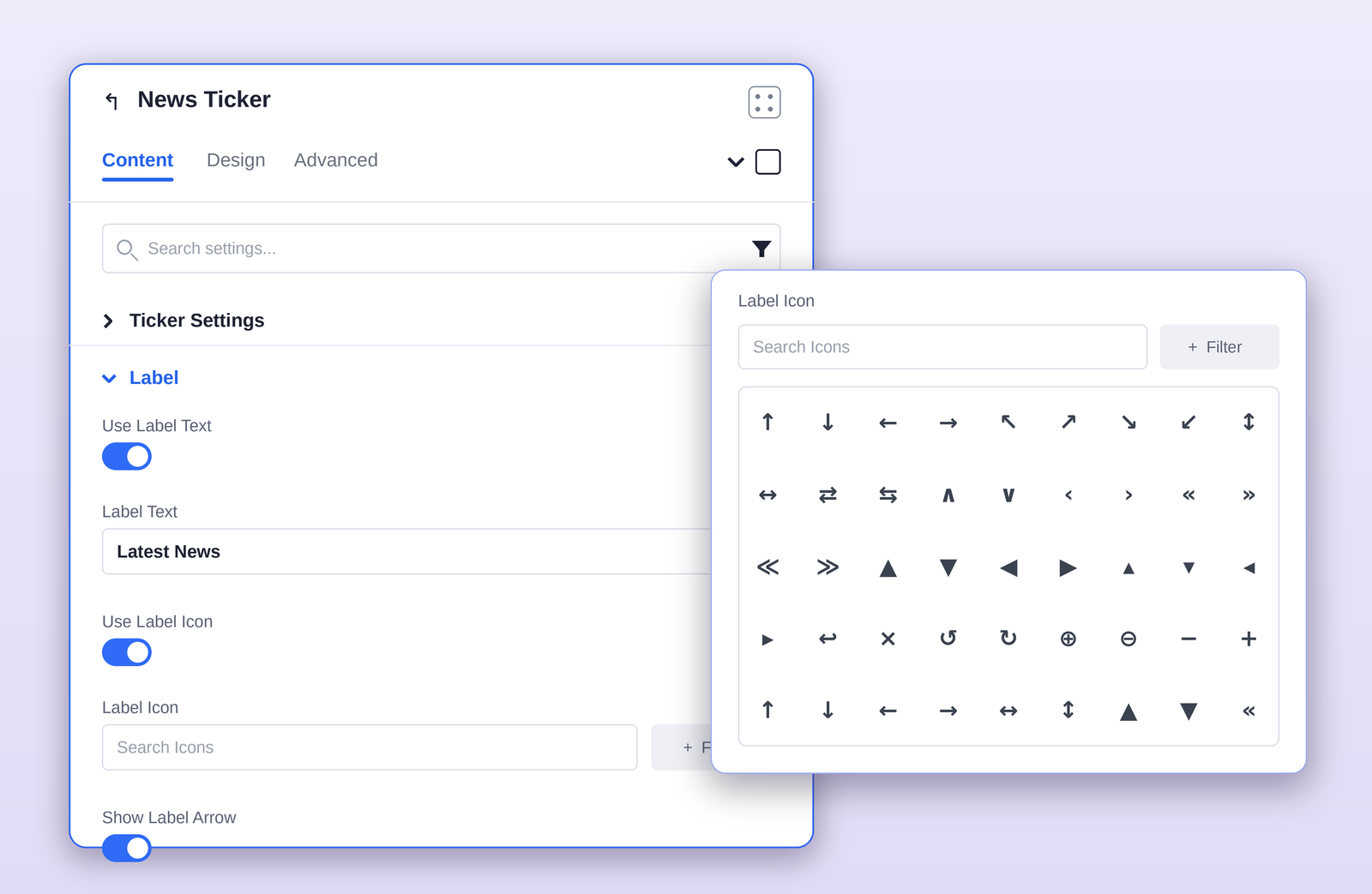
Add an optional label at the start of the ticker — like “Latest News” or “Breaking” — with its own text, icon, and arrow.
|
Setting |
What it does |
Options / Default |
|---|---|---|
|
Use Label Text |
Enables the text label. |
On / Off |
|
Label Text |
The wording shown before the ticker items. |
Text · Default “Latest News” |
|
Use Label Icon |
Enables an icon beside the label. |
On / Off |
|
Label Icon |
The icon shown in the label, chosen from the icon picker. Use Filter to narrow the icon set. |
Icon picker |
|
Show Label Arrow |
Shows a pointer that connects the label to the ticker strip. |
On / Off |
|
Design Tab
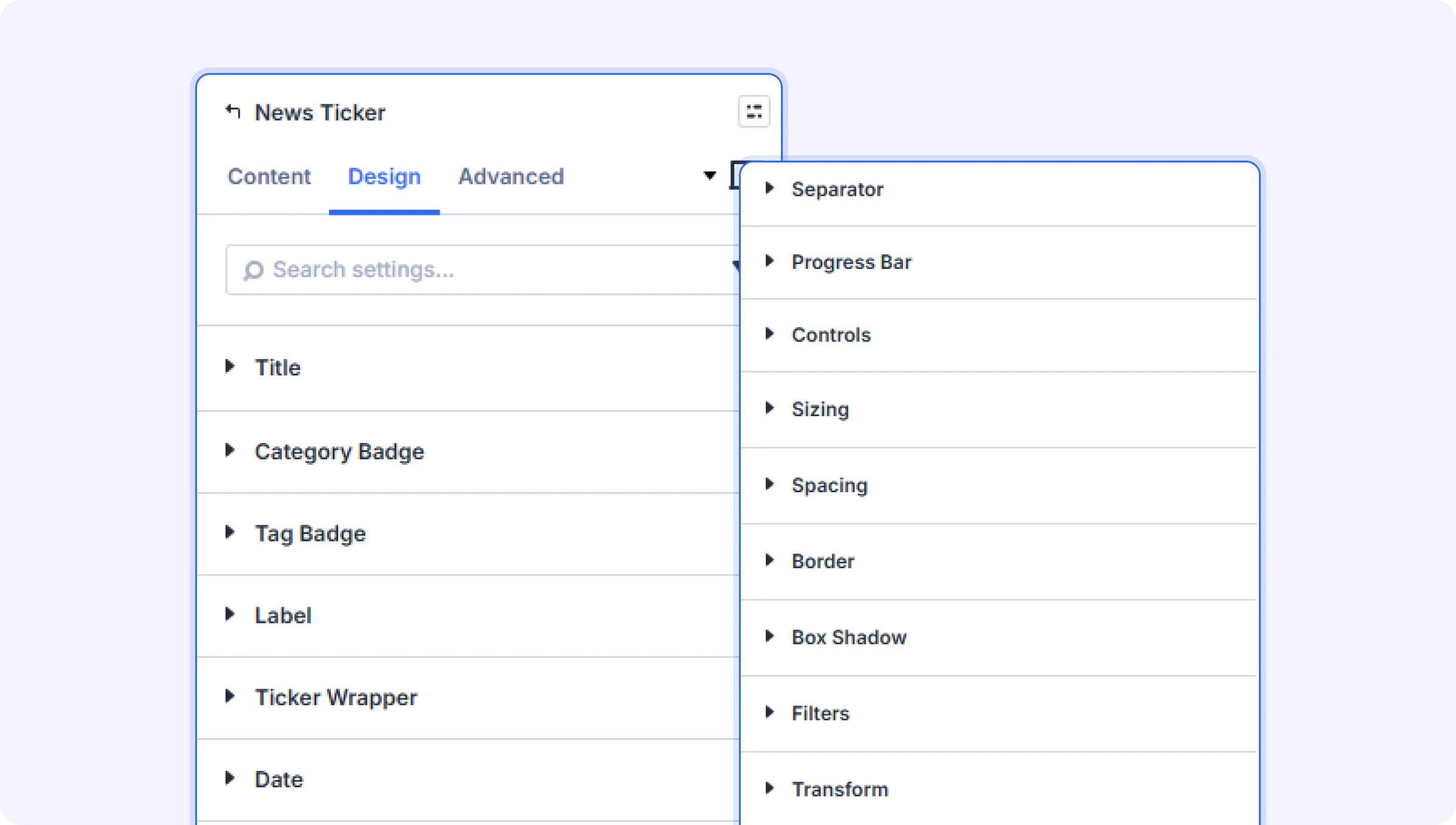
The Design tab is where you style every part of the ticker. Each section expands independently, and color options include separate states where relevant.
Style Sections at a Glance
| Section | What it controls |
|---|---|
| Title | Typography and color of each item’s title / headline text. |
| Category Badge | Font, color, background, size, spacing, and shadow of the category badge. |
| Tag Badge | Font, color, background, size, spacing, and shadow of the tag badge. |
| Label | Styling of the leading label — text, icon, background, and arrow. |
| Ticker Wrapper | Background, padding, and overall container styling of the ticker strip. |
| Date | Typography and color of the item date. |
| Separator | Color and size of the separator character between items. |
| Progress Bar | Background color, active color, and height of the progress indicator. |
| Controls | Styling of the ticker’s play / pause and navigation controls. |
| Sizing · Spacing · Border · Box Shadow · Filters · Transform | Standard Divi container-level styling for the whole module. |
|
Common Use Cases
Site-wide announcement bar
Place the module in a global header, set Post Type = Posts with a short Post Count, Animation Mode = Scroll, and Label Text = “Latest News.” Enable Pause On Hover so visitors can read and click.
Breaking-news strip
Use a bold Label (“Breaking”), Animation Mode = Slide or Typing, and Sort Order = Descending, with Direction set so headlines enter from the right for a classic news feel.
Promotions or offers feed
Source from a “Promotions” category (or a Pages list), enable Show Category, and use a high-contrast badge style with the Glitch or Flip animation to grab attention.
FAQ
Q. The ticker is empty.
Confirm Post Settings has a valid Post Type with published content, and that Post Count is greater than 0. Also check that Offset isn’t skipping all available items.
Q. Items aren’t scrolling or show no motion.
Make sure Auto Play is on under Ticker Settings and that an Animation Mode is selected. If Pause On Hover is on, the ticker stops while the cursor is over it.
Q. Category or tag badges don’t appear.
Enable Show Category / Show Tag under Elements, and make sure the posts actually have categories or tags assigned.
Q. The date looks wrong.
Adjust the Date Format string under Post Settings using PHP date tokens (for example, F j, Y for “June 12, 2026”).
Q. The label icon doesn’t show.
Turn on Use Label Icon and select an icon from the picker. Use the Filter button to narrow the icon set.
Q. The ticker moves too fast or too slow.
Adjust Speed under Ticker Settings, and increase Gap to add breathing room between items.
Try Divi News Ticker Premium Demo