The Social Proof module displays customer reviews and ratings from multiple sources on your Divi page. It pulls in real review data from WooCommerce, Google, or Facebook and presents them in a clean, customisable layout. You can filter reviews by star rating, control how many appear, choose how they are sorted, and decide which review elements (avatar, date, verified badge, star rating) to show or hide. Layouts include Grid, Slider, Masonry, and List, giving you full flexibility over how testimonials are presented to your visitors.
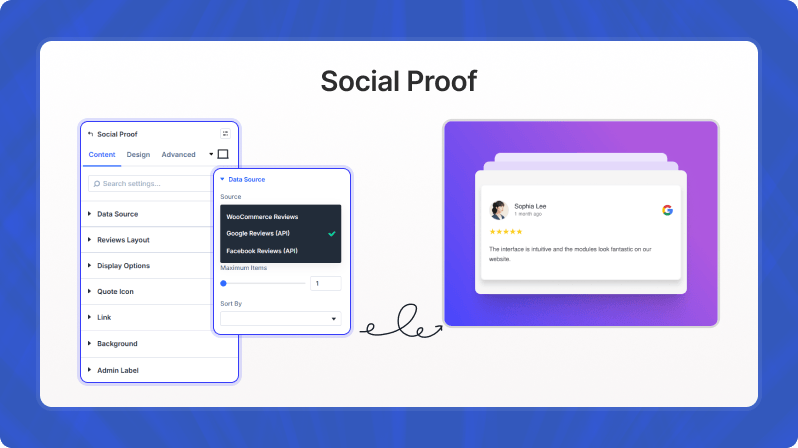
Content Settings
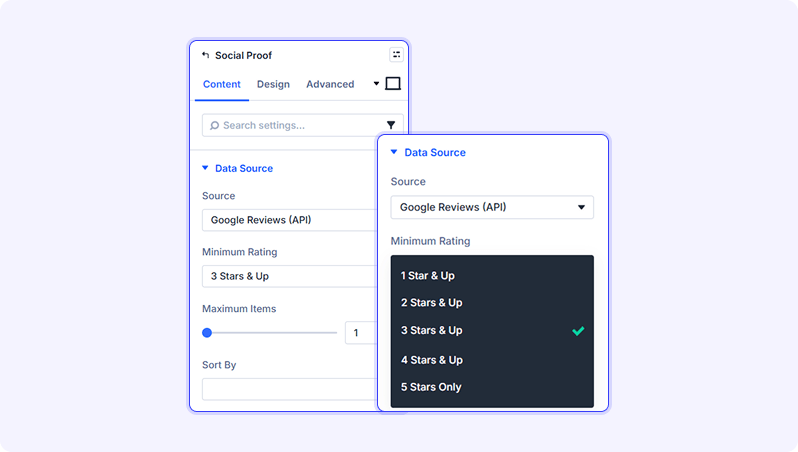
Data Source
Source (Dropdown)
Choose where the module pulls review data from.
- Available options: WooCommerce Reviews — pulls product reviews directly from your WooCommerce store, Google Reviews (API) — pulls reviews from your Google Business profile via the Google API, Facebook Reviews (API) — pulls reviews from your Facebook Page via the Facebook API
- Default: WooCommerce Reviews
Minimum Rating (Dropdown)
Set the lowest star rating a review must have to appear on the page. Reviews below this threshold are hidden automatically.
- Available options: 1 Star & Up — show all reviews, 2 Stars & Up — hide 1-star reviews, 3 Stars & Up — show only average or above, 4 Stars & Up — show only good reviews, 5 Stars Only — show only perfect reviews
- Default: 1 Star & Up
Maximum Items (Number slider)
The maximum number of reviews to display. Use this to keep the page tidy and load only as many reviews as you need.
- Range: 1 to 100 reviews
- Default: 10
Sort By (Dropdown)
Control the order in which reviews appear.
- Available options: Newest First — most recent reviews at the top (default), Oldest First — oldest reviews at the top, Highest Rating — best-rated reviews first, Random — shuffle the reviews on each page load
- Default: Newest First
Reviews Layout
Layout (Dropdown)
Choose the overall visual layout for the review cards.
- Available options: Grid — reviews arranged in equal-width columns, Slider — reviews displayed in a horizontal carousel, Masonry — reviews in a Pinterest-style variable-height grid, List — reviews stacked vertically in a single column
- Default: Grid
Columns (Dropdown)
Choose how many columns appear side by side when the Grid layout is selected. This option is only visible when the Layout is set to Grid.
- Available options: 1 Column, 2 Columns, 3 Columns, 4 Columns
- Default: 3 Columns
- Only available when Layout is set to Grid.
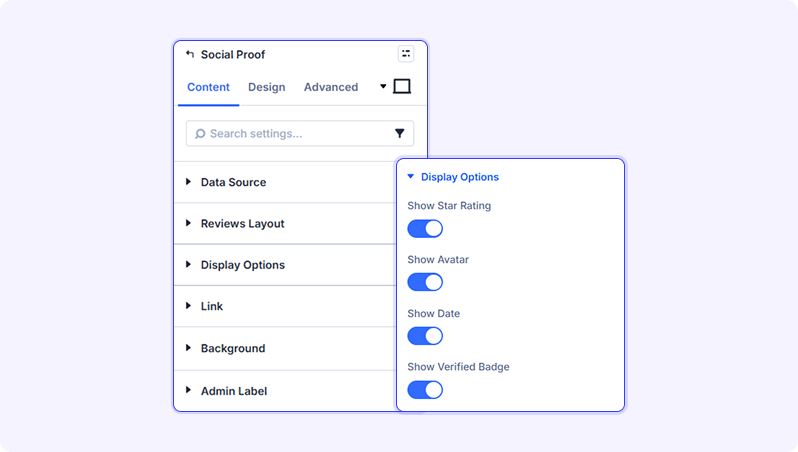
Display Options
Show Star Rating (Toggle (on/off))
Show or hide the star rating icons on each review card.
- Default: On
Show Avatar (Toggle (on/off))
Show or hide the reviewer's profile photo or avatar placeholder next to their name.
- Default: On
Show Date (Toggle (on/off))
Show or hide the date the review was posted.
- Default: On
Show Verified Badge (Toggle (on/off))
Show or hide the 'Verified' checkmark badge next to a reviewer's name. The badge only appears on reviews that are marked as verified by the review source.
- Default: On
Slider Settings
Autoplay (Toggle (on/off))
When enabled, the slider automatically advances through reviews without the visitor needing to click. This option is only visible when the Layout is set to Slider.
- Default: Off
- Only available when Layout is set to Slider.
Autoplay Speed (ms) (Text (number in milliseconds))
How long each review is shown before the slider advances to the next one. Enter the value in milliseconds — for example, 5000 equals 5 seconds. This option is only visible when the Layout is set to Slider.
- Default: 5000
- Only available when Layout is set to Slider.
Link
Optionally wrap the entire module in a link. You can set a URL, choose whether it opens in the same tab or a new tab, and add a title for accessibility.
Background
Set a background colour, gradient, image, or video for the module wrapper. These are standard Divi background options.
Admin Label
Give the module a custom name that appears in the Divi Builder's layer list. This label is only visible in the builder and has no effect on the published page. Default: 'Social Proof'.
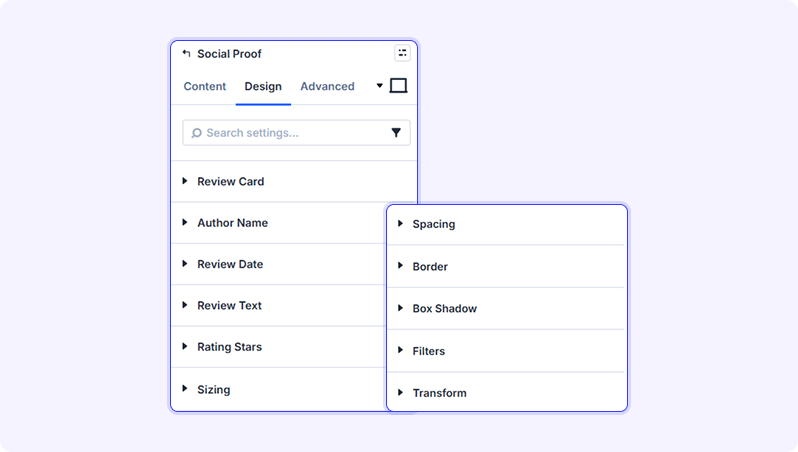
Design Settings
Review Card
Border (Border controls)
Set the border width, style (solid, dashed, dotted), colour, and corner radius for each review card.
Box Shadow (Box shadow controls)
Add a drop shadow behind each review card to give it depth. Adjust shadow position, blur, spread, and colour.
Spacing (Spacing controls)
Set padding (inner space) and margin (outer space) on each review card.
Author Name
Font (Font controls)
Customise the font family, size, weight, style, colour, letter spacing, and line height of the reviewer's name.
Review Date
Font (Font controls)
Customise the font family, size, weight, style, colour, and other typography settings for the date text.
Spacing (Spacing controls)
Adjust padding and margin around the date element.
Review Text
Font (Font controls)
Customise the typography of the main review body text — font family, size, weight, style, colour, line height, and more.
Spacing (Spacing controls)
Adjust padding and margin around the review body text.
Rating Stars
Font (Font controls)
Control the size and colour of the star rating icons. Because the stars are rendered as Unicode characters, font size sets their display size and font colour sets the star colour.
Sizing
Control the width, max-width, min-height, and height of the module container.
Spacing
Set padding and margin for the outer module container — the space around the entire reviews block.
Border
Add a border around the outer module container.
Box Shadow
Add a drop shadow to the outer module container.
Filters
Apply CSS filter effects to the module — such as blur, brightness, contrast, saturation, hue rotation, or opacity.
Transform
Apply CSS transforms to the module — rotate, scale, skew, or translate the entire block.
Animation
Add an entrance animation to the module. Choose from Divi's built-in animation styles, set speed, delay, and intensity.
Advanced Settings
- Custom CSS — add your own CSS rules targeting the module container, individual review cards, the reviewer avatar image, the author name, the review body text, and the star rating icons.
- Visibility — choose which devices (Desktop, Tablet, Phone) the module is shown on, and disable the module entirely if needed.
- Overflow — control whether content that extends beyond the module boundaries is visible or hidden.
- Transition — set the duration and easing of hover and state transitions on the module.
- Position — choose between default document flow, relative, absolute, fixed, or sticky positioning for the module.
- Z-Index — control the stacking order of the module relative to other page elements.
- Scroll Effects — apply parallax-style scroll motion effects such as vertical or horizontal movement, scaling, rotation, opacity change, or blur as the visitor scrolls the page.
Tips & Best Practices
- Start with WooCommerce Reviews if you already have a WooCommerce store — no API setup is required and reviews appear instantly.
- Use 'Minimum Rating: 4 Stars & Up' on landing pages to display only your most positive reviews and maximise conversion.
- Set 'Sort By: Random' to keep repeat visitors seeing different reviews on every page load, making your social proof feel fresh.
- The Columns option only appears when the Grid layout is active — switch to Grid first before adjusting the column count.
- The Slider Settings section (Autoplay and Autoplay Speed) only appears when the Slider layout is selected.
- For Google and Facebook reviews, you will need to configure the respective API credentials in the plugin settings before the module can fetch data.
- If no reviews appear, check the 'Minimum Rating' filter — it may be set higher than your available reviews. Lowering it to '1 Star & Up' shows all reviews.
- Use the Review Card Border and Box Shadow design options to give each card a distinct look that matches your brand.
- The Admin Label field (Content tab) is useful when you have multiple Social Proof modules on the same page — give each one a clear name so they are easy to identify in the builder.
Try Social Proof Premium Layout