The ACF Gallery module displays images pulled directly from an Advanced Custom Fields (ACF) Gallery field on your WordPress posts or pages. It supports three layout styles — Grid, Masonry, and Justified — and includes a built-in lightbox for full-size image viewing. Hover effects, captions, and descriptions can be shown on mouse-over, making it ideal for portfolio showcases, product galleries, and media-rich pages.
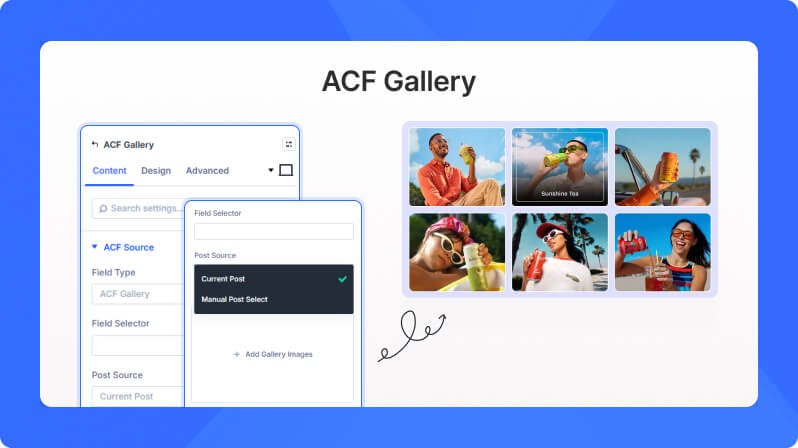
Content Settings
ACF Source
Field Type (Dropdown)
Select the ACF field type to pull images from.
- Available options: ACF Gallery
- Default: ACF Gallery
Field Selector (Text Field)
Enter the ACF field name (e.g. gallery_images). This tells the module which ACF field on your post contains the gallery images. Auto-detection is available at runtime.
Post Source (Dropdown)
Where to pull images from — either the current post being viewed, or a specific post you select manually.
- Available options: Current Post, Manual Post Select
- Default: Current Post
Post ID (Text Field)
Enter the specific post ID to pull ACF data from.
- Only appears when Post Source is set to Manual Post Select
Fallback Images (File Upload)
Upload fallback images shown in the Visual Builder when no ACF data is available yet, or when editing a template not attached to a specific post.
Fallback Message (Text Field)
The message displayed on the page when no images are found and no fallback images have been uploaded.
- Default: No images found. Please add images to the ACF Gallery field.
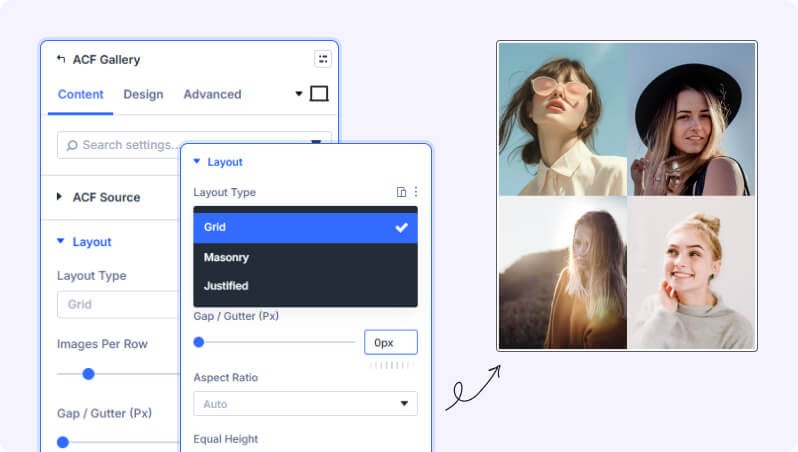
Layout
Layout Type (Dropdown)
Choose how gallery images are arranged on the page.
- Available options: Grid, Masonry, Justified
- Default: Grid
Images Per Row (Slider)
Number of columns shown per row. You can set a different value for desktop, tablet, and phone.
- Range: 1 to 8 columns
- Default: 4 on desktop, 3 on tablet, 2 on phone
Gap / Gutter (px) (Slider)
Space between images in the gallery.
- Range: 0 to 60 pixels
- Default: 0
Aspect Ratio (Dropdown)
Set a consistent aspect ratio for all images in the gallery. Use Auto to let images keep their natural proportions.
- Available options: Auto, 1:1, 4:3, 3:2, 16:9
- Default: Auto
- Not available when Layout Type is set to Masonry
Equal Height (Toggle)
Force all images to display at the same height. Useful for creating a uniform grid appearance.
- Default: Off
- Only appears when Layout Type is set to Grid
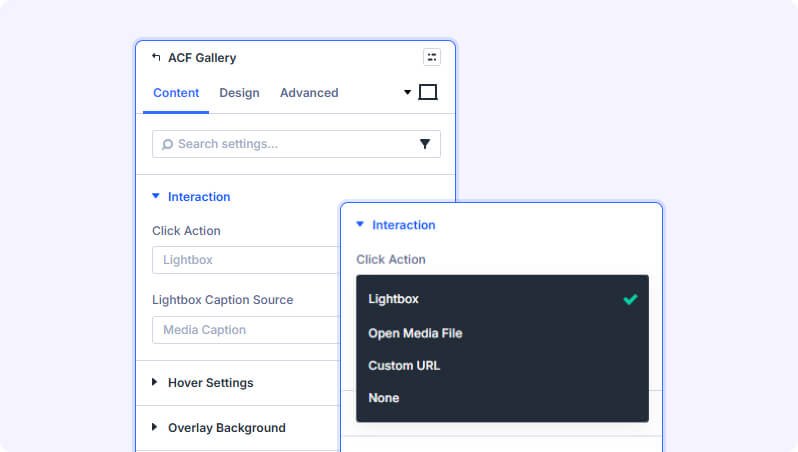
Interaction
Click Action (Dropdown)
What happens when a visitor clicks on a gallery image.
- Available options: Lightbox, Open Media File, Custom URL, None
- Default: Lightbox
Custom URL (Text Field)
Enter the URL that all images will link to when clicked.
- Only appears when Click Action is set to Custom URL
Lightbox Caption Source (Dropdown)
Choose what text appears as the caption below each image in the lightbox.
- Available options: ACF Caption, Media Caption, Title, None
- Default: Media Caption
- Only appears when Click Action is set to Lightbox
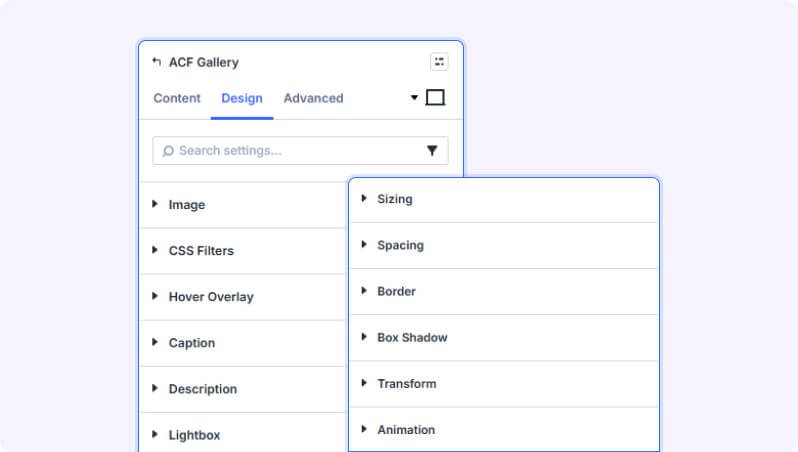
Design Settings
Image
Border styling and box shadow options applied to individual gallery images.
CSS Filters
Apply CSS filter effects to gallery images, including brightness, contrast, saturation, hue, blur, and opacity adjustments. These can also be set independently for the hover state.
Hover Overlay
Enable Icon (Toggle)
Show an icon on top of the hover overlay.
- Default: On
Icon (Icon Picker)
Choose the icon displayed in the center of the hover overlay.
- Only appears when Enable Icon is turned on
Icon Size (Slider)
Control the size of the overlay icon.
- Range: 8 to 120 pixels
- Default: 32px
- Only appears when Enable Icon is turned on
Icon Color (Color Picker)
Set the color of the overlay icon.
- Default: White (#ffffff)
- Only appears when Enable Icon is turned on
Border Animation Color (Color Picker)
Set the color of the animated border that draws around the image on hover.
- Default: White (#ffffff)
- Only appears when Border Animation is turned on (in Content > Hover Settings)
Border Animation Dimension (Slider)
Control the thickness of the animated hover border.
- Range: 1 to 20 pixels
- Default: 2px
- Only appears when Border Animation is turned on (in Content > Hover Settings)
Caption
Font styling options for captions shown on hover, including font family, size, weight, color, and letter spacing. Also includes spacing controls for padding and margin around the caption.
Description
Font styling options for image descriptions shown on hover, including font family, size, weight, color, and letter spacing. Also includes spacing controls for padding and margin.
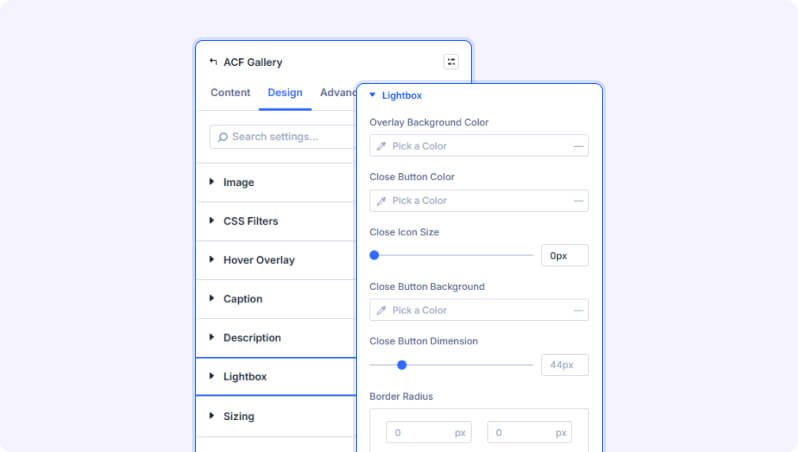
Lightbox
Overlay Background Color (Color Picker)
Background color of the lightbox overlay that appears behind the full-size image.
- Default: Dark semi-transparent (rgba(11,11,11,0.8))
- Only visible when Click Action is set to Lightbox
Close Icon Size (Slider)
Size of the X (close) button icon in the lightbox.
- Range: 8 to 100 pixels/em/rem
- Default: 24px
- Only visible when Click Action is set to Lightbox
Close Button Dimension (Slider)
Width and height of the close button click area in the lightbox.
- Range: 10 to 200 pixels/em/rem
- Default: 44px
- Only visible when Click Action is set to Lightbox
Close Button Border (Border)
Add a border around the lightbox close button.
- Only visible when Click Action is set to Lightbox
Arrow Color (Color Picker)
Color of the left and right navigation arrows in the lightbox.
- Default: White (#ffffff)
- Only visible when Click Action is set to Lightbox
Arrow Icon Size (Slider)
Size of the navigation arrow icons in the lightbox.
- Range: 8 to 100 pixels/em/rem
- Default: 30px
- Only visible when Click Action is set to Lightbox
Arrow Background (Color Picker)
Background color of the navigation arrow buttons.
- Default: Transparent
- Only visible when Click Action is set to Lightbox
Arrow Button Dimension (Slider)
Width and height of the navigation arrow click areas.
- Range: 10 to 200 pixels/em/rem
- Default: 40px
- Only visible when Click Action is set to Lightbox
Arrow Button Border (Border)
Add a border around the lightbox navigation arrow buttons.
- Only visible when Click Action is set to Lightbox
Module Styling
Standard Divi design options for the overall module: Sizing, Spacing, Border, Box Shadow, Transform, and Animation.
Advanced Settings
- CSS ID & Classes — Add a custom CSS ID or class to the module for targeting with custom code.
- Custom CSS — Write custom CSS for specific parts of the gallery: the wrapper, individual items, images, overlay, caption, and description.
- Visibility — Show or hide this module on desktop, tablet, or phone.
- Overflow — Control whether content that extends beyond the module boundary is visible or clipped.
- Transition — Customize the duration and style of hover transition effects.
- Position — Control the module's positioning on the page (static, relative, absolute, or fixed).
- Z-Index — Set the stacking order of the module relative to other elements on the page.
- Scroll Effects — Add parallax or scroll-triggered motion effects to the module.
- Conditions — Set display conditions so the module only appears to certain visitors or under specific circumstances.
Tips & Best Practices
- Always enter the exact ACF field name as it appears in your WordPress admin (under the ACF field group). A typo here will result in no images loading.
- Use Fallback Images to preview your gallery layout in the Visual Builder when designing templates or pages that aren't yet attached to a real post with ACF data.
- For a clean portfolio look, try the Masonry layout with the Zoom hover effect and a semi-transparent dark overlay background — this combination creates an elegant gallery that highlights images as visitors browse.
- If your gallery contains many images, the lightbox click action lets visitors browse through all images in full-screen without leaving the page — ideal for photo galleries and product showcases.
Try ACF Gallery premium Demo