
Set up your price list for your services and products. Make it easier for your clients to choose the best out of what you offer.
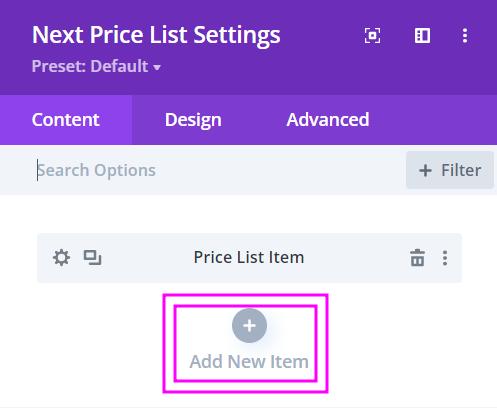
Content → Add New Item
- Add New Item – add new items to form a list of pricing
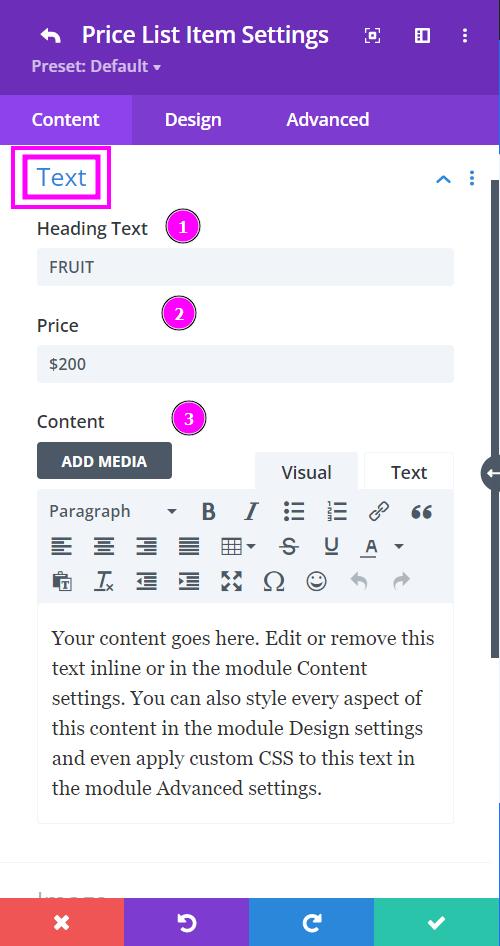
Content → Text
- Heading Text – type the heading text in this field.
- Price – state the price of the product in the box.
- Content – include detailed information related to the product. You could write a small description of the product so the customers have a clearer understanding of what is being sold.
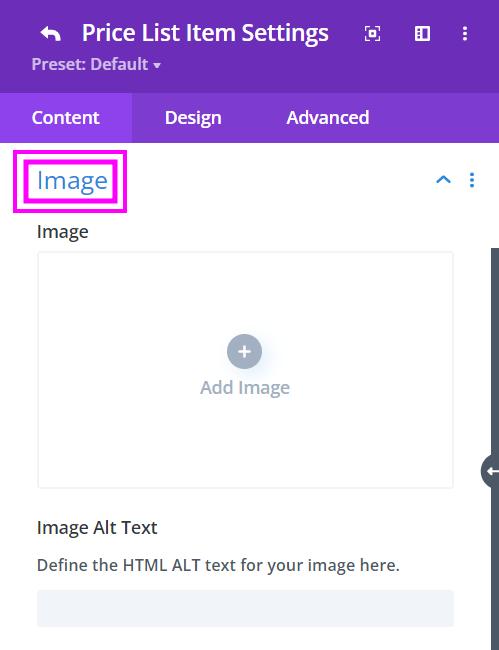
Content → Image
- Image – add the image of the product for the price list
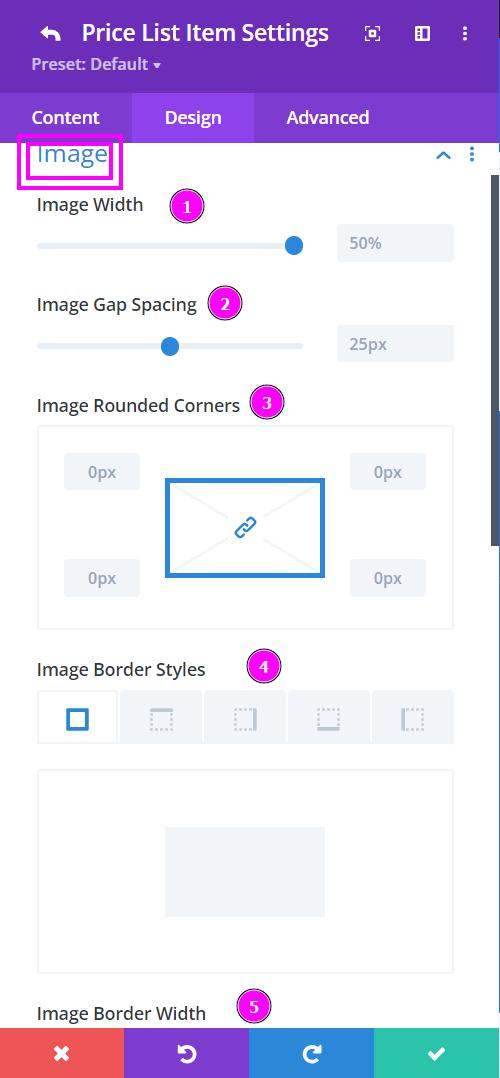
Design → Image
- Image Width – adjust the image width using the slider
- Image Gap Spacing – adjust the space/gap of the image from the pricing
- Image Rounded Corners – add and configure the rounded corners of the image
- Image Border Styles – add borders to the image either on a particular side of the image or on all four sides
- Image Border Width – edit the width of the border added to the image
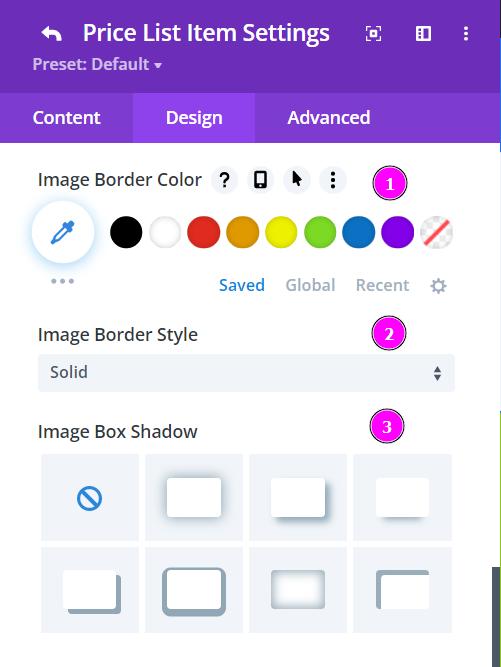
Design → Image (continuation)
- Image Border Color – add color to the border with the pointer or simply put the hex code to get the exact color you require
- Image Border Style – include a style to the border from the premade border styles
- Image Box Shadow – from the premade box shadows select the best one you prefer