Introduction
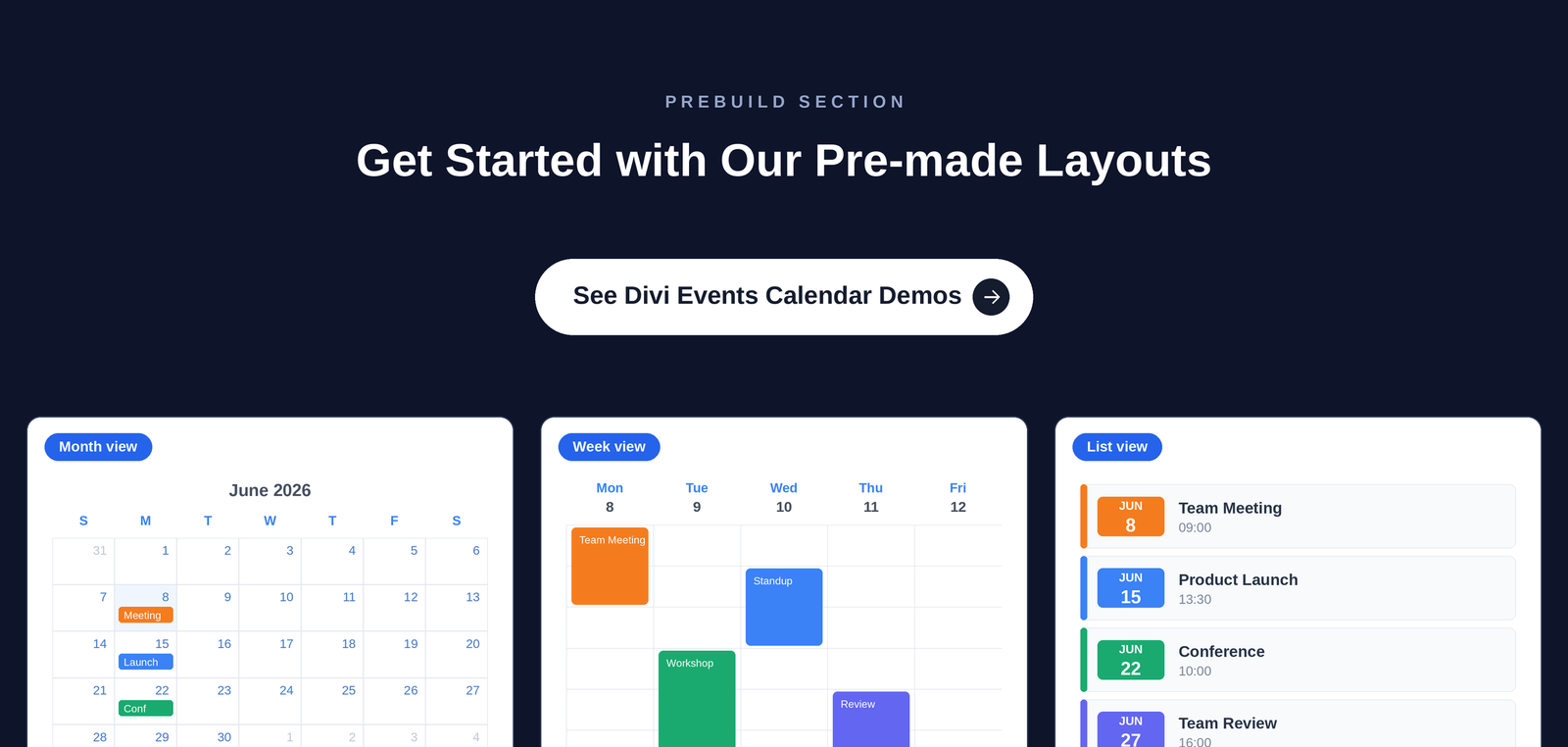
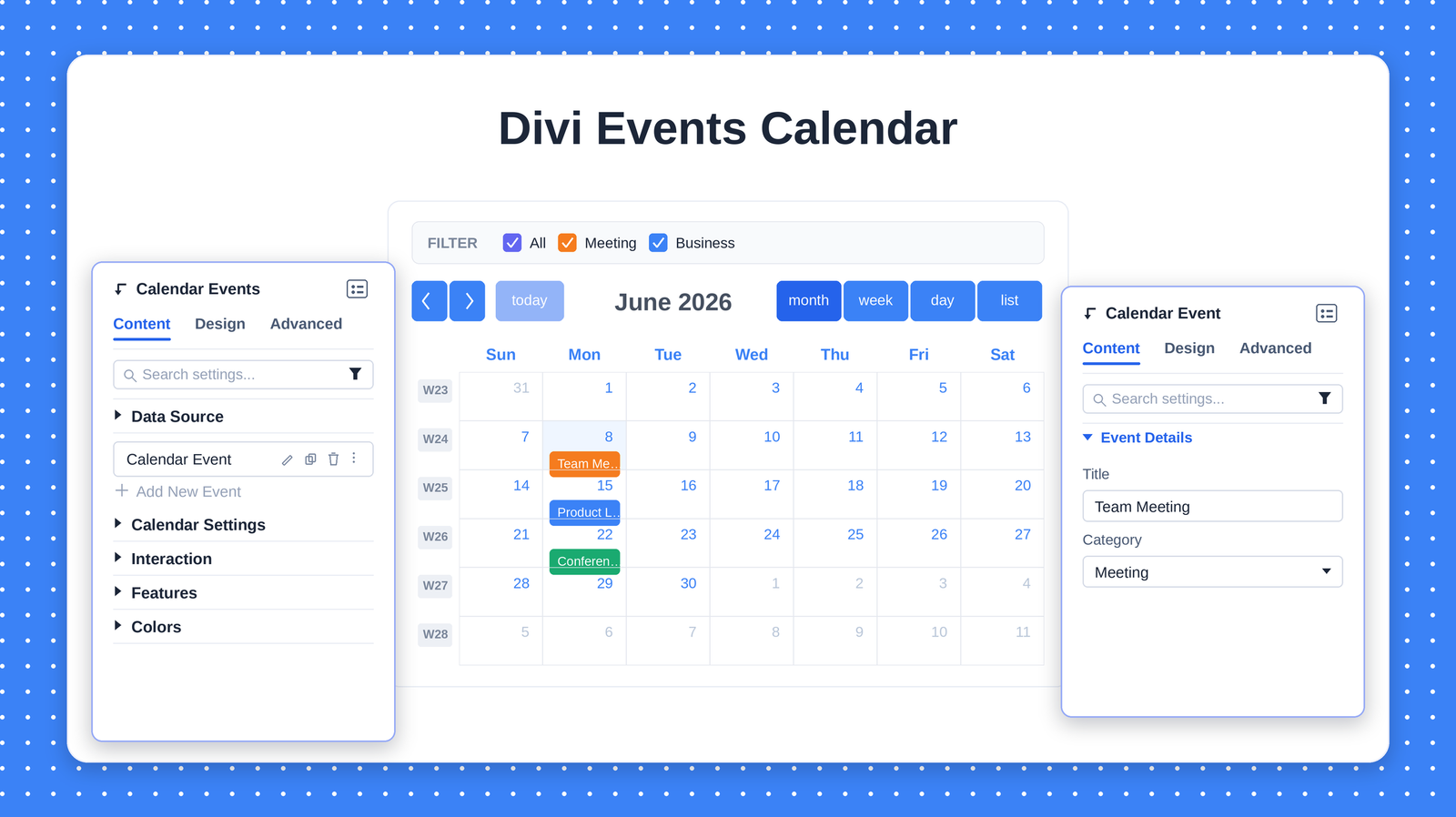
Divi Events Calendar brings a fully interactive schedule to the Divi Builder. You can add events, assign color-coded categories, let visitors filter by type, and switch between five calendar views — all without installing a separate calendar plugin. Events are created right inside the builder, and every part of the calendar can be styled to match your site.
The module comes in two parts: the Calendar Events parent module, which holds the calendar-wide settings, and one or more Calendar Event child modules, where you enter the details for each individual event.
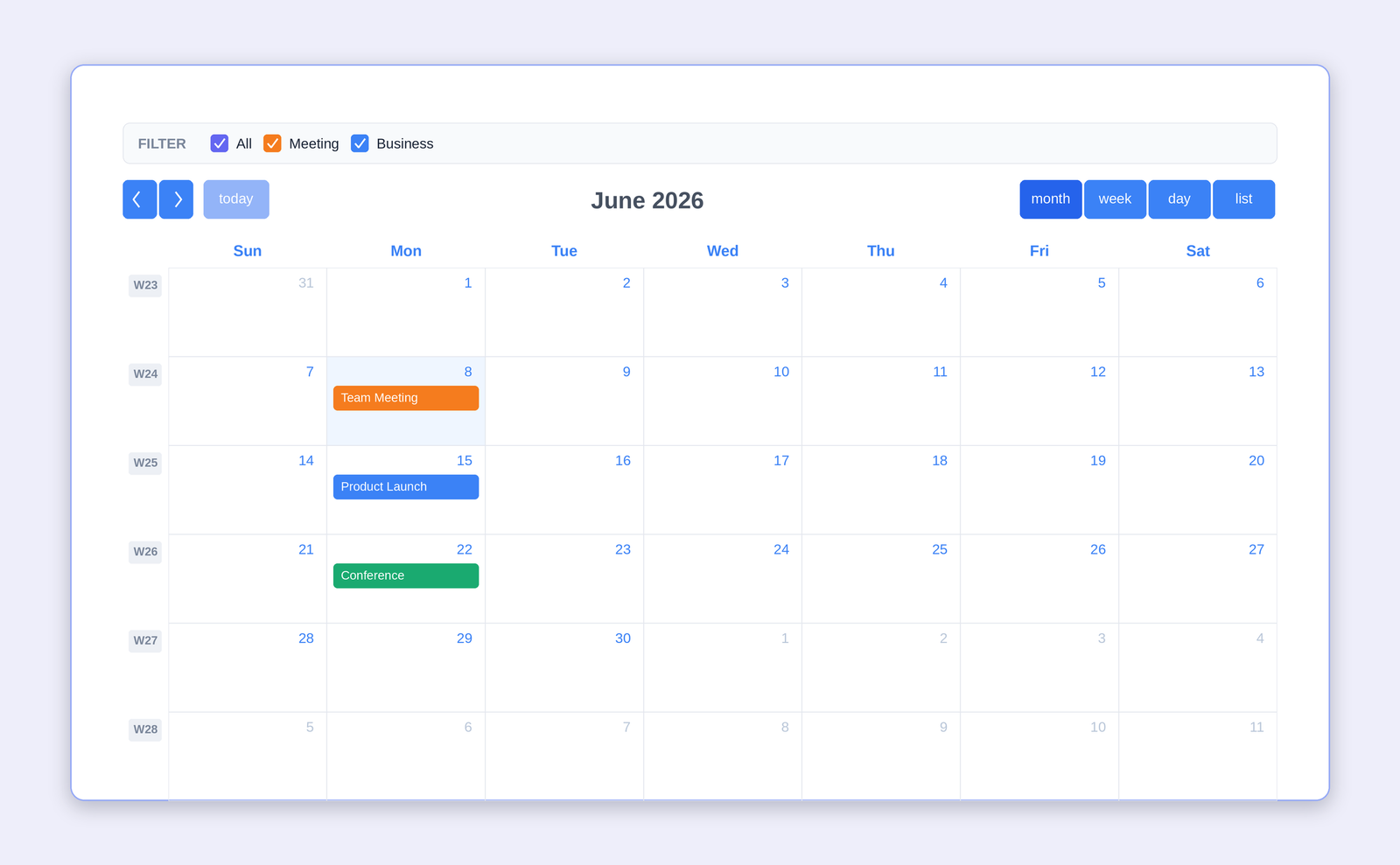
Table of Contents
Key Features
- Five calendar views — Month, Week, Day, List, and Multi-Month — set any one as the default.
- Color-coded categories — Give each event its own background and text color and group events by category.
- Built-in category filter — Visitors filter events by category from a toggle bar above the calendar.
- Event modal — Clicking an event opens a modal showing its title, category, dates, and time.
- Week numbers & hidden days — Show ISO week columns, and remove specific weekdays from the layout.
- Adjustable height — Set the exact pixel height of the calendar container.
- No third-party plugin — Everything is self-contained inside Divi Essential.
Requirements
- WordPress 5.8 or newer.
- The Divi theme or Divi Builder plugin (active).
- The Divi Essential plugin, installed and activated.
Getting Started
Adding the Events Calendar takes three quick steps:
- Install Divi Essential and activate your license key.
- Drop the Calendar Events module onto your Divi page with the Visual Builder.
- Add events, set their dates, assign categories, and publish.
Content Tab
The Content tab controls the data the calendar shows and how it behaves. Its options are organized into collapsible groups.
Data Source
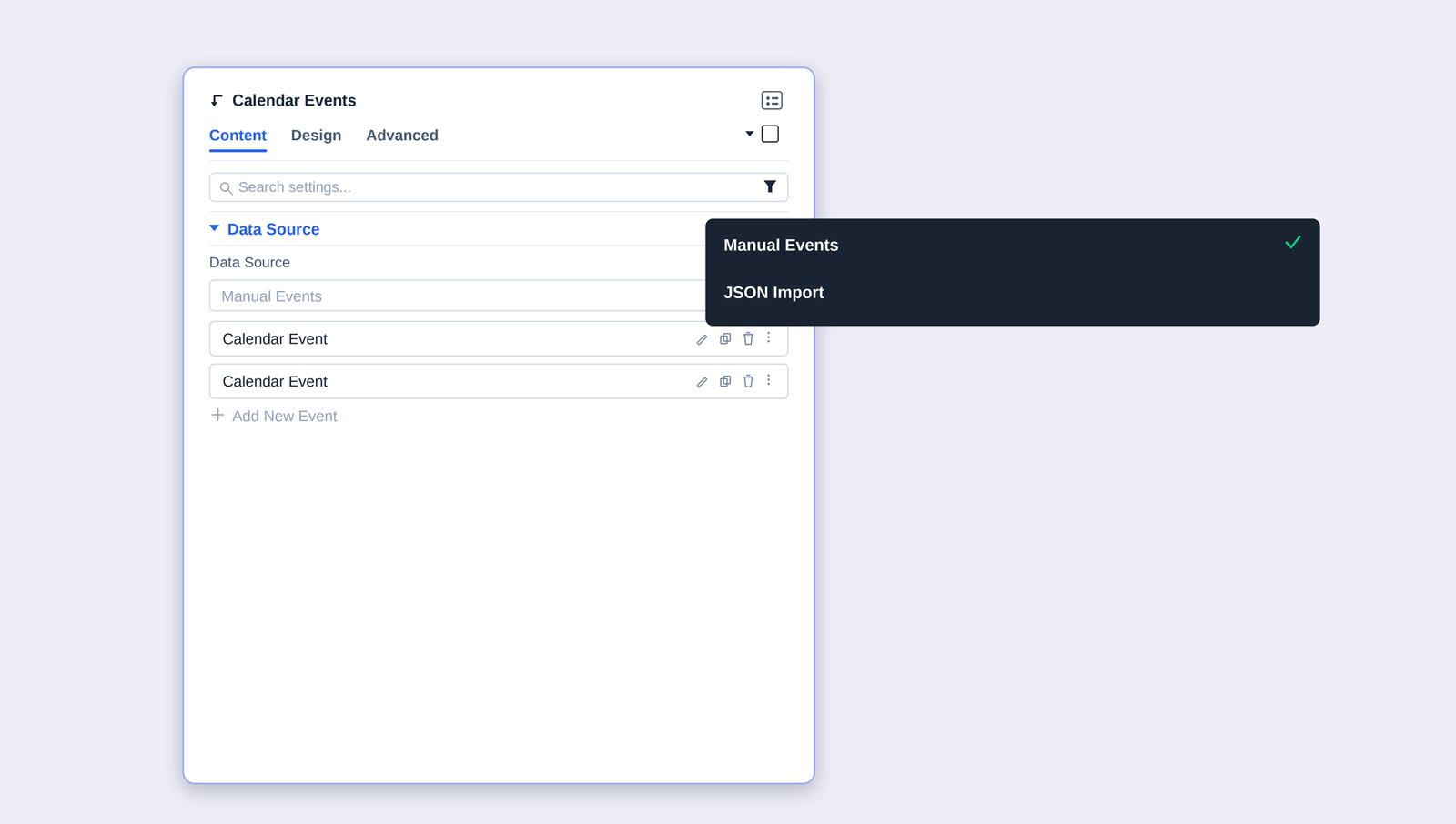
Choose where the calendar's events come from.
|
Setting |
What it does |
Options / Default |
|---|---|---|
|
Data Source |
Manual Events lets you build the event list by hand using Calendar Event child modules; JSON Import lets you feed events from a JSON structure instead. |
Manual Events / JSON Import |
Adding Events
With Manual Events selected, each event is a Calendar Event child module listed under Data Source. Use the pencil to edit an event, the duplicate icon to copy it, and the trash icon to remove it. Click Add New Event to create another. Full event options are covered in Section 4.
Calendar Settings
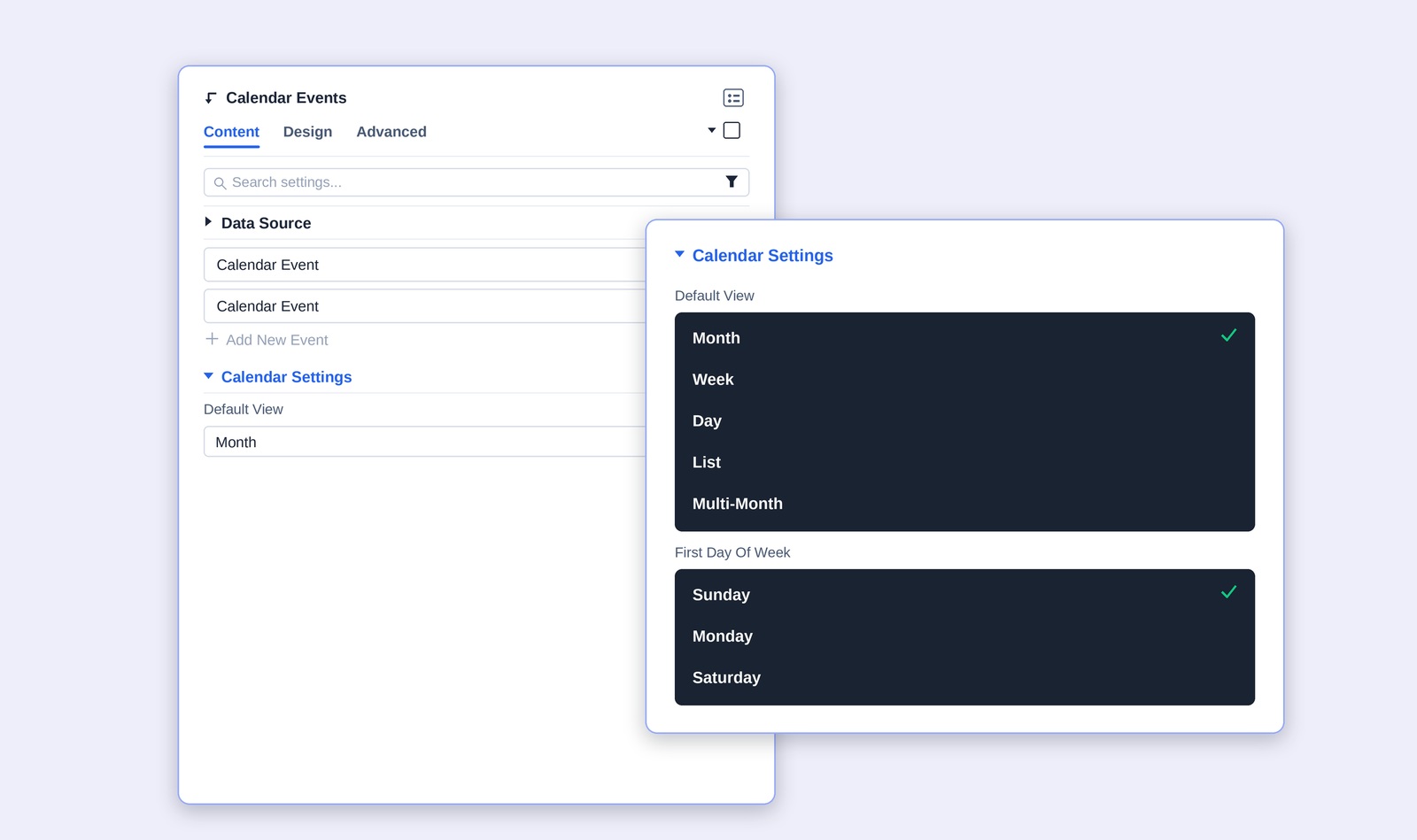
Set the calendar's default view and the day the week starts on.
| Setting | What it does | Options / Default |
|---|---|---|
| Default View | The view shown when the page first loads. Visitors can still switch live using the toolbar. | Month / Week / Day / List / Multi-Month |
| First Day Of Week | Which weekday appears in the first column. | Sunday / Monday / Saturday |
Interaction
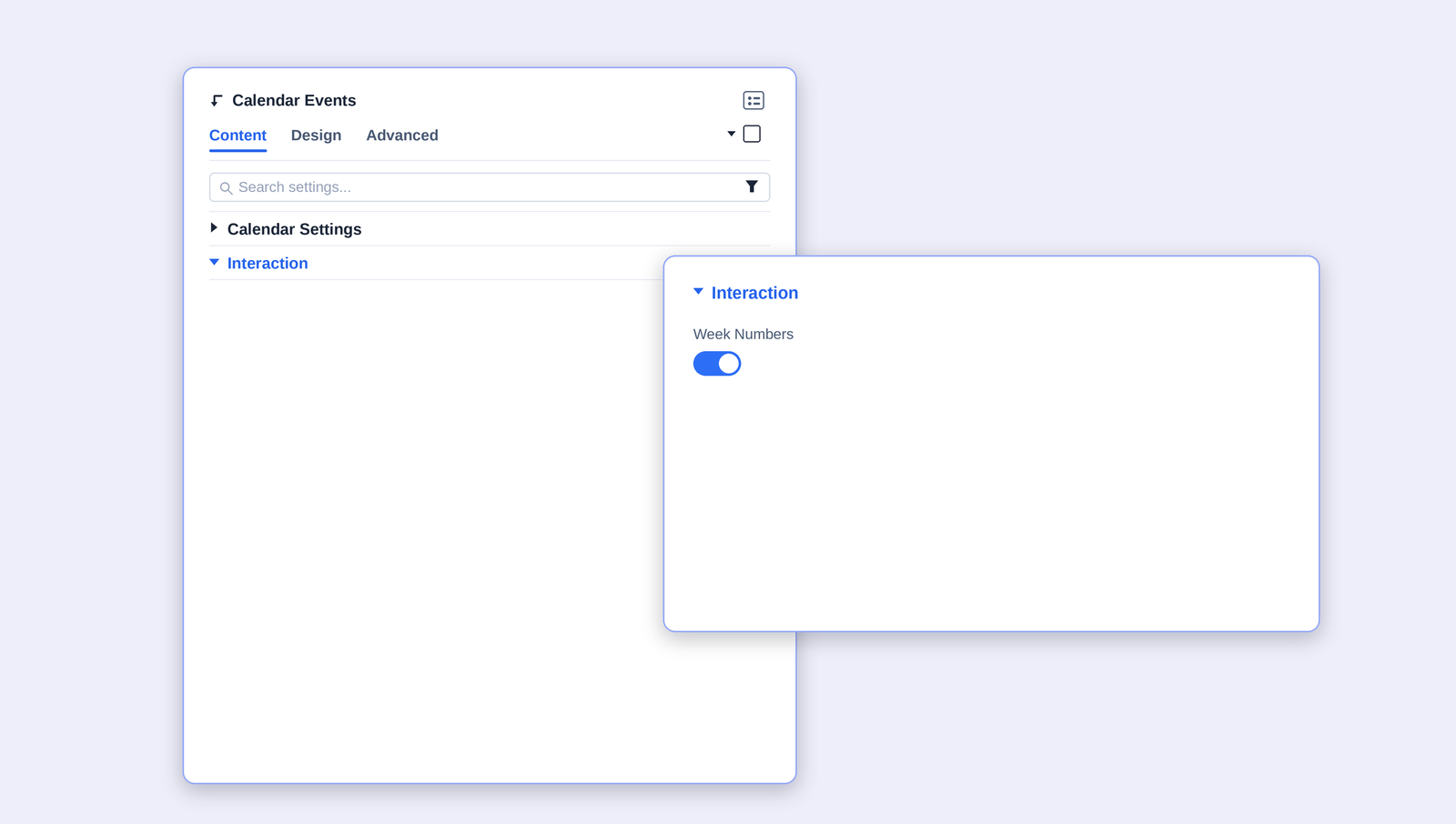
Controls extra interactive behavior on the grid.
| Setting | What it does | Options / Default |
|---|---|---|
| Week Numbers | Displays an ISO week-number column beside each calendar row. | On / Off |
Features
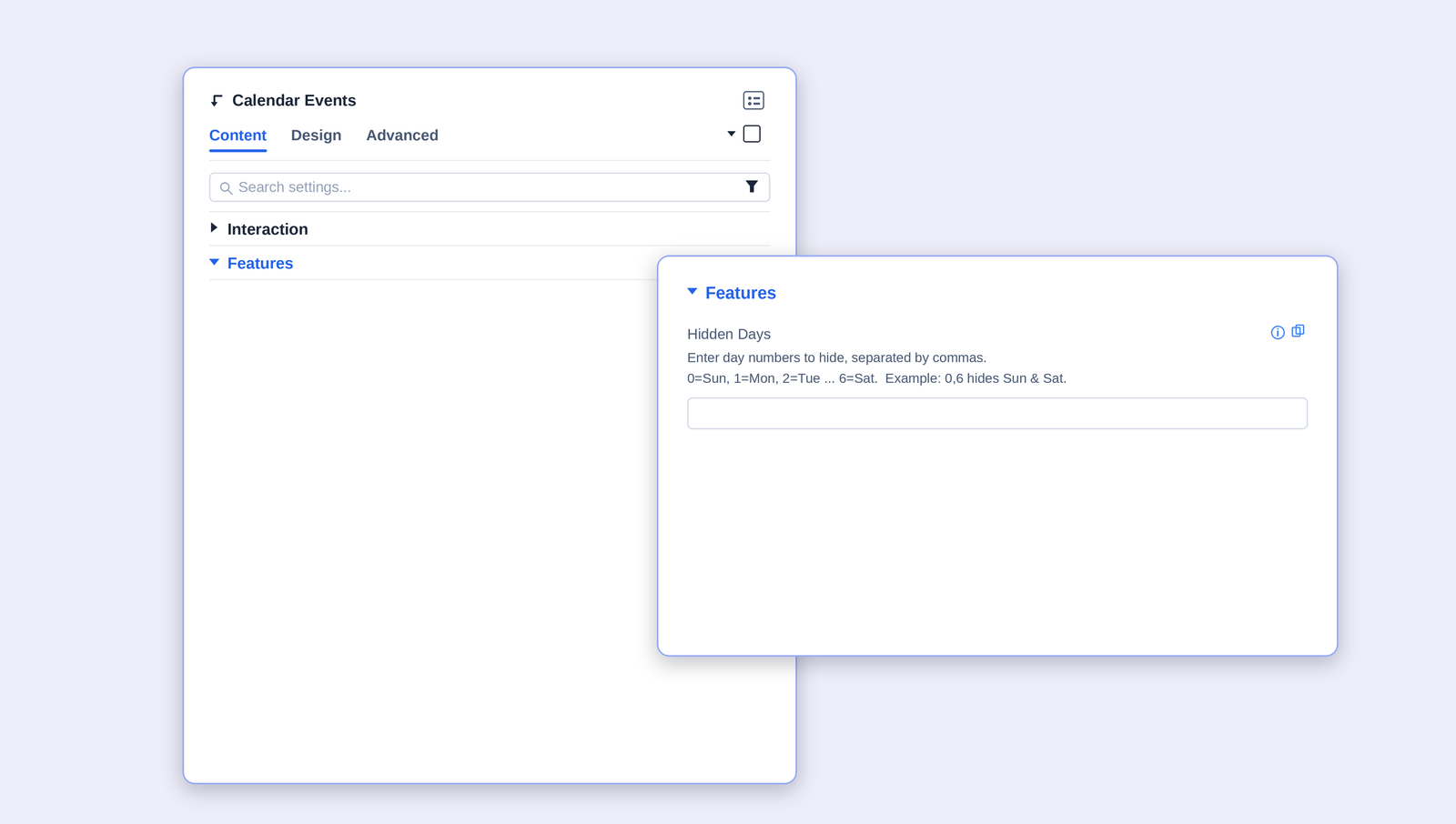
Fine-tune which days the calendar renders.
|
Setting |
What it does |
Options / Default |
|---|---|---|
|
Hidden Days |
Day numbers to remove from the calendar entirely, separated by commas, where 0 = Sunday through 6 = Saturday. For example, 0,6 hides Sunday and Saturday — handy for a Monday-to-Friday business calendar. |
Comma-separated list |
Colors
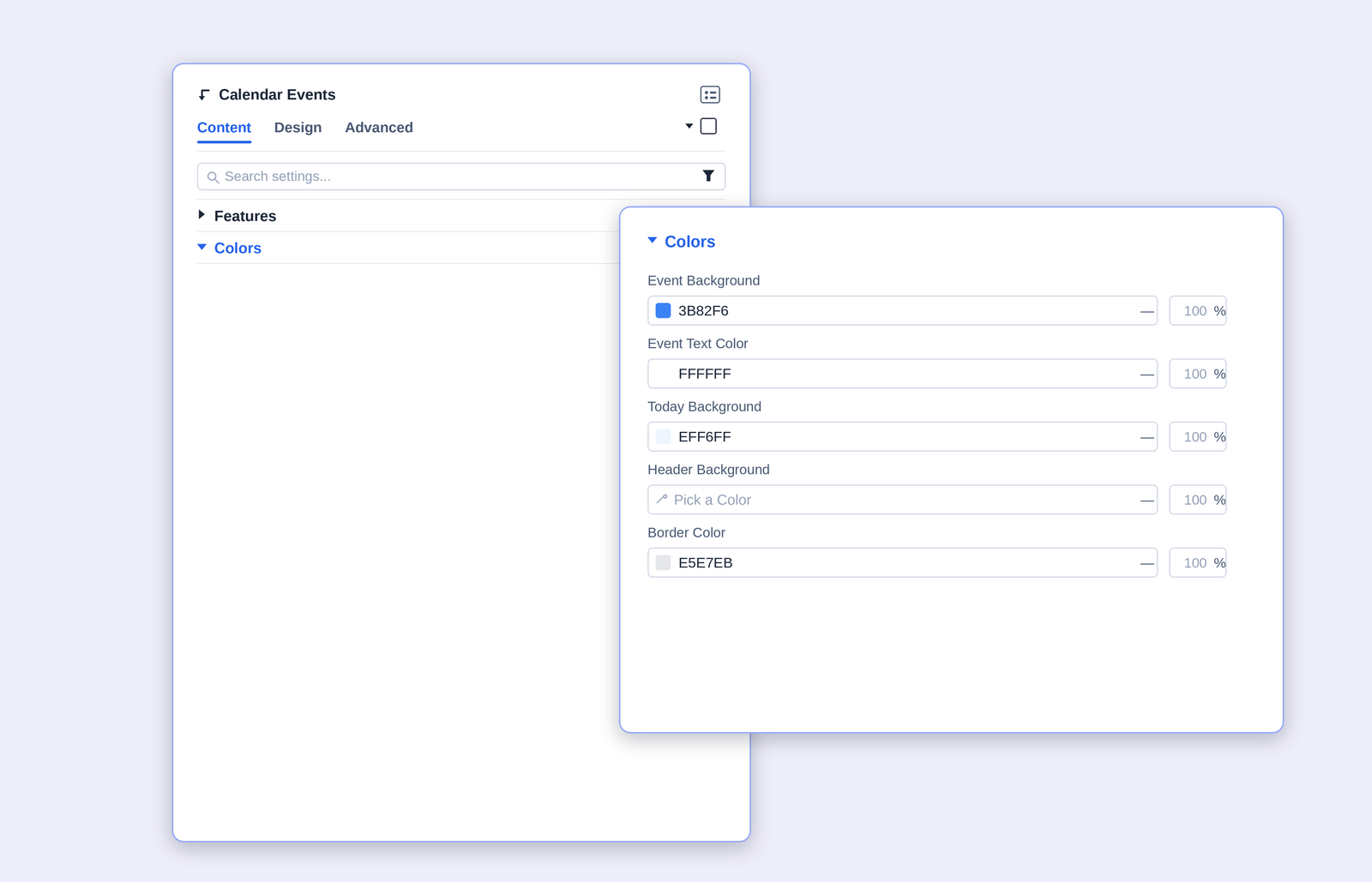
Set the calendar's default color scheme. Individual events can override these with their own colors (Section 4.2).
|
Setting |
What it does |
Options / Default |
|---|---|---|
|
Event Background |
Default background color for events on the grid. |
Color · 3B82F6 |
|
Event Text Color |
Default text color inside event blocks. |
Color · FFFFFF |
|
Today Background |
Highlight color for the current day's cell. |
Color · EFF6FF |
|
Header Background |
Background color for the calendar's header row. |
Color |
|
Border Color |
Color of the grid lines and cell borders. |
Color · E5E7EB |
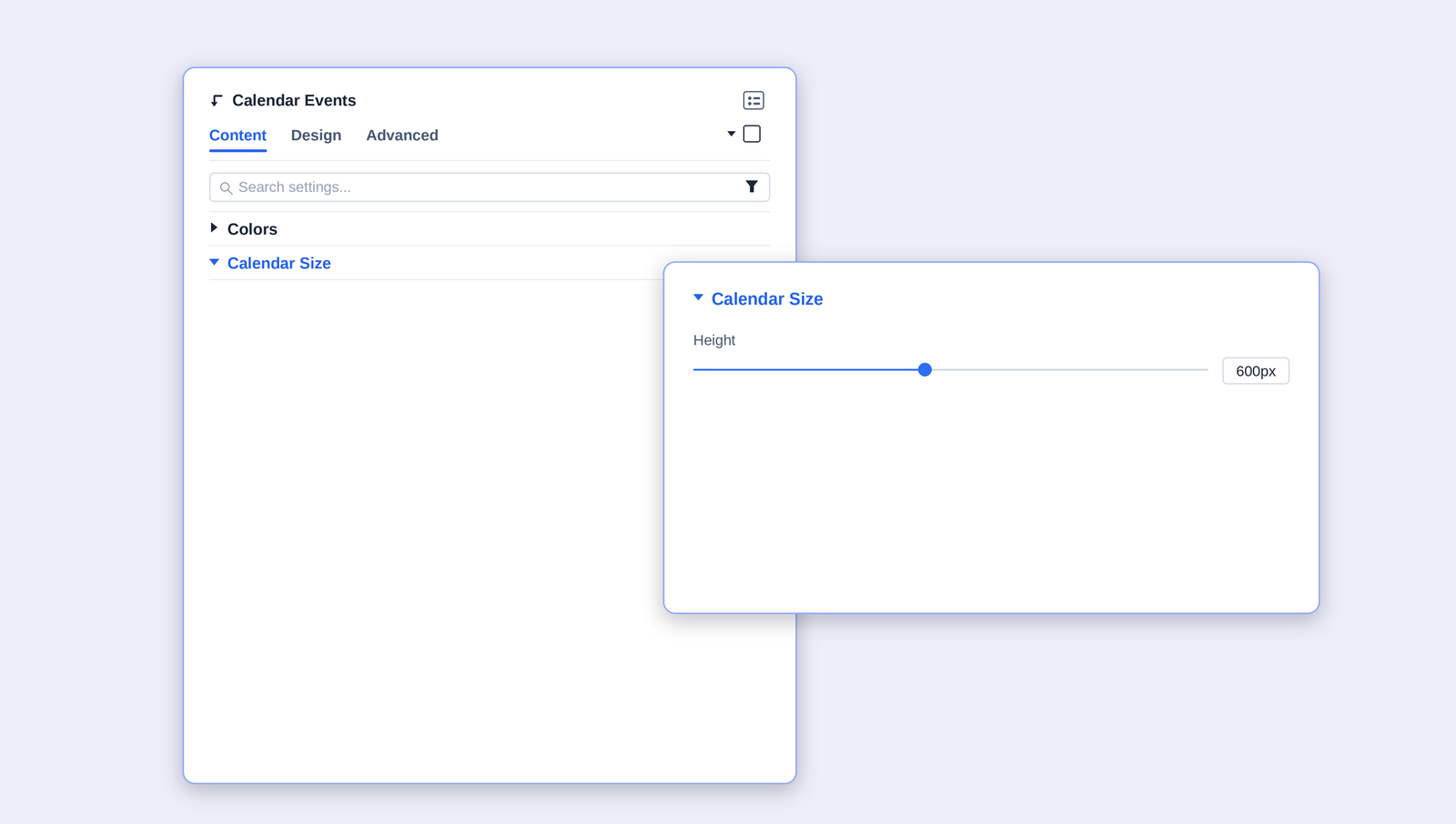
Calendar Size
Controls the overall height of the calendar container.
|
Setting |
What it does |
Options / Default |
|---|---|---|
|
Height |
The fixed pixel height of the calendar container; adjusts to suit any section layout. |
px · Default 600 |
Category Filter
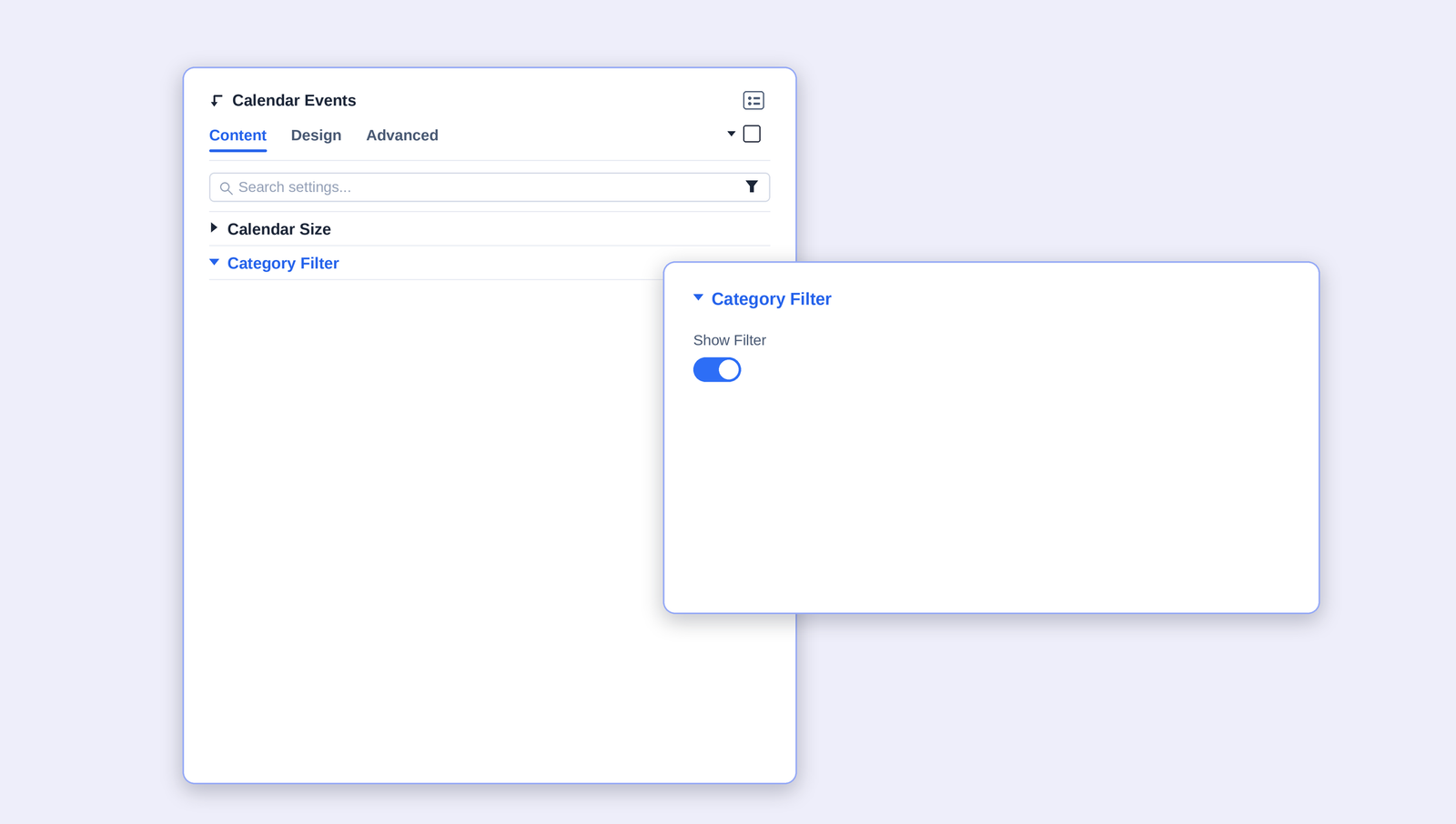
Controls the filter bar visitors use to show or hide events by category.
|
Setting |
What it does |
Options / Default |
|---|---|---|
|
Show Filter |
Displays a category filter bar above the calendar so visitors can toggle event types on and off. |
On / Off |
The Calendar Event (Per-Event Settings)
Each event on the calendar is a Calendar Event child module. Its Content tab has two groups: Event Details and Event Appearance.
Event Details
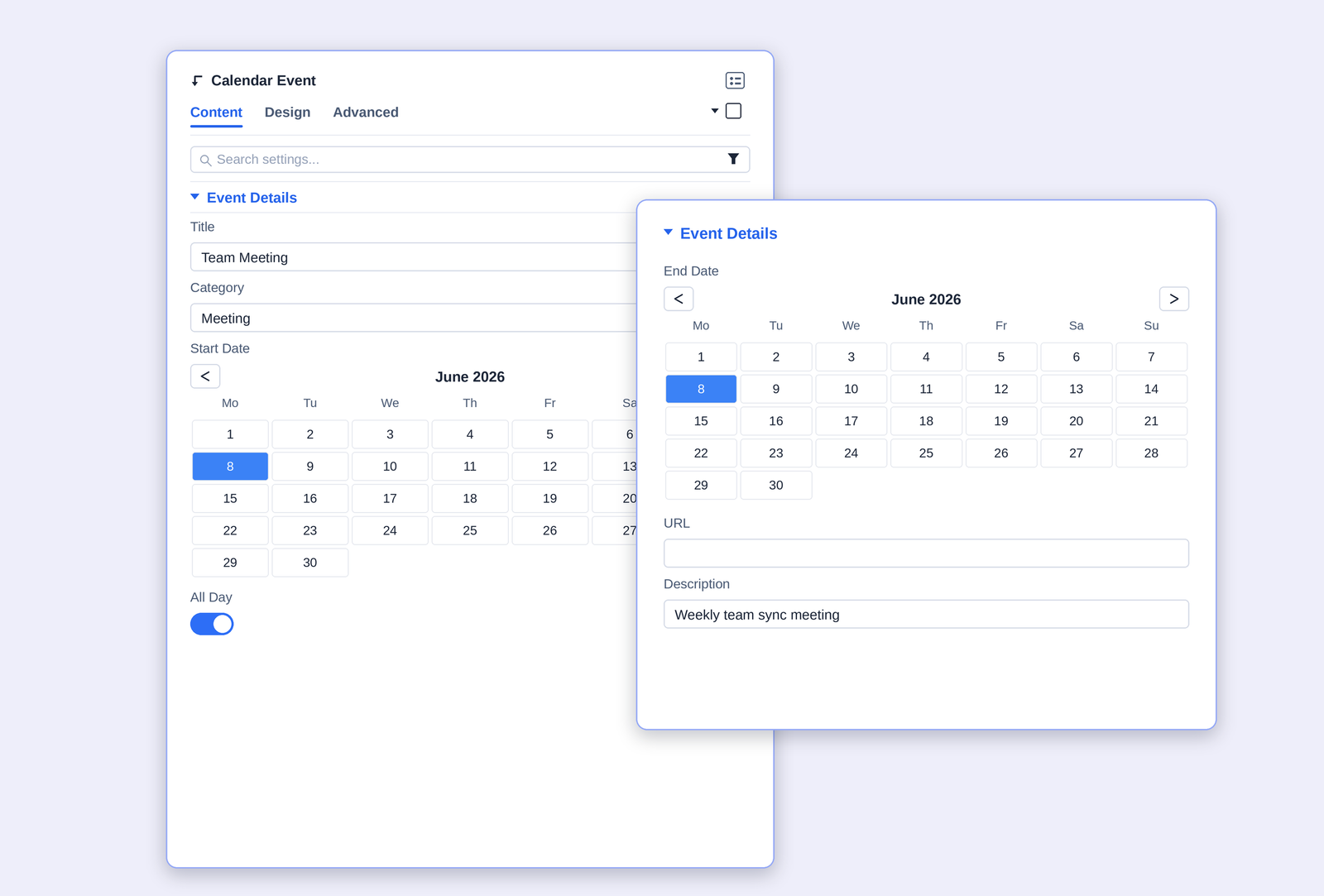
Everything that defines a single event — its title, category, dates, times, and description.
|
Setting |
What it does |
Options / Default |
|---|---|---|
|
Title |
The event name shown on the calendar and in the modal. |
Text |
|
Category |
The category this event belongs to, used by the filter bar and color grouping. |
Select |
|
Start Date / End Date |
The event's start and end days, chosen from a date picker. |
Date |
|
Time (Hour / Minute) |
The start and end time for the event. |
0–23 / 0–59 |
|
All Day |
Marks the event as an all-day event, ignoring the time fields. |
On / Off |
|
URL |
An optional link the event points to. |
URL |
|
Description |
A short description shown in the event modal. |
Text |
Event Appearance
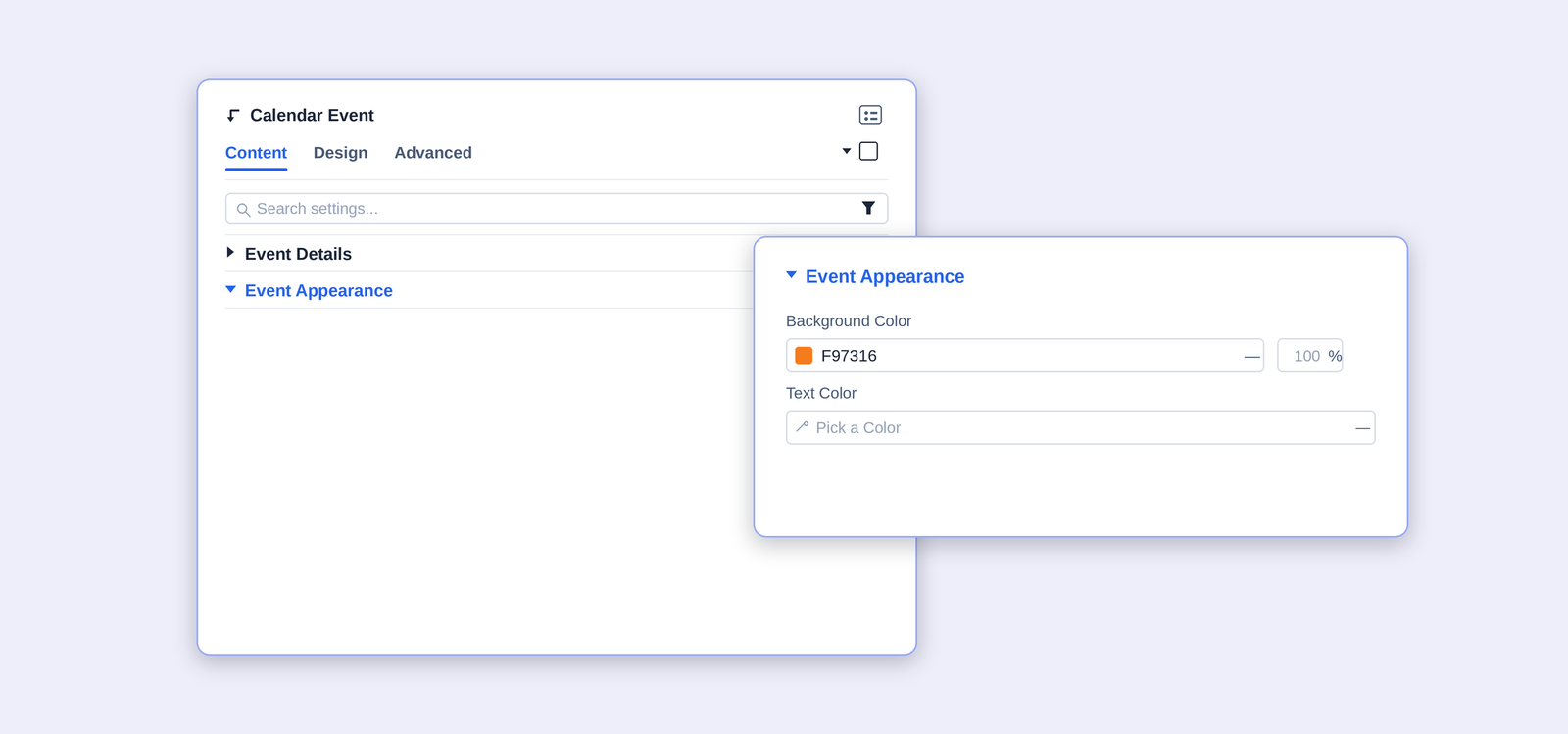
Override the calendar's default colors for this specific event.
|
Setting |
What it does |
Options / Default |
|---|---|---|
|
Background Color |
This event's background color on the grid and in the modal. |
Color · e.g. F97316 |
|
Text Color |
This event's text color. |
Color |
Design Tab
The Design tab styles every visible part of the calendar. Each section expands independently, and color options usually include separate states where relevant.
|
Section |
What it styles |
|
|---|---|---|
|
Header Title |
Typography and color of the month/period title in the toolbar. |
|
|
Day Header |
Styling for the weekday names row (Sun–Sat). |
|
|
Day Numbers |
Typography and color of the date numbers in each cell. |
|
|
Event Text |
Font and size of the event labels on the grid. |
|
|
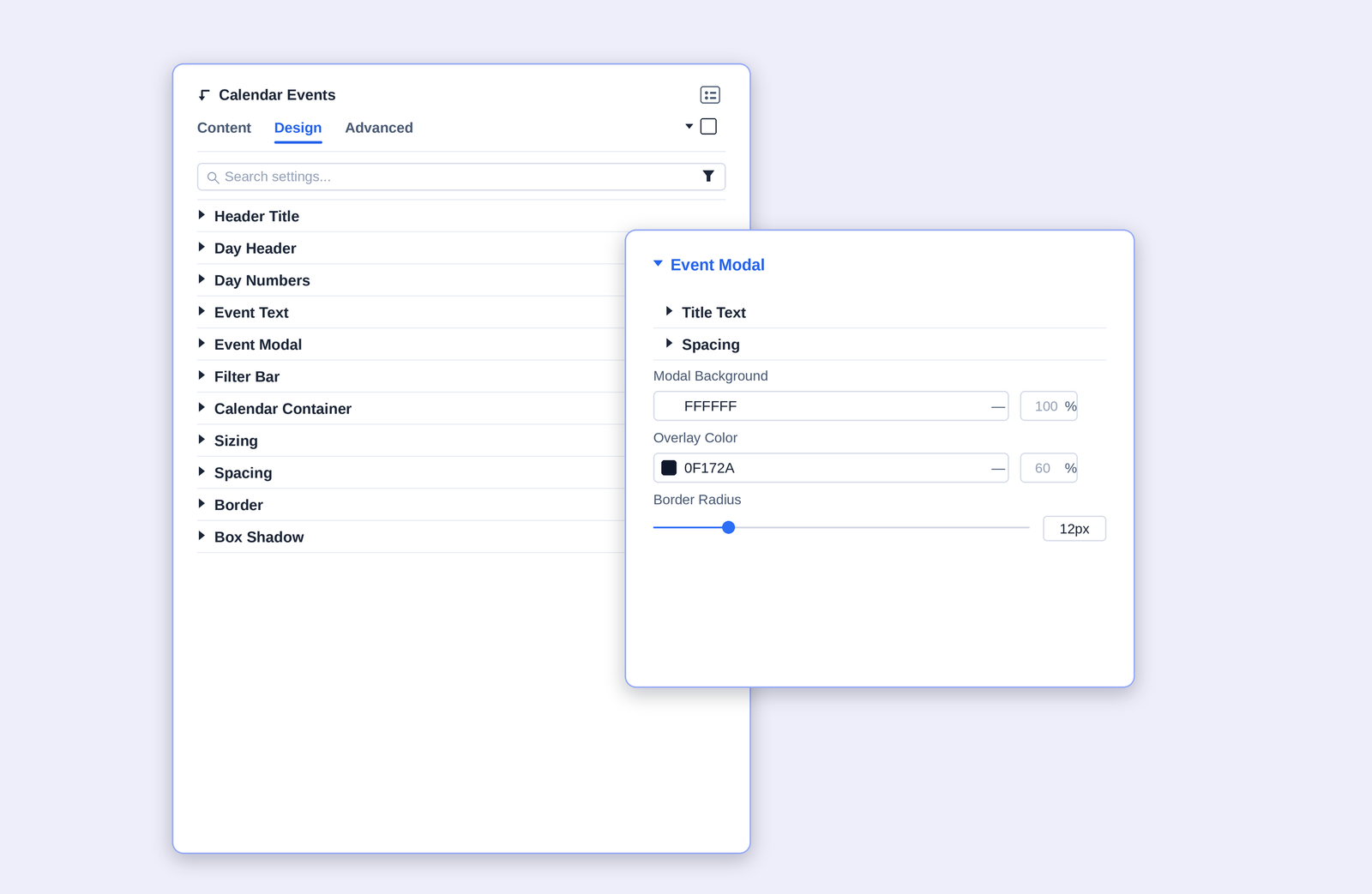
Event Modal |
Background, title color, text color, overlay, and border radius of the pop-up modal. |
|
|
Filter Bar |
Styling for the category filter bar above the calendar. |
|
|
Calendar Container |
Background, border, and spacing of the whole calendar. |
|
|
Sizing / Spacing / Border / Box Shadow / Filters / Transform / Animation |
Standard Divi module-level design controls. |
FAQ
Q. Do I need a third-party plugin?
No. The Events Calendar is fully self-contained inside Divi Essential — you add events directly from the builder.
Q. The calendar is empty.
Make sure Data Source is set and at least one Calendar Event child module exists with a valid start date.
Q. An event isn't showing on the right day.
Open the event's Event Details and check the Start Date / End Date, and whether All Day is toggled as you expect.
Q. The filter bar isn't visible.
Enable Show Filter under Category Filter, and confirm your events have categories assigned.
Q. Weekends are still showing.
Add the day numbers to Hidden Days (0 = Sunday, 6 = Saturday), separated by commas.
Q. The calendar is too tall or too short.
Adjust the Height value under Calendar Size (default 600px).
Try Event Calendar Premium Demo