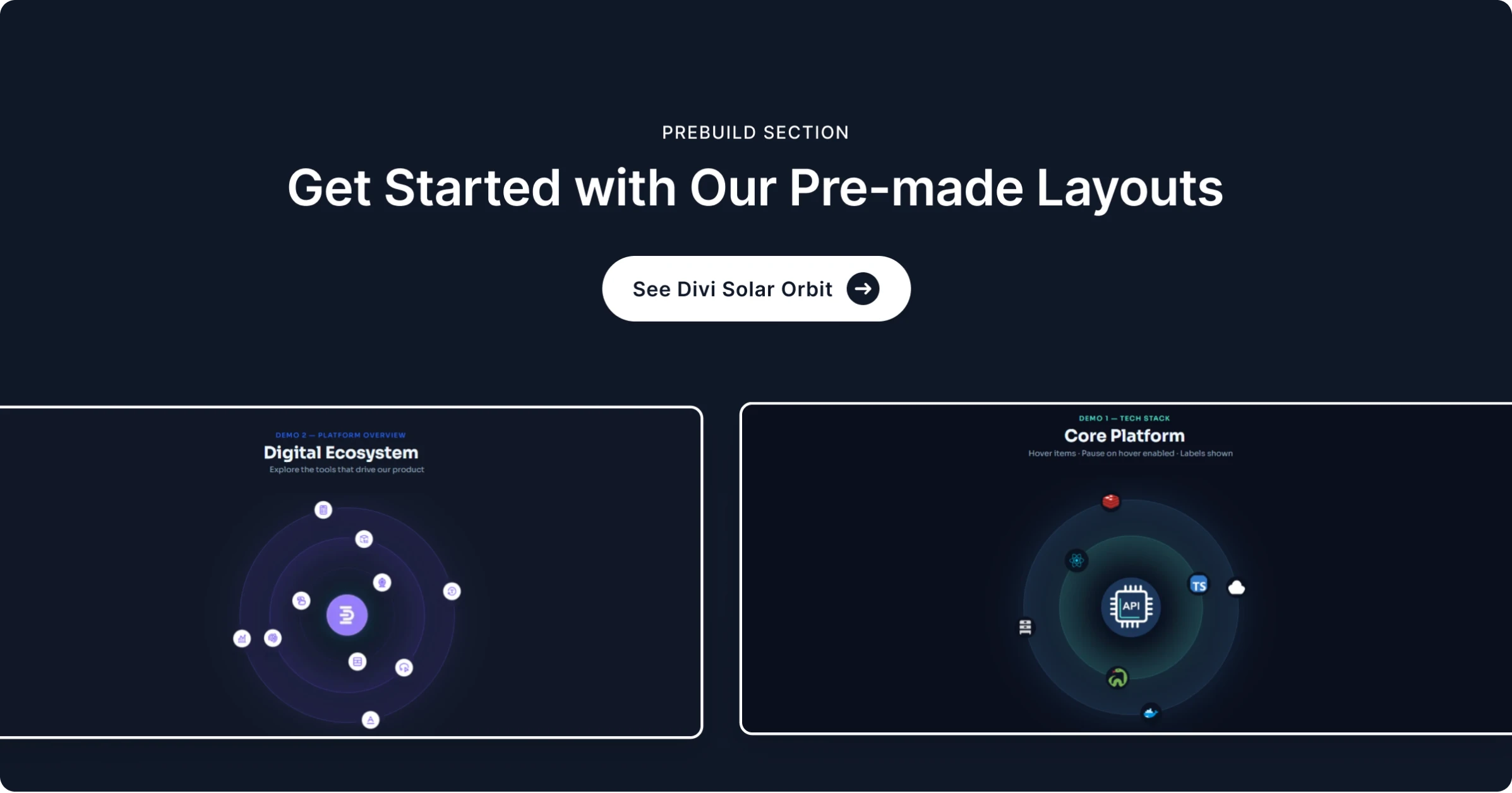
The Solar Orbit module creates an animated orbital display where images revolve around a central element, similar to planets orbiting a sun. Each orbit ring can hold up to 8 images that continuously rotate at customizable speeds. Hovering over the display pauses the animation and reveals tooltip labels. This module is ideal for showcasing skills, technologies, team members, or any collection of items in a visually engaging circular layout.
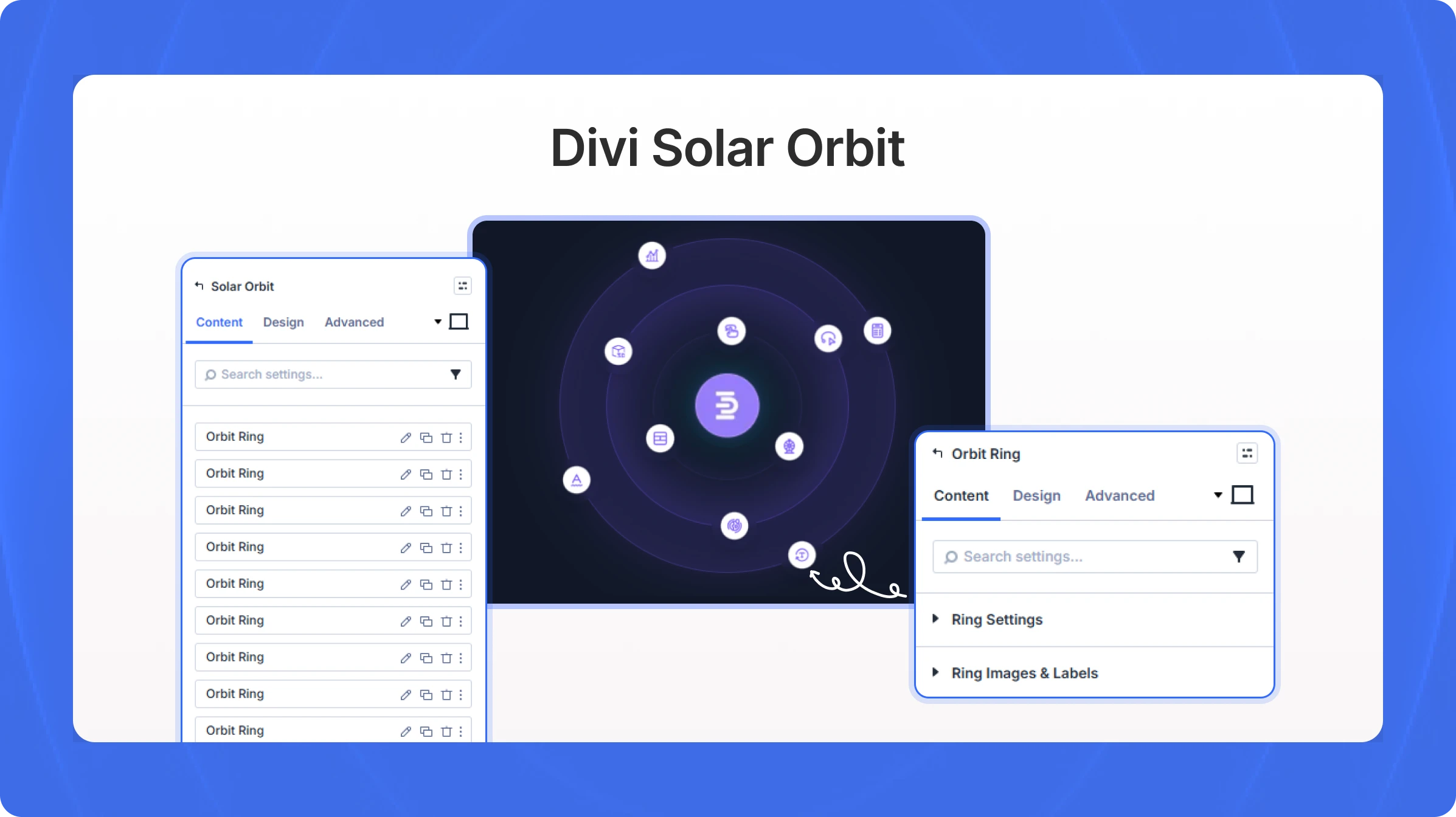
Content Settings
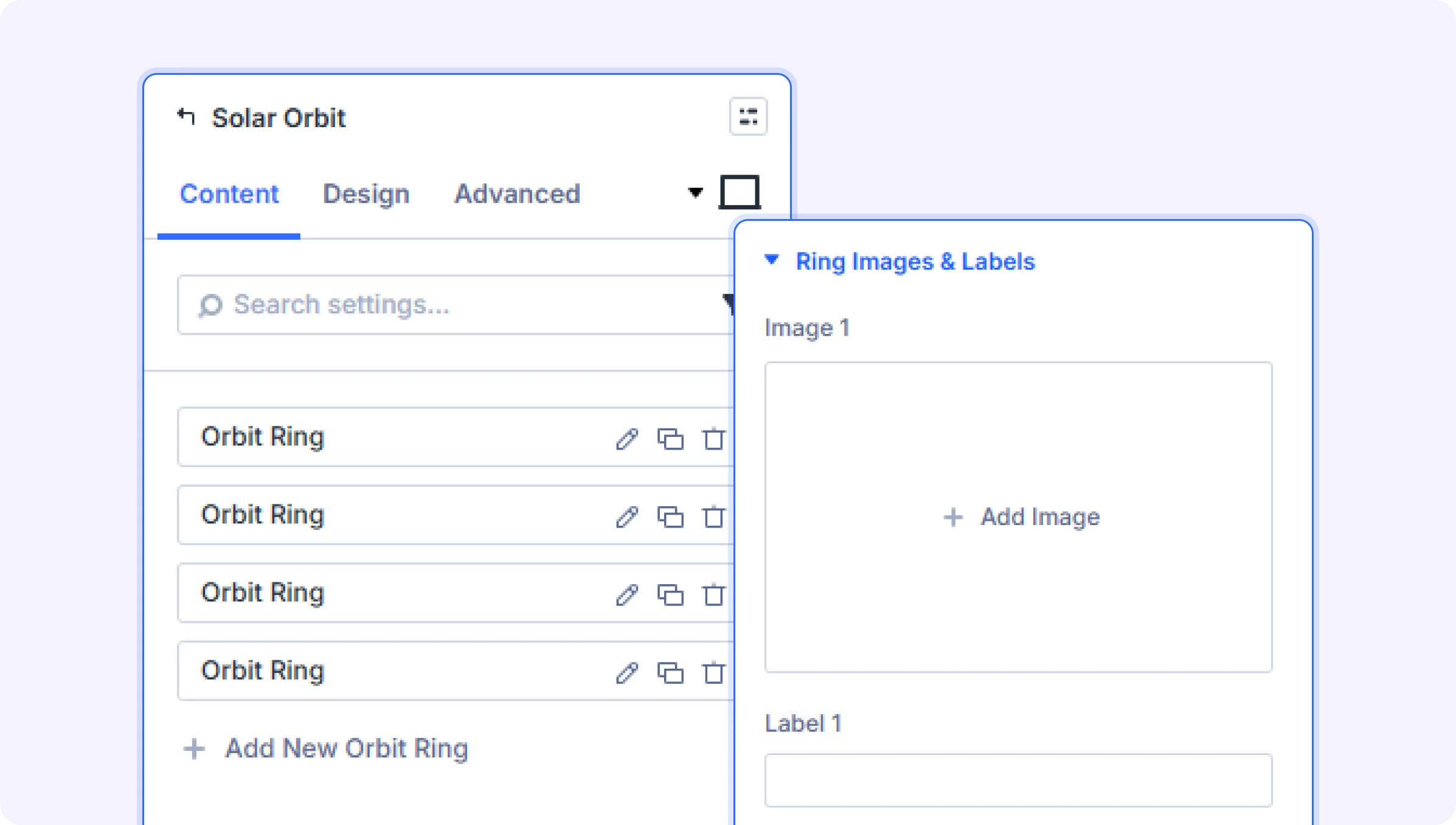
Orbit Rings
Add New Orbit Ring (Child Module List)
Add or manage orbit rings. Each ring is a separate child item that orbits around the center element at its own radius and speed. Click the button to add a new ring, or drag existing rings to reorder them.
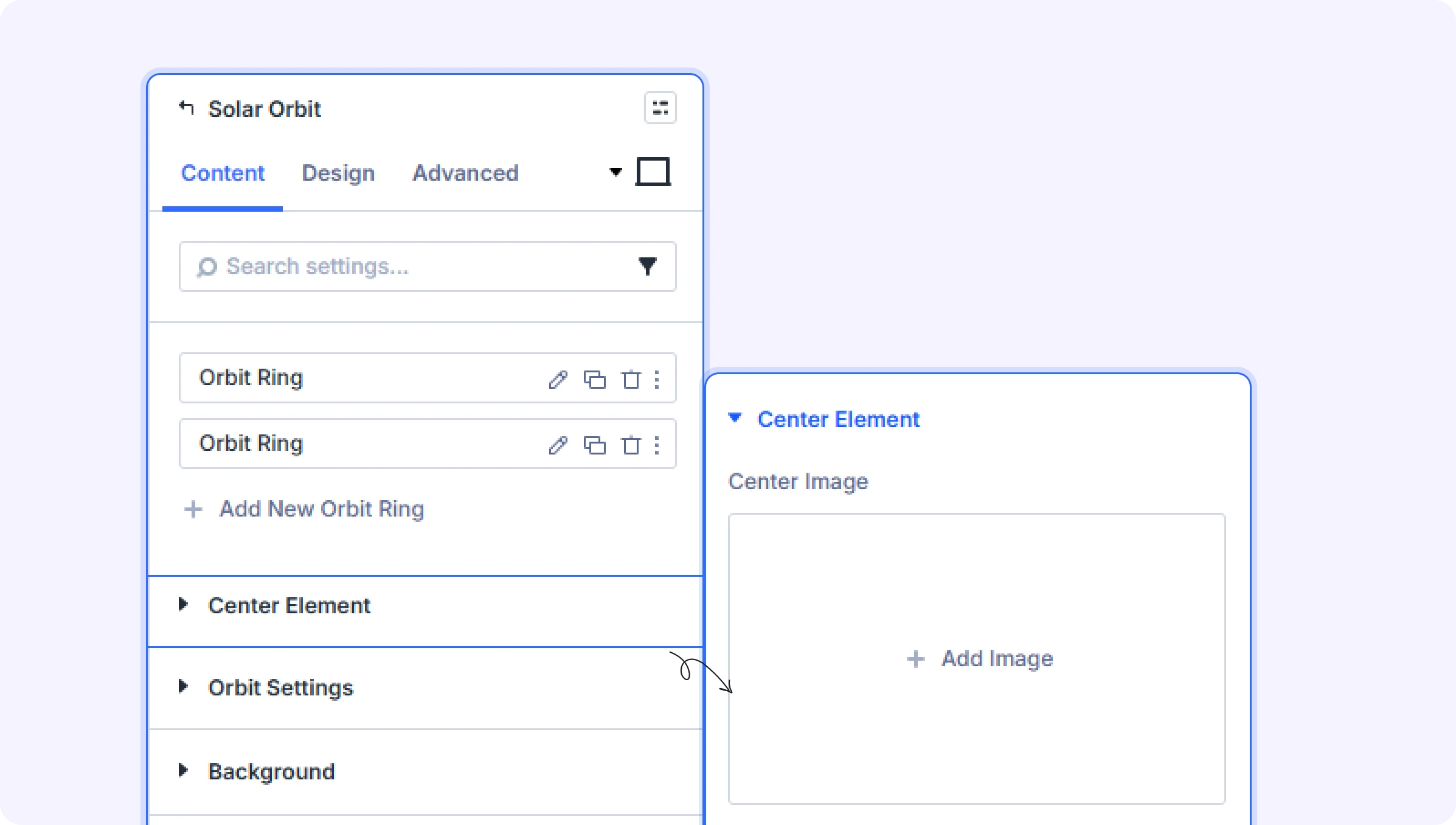
Center Element
Center Image (File Upload)
Upload an image for the center element.
- Default: None (shows a placeholder)
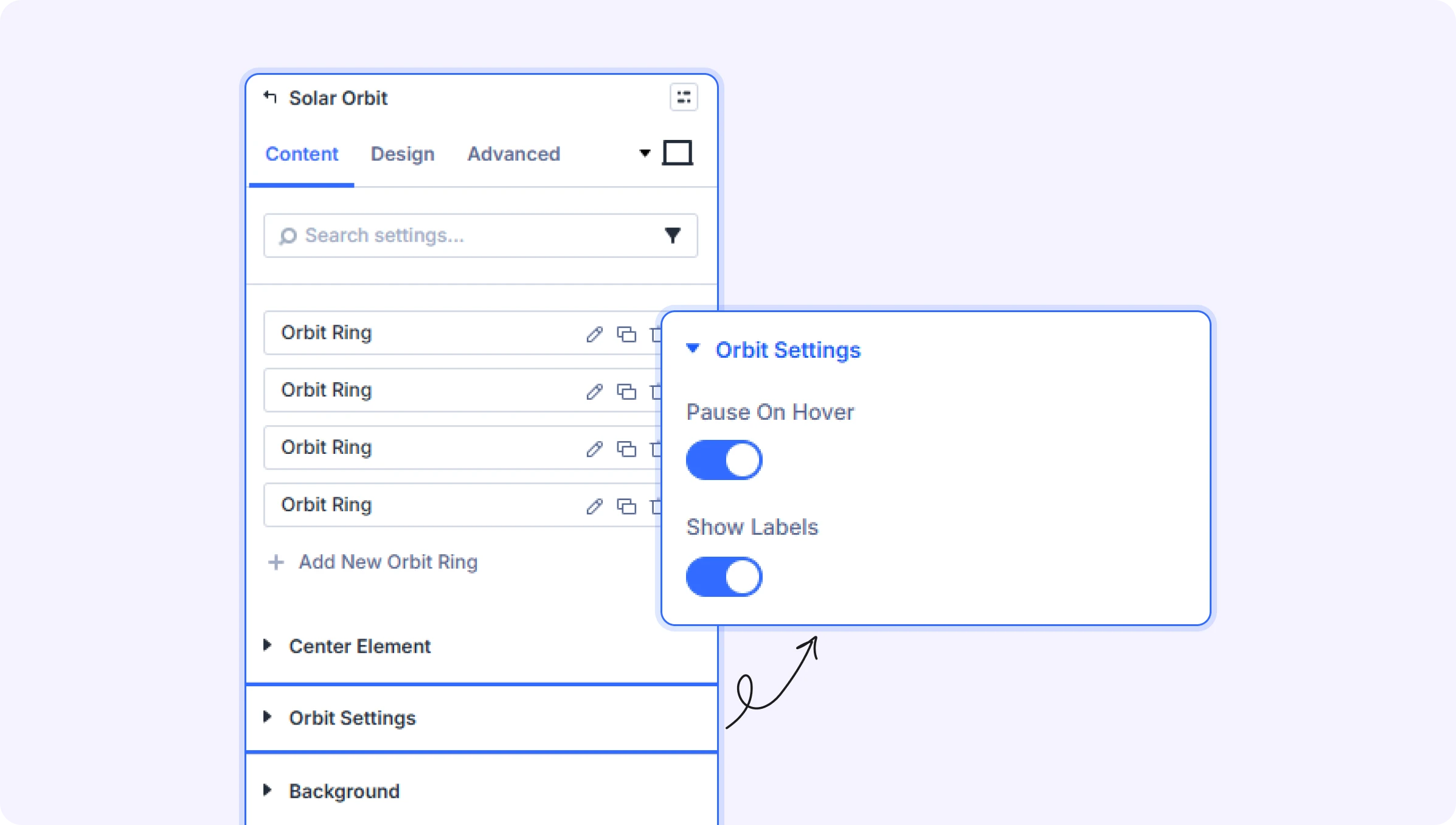
Orbit Settings
Pause on Hover (Toggle)
Pause the orbit animation when hovering.
- Default: On
Show Labels (Toggle)
Show labels on hover.
- Default: On
Background
Standard Divi background options include solid color, gradient, image, and video backgrounds. The default is a dark blue gradient.
Child Item Settings: Orbit Ring
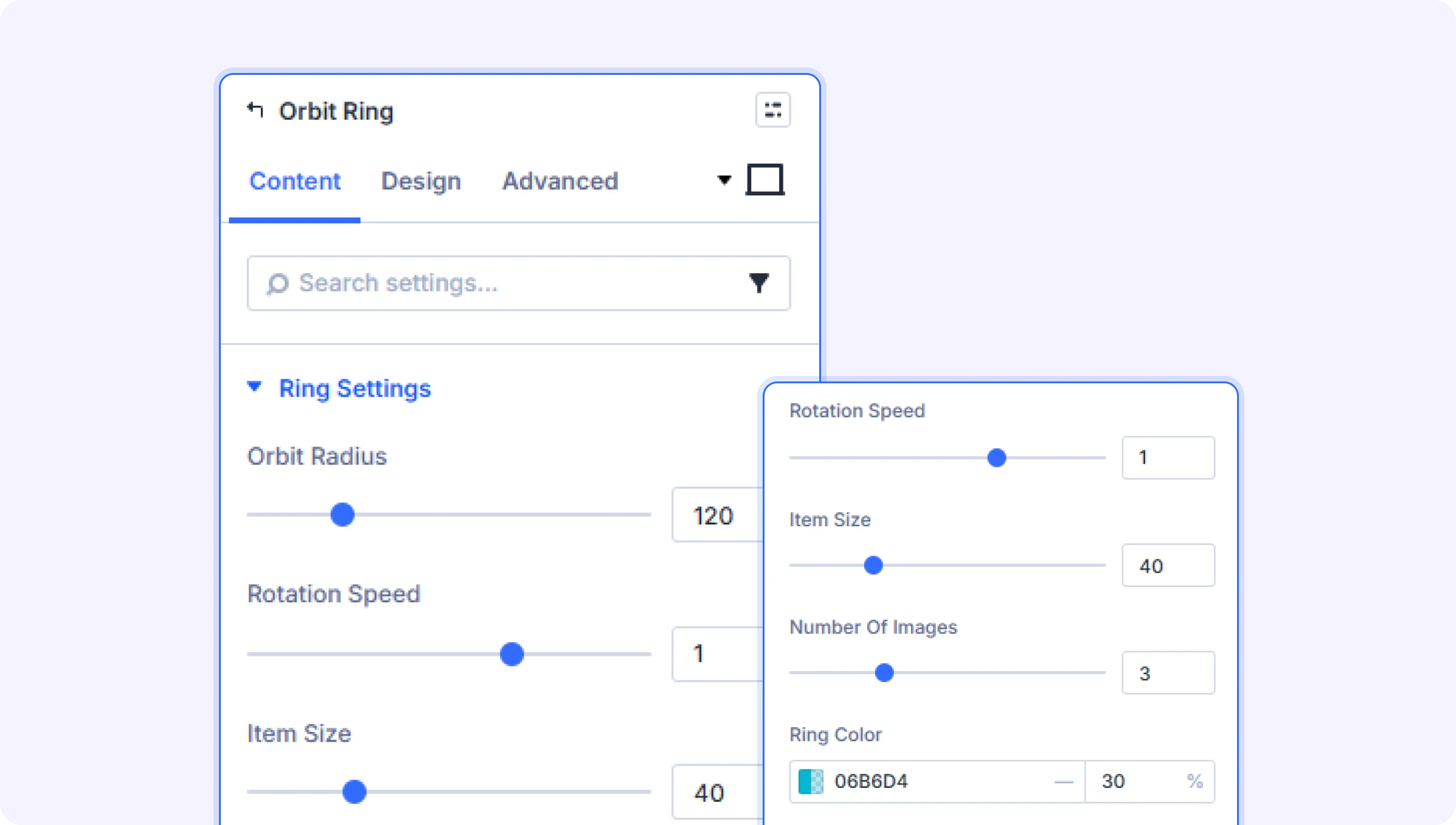
Each Orbit Ring represents one circular path around the center element. You can add multiple rings at different distances, each with its own set of images, rotation speed, and color.
Ring Settings
Orbit Radius (Slider)
Distance from center in pixels.
- Range: 40 to 400 (in pixels, step of 5)
- Default: 120
Rotation Speed (Slider)
Speed of rotation. Negative values reverse the direction.
- Range: -3 to 3 (step of 0.1)
- Default: 1
Item Size (Slider)
Size of each orbiting image in pixels.
- Range: 20 to 100 (in pixels, step of 2)
- Default: 40
Number of Images (Slider)
How many images to show on this orbit ring (max 8).
- Range: 1 to 8
- Default: 3
Ring Color (Color Picker)
Color of the orbit ring border and glow.
- Default: Cyan with 30% opacity
Ring Images & Labels
Image 1–8 (File Upload)
Upload an image for each slot on the orbit ring. The number of visible image fields matches the Number of Images setting.
- Only the number of fields matching the Number of Images setting are shown.
Label 1–8 (Text Field)
Tooltip text is shown on hover for each corresponding image.
- Default: Empty (no tooltip shown)
- Only the number of fields matching the Number of Images setting are shown.
Design Settings
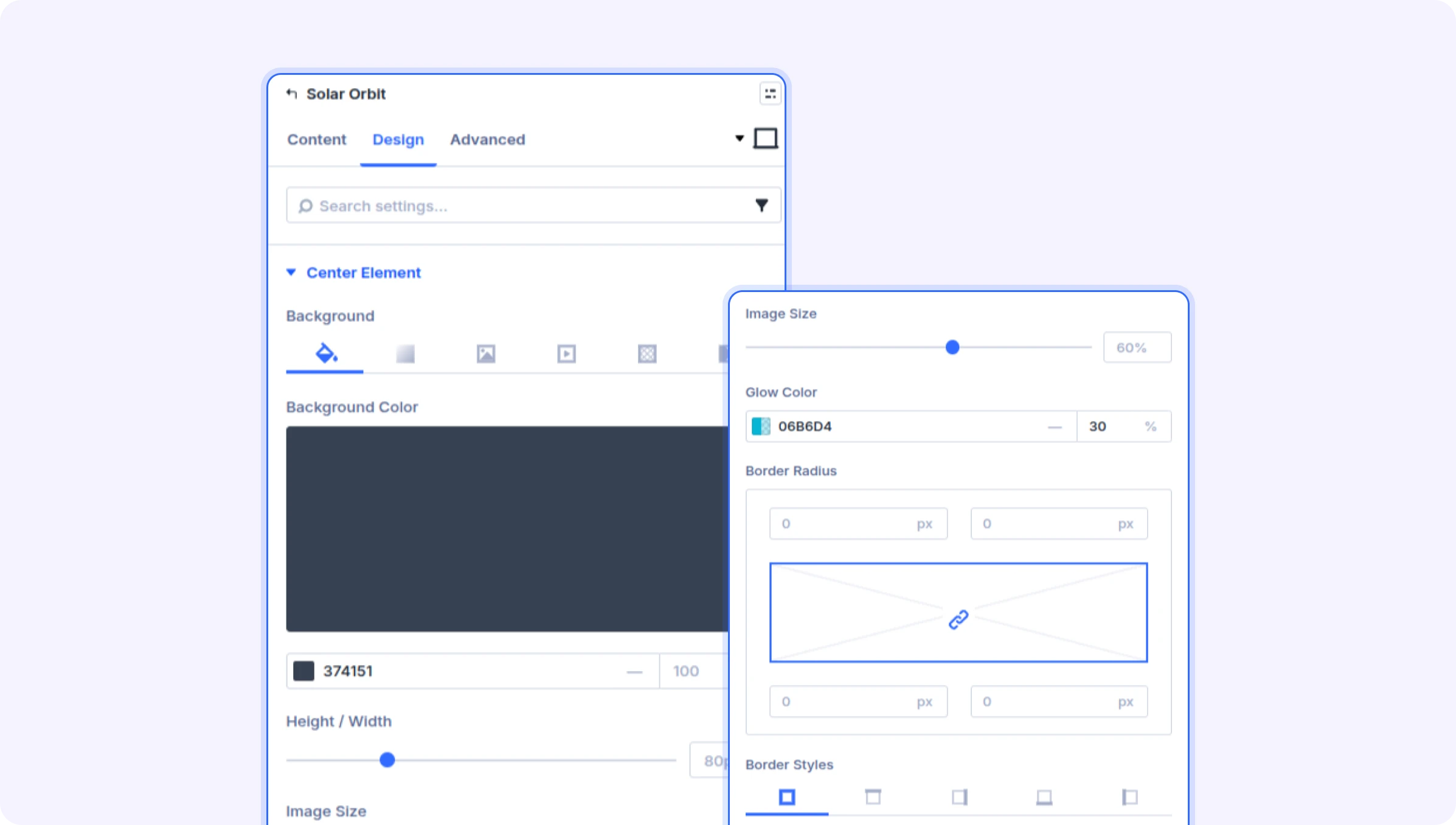
Center Element
Background (Background Options)
Background color or gradient for the center circle element.
- Default: Dark gray (#374151)
Height / Width (Slider)
Size of the center element.
- Range: 40 to 200 (in pixels)
- Default: 80px
Image Size (Slider)
Size of the center image (0-100%).
- Range: 0 to 100 (in %)
- Default: 60%
Glow Color (Color Picker)
Glow color around the center element.
- Default: Cyan with 30% opacity
Border (Border Options)
Standard Divi border options for the center element.
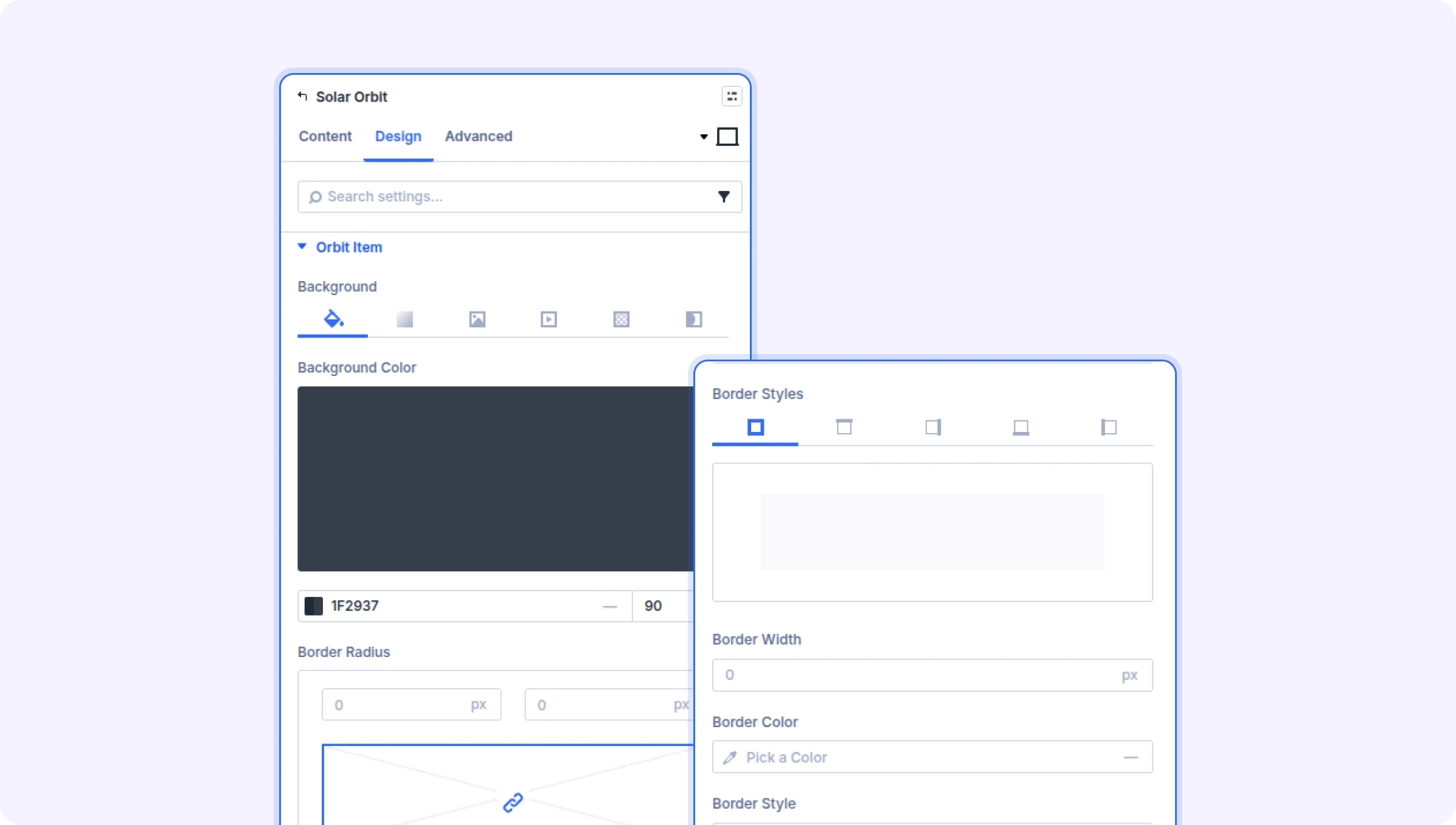
Orbit Item
Background (Background Options)
Background color or gradient for each orbiting item circle.
- Default: Dark gray with 90% opacity
Border (Border Options)
Standard Divi border options for each orbiting item.
Box Shadow (Box Shadow Options)
Add a box shadow to each orbiting item.
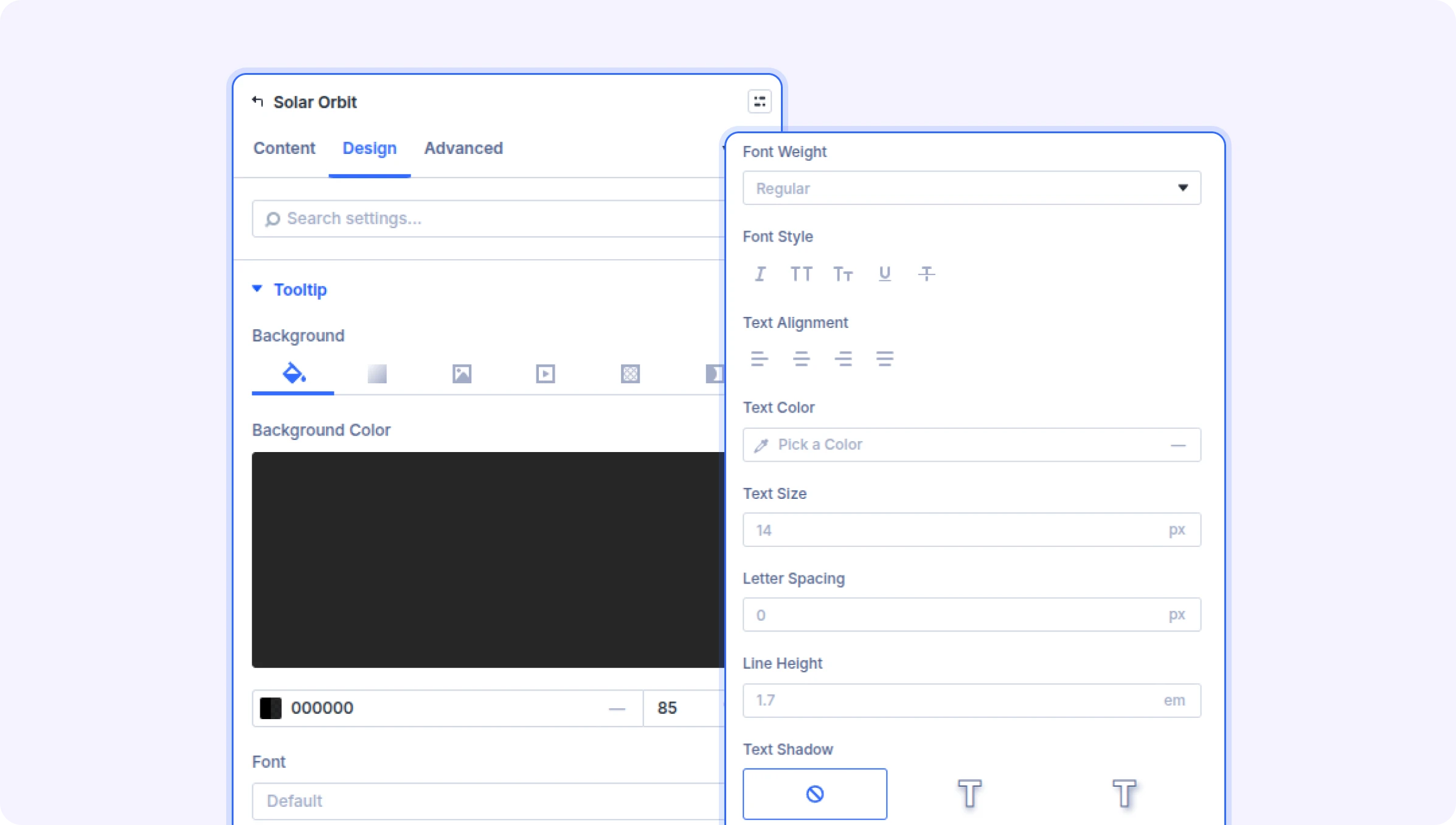
Tooltip
Background (Background Options)
Background color or gradient for the tooltip that appears on hover.
- Default: Black with 85% opacity
Font (Font Options)
Typography settings for the tooltip text, including font family, size, weight, color, and more.
- Default: White, 12px
Border (Border Options)
Standard Divi border options for the tooltip.
Spacing (Spacing Options)
Padding and margin settings for the tooltip.
Box Shadow (Box Shadow Options)
Add a box shadow to the tooltip.
Built-in Style Options
Standard Divi style groups: Sizing (height and width), Spacing (margin and padding), Border, Box Shadow, Filters (brightness, contrast, etc.), Transform (rotate, scale, skew), and Animation.
Advanced Settings
- Custom CSS — Write custom CSS targeting the Container, Center Element, Orbit Ring, and Orbit Item.
- Conditions — Set conditions for when this module should display.
- Attributes — Add custom HTML attributes to the module.
- Visibility — Show or hide this module on desktop, tablet, or phone.
- Transition — Customize hover transition duration and style.
- Position — Control the module's positioning (relative, absolute, fixed).
- Scroll Effects — Add parallax or scroll-triggered animation effects.
Tips & Best Practices
- Use 2-3 orbit rings at different radii (e.g., 120, 200, 280) to create a layered solar system effect with depth.
- Set negative Rotation Speed values on alternate rings to create a visually dynamic counter-rotating effect.
- Keep orbit item images simple — icons or logos work best at smaller sizes. Use transparent PNG images for the cleanest look.
- The center image is a great place for your logo or a profile photo to serve as the focal point of the design.
- Enable Pause on Hover so visitors can read tooltip labels without the items moving away.
Try Divi Solar Orbit Premium Demo