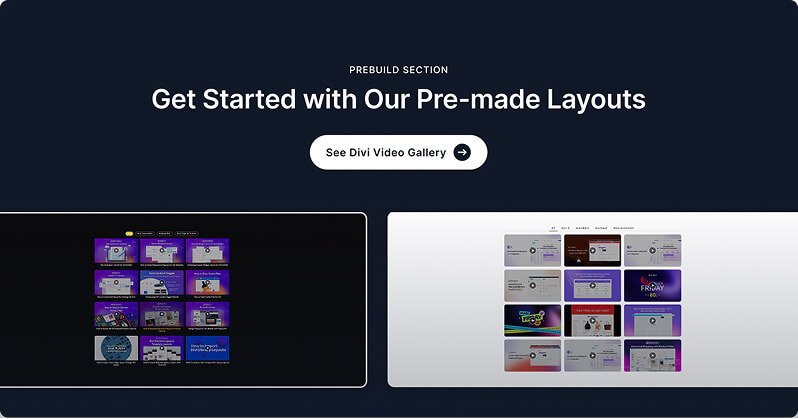
The Video Gallery module displays a collection of videos in a grid or masonry layout with thumbnail previews. Each video can open in a full-screen lightbox or play inline directly on the page. It supports YouTube, Vimeo, and self-hosted videos, with an optional filter bar so visitors can browse videos by category. This module is ideal for portfolios, tutorials, course previews, product demos, or any page that needs to organize multiple videos in a polished, browsable gallery.
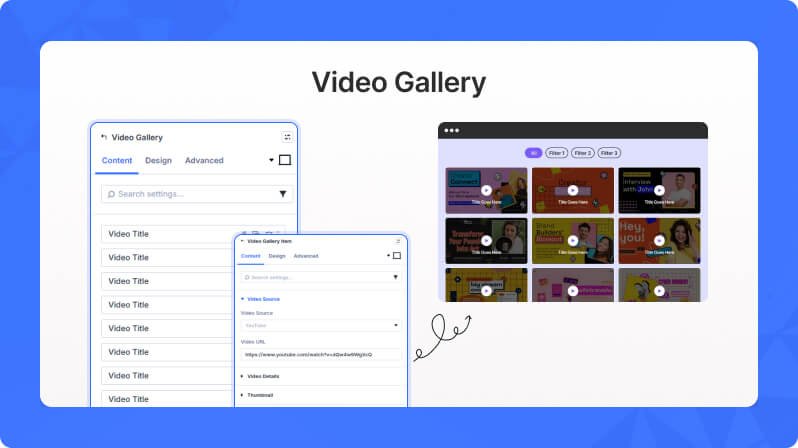
Content Settings
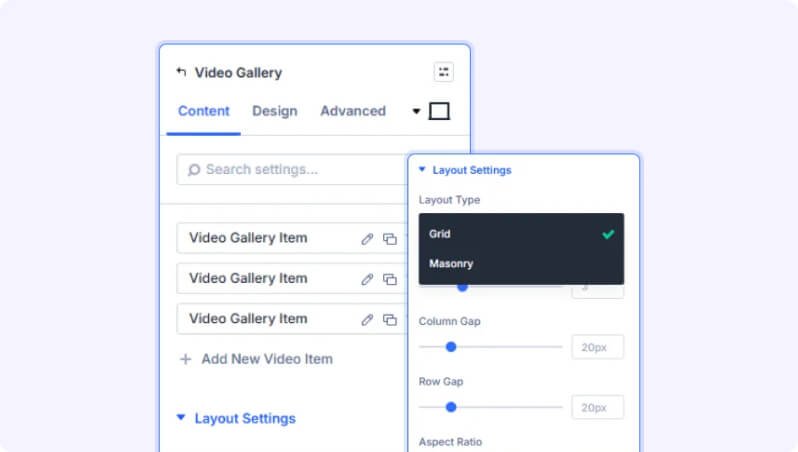
Layout Settings
Layout Type (Dropdown)
Choose how the video thumbnails are arranged on the page.
- Available options: Grid, Masonry
- Default: Grid
Columns (Slider)
Number of columns in the gallery grid. Can be set separately for desktop, tablet, and phone.
- Range: 1 to 8 columns
- Default: 3 on desktop, 2 on tablet, 1 on phone
Column Gap (Slider)
Horizontal spacing between video thumbnails.
- Range: 0 to 100 pixels
- Default: 20px
Row Gap (Slider)
Vertical spacing between rows of video thumbnails.
- Range: 0 to 100 pixels
- Default: 20px
Aspect Ratio (Dropdown)
Set the aspect ratio for all video thumbnails in the gallery.
- Available options: 16:9, 4:3, 1:1, 9:16, Auto
- Default: 16:9
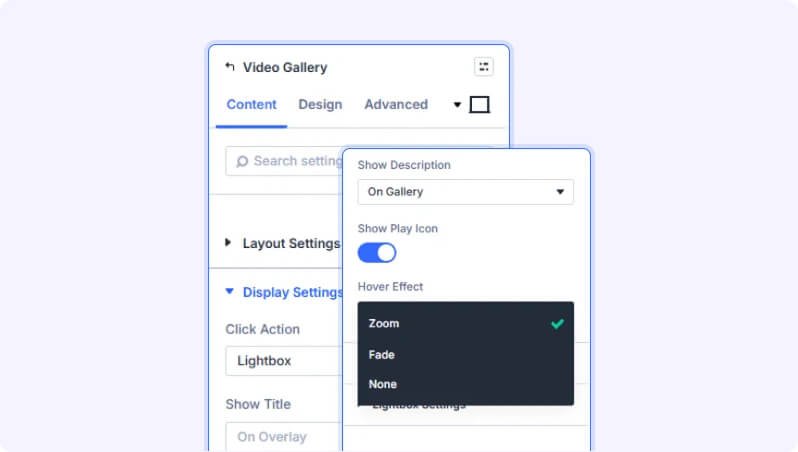
Display Settings
Click Action (Dropdown)
What happens when a visitor clicks on a video thumbnail.
- Available options: Lightbox, Inline Play
- Default: Lightbox
Show Title (Dropdown)
Where to display the video title — on the gallery thumbnail below the image, on the hover overlay, both places, or not at all.
- Available options: On Gallery, On Overlay, Both, None
- Default: On Overlay
Show Description (Dropdown)
Where to display the video description — on the gallery thumbnail, on the hover overlay, both places, or not at all.
- Available options: On Gallery, On Overlay, Both, None
- Default: None
Show Play Icon (Toggle)
Display a play button icon on top of each video thumbnail.
- Default: On
Hover Effect (Dropdown)
The visual effect applied to a thumbnail when a visitor hovers over it.
- Available options: Zoom, Fade, None
- Default: Zoom
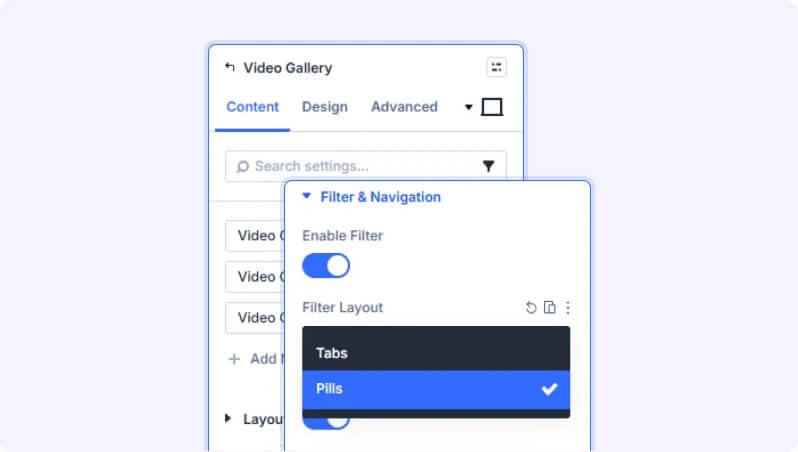
Filter & Navigation
Enable Filter (Toggle)
Show a filter bar above the gallery so visitors can browse videos by category.
- Default: Off
Filter Layout (Dropdown)
The visual style of the filter buttons.
- Available options: Tabs, Pills
- Default: Tabs
- Only appears when Enable Filter is turned on
Show All Button (Toggle)
Display an 'All' button in the filter bar that shows all videos regardless of category.
- Default: On
- Only appears when Enable Filter is turned on
All Button Text (Text Field)
The label shown on the 'All' filter button.
- Default: All
- Only appears when Enable Filter is turned on
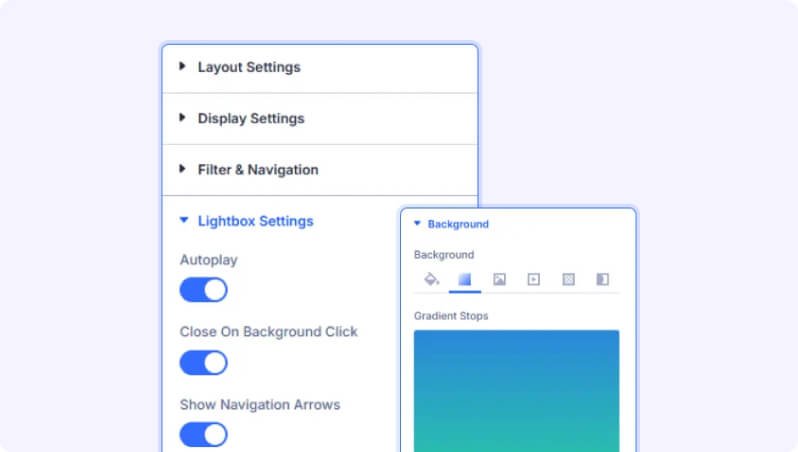
Lightbox Settings
Autoplay (Toggle)
Automatically start playing the video when the lightbox opens.
- Default: On
- Only appears when Click Action is set to Lightbox
Close on Background Click (Toggle)
Allow visitors to close the lightbox by clicking on the dark background area.
- Default: On
- Only appears when Click Action is set to Lightbox
Show Navigation Arrows (Toggle)
Display previous/next arrows in the lightbox so visitors can browse through all gallery videos.
- Default: On
- Only appears when Click Action is set to Lightbox
Background
Standard Divi background options for the gallery module wrapper, including solid color, gradient, image, and video backgrounds.
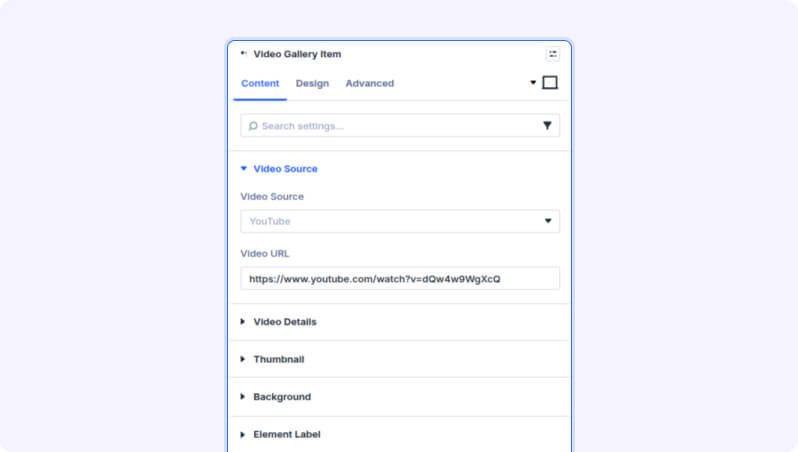
Video Gallery Item — Child Settings
Each video in the gallery is added as a Video Gallery Item child item. Click 'Add New Video Item' to add videos and configure each one individually using the settings below.
Video Source
Video Source (Dropdown)
Select the video platform or hosting method.
- Available options: YouTube, Vimeo, Self-Hosted
- Default: YouTube
Video URL (Text Field)
Enter the full YouTube or Vimeo URL for this video (e.g. https://youtube.com/watch?v=...).
- Appears when Video Source is YouTube or Vimeo
Upload Video (File Upload)
Upload an MP4 video file from your Media Library.
- Only appears when Video Source is set to Self-Hosted
Or Enter Video URL (Text Field)
Alternatively, enter a direct URL to an MP4 video file hosted elsewhere.
- Only appears when Video Source is set to Self-Hosted
WebM Fallback (File Upload)
Upload an optional WebM version of the video for broader browser compatibility.
- Only appears when Video Source is set to Self-Hosted
Video Details
Video Title (Text Field)
The title for this video, shown on the thumbnail or overlay depending on the parent gallery's Show Title setting.
- Default: Video Title
Video Description (Text Field)
A short description for this video, shown on the thumbnail or overlay depending on the parent gallery's Show Description setting.
Filter Categories (Text Field)
Assign this video to one or more filter categories. Enter category names separated by commas (e.g. Tutorials, Reviews). These categories appear as filter tabs when the parent gallery's filter bar is enabled.
Custom Link (Text Field)
Enter an optional URL to override the default click action for this specific video item.
Thumbnail
Use Custom Thumbnail (Toggle)
Upload your own thumbnail image instead of using the auto-generated one.
- Default: Off
Custom Thumbnail (File Upload)
Upload a custom image to use as the thumbnail for this video.
- Only appears when Use Custom Thumbnail is turned on
YouTube Thumbnail Size (Dropdown)
Choose which quality of the automatically generated YouTube thumbnail to use.
- Available options: Max Resolution, High Quality, Medium, Standard
- Default: High Quality
- Only appears when Video Source is YouTube and Use Custom Thumbnail is off
Item Background
Standard Divi background options for the individual video item, including solid color, gradient, image, and video backgrounds.
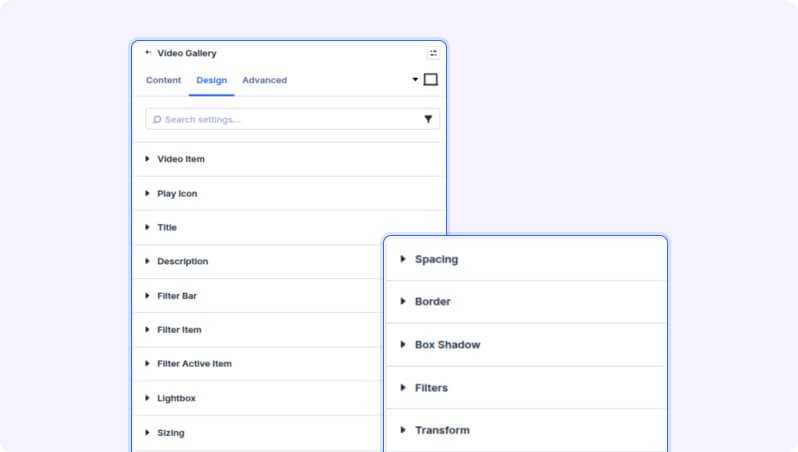
Design Settings
Video Item
Border, Box Shadow, and Spacing options applied to each video thumbnail card in the gallery.
Play Icon
Icon Size (Slider)
Size of the play button icon displayed on video thumbnails.
- Range: 16 to 128 pixels
- Default: 48px
Icon Color (Color Picker)
Color of the play button icon.
- Default: White (#ffffff)
Title
Typography settings for the video title text, including font family, size, weight, color, and letter spacing. Also includes spacing controls for padding and margin around the title.
Description
Typography settings for the video description text, including font family, size, weight, color, and letter spacing. Also includes spacing controls.
Filter Bar
Styling for the category filter buttons, including font settings, background color/gradient, border, and spacing.
Filter Active Item
Background and border styling for the currently selected (active) filter button.
Lightbox
Arrow Color (Color Picker)
Color of the previous/next navigation arrows in the lightbox.
Arrow Size (Slider)
Size of the navigation arrow icons in the lightbox.
- Range: 20 to 120 pixels
Close Button Color (Color Picker)
Color of the close (×) button in the lightbox.
Close Button Size (Slider)
Size of the close button in the lightbox.
- Range: 20 to 120 pixels
Module Styling
Standard Divi design options for the overall module: Sizing, Spacing, Border, Box Shadow, Filters, and Transform.
Video Gallery Item — Child Design
Each Video Gallery Item child has its own design settings: Title (font family, size, weight, color, spacing), Description (font family, size, weight, color, spacing), and Item Styling (border and box shadow for the individual thumbnail card).
Advanced Settings
- CSS ID & Classes — Add a custom CSS ID or class to the module.
- Custom CSS — Write custom CSS targeting specific parts of the gallery: video item, video overlay, play icon, and filter bar.
- Visibility — Show or hide this module on desktop, tablet, or phone.
- Overflow — Control whether content extending beyond the module boundary is visible or clipped.
- Transition — Customize hover transition duration and style.
- Position — Control the module's positioning (static, relative, absolute, or fixed).
- Z-Index — Set the stacking order of the module relative to other page elements.
- Scroll Effects — Add Divi's built-in scroll-triggered motion effects.
- Animation — Add entrance animation effects to the module.
Tips & Best Practices
- Use Filter Categories on each video item to build a categorized video library. For example, tag videos as 'Tutorials', 'Case Studies', and 'Behind the Scenes', then enable the Filter Bar so visitors can browse by topic without leaving the page.
- For YouTube videos, leave Use Custom Thumbnail off and choose 'Max Resolution' as the YouTube Thumbnail Size for the sharpest gallery thumbnails — YouTube generates these automatically from your video.
- Set Click Action to 'Inline Play' if you want videos to start playing directly in the grid rather than opening a full-screen lightbox — this works well for short clips or product demos where you want visitors to stay engaged with the rest of your page content.
- On the Lightbox style settings, match the Arrow Color and Close Button Color to your site's accent color to give the lightbox a polished, on-brand look.
Try Video Gallery Premium Demo