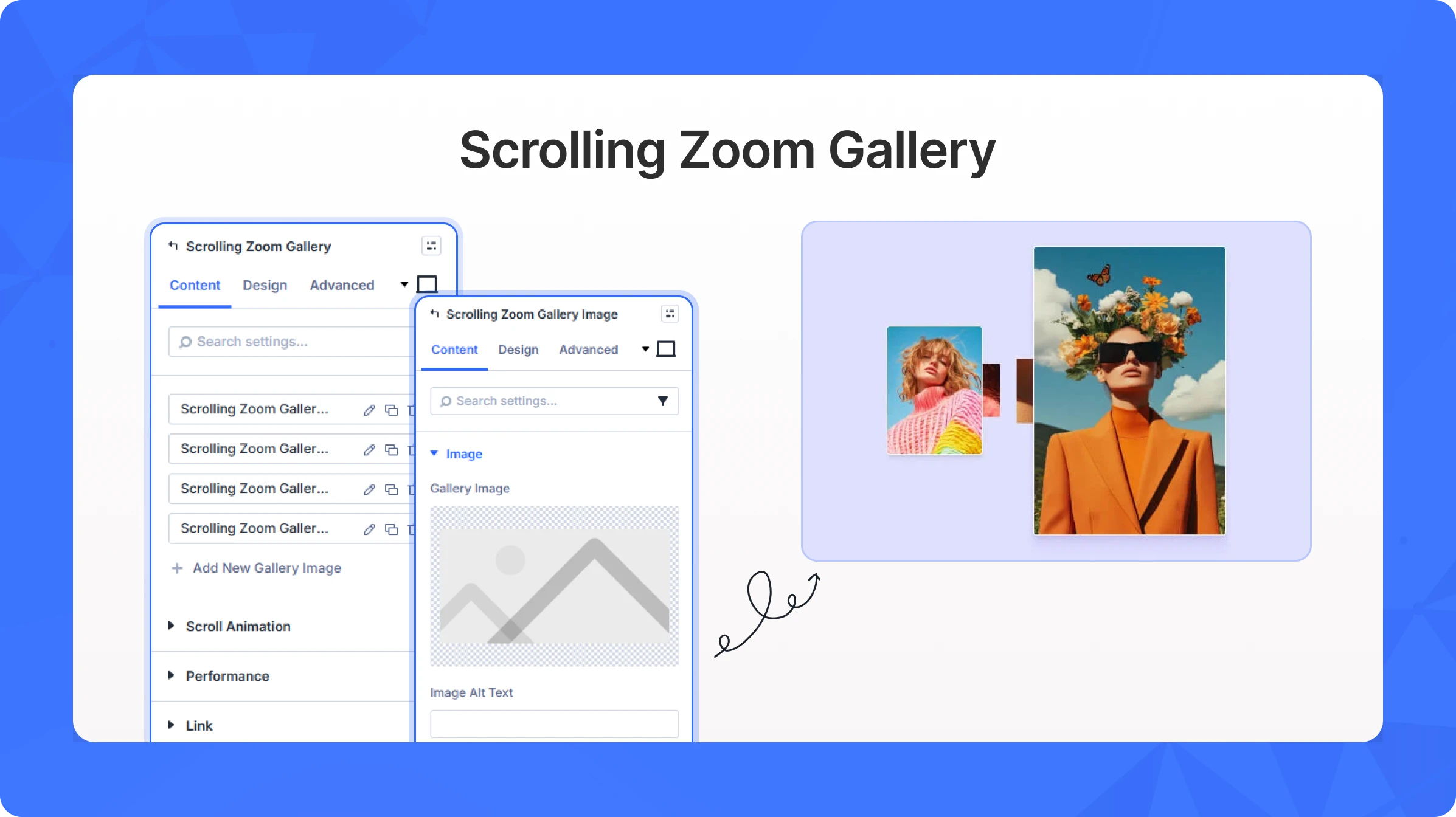
The Scrolling Zoom Gallery creates a cinematic 3D tunnel effect where images zoom toward (or away from) the viewer as the page is scrolled. Each gallery image is configured as a child item that can include a title, description, and a call-to-action button overlaid on the image. This module is ideal for portfolio showcases, product reveals, storytelling pages, or any situation where you want to turn scrolling into an immersive visual experience.
Content Settings
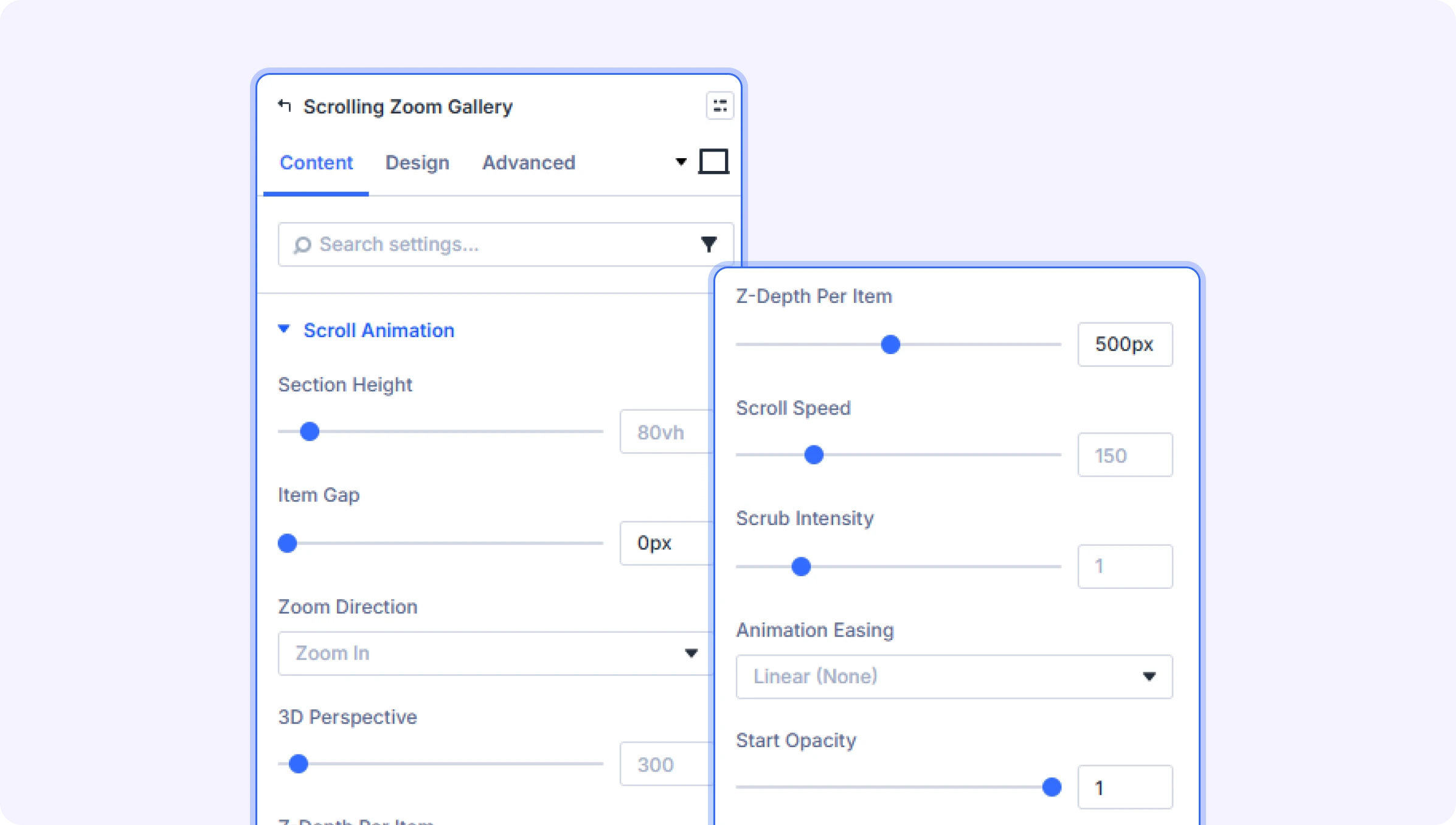
Scroll Animation
Section Height (Slider)
Set the height of the scrolling gallery section. This controls how much vertical space the gallery occupies on the page. Supports pixels, percentages, and viewport height (vh) units. Can be set differently for desktop, tablet, and phone.
- Range: 10 to 1000 (in px, %, or vh)
- Default: 80vh
Zoom Direction (Dropdown)
Choose whether images zoom in (fly toward the viewer) or zoom out (recede away) as the user scrolls.
- Available options: Zoom In, Zoom Out
- Default: Zoom In
3D Perspective (Slider)
Controls the depth perception of the 3D effect. Lower values create a more dramatic, exaggerated 3D look. Higher values produce a subtler, flatter effect.
- Range: 200 to 3000
- Default: 500
Z-Depth Per Item (Slider)
The distance between each image layer in 3D space. Higher values spread images further apart in depth, making each transition more distinct.
- Range: 50 to 1000 pixels
- Default: 200px
Scroll Speed (Slider)
A multiplier for how much scrolling is needed to complete the animation. Higher values require more scrolling to move through all images, giving visitors more time to view each one.
- Range: 50 to 500
- Default: 150
Scrub Intensity (Slider)
Controls how tightly the animation follows the scroll position. A value of 1 means the animation responds instantly to scroll. Higher values add a smooth delay, making the motion feel more fluid.
- Range: 0.1 to 5
- Default: 1
Animation Easing (Dropdown)
Select an easing curve that shapes the acceleration of the zoom animation.
- Available options: Linear (None), Ease In Out (Subtle), Ease In Out (Medium), Ease In Out (Strong), Back In Out, Expo In Out, Custom Cubic Bezier
- Default: Linear (None)
Custom Cubic Bezier (Text Field)
Enter 4 comma-separated values to define a custom easing curve, e.g. 0.25,0.1,0.25,1. You can use a tool like cubic-bezier.com to generate these values.
- Default: 0.25,0.1,0.25,1
- Only appears when Animation Easing is set to Custom Cubic Bezier
Start Opacity (Slider)
The initial opacity of images before they scroll into focus. Lower values make images fade in more dramatically as they approach.
- Range: 0 to 1
- Default: 0.1
Reverse Animation (Toggle)
When enabled, images animate in reverse when the visitor scrolls back up the page.
- Default: On
Hide Scrollbar (Toggle)
Hide the browser scrollbar while the visitor is scrolling through the gallery section.
- Default: Off
Section Sticky Offset (Slider)
Offset from the top of the viewport when the gallery section becomes sticky. Set this to match the height of a fixed header so the gallery doesn't get hidden beneath it. Responsive — can be set per device.
- Range: 0 to 500 (in px, vh, or %)
- Default: 0px
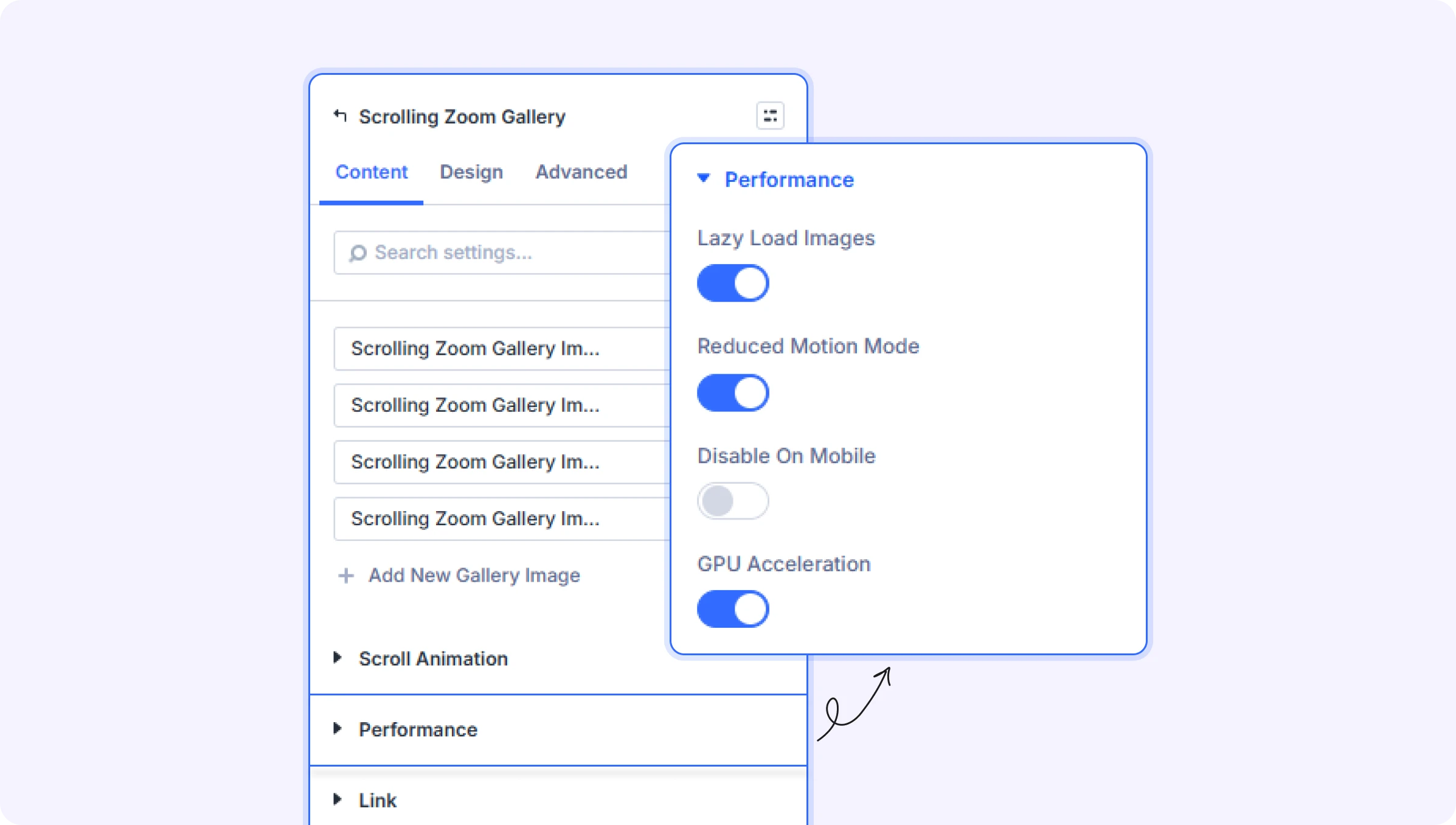
Performance
Lazy Load Images (Toggle)
Load images only when they are about to enter the viewport, reducing initial page load time.
- Default: On
Reduced Motion Mode (Toggle)
When enabled, the gallery will display as a static layout (without animation) for visitors who have enabled the 'Reduce Motion' accessibility preference on their device.
- Default: On
Disable on Mobile (Toggle)
Show a static card-based layout on mobile devices instead of the 3D scroll animation, improving performance on smaller screens.
- Default: Off
GPU Acceleration (Toggle)
Use hardware-accelerated CSS transforms for smoother, higher-performance animation.
- Default: On
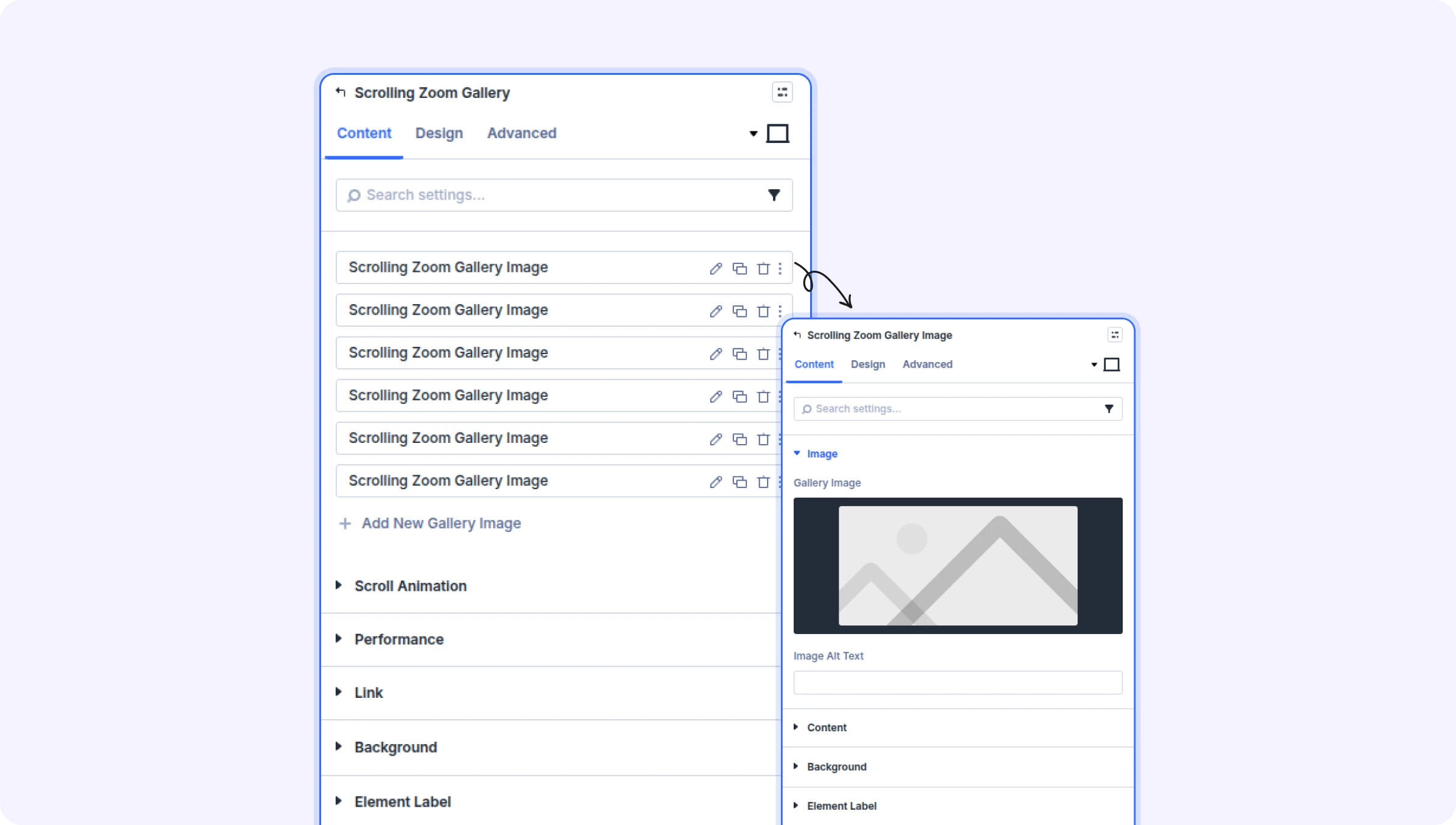
Gallery Image — Child Item Settings
Each image in the gallery is added as a Gallery Image child item. Click 'Add New Gallery Image' to add items and configure each one individually using the settings below.
Image
Gallery Image (File Upload)
Upload or select an image from your Media Library for this gallery item.
Image Alt Text (Text Field)
Enter alternative text for this image. Used by screen readers and search engines for accessibility.
Content
Title (Text Field)
Heading text displayed as an overlay on the gallery image.
Description (Text Field)
Body text displayed as an overlay on the gallery image.
Button Text (Text Field)
Text for the call-to-action button displayed on the image.
Button URL (Text Field)
The URL the button links to when clicked.
Item Link
Link URL (Text Field)
Make the entire image item clickable by entering a URL here. Useful when you want the whole card to act as a link rather than using the button.
Link Target (Text Field)
Whether the link opens in the same window or a new browser tab. Enter '_self' for same window or '_blank' for a new tab.
- Default: Same window (_self)
Item Background
Standard Divi background options for the individual gallery image item, including solid color, gradient, image, and video backgrounds.
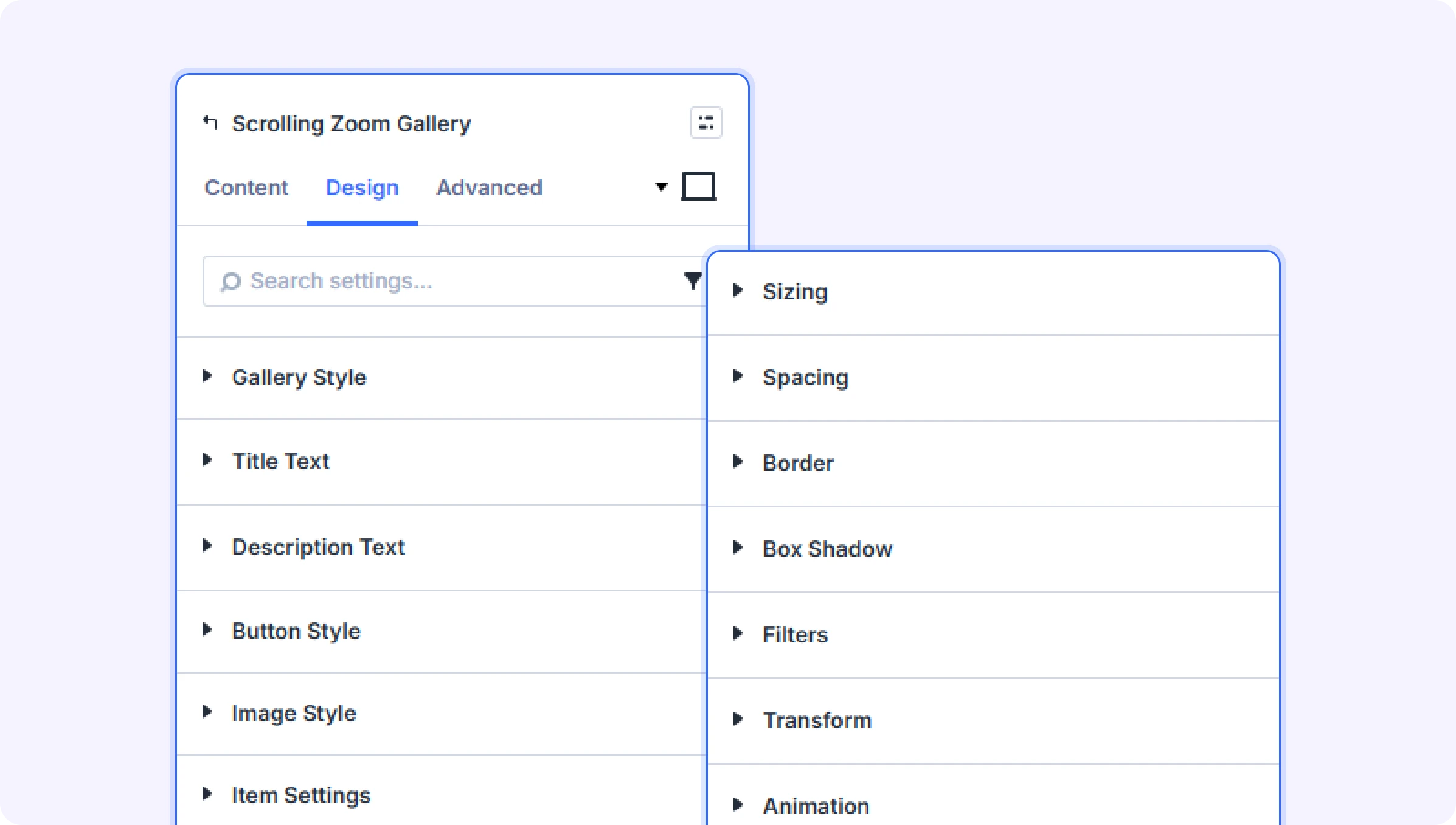
Design Settings
Gallery Style
Background styling for the gallery scroll area — supports solid color and gradient backgrounds. This is the background visible behind images as they zoom through.
Module Styling
Standard Divi design options for the overall module: Sizing, Spacing, Border, Box Shadow, Filters, Transform, and Animation.
Gallery Image — Child Item Design
Each Gallery Image child item includes the following design settings: Title Text (font family, size, weight, color), Description Text (font family, size, weight, color), Button Text (font family, size, weight, color), Image Border, Image Box Shadow, Item Border, Item Box Shadow, plus Sizing, Spacing, Border, Box Shadow, Filters, and Transform for the item container.
Advanced Settings
- HTML Attributes — Add custom HTML attributes to the module wrapper element.
- CSS ID & Classes — Add a custom CSS ID or class for targeting with custom code. Custom CSS targets the container, inner wrapper, item, image, and title separately.
- Conditions — Set display conditions so the module only appears to certain visitors or under specific circumstances.
- Position — Control the module's positioning on the page (static, relative, absolute, or fixed).
- Scroll Effects — Add Divi's built-in scroll-triggered motion effects to the module.
- Transition — Customize the duration and style of hover transition effects.
- Visibility — Show or hide this module on desktop, tablet, or phone.
Tips & Best Practices
- For the most dramatic effect, use high-contrast full-screen images (landscape orientation works best) and set the Zoom Direction to 'Zoom In' with a low 3D Perspective value (around 300–500).
- If your page has a fixed header, set the Section Sticky Offset to match the header height (e.g. 80px) so the gallery anchors correctly below the header when sticky.
- Enable 'Disable on Mobile' to serve a clean static card layout on phones — the 3D tunnel effect is visually impressive on desktop but can feel heavy on mobile devices.
- Keep the Scrub Intensity at 1–2 for a crisp, responsive feel. Values of 3–5 add a cinematic 'floating' delay that can work well for slow, story-driven scroll experiences.
Try Scrolling Zoom Gallery Premium Demo