
Divi Essential Documentation

⌘K
  1. Home
  2. Divi Essential Documentat...
  3. Modules
  4. Vertical Menu

Vertical Menu

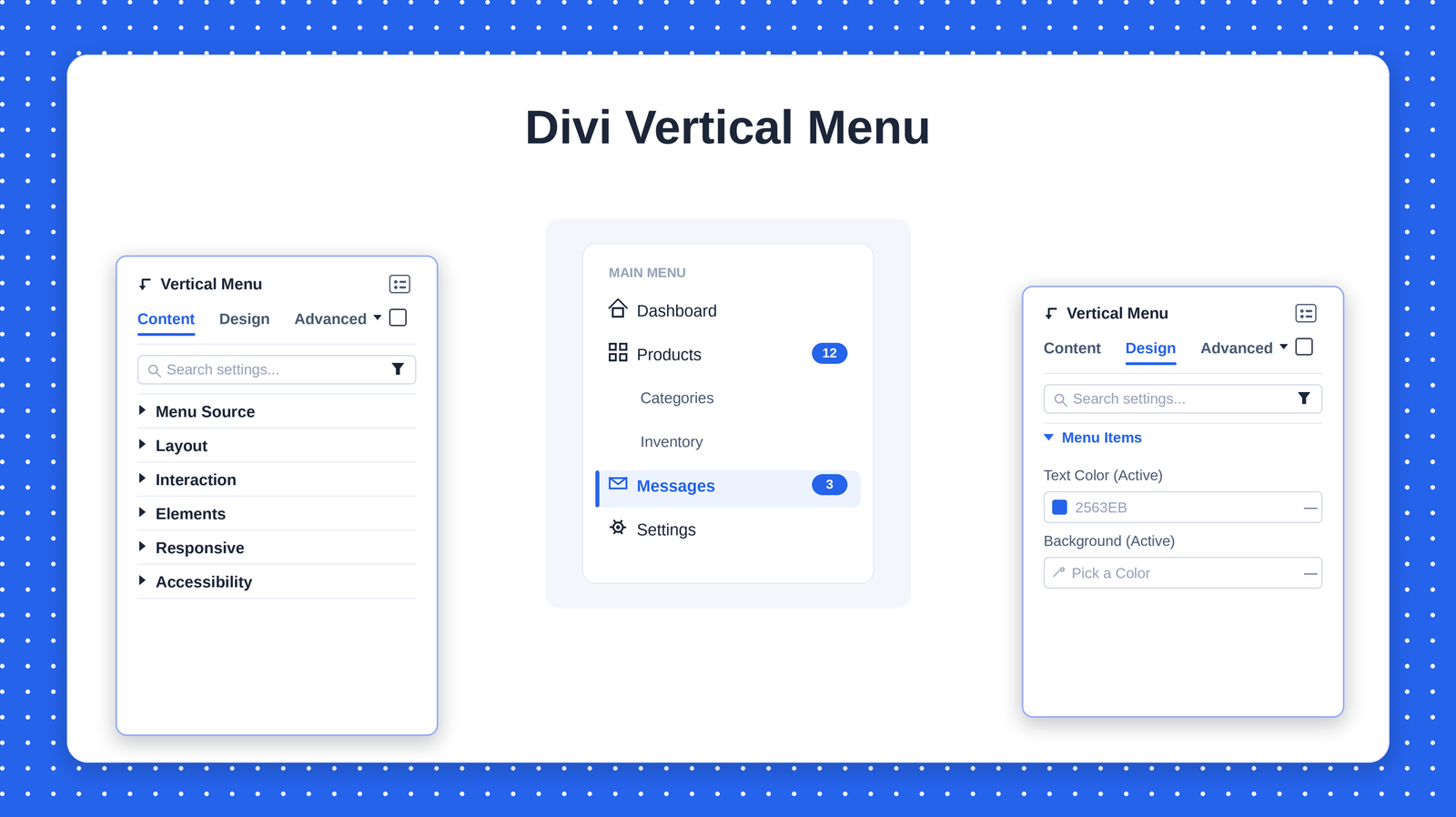
The Divi Vertical Menu is a navigation module for the Divi Builder that lets you display a WordPress menu — or a list built from taxonomy terms or post-type pages — as a polished vertical menu. It is designed for sidebars, documentation layouts, dashboards, mega-footers, and off-canvas mobile drawers, and it works entirely from the visual builder with no code required.

Unlike Divi’s default menu, the Vertical Menu gives you fine-grained control over layout behavior (classic list, accordion, collapsible sidebar, or flyout), interaction (click or hover, single or multiple open sections), per-state styling (normal, hover, active), icons, badges, and a dedicated responsive / off-canvas system. It also ships with accessibility options built in.

Vertical Menu

Key Features

  • Four desktop layouts — Classic List, Accordion, Collapsible Sidebar, and Flyout.
  • Three menu sources — Pull items from a WordPress menu, taxonomy terms, or post-type pages.
  • Per-state styling — Separate colors and typography for normal, hover, and active items.
  • Icons & badges — Show menu icons (left or right) and live count badges.
  • Sticky behavior — Pin the menu while users scroll, with a configurable offset.
  • Full responsive control — Switch to an accordion or a slide-in off-canvas drawer on mobile.
  • Accessibility-ready — ARIA labelling and keyboard-friendly interactions out of the box.


Requirements

  • WordPress 5.8 or newer.
  • The Divi theme or Divi Builder plugin (active).
  • The Divi Essential plugin, installed and activated.
TIP  At least one WordPress menu should already exist under Appearance › Menus before you add the module, so you have something to display.

Adding the Vertical Menu works exactly like any other Divi module:

  1. Open a page or template with the Divi Builder (Visual Builder recommended).
  2. Click the gray (+) icon to add a new module.
  3. Search for “Vertical Menu” and select it.
  4. In the module settings, open the Content › Menu Source group and choose the menu you want to display.
  5. Style it under the Design tab, then Save.
NOTE  Every setting below lives in the module’s settings panel, organized under three tabs: Content, Design, and Advanced. The screenshots in this guide follow that same structure.

Content Tab

The Content tab controls what the menu shows and how it behaves. Its options are grouped into six collapsible sections.

Vertical Menu

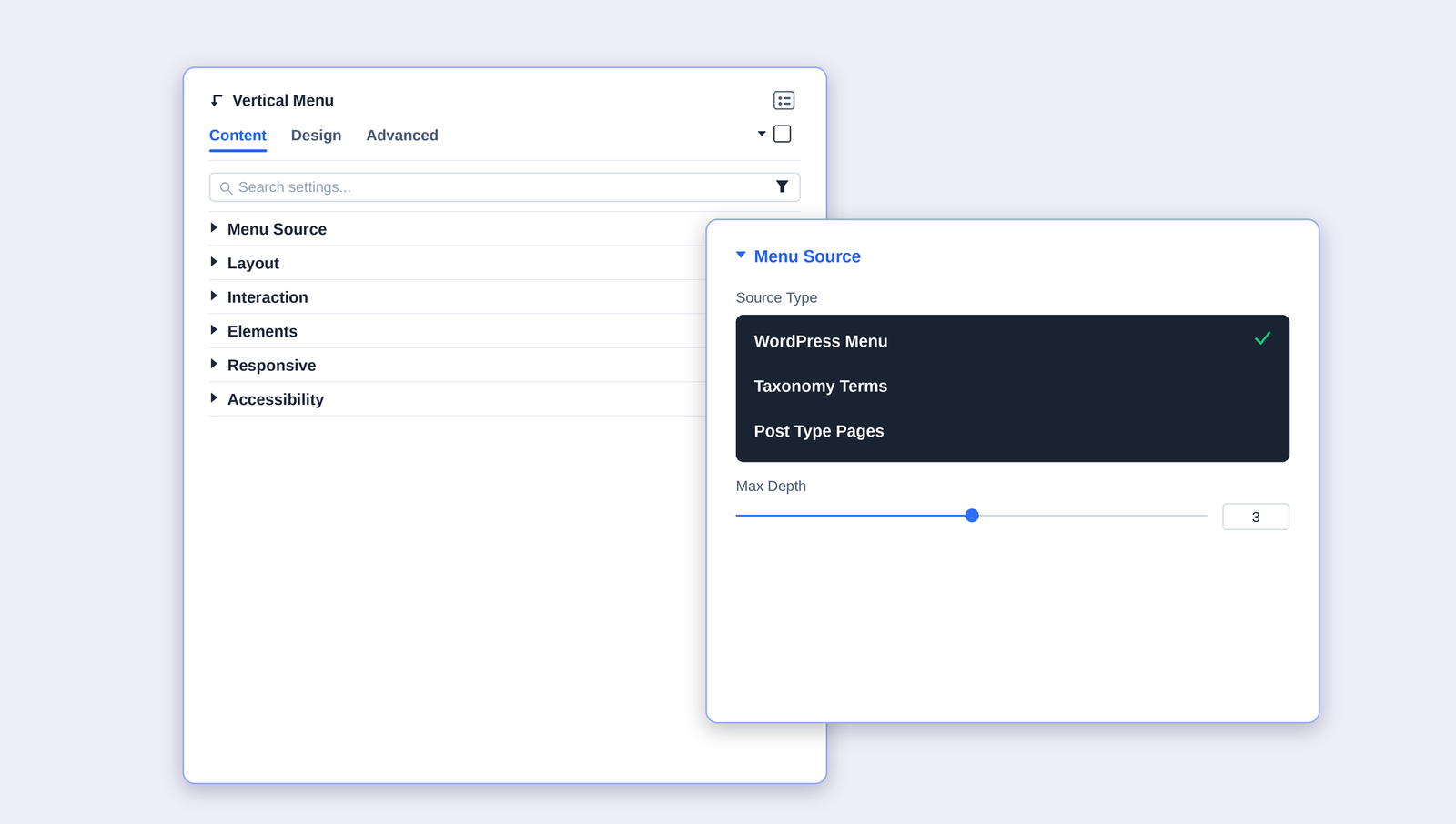
Menu Source

Choose where the menu items come from and how deep the structure goes.

Setting What it does Options / Default
Source Type Selects the origin of the menu items. WordPress Menu uses a menu from Appearance › Menus; Taxonomy Terms builds the list from categories, tags, or a custom taxonomy; Post Type Pages lists entries from a chosen post type. WordPress Menu (default)
Max Depth Limits how many levels of nested sub-items are rendered. Set to 0 for unlimited depth. 0–6  ·  Default 3

Vertical Menu

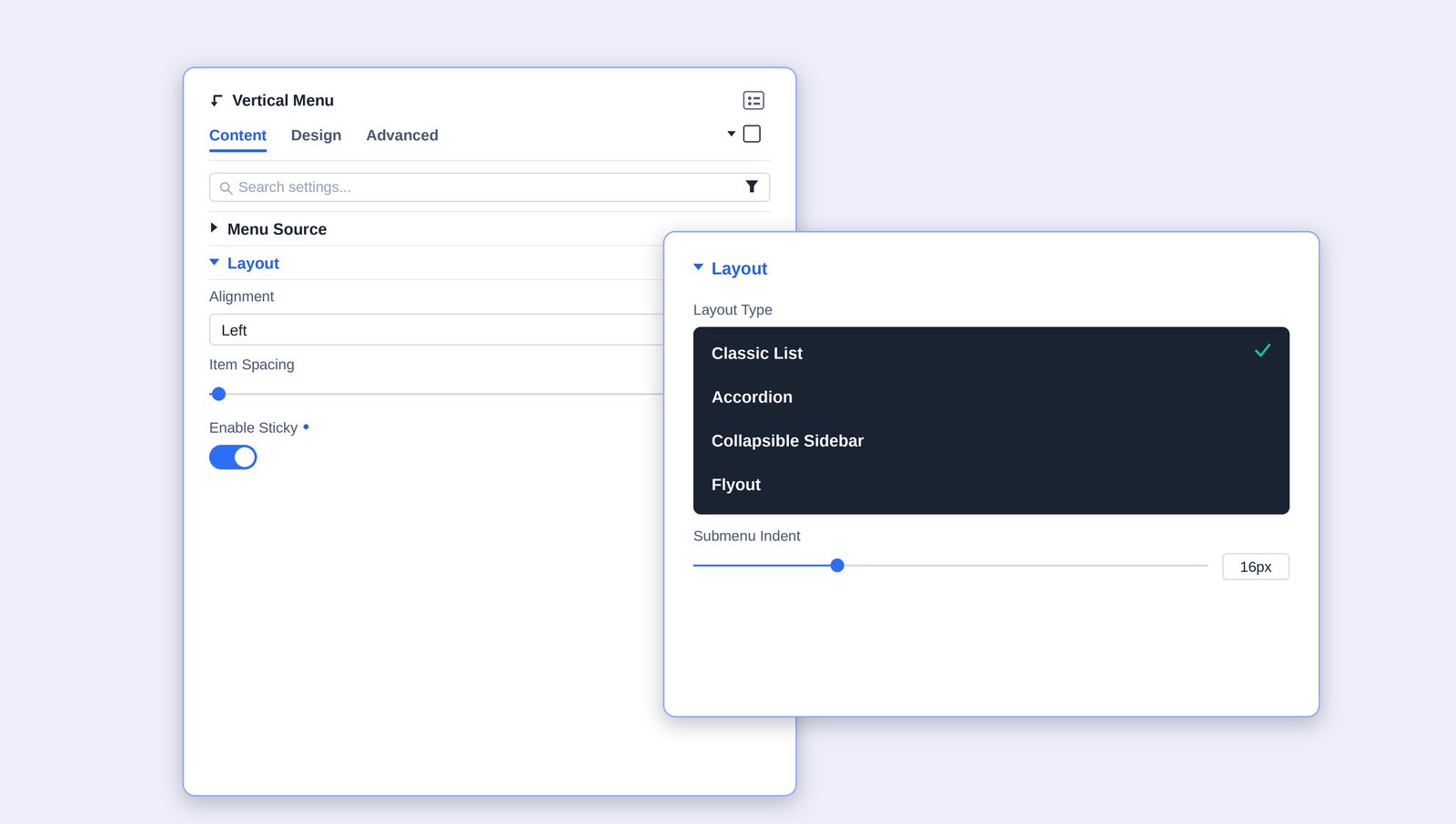
Layout

Controls the overall structure, alignment, spacing, and sticky behavior of the menu.

Setting What it does Options / Default
Layout Type The core display mode. Classic List shows a flat/nested list; Accordion expands one section at a time; Collapsible Sidebar can shrink to icons; Flyout reveals sub-items in a floating panel. Classic List (default)
Alignment Horizontal alignment of menu item content. Left / Center / Right
Item Spacing Vertical gap between top-level menu items. px  ·  Default 0
Submenu Indent How far nested sub-items are indented from their parent. px  ·  Default 16
Enable Sticky Pins the menu in place as the user scrolls the page. On / Off
Sticky Offset Distance from the top of the viewport when the menu is sticky (useful to clear a fixed header). px  ·  Default 0
Vertical Menu

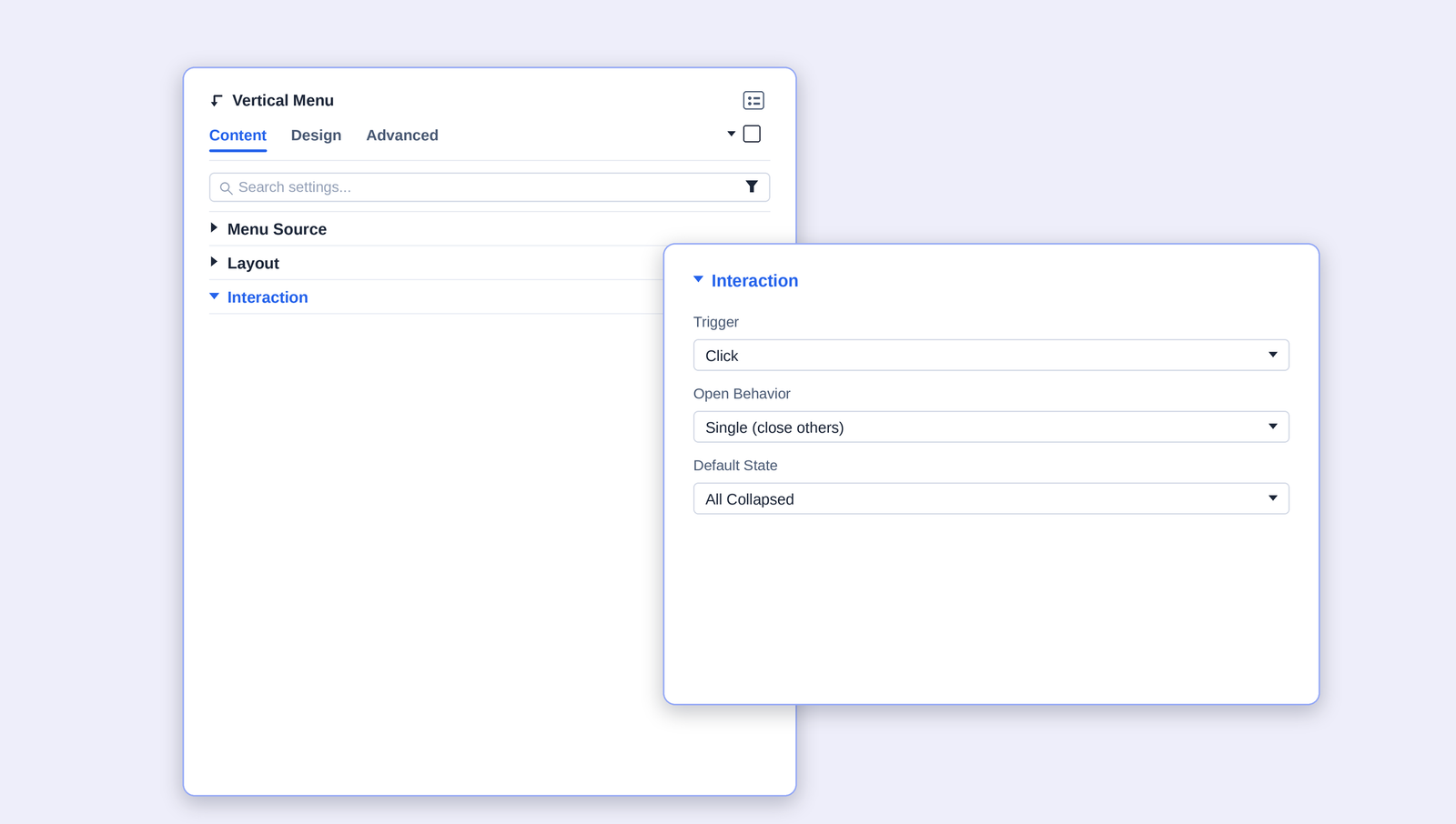
Interaction

Determines how visitors open and close menu sections. These options apply mainly to the Accordion, Collapsible Sidebar, and Flyout layouts.

Setting What it does Options / Default
Trigger Whether sub-menus open on click or on hover. Click / Hover
Open Behavior Single keeps only one section open at a time; Multiple lets several stay open together. Single (close others) / Multiple
Default State Which sections are open when the page first loads. All Collapsed / All Expanded / First Open
Vertical Menu

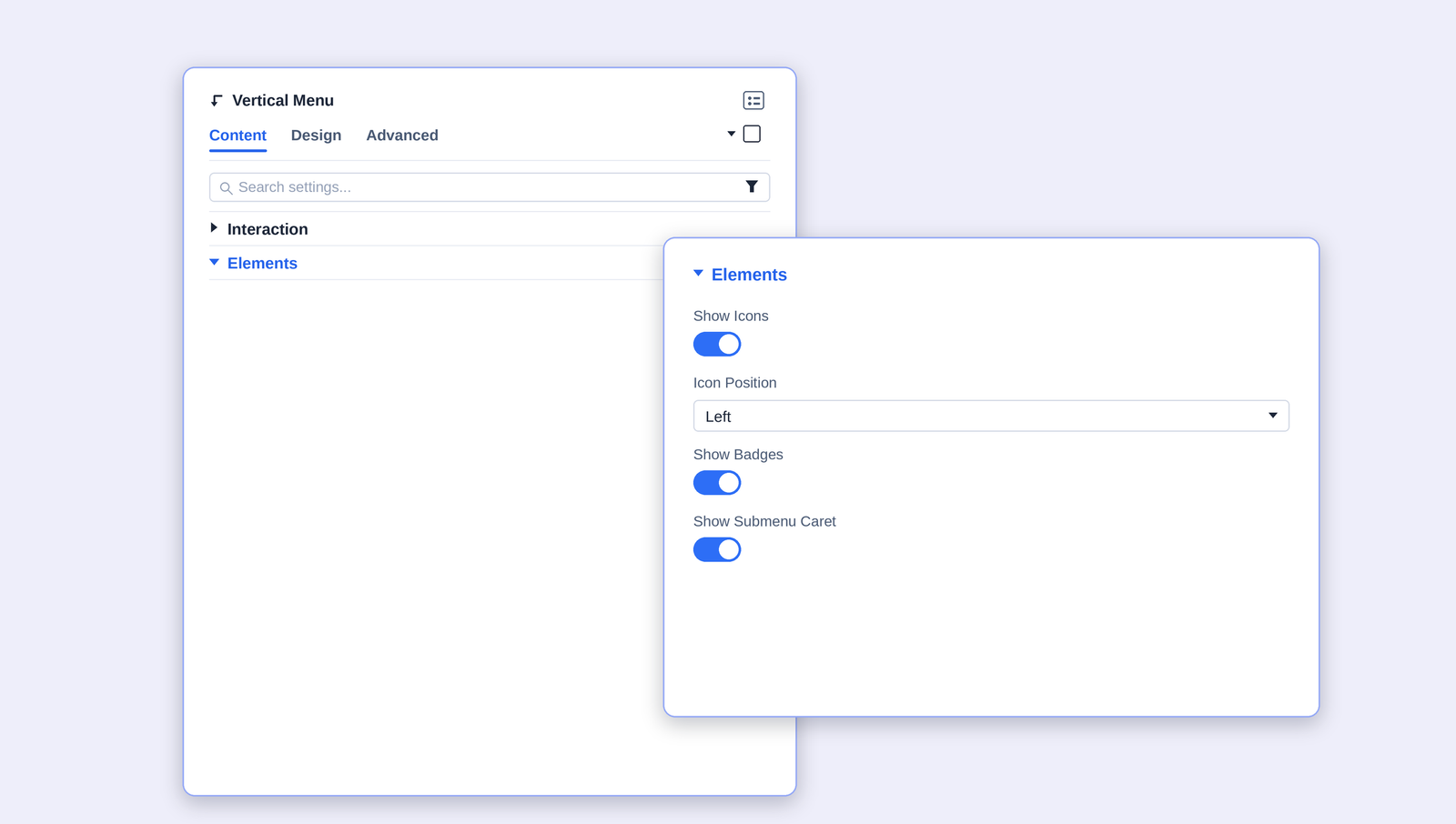
Elements

Toggle the extra visual elements that appear next to each menu item.

Setting What it does Options / Default
Show Icons Displays the icon assigned to each menu item. On / Off
Icon Position Places the icon before or after the label. Left / Right
Show Badges Shows a small badge (for example a count) on items that have one. On / Off
Show Submenu Caret Displays an arrow on items that contain sub-items. On / Off
NOTE  Menu icons are assigned per item in Appearance › Menus (Divi adds icon controls to each menu item). Badges are read from the menu item where supported.
Vertical Menu

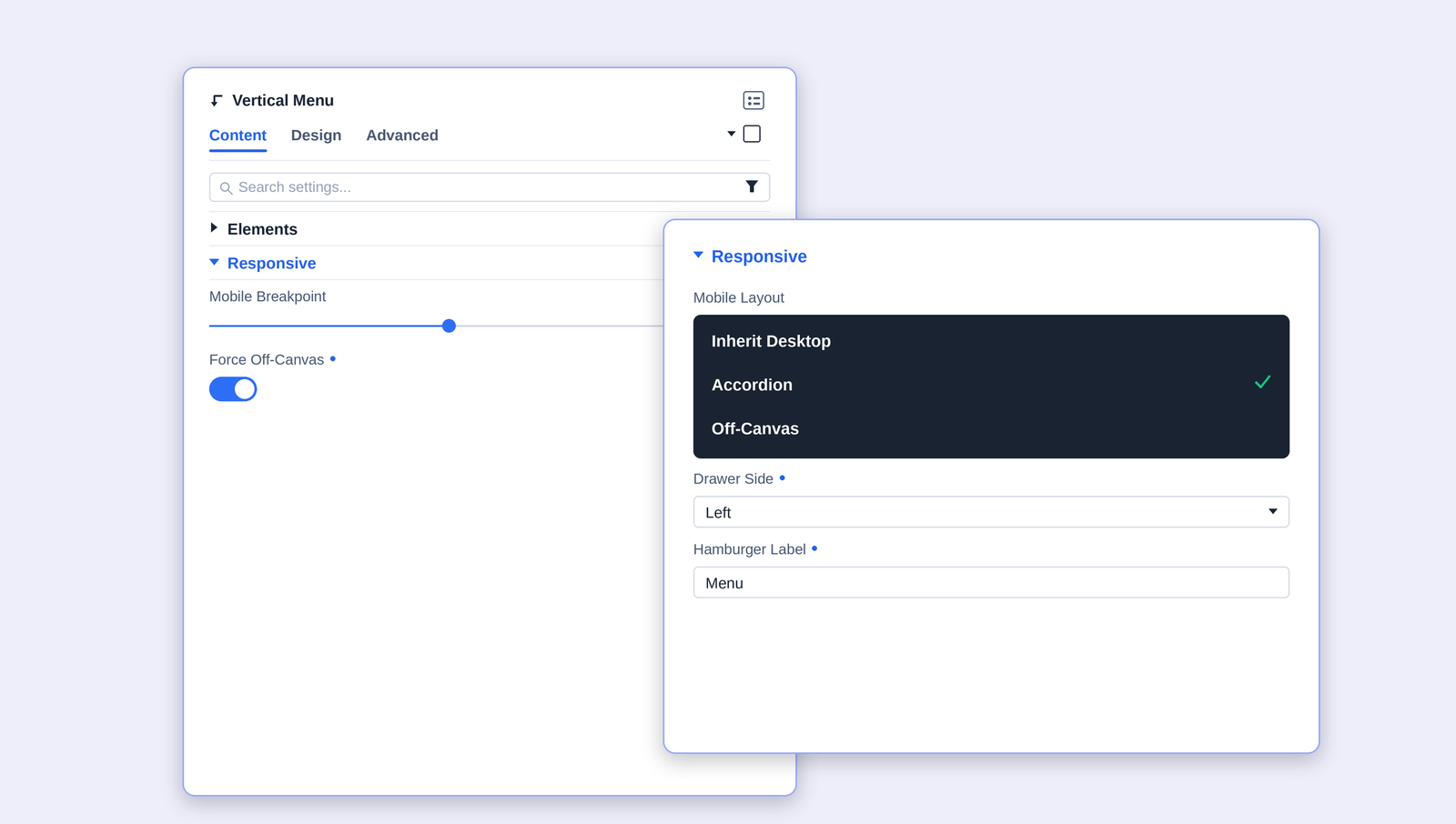
Responsive

Define how the menu adapts on smaller screens, including an optional slide-in off-canvas drawer.

Setting What it does Options / Default
Mobile Layout Layout used below the breakpoint. Inherit Desktop keeps the desktop layout; Accordion stacks items; Off-Canvas hides the menu behind a hamburger button. Inherit Desktop / Accordion / Off-Canvas
Mobile Breakpoint Screen width (in px) at which the mobile layout takes over. px  ·  Default 980
Force Off-Canvas Always use the off-canvas drawer on mobile, regardless of the Mobile Layout choice. On / Off
Drawer Side Which edge the off-canvas drawer slides in from. Left / Right
Hamburger Label Optional text shown beside the hamburger button. Text  ·  Default “Menu”
External Trigger Selector A CSS selector for a custom button elsewhere on the page that opens the drawer. CSS selector
Vertical Menu

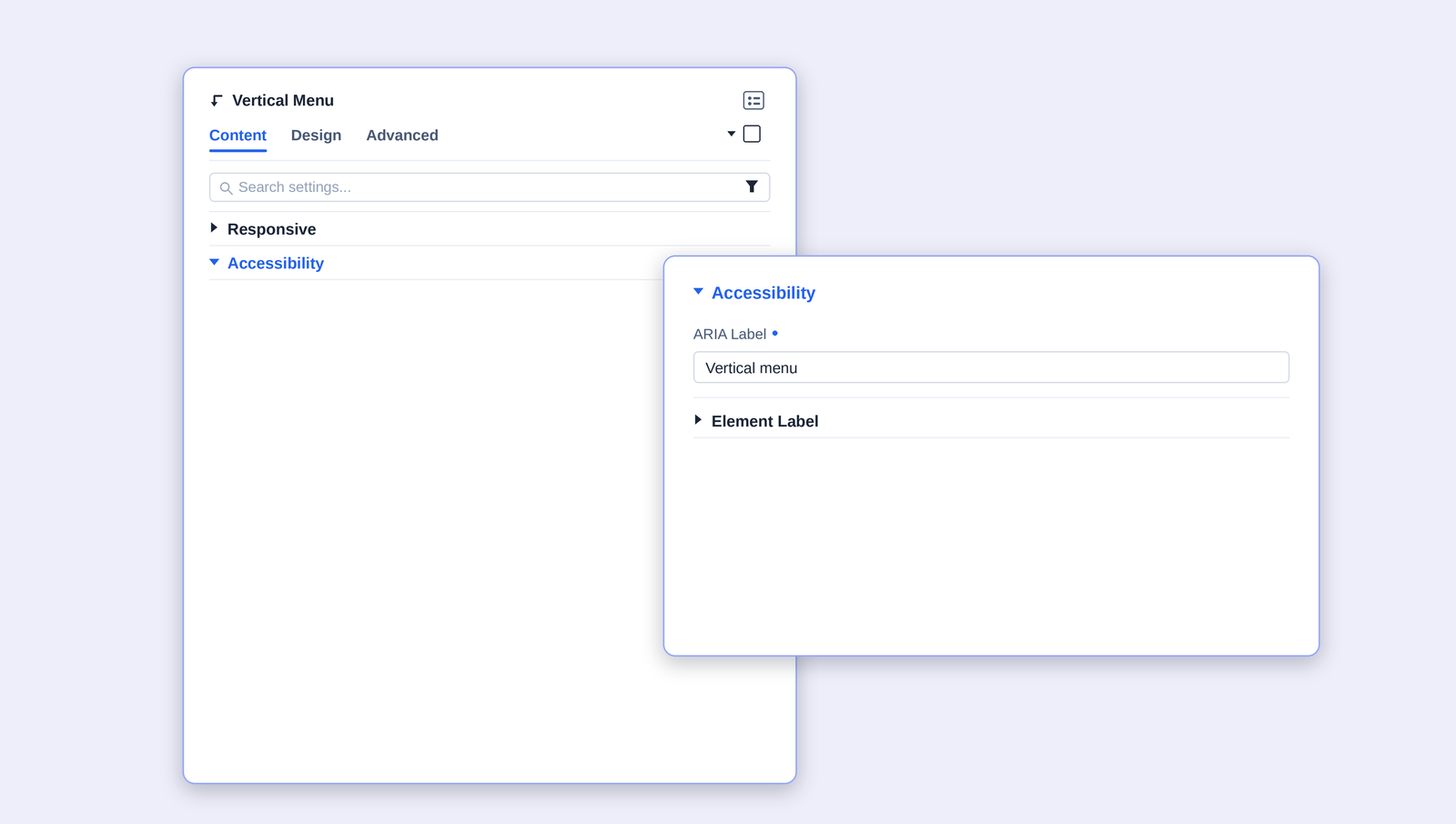
Accessibility

Provide assistive-technology labels so screen-reader users understand the menu.

Setting What it does Options / Default
ARIA Label The accessible name announced for the whole menu region. Text  ·  Default “Vertical menu”
Element Label A sub-group for labelling individual interactive elements such as the hamburger and close buttons. Text fields
Vertical Menu

Design Tab

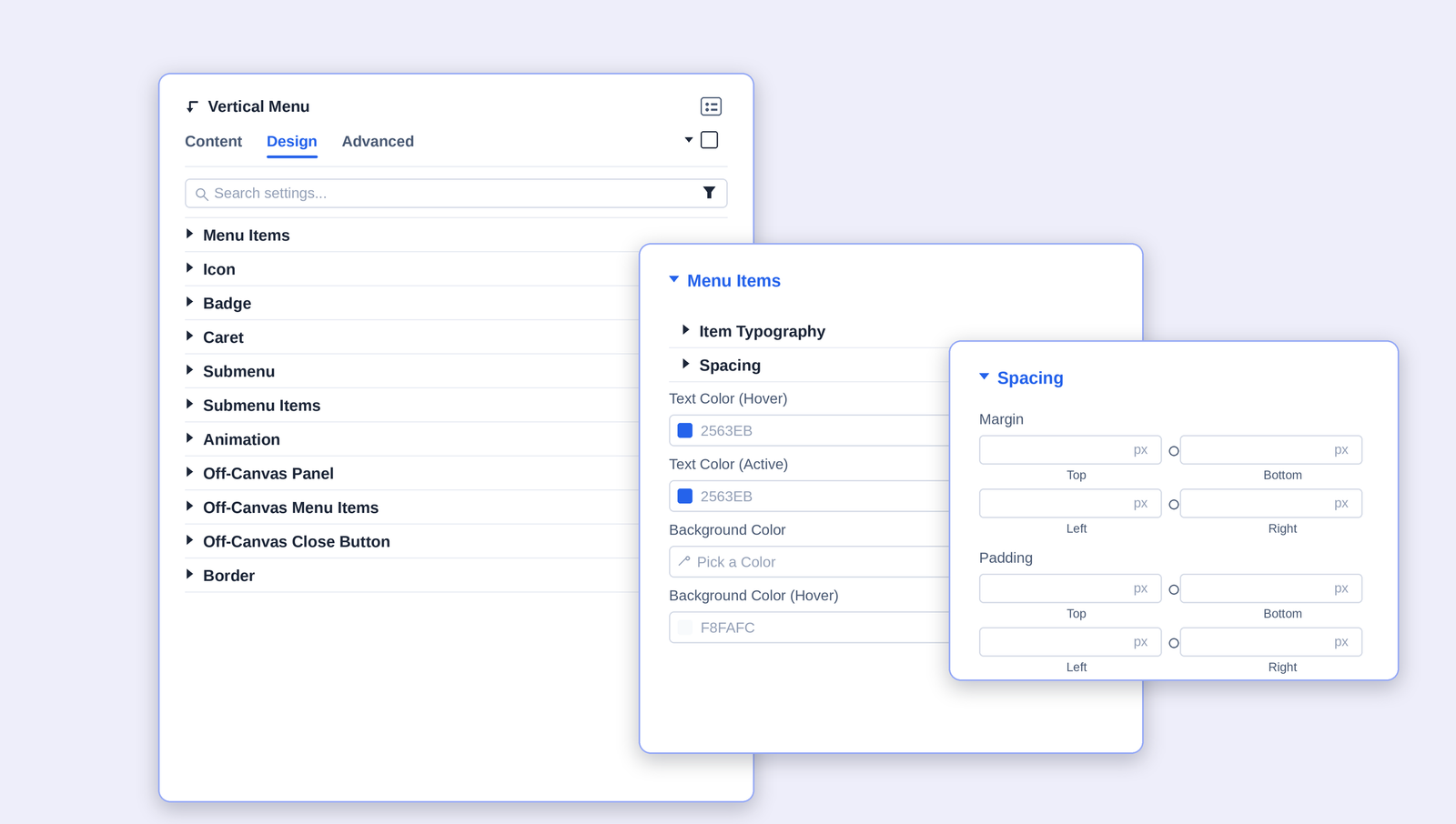
The Design tab is where you style every part of the menu. Each section can be expanded independently, and color options usually include separate Normal, Hover, and Active states.

Style Sections at a Glance

Setting What it does
Menu Items Typography, spacing, and text / background colors for top-level items (normal, hover, active).
Icon Icon size, color, and spacing relative to the label.
Badge Badge background, text color, size, and corner radius.
Caret Color and size of the submenu arrow.
Submenu Background, spacing, border, and box shadow of the submenu container.
Submenu Items Typography, item gap, and per-state colors for nested items, plus the container background.
Animation Open / close and hover transition styles and timing.
Off-Canvas Panel Background, width, and spacing of the mobile drawer.
Off-Canvas Menu Items Item styling specific to the off-canvas drawer.
Off-Canvas Caret Caret styling inside the drawer.
Off-Canvas Close Button Color, size, and position of the drawer’s close button.
Background / Border / Box Shadow / Spacing / Sizing Standard Divi container-level styling for the whole module.

FAQ

Q. The menu is empty.

Confirm a Source is selected under Menu Source and that the chosen WordPress menu actually contains items (Appearance › Menus).

Q. Icons don’t appear.

Make sure Show Icons is on under Elements, and that icons are assigned to the menu items in Appearance › Menus.

Q. Sub-items won’t expand.

A. Check the Interaction group — the Trigger (Click / Hover) and Default State decide how and when sections open.

Q. The sticky menu overlaps my header.

A. Increase Sticky Offset under Layout to push the menu down by your header’s height.

Q. The off-canvas drawer won’t open from my button.

A. Verify the External Trigger Selector exactly matches your button’s CSS selector (include the leading . for a class or # for an ID).

Try Vertical Menu Premium Demo
Vertical Menu

How can we help?